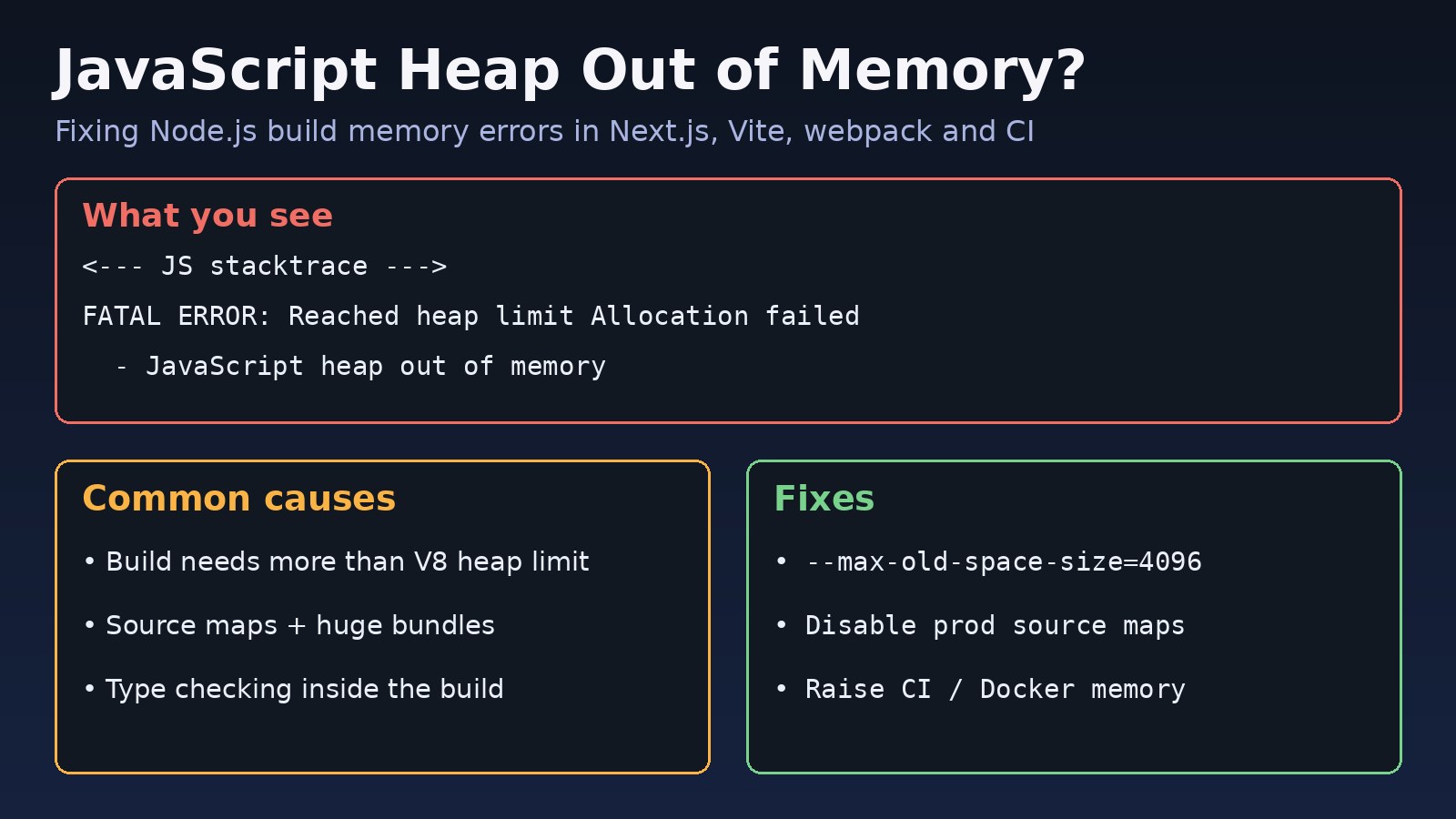
The build ran fine for months, then one day npm run build stops after a long pause and prints javascript heap out of memory. It usually happens on a CI runner or a small VPS, rarely on a developer laptop, and it tends to show up right after the app grows: a new dependency, more pages, a bigger TypeScript project. This guide explains what the error actually means, how to tell it apart from the operating system killing your process, and a step-by-step fix for Next.js, Vite, webpack, Laravel front-end builds, Docker and CI.
The Problem: JavaScript Heap Out of Memory During Build
Node.js runs JavaScript on the V8 engine, and V8 keeps JavaScript objects in a managed heap with a fixed upper limit. Bundlers such as webpack, Rollup (used by Vite), Turbopack and the TypeScript compiler hold large structures in that heap while they work: module graphs, abstract syntax trees, source maps and type information. When the build needs more memory than the heap limit allows, V8 runs garbage collection again and again, cannot free enough space, and aborts the whole process.
The important detail is that this is a Node.js memory limit, not necessarily a shortage of RAM on the machine. You can have 16 GB free and still hit it, because the V8 heap limit is set separately. The opposite case also exists: the heap limit is set high, but the container or CI runner runs out of real memory first, and the kernel kills the process.
Symptoms
The classic output looks like this:
<--- Last few GCs --->

[18342:0x6c2e7a0]   182340 ms: Mark-Compact 2033.1 (2081.4) -> 2031.9 (2082.7) MB, ...
[18342:0x6c2e7a0]   184712 ms: Mark-Compact 2034.0 (2082.7) -> 2032.8 (2083.4) MB, ...

<--- JS stacktrace --->

FATAL ERROR: Reached heap limit Allocation failed - JavaScript heap out of memory
 1: 0xb7b3e0 node::Abort() [node]
 2: 0xa8c8aa  [node]
 ...
Older Node.js versions print slightly different wording for the same failure:
FATAL ERROR: Ineffective mark-compacts near heap limit Allocation failed - JavaScript heap out of memory
FATAL ERROR: CALL_AND_RETRY_LAST Allocation failed - JavaScript heap out of memory
Other signs that point to the same build memory error:
- The build slows down sharply near the end, often at the "Creating an optimized production build" or "transforming..." step, before failing.
- The failure only happens in CI, Docker or on the production server, never locally.
- It started after enabling source maps, adding a large library, or upgrading the bundler.
tsc --noEmitor a type-checking plugin crashes on its own with the same message.
Compare this with a process killed by the operating system. That looks different: a bare Killed line, signal: SIGKILL, or exit code 137 with no V8 stack trace. That means the machine or container ran out of RAM, and raising the heap limit will make it worse, not better. The Docker exit code 137 guide covers that case in detail.
Root Cause
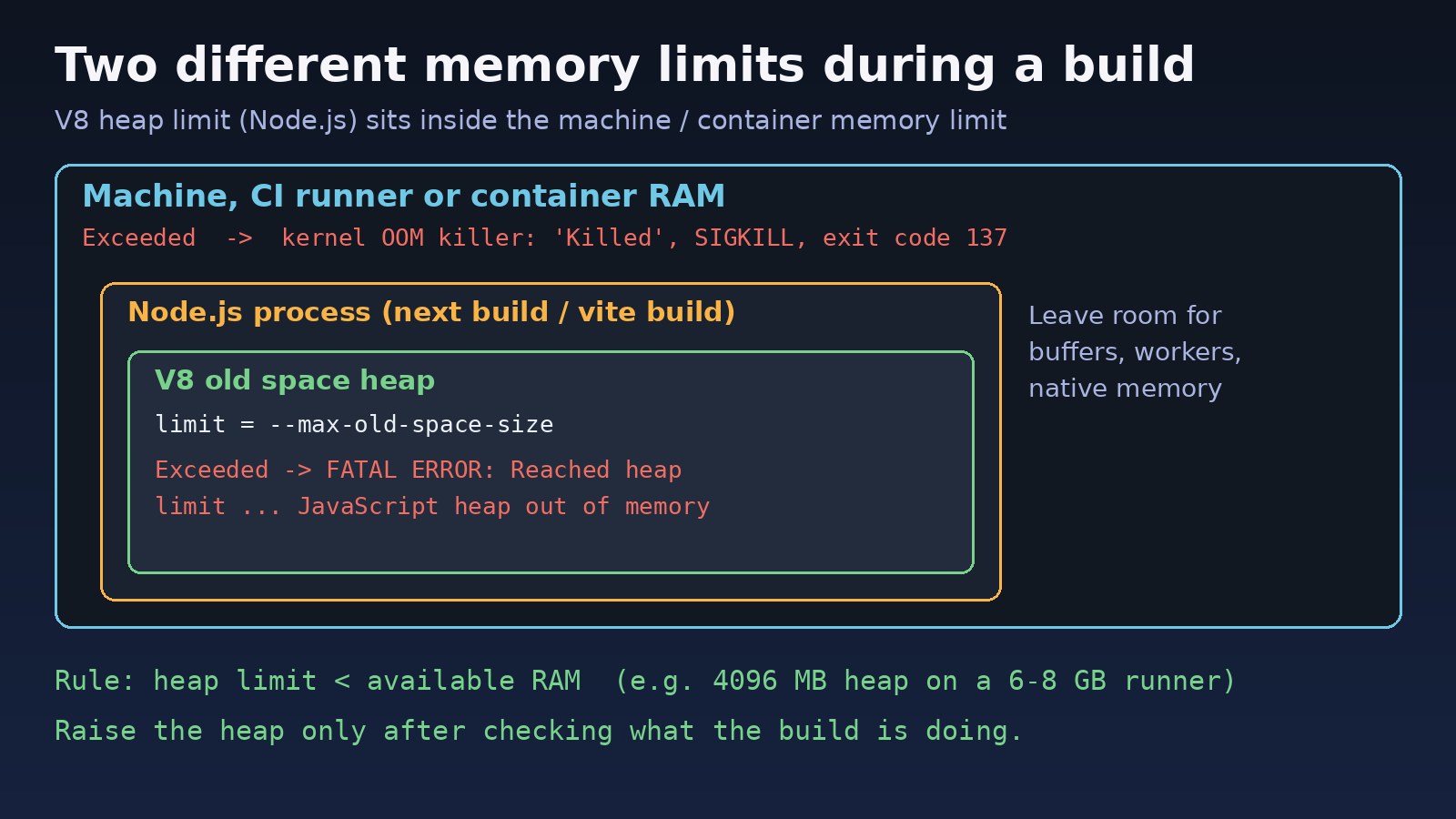
V8 picks a default maximum heap size based on the Node.js version and the memory it detects. For a large production build, that default can be too small. The usual triggers are:
- The project simply outgrew the default. Hundreds of routes, a large component library, or a monorepo pulling in many packages.
- Source maps in production. Generating full source maps for big bundles is one of the most memory-hungry parts of a build.
- Type checking inside the build.
next buildruns TypeScript checks by default, and webpack setups often usefork-ts-checker-webpack-plugin. Type-checking a large codebase can use as much memory as bundling. - Huge files imported into JavaScript. Large JSON datasets, inline SVG sprites or generated files that end up in the module graph.
- Too much parallelism. Several workers or several builds running at once on a small runner, each with its own heap.
- A real leak in a plugin or loader. Less common, but some plugin versions keep references between compilations, which is especially visible in watch mode.
Step-by-Step Solution
Step 1: Confirm it is the V8 heap, not the OS
Look at the last lines of the log. If you see FATAL ERROR ... JavaScript heap out of memory, keep going. If you only see Killed or exit code 137, check machine and container memory first. Then check the current Node.js memory limit on the same machine that runs the build:
node -v
node -e "console.log(Math.round(require('v8').getHeapStatistics().heap_size_limit / 1024 / 1024) + ' MB')"
free -h
Step 2: Increase the Node.js memory limit with --max-old-space-size
The quickest fix is to raise the old-space heap limit. The value is in megabytes. Pick something clearly below the RAM actually available to the build, so the OS still has room for native memory, worker processes and file buffers. On a runner with about 7 GB of RAM, 4096 is a common choice.
# Linux / macOS, one-off
NODE_OPTIONS="--max-old-space-size=4096" npm run build

# Windows PowerShell
$env:NODE_OPTIONS="--max-old-space-size=4096"; npm run build

# Windows cmd
set NODE_OPTIONS=--max-old-space-size=4096 && npm run build
NODE_OPTIONS is inherited by child Node.js processes, which matters because tools like Next.js spawn build workers. Passing the flag directly to node also works, but only for that one process.
Step 3: Make the setting permanent in package.json
Do not rely on someone remembering the variable. Put it in the build script. cross-env keeps it working on Windows and Linux:
npm install --save-dev cross-env{
"scripts": {
"build": "cross-env NODE_OPTIONS=--max-old-space-size=4096 next build",
"build:vite": "cross-env NODE_OPTIONS=--max-old-space-size=4096 vite build",
"typecheck": "cross-env NODE_OPTIONS=--max-old-space-size=4096 tsc --noEmit"
}
}Step 4: Set it in CI and Docker builds
Most "works locally, fails in CI" cases come from the CI environment having less memory or a different Node.js version. Set the variable at the job level in GitHub Actions:
jobs:
  build:
    runs-on: ubuntu-latest
    env:
      NODE_OPTIONS: --max-old-space-size=4096
    steps:
      - uses: actions/checkout@v4
      - uses: actions/setup-node@v4
        with:
          node-version: 20
          cache: npm
      - run: npm ci
      - run: npm run build
In a multi-stage Dockerfile, set it in the build stage only, so the runtime image is not affected:
FROM node:20-alpine AS build
WORKDIR /app
ENV NODE_OPTIONS=--max-old-space-size=4096
COPY package*.json ./
RUN npm ci
COPY . .
RUN npm run build
If the build runs under Docker Desktop, also check the memory assigned to Docker in its settings. A 4096 MB heap inside a VM that only has 2 GB will end with the process being killed instead. If CI failures are intermittent rather than constant, the guide to debugging flaky CI pipelines helps you separate memory pressure from other causes.
Step 5: Reduce how much memory the build needs
Raising the limit buys time; reducing memory use keeps the problem from coming back. For Next.js, the official memory guidance includes these options:
// next.config.js
/** @type {import('next').NextConfig} */
const nextConfig = {
  productionBrowserSourceMaps: false,      // the default; make sure nobody turned it on
  experimental: {
    webpackMemoryOptimizations: true,      // Next.js 15+, trades some speed for lower memory
  },
  // Only if type checking and linting already run as separate CI steps:
  typescript: { ignoreBuildErrors: true },
  eslint: { ignoreDuringBuilds: true },
};

module.exports = nextConfig;
Only skip type checking in next build if you run tsc --noEmit as its own CI step; otherwise you lose real safety. To see where memory goes, recent Next.js versions support next build --experimental-debug-memory-usage, which prints heap usage and garbage collection information during the build.
For Vite (including Laravel projects using laravel-vite-plugin), disable production source maps and split very large vendor chunks:
// vite.config.js
import { defineConfig } from 'vite';

export default defineConfig({
  build: {
    sourcemap: false,
    rollupOptions: {
      output: {
        manualChunks: {
          vendor: ['react', 'react-dom'],
        },
      },
    },
  },
});
For webpack projects, use a cheaper devtool in production (or false), and if you use fork-ts-checker-webpack-plugin, note that it has its own memoryLimit option, because the type checker runs in a separate process that does not inherit your heap setting the way you might expect:
// webpack.config.js
const ForkTsCheckerWebpackPlugin = require('fork-ts-checker-webpack-plugin');

module.exports = {
  mode: 'production',
  devtool: false,
  plugins: [
    new ForkTsCheckerWebpackPlugin({
      typescript: { memoryLimit: 4096 },
    }),
  ],
};
For TypeScript itself, "skipLibCheck": true and "incremental": true in tsconfig.json reduce work on large projects. Also stop importing big JSON files into client code; serve them from an API or load them at runtime instead.
Step 6: Add swap on small Linux servers
Building directly on a 1–2 GB VPS (common for small ERP and admin panels) often fails even with the right heap setting, because there is not enough RAM at all. A swap file prevents the kernel from killing the build, at the cost of speed:
sudo fallocate -l 4G /swapfile
sudo chmod 600 /swapfile
sudo mkswap /swapfile
sudo swapon /swapfile
echo '/swapfile none swap sw 0 0' | sudo tee -a /etc/fstab
free -h
The better long-term fix is to build in CI and deploy the finished artifacts or Docker image, so production servers never run npm run build.
Code/Commands Examples
A few commands that help when you are debugging a build memory error:
# Peak memory of the whole build (GNU time on Linux)
/usr/bin/time -v npm run build 2>&1 | grep "Maximum resident set size"

# Run the Next.js build with a larger heap without editing package.json
node --max-old-space-size=4096 node_modules/next/dist/bin/next build

# Write a heap profile you can open in Chrome DevTools (Memory tab)
node --heap-prof --max-old-space-size=4096 node_modules/next/dist/bin/next build

# Check which Node.js version CI really uses
node -v && npm -v
If different projects need different Node.js versions, keep them pinned with an .nvmrc file; see the Node Version Manager (nvm) guide for setup.
Verification
- Run the heap statistics command from Step 1 with the same environment as the build. It should report roughly the value you set.
- Run the full build in CI or Docker, not only locally, and confirm it finishes without the
FATAL ERRORline. - Check peak memory with
/usr/bin/time -v. If peak usage is close to the machine's RAM, you have moved the problem rather than solved it; apply the reductions in Step 5. - Run the build two or three times in a row. A build that passes once and fails the next time is still near the limit.
Prevention
- Keep the heap setting in version control, in
package.jsonscripts or CI configuration, not in someone's shell profile. - Build once, deploy many times. Build in CI and ship artifacts or images; do not build on small production servers.
- Watch build memory over time. Log peak memory in CI so a slow climb is visible before it fails.
- Review heavy dependencies. Check bundle size before adding large libraries, and import only what you use.
- Keep production source maps off unless you upload them to an error tracker, and then generate them in a dedicated step.
- Keep Node.js and the bundler up to date; newer releases often include memory improvements and fixes for plugin leaks.
FAQs
What does "JavaScript heap out of memory" mean?
Node.js reached the V8 heap size limit and could not free enough memory through garbage collection, so it stopped the process. It refers to the V8 limit, which can be lower than the RAM the machine has.
What value should I use for --max-old-space-size?
Use a value below the memory actually available to the build. 4096 is common on runners with around 7–8 GB; on a 4 GB machine, try 2560–3072. Setting it higher than available RAM leads to the process being killed instead.
Why does the build memory error happen only in CI or Docker?
CI runners and containers usually have less memory than a laptop, may use a different Node.js version, and may run several jobs at once. Set NODE_OPTIONS in the CI job or Dockerfile and check the runner's memory.
Is increasing the Node.js memory limit a real fix?
It is a valid fix when the project has simply grown. If memory keeps rising, also reduce what the build does: disable production source maps, move type checking to a separate step, and remove huge imports.
What is the difference between heap out of memory and exit code 137?
Heap out of memory is Node.js hitting its own V8 limit and printing a stack trace. Exit code 137 means the kernel killed the process because the machine or container ran out of memory.
Comments
Join the discussion. Replies load on demand, up to 5 levels.
0 threads
No comments yet
Be the first to start the conversation.