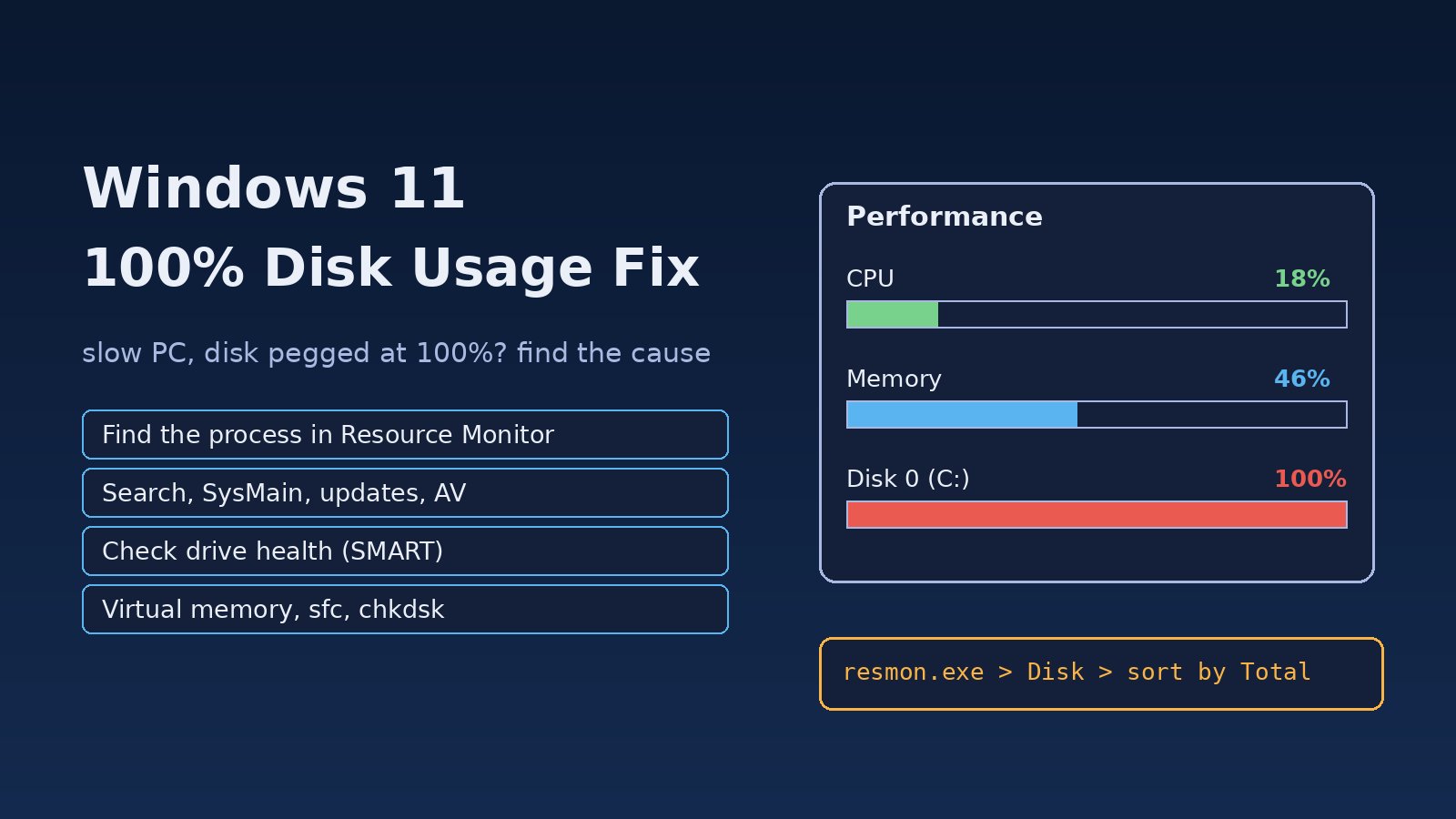
Your PC takes minutes to open a browser, the mouse stutters and Task Manager shows the disk stuck at 100% while CPU and memory look fine. 100 percent disk usage windows 11 problems are common on laptops with older hard drives, but they also happen on SSDs when a service, an update or a driver keeps the drive busy. Instead of disabling random services from a forum post, this guide shows how to find what is really using the disk, fix it, and confirm the fix worked.
Problem: 100 Percent Disk Usage in Windows 11
The Disk column in Task Manager shows how busy the drive is (active time), not how full it is. At 100% the drive cannot accept new requests quickly, so every app that needs to read a file waits in a queue. On a hard disk drive (HDD) that can freeze the whole system, because a spinning disk handles only a small number of random reads per second. On an SSD a constant 100% usually points to a runaway process, a driver problem or a failing drive.
Symptoms: Windows Disk Usage High and a Slow Hard Drive
- Task Manager shows Disk 100% for minutes at a time, often right after startup or sign-in.
- Apps open slowly, File Explorer shows "Working on it..." and the system hangs briefly when you click.
- The drive activity light stays on and you can hear an HDD constantly seeking.
- In the Performance tab, Average response time is in the hundreds or thousands of milliseconds.
- The problem started after a Windows update, a new antivirus or moving to a new laptop with a hard disk.
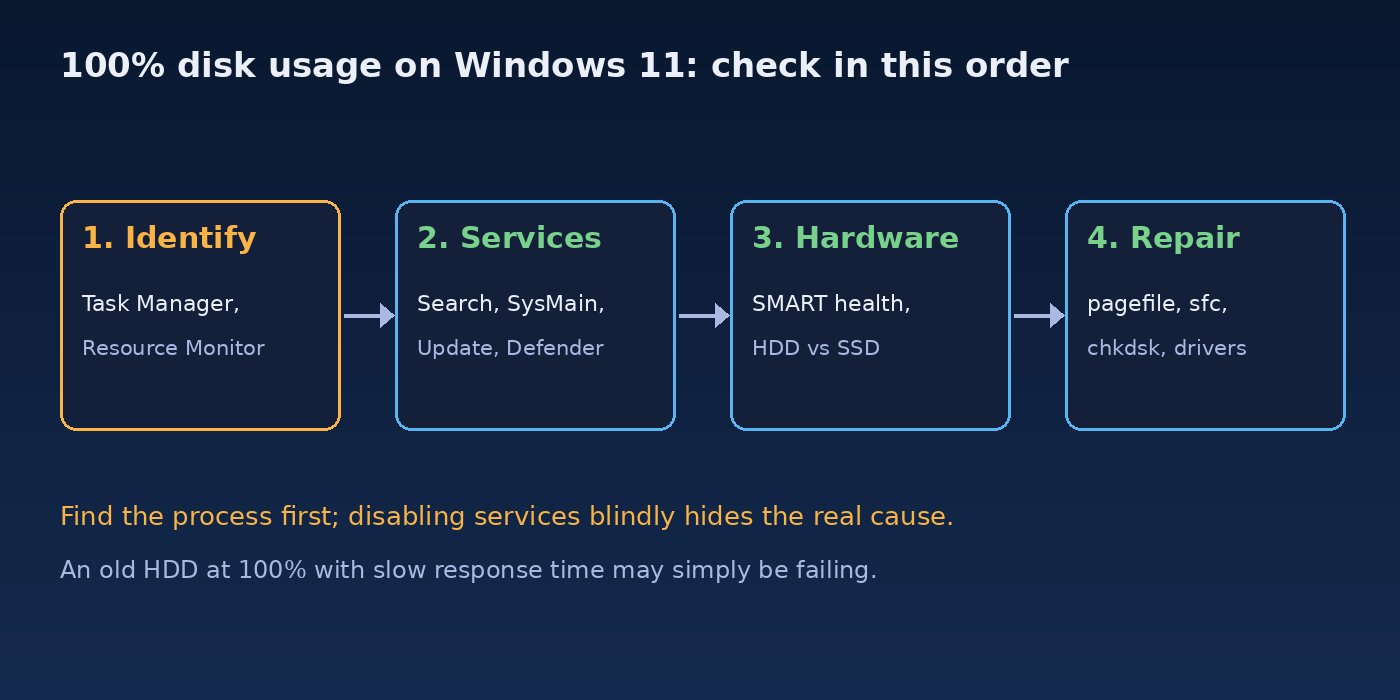
Root Cause: Why Windows 11 Disk Usage Hits 100%
- Windows Search indexing. After an update or when many new files arrive, the indexer (
SearchIndexer.exe) reads large parts of the drive. - SysMain (Superfetch). It preloads frequently used apps into memory, which on a slow HDD can keep the disk busy after boot.
- Windows Update and Delivery Optimization. Downloading, unpacking and installing updates is disk-heavy.
- Antivirus scans. Microsoft Defender (
MsMpEng.exe) or a third-party product scanning the whole drive. - Low memory and paging. When RAM is full, Windows writes to the page file constantly, so a memory problem shows up as a disk problem.
- Storage driver issues. Some AHCI/StorAHCI and vendor storage drivers cause long response times and 100% active time.
- A failing or nearly full drive. Bad sectors force retries; a drive with almost no free space slows down writes and updates.
- Apps doing heavy I/O. Cloud sync clients (OneDrive, Google Drive), torrent clients, Docker or WSL2 virtual disks, and development tools like
node_modulesinstalls.
Step-by-Step Solution to Fix 100% Disk Usage
Step 1: Find the process using the disk
Press Ctrl+Shift+Esc, open Processes and click the Disk column to sort. For more detail, open Resource Monitor: press Win+R, type resmon, go to the Disk tab and sort Processes with Disk Activity by Total (B/sec). The Disk Activity list below shows the exact files being read or written, which tells you whether it is the page file, the search index, an update folder or an app cache.
You can also sample it from PowerShell:
# Which processes are doing the most I/O right now (PowerShell)
Get-Counter '\Process(*)\IO Data Bytes/sec' -SampleInterval 2 -MaxSamples 3 |
  ForEach-Object { $_.CounterSamples } |
  Where-Object { $_.InstanceName -notin '_total','idle' } |
  Sort-Object CookedValue -Descending | Select-Object -First 10 InstanceName, CookedValue

# Disk active time and queue length
Get-Counter '\PhysicalDisk(_Total)\% Disk Time','\PhysicalDisk(_Total)\Current Disk Queue Length'
Write down the top process. The next steps match the most common culprits; skip the ones that do not apply.
Step 2: Give it time after startup or an update
Right after an update, Windows rebuilds caches, the search index and .NET native images. If the busy process is TiWorker.exe, TrustedInstaller.exe, SearchIndexer.exe or MsMpEng.exe, leave the PC on and plugged in for 20–30 minutes. If it calms down, this was normal maintenance, not a fault.
Step 3: Fix Windows Search indexing
If SearchIndexer.exe stays on top, open Settings > Privacy & security > Searching Windows and switch to Classic indexing, then exclude large folders such as build output, VM images and node_modules. To test whether search is the cause, stop it temporarily from an elevated terminal:
:: Run in an elevated Command Prompt
net stop "WSearch"
:: Watch Task Manager for a few minutes. If disk usage drops, rebuild the index later from
:: Control Panel > Indexing Options > Advanced > Rebuild, then start it again:
net start "WSearch"
Disabling search permanently (sc config WSearch start= disabled) works, but Start menu and Outlook search become slow, so prefer trimming the indexed locations.
Step 4: Test SysMain on hard disk drives
On a PC with an HDD, SysMain can keep the disk busy for a long time after boot. Test it the same way:
net stop "SysMain"
:: If this clearly helps on an HDD, set it to manual instead of deleting anything:
sc config "SysMain" start= demand
On an SSD, leave SysMain enabled; it rarely causes problems there.
Step 5: Check memory pressure and the page file
If Resource Monitor shows heavy activity on C:\pagefile.sys, the real problem is RAM. Open the Performance > Memory tab: if In use is close to the total and Committed exceeds physical RAM, close or fix the app that eats memory. Our guide on how to fix Windows 11 high memory usage covers memory leaks, browser tabs and WSL2 limits. Keep the page file on System managed size; turning it off often causes crashes instead of fixing the disk.
Step 6: Check antivirus and scheduled scans
If MsMpEng.exe is the top process, a scan is running. Let it finish, then schedule scans for idle time. For developers, excluding project and build folders reduces constant real-time scanning. Run this in an elevated PowerShell, and only for folders you trust:
Get-MpPreference | Select-Object ExclusionPath
Add-MpPreference -ExclusionPath "D:\projects"
If you run two antivirus products at the same time, uninstall one; overlapping real-time scanners are a classic cause of high disk usage.
Step 7: Check drive health and free space
A slow hard drive with bad sectors can hit 100% while doing very little work. Check the health status and SMART counters:
Get-PhysicalDisk | Select-Object FriendlyName, MediaType, HealthStatus, OperationalStatus
Get-PhysicalDisk | Get-StorageReliabilityCounter |
  Select-Object DeviceId, ReadErrorsUncorrected, Temperature, Wear, PowerOnHours

:: Check the file system (schedules a scan at next restart for C:)
chkdsk C: /scan
If the health status is not Healthy, or you see uncorrected read errors, back up your data now and replace the drive. Also make sure the system drive has at least 15–20% free space; use Settings > System > Storage > Cleanup recommendations to remove old update files. Replacing an HDD with an SSD is the single most effective fix for a laptop that constantly sits at 100% disk.
Step 8: Update or change the storage driver
Open Device Manager, expand Storage controllers and Disk drives, and install the current driver from your laptop or motherboard vendor (Intel RST, AMD SATA or NVMe drivers). If the problem started after a vendor driver update, roll it back from the driver's Properties > Driver tab. Some systems behave better with the built-in Standard SATA AHCI Controller or Standard NVM Express Controller driver, so try switching if the vendor driver is the suspect. Also update the SSD firmware with the manufacturer's tool.
Step 9: Repair system files
Corrupt components can make Windows Update and servicing loop and hammer the disk. Run these in an elevated terminal:
DISM /Online /Cleanup-Image /RestoreHealth
sfc /scannow
If an update is stuck and keeps the disk busy, follow Windows 11 update stuck at 0%, 99% or 100% to reset the update components.
Step 10: Tame startup apps, sync clients and dev tools
Open Task Manager > Startup apps and disable anything you do not need at sign-in. Pause OneDrive or other sync clients during big copies. If vmmem or Vmmem WSL is busy, Docker Desktop or WSL2 is reading its virtual disk; shut it down with wsl --shutdown when you are not using it, and clean old images with docker system prune.
Code and Commands: Quick Reference
resmon                         # Resource Monitor, Disk tab
net stop "WSearch"             # test Windows Search
net stop "SysMain"             # test SysMain (HDD)
Get-PhysicalDisk | Select FriendlyName, MediaType, HealthStatus
chkdsk C: /scan                # file system check
DISM /Online /Cleanup-Image /RestoreHealth
sfc /scannow
wsl --shutdown                 # stop WSL2 / Docker virtual disk activity
Verification: Confirm Disk Usage Is Back to Normal
- After a restart and 10 minutes idle, Task Manager shows disk active time mostly in single digits with short spikes.
- Average response time in the Performance tab stays low (a few milliseconds on an SSD, tens on an HDD).
- Resource Monitor no longer shows one process reading or writing continuously.
sfc /scannowreports no integrity violations andGet-PhysicalDiskshows Healthy.- Apps open quickly and the system no longer freezes when you click.
Prevention: Keep Windows 11 Disk Usage Under Control
- Use an SSD for the system drive and keep 15–20% free space.
- Limit search indexing to folders you actually search.
- Run only one antivirus and schedule full scans for idle hours.
- Keep enough RAM for your workload so Windows does not page constantly.
- Install storage drivers and SSD firmware from the vendor, and create a restore point before changing them.
- Check drive health every few months with
Get-PhysicalDiskand keep backups.
FAQs
Is 100 percent disk usage in Windows 11 harmful?
Short spikes are normal. Constant 100% does not damage a healthy drive by itself, but it makes the PC very slow, and on an old HDD it can be a sign the drive is failing. Check SMART health and back up your data.
Why is Windows disk usage high but nothing is running?
Background work such as search indexing, Windows Update, Defender scans or SysMain runs even when you have no apps open. Resource Monitor's Disk tab shows which process and which files are involved.
How do I fix a slow hard drive in Windows 11?
Reduce background I/O (search, SysMain, startup apps), make sure there is enough free space and RAM, run chkdsk, and check drive health. If the HDD is old, moving Windows to an SSD gives the biggest improvement.
Should I disable SysMain and Windows Search?
Only if testing shows they cause the problem, and preferably set them to manual instead of disabled. On SSDs they rarely cause 100% disk usage.
Can low RAM cause 100% disk usage?
Yes. When memory is full, Windows moves data to the page file on disk, which keeps the drive busy. Fixing memory usage often fixes disk usage too.
Comments
Join the discussion. Replies load on demand, up to 5 levels.
0 threads
No comments yet
Be the first to start the conversation.