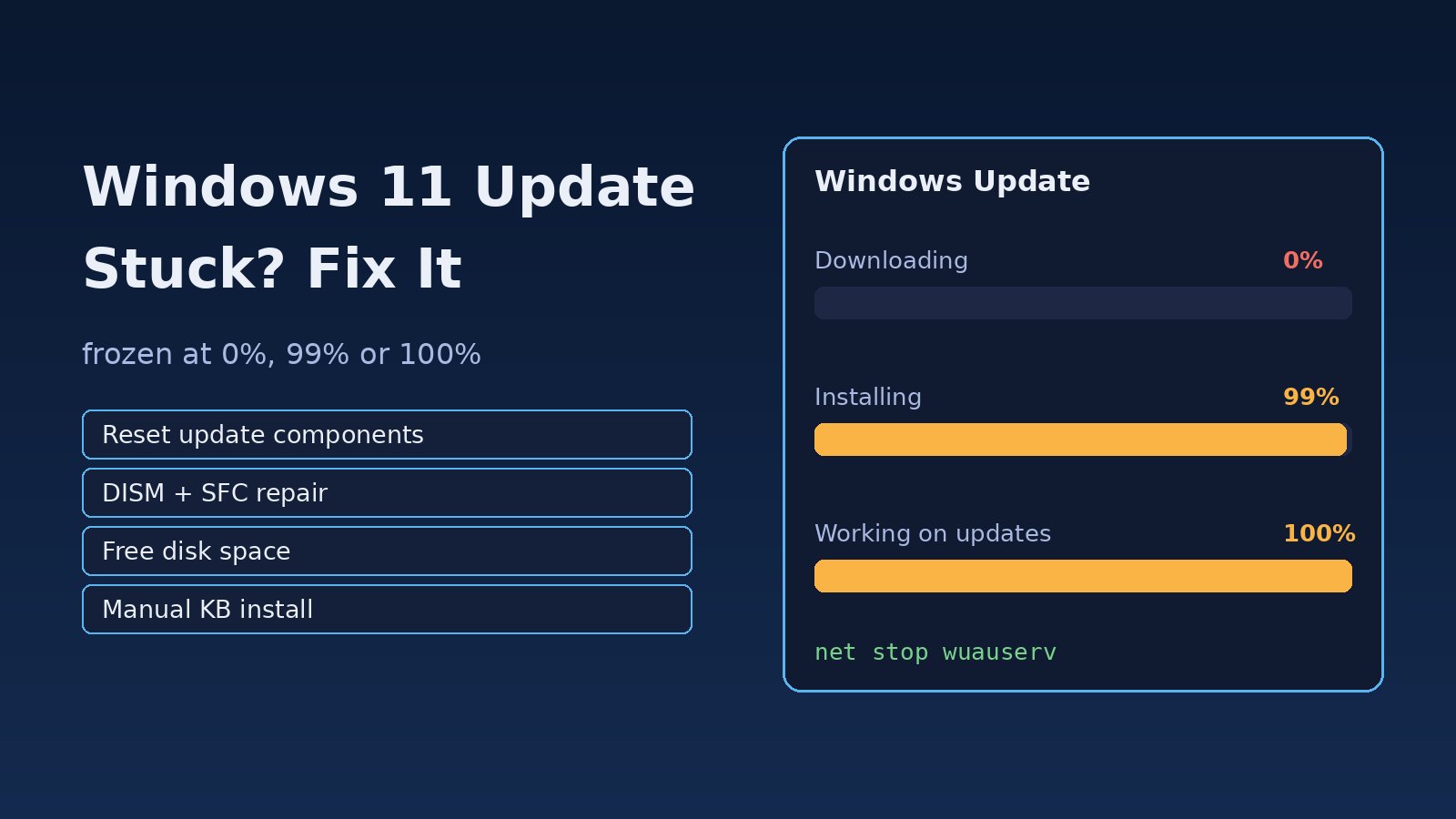
Few things waste a developer's morning like a laptop that has shown "Downloading - 0%" for an hour, or a restart screen that sits at "Working on updates 100% complete. Don't turn off your computer" long after it should have finished. A Windows 11 update stuck at 0%, 99% or 100% is almost never random: it usually comes down to a stalled Windows Update service, a corrupted update cache, low disk space, a broken system file or a driver that blocks the install. This guide walks through the problem, the symptoms, the root causes and a step-by-step fix using built-in tools such as the troubleshooter, DISM, sfc and a clean reset of the update components.
Problem: Windows Update Frozen or Not Completing
Windows Update works in stages. It scans for updates, downloads them into C:\Windows\SoftwareDistribution\Download, verifies them, installs them in the background, and then finishes the job during one or more restarts. A freeze at a specific percentage tells you which stage is stuck:
- Stuck at 0% usually means the download never started: the Windows Update service, Background Intelligent Transfer Service (BITS) or the network connection is the problem.
- Stuck at 99% during download or install usually means the update is verifying or staging files, or a damaged file in the update cache keeps failing.
- Stuck at 100% or on "Working on updates" during a restart usually means Windows is still configuring components, or a driver, antivirus or pending operation is blocking the final step.
Big feature updates and cumulative updates can legitimately take a long time on slower disks, so the first rule is patience: give it at least one to two hours, especially on a hard disk drive, before you intervene.
Symptoms of a Windows 11 Update Stuck
- Settings, Windows Update shows "Downloading - 0%" or "Installing - 99%" with no change for more than an hour.
- The status loops between "Checking for updates" and "Pending download" or "Pending install".
- After a restart, the screen stays on "Working on updates" or "Getting Windows ready" with no disk activity.
- Windows shows "We couldn't complete the updates. Undoing changes" and rolls back after each attempt.
- Update history lists failures with error codes such as
0x80070002,0x8024a105,0x800f081f,0x80073712or0x80070070.
Root Cause: Why Windows Update Gets Stuck
Most stuck updates trace back to one of these causes:
- Stopped or hung services. Windows Update (
wuauserv), BITS (bits) or Cryptographic Services (cryptsvc) are stopped, disabled or stuck in a bad state. - Corrupted update cache. A partially downloaded package in
SoftwareDistributionor a damaged catalog incatroot2makes every retry fail at the same point. - Not enough disk space. Feature updates need several gigabytes of free space on
C:; error0x80070070means the disk is full. - Corrupted system files or component store. Errors like
0x800f081fand0x80073712point to a damaged Windows image thatDISMhas to repair. - Driver, antivirus or peripheral conflicts. Third-party antivirus, VPN clients, old storage drivers or connected USB devices can block the install during restart.
- Network problems. A proxy, metered connection setting, DNS issue or VPN can stop downloads at 0%.
Step-by-Step Solution to Fix Windows 11 Update Stuck
Step 1: Confirm the Update Is Really Frozen
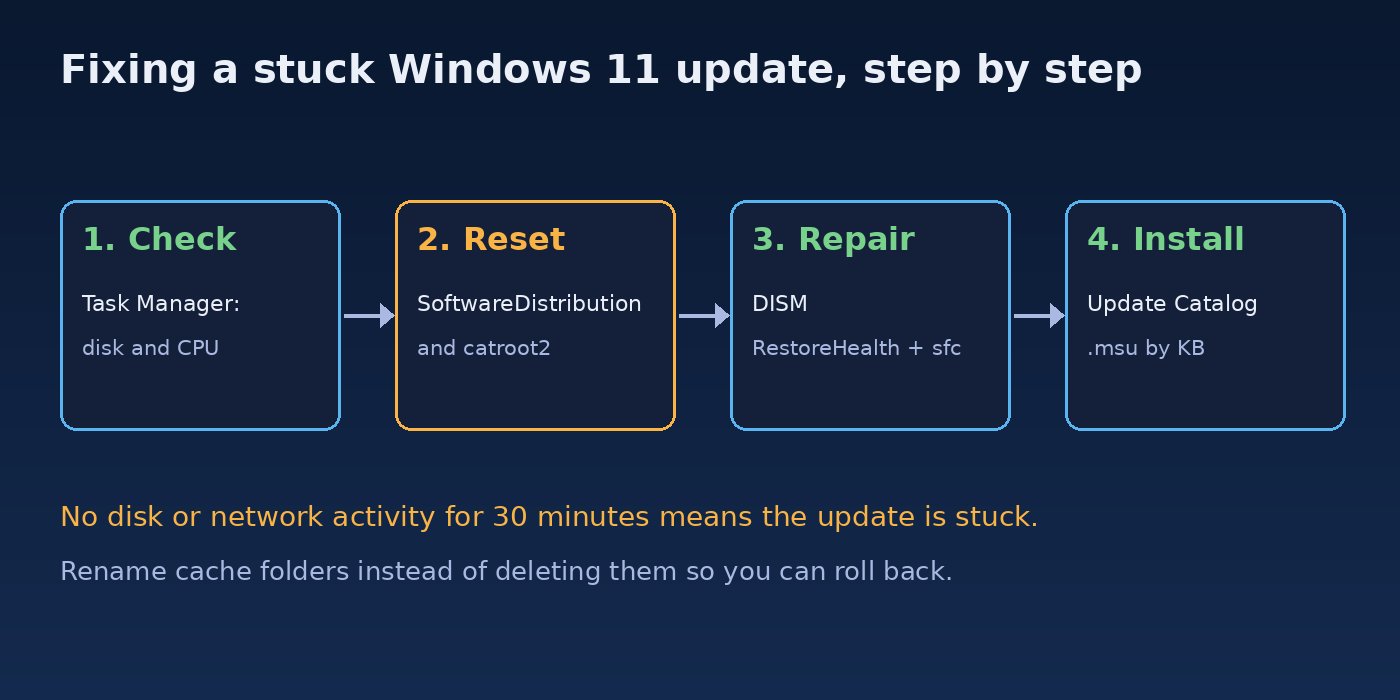
Open Task Manager with Ctrl + Shift + Esc and check the Performance tab. If the disk or network is still active, or processes such as TiWorker.exe (Windows Modules Installer Worker) and svchost.exe for Windows Update are using CPU, the update is working. If there has been no disk or network activity for 30 minutes or more, treat it as stuck.
If the PC is frozen on the restart screen with no activity for a couple of hours, hold the power button to shut it down, then start it again. Windows normally rolls back an incomplete update safely, but do this only after waiting.
Step 2: Free Disk Space and Check the Basics
- Make sure you have at least 20 GB free on
C:for feature updates. Use Settings, System, Storage, Cleanup recommendations, or runcleanmgrand choose "Clean up system files". - Disconnect USB drives, docks and other external devices that are not needed.
- Turn off any VPN, and in Settings, Network and internet, make sure the connection is not set as metered.
- Temporarily disable third-party antivirus during the update.
Step 3: Run the Windows Update Troubleshooter
In Windows 11, open Settings, System, Troubleshoot, Other troubleshooters, and run Windows Update. On newer builds this opens the Get Help app. It restarts services and clears some common issues. It does not fix everything, but it is quick and safe.
Step 4: Reset Windows Update Components
This is the fix that resolves most cases of Windows update frozen at 0% or 99%. Open Terminal (Admin) or Command Prompt as administrator and stop the update services:
net stop wuauserv
net stop bits
net stop cryptsvc
net stop msiserver
Rename the update cache folders so Windows rebuilds them from scratch. Renaming is safer than deleting because you can roll back:
ren C:\Windows\SoftwareDistribution SoftwareDistribution.old
ren C:\Windows\System32\catroot2 catroot2.old
Start the services again:
net start wuauserv
net start bits
net start cryptsvc
net start msiserver
If ren reports "Access is denied", a service is still running. Run the stop commands again, or restart in Safe Mode and repeat the step. Then go back to Settings, Windows Update and click Check for updates. The first scan after a reset can take a few minutes because Windows is rebuilding its database.
The same reset in PowerShell, useful if you want to script it on several machines:
$services = 'wuauserv','bits','cryptsvc','msiserver'
$services | ForEach-Object { Stop-Service -Name $_ -Force -ErrorAction SilentlyContinue }
Rename-Item C:\Windows\SoftwareDistribution SoftwareDistribution.old -ErrorAction SilentlyContinue
Rename-Item C:\Windows\System32\catroot2 catroot2.old -ErrorAction SilentlyContinue
$services | ForEach-Object { Start-Service -Name $_ }
Get-Service $services | Select-Object Name, Status
Step 5: Repair System Files with DISM and SFC
If the update still fails or stops at the same percentage, repair the Windows image first and then the system files. Run these in an elevated terminal, in this order:
DISM /Online /Cleanup-Image /CheckHealth
DISM /Online /Cleanup-Image /ScanHealth
DISM /Online /Cleanup-Image /RestoreHealth
sfc /scannow
RestoreHealth can sit at 20% or 62% for a while; that is normal. When sfc finishes you will see either "Windows Resource Protection did not find any integrity violations" or "found corrupt files and successfully repaired them". Restart and try Windows Update again. If sfc reports files it could not repair, the details are in C:\Windows\Logs\CBS\CBS.log.
Step 6: Make Sure the Services Start Correctly
If the update stays at 0%, check that the services are not disabled:
sc query wuauserv
sc qc wuauserv
sc config wuauserv start= demand
sc config bits start= delayed-auto
Note the space after start=; sc config requires it. Group Policy or management software on company laptops can also control these services, so check with your IT team if the settings keep changing back.
Step 7: Install the Update Manually
When one specific cumulative update keeps failing, note its KB number from Settings, Windows Update, Update history, then download the matching package from the Microsoft Update Catalog (catalog.update.microsoft.com). Pick the version for your architecture (x64 or ARM64) and Windows 11 version, then run the .msu file. You can also install it from the command line:
wusa C:\Downloads\windows11.0-kb5xxxxxx-x64.msu /quiet /norestartReplace the file name with the package you downloaded. For a stuck feature update, the Windows 11 Installation Assistant from Microsoft's download page performs an in-place upgrade that keeps your files and apps.
Step 8: Read the Logs When Nothing Else Works
Windows Update logs are stored as event trace files. Convert them into a readable log on your desktop:
Get-WindowsUpdateLogSearch the generated WindowsUpdate.log for FAILED or the error code you saw. The Event Viewer under Applications and Services Logs, Microsoft, Windows, WindowsUpdateClient, Operational also shows each failure with its code, which you can search for on Microsoft's support pages.
Step 9: Last Resort Options
- Uninstall a problem update. If a restart loop started after an update, boot into the Windows Recovery Environment (Settings, System, Recovery, Advanced startup, or interrupt boot three times), then choose Troubleshoot, Advanced options, Uninstall Updates.
- In-place repair. Newer Windows 11 builds offer "Fix problems using Windows Update" under Settings, System, Recovery, which reinstalls the current version while keeping files and apps.
- Clean boot. Run
msconfig, hide Microsoft services, disable the rest, restart and update. This isolates third-party software conflicts.
Back up important work before the in-place repair or recovery options, and keep your BitLocker recovery key handy, because recovery tools may ask for it.
Verification: Confirm the Update Installed
- Settings, Windows Update shows "You're up to date".
- Update history lists the KB as "Successfully installed".
- Run
winverand check that the OS build number matches the update you expected.
From PowerShell, list the most recent installed updates:
Get-HotFix | Sort-Object InstalledOn -Descending | Select-Object -First 5Once everything works, you can delete SoftwareDistribution.old and catroot2.old to reclaim space.
Prevention: Avoid Windows Updates Getting Stuck Again
- Keep at least 20 GB free on the system drive and clean temporary files regularly.
- Install updates when you can leave the PC plugged in and connected, instead of postponing them for weeks until several pile up.
- Keep storage, chipset and graphics drivers current from your device manufacturer.
- Avoid hard power-offs during "Working on updates" unless there has been no activity for hours.
- Run
DISM /Online /Cleanup-Image /ScanHealthoccasionally on machines that have had failed updates before. - If downloads stall because of the network, the same checks used in troubleshooting network latency and fixing ERR_CONNECTION_TIMED_OUT help you rule out DNS, proxy and connection problems.
- Approach it methodically, the same way experienced developers debug problems faster: change one thing at a time and check the result.
FAQs
How long should I wait before treating a Windows 11 update as stuck?
Give cumulative updates about an hour and feature updates two hours or more, especially on hard drives. If Task Manager shows no disk, network or CPU activity for 30 minutes, it is likely stuck.
Is it safe to turn off the PC when Windows update is frozen at 100%?
Only after a long wait with no activity. Windows usually rolls back an incomplete install on the next boot, but a forced shutdown during an active install can corrupt files, so wait first and back up afterwards.
Why is my Windows update not completing and undoing changes?
"We couldn't complete the updates. Undoing changes" usually means a corrupted update cache, damaged system files, low disk space or a driver conflict. Reset the update components, run DISM and SFC, and try the manual install from the Update Catalog.
Will deleting the SoftwareDistribution folder delete my files?
No. It only contains temporary update files and the update database. Your documents and apps are not affected, though your update history view may look empty afterwards.
What does error 0x80070002 mean in Windows Update?
It means "the system cannot find the file specified", usually because downloaded update files are missing or damaged. Resetting the Windows Update components fixes it in most cases.
Can I pause Windows 11 updates until I have time to fix them?
Yes. In Settings, Windows Update, use "Pause updates" for one or more weeks. This is useful before a deadline, but resume and install them soon so you do not miss security fixes.
Comments
Join the discussion. Replies load on demand, up to 5 levels.
0 threads
No comments yet
Be the first to start the conversation.