Pages take seconds to start loading, SSH sessions lag behind your typing, and API calls that normally finish in 40 ms suddenly take 400. If you need to know how to troubleshoot network latency, the fastest path is to measure first, then find the exact segment where delay or packet loss begins: your machine, the local network, the ISP, or the remote server. This guide walks through that process with real Linux, macOS and Windows commands such as ping, mtr, iperf3, ss and curl, so you can stop guessing and fix the cause.
Problem: High Network Latency
Latency is the time a packet takes to reach its destination and come back, usually shown as round-trip time (RTT) in milliseconds. Some latency is unavoidable because of physical distance. A request from Karachi to a server in Frankfurt will never be as fast as one to a server in the same city. What you are looking for is latency that is higher than normal for that path, latency that jumps around (jitter), or latency that comes with packet loss, because lost TCP packets have to be retransmitted and every retransmission adds delay.
The key idea is to compare. Measure to your own gateway, to a nearby public host and to the slow server. The first measurement that looks bad tells you which part of the path to investigate.
Symptoms
- High ping in games, video calls that freeze or drop, and voice that cuts out.
pingshows large or wildly varyingtime=values, or lines likeRequest timeout for icmp_seq 12and a summary such as5% packet loss.- Web apps feel slow even though a speed test shows plenty of bandwidth.
- Typing over SSH is delayed, but a large file copy still runs at decent speed.
- Application logs show slow upstream calls, database query time is fine, but total request time is high.
- Browsers sometimes fail with
ERR_CONNECTION_TIMED_OUTon some sites.
Root Cause: What Causes High Ping and Packet Loss
Wi-Fi interference and weak signal
Wi-Fi is the most common source of high ping at home and in small offices. Distance, walls, crowded 2.4 GHz channels and power saving on the client cause retransmissions at the radio level, which show up as spiky latency even when the internet line is fine.
Bufferbloat: a saturated link
When someone uploads a large backup or downloads updates, router and modem buffers fill up. Every other packet then waits in the queue, and ping can climb from 20 ms to several hundred milliseconds. Bandwidth looks fine, but latency under load is terrible.
Bad cables, duplex mismatch and interface errors
Damaged cables, a port stuck at 100 Mbps or half duplex, and faulty switch ports cause CRC errors and drops. These appear as error and drop counters on the interface.
ISP or routing problems
Congested peering links, a poor route to a specific region, or a fault inside your ISP cause network packet loss that starts at a particular hop and continues all the way to the destination.
DNS delays that look like latency
If name resolution takes two seconds, every new connection feels slow even though the network RTT is low. The Linux DNS troubleshooting guide covers this in depth.
Overloaded servers
A server with a full CPU, a long accept queue or an exhausted connection pool answers slowly. From the client it looks like network latency, but ping to the same server is fast.
Step-by-Step: How to Troubleshoot Network Latency
Step 1: Measure a baseline with ping
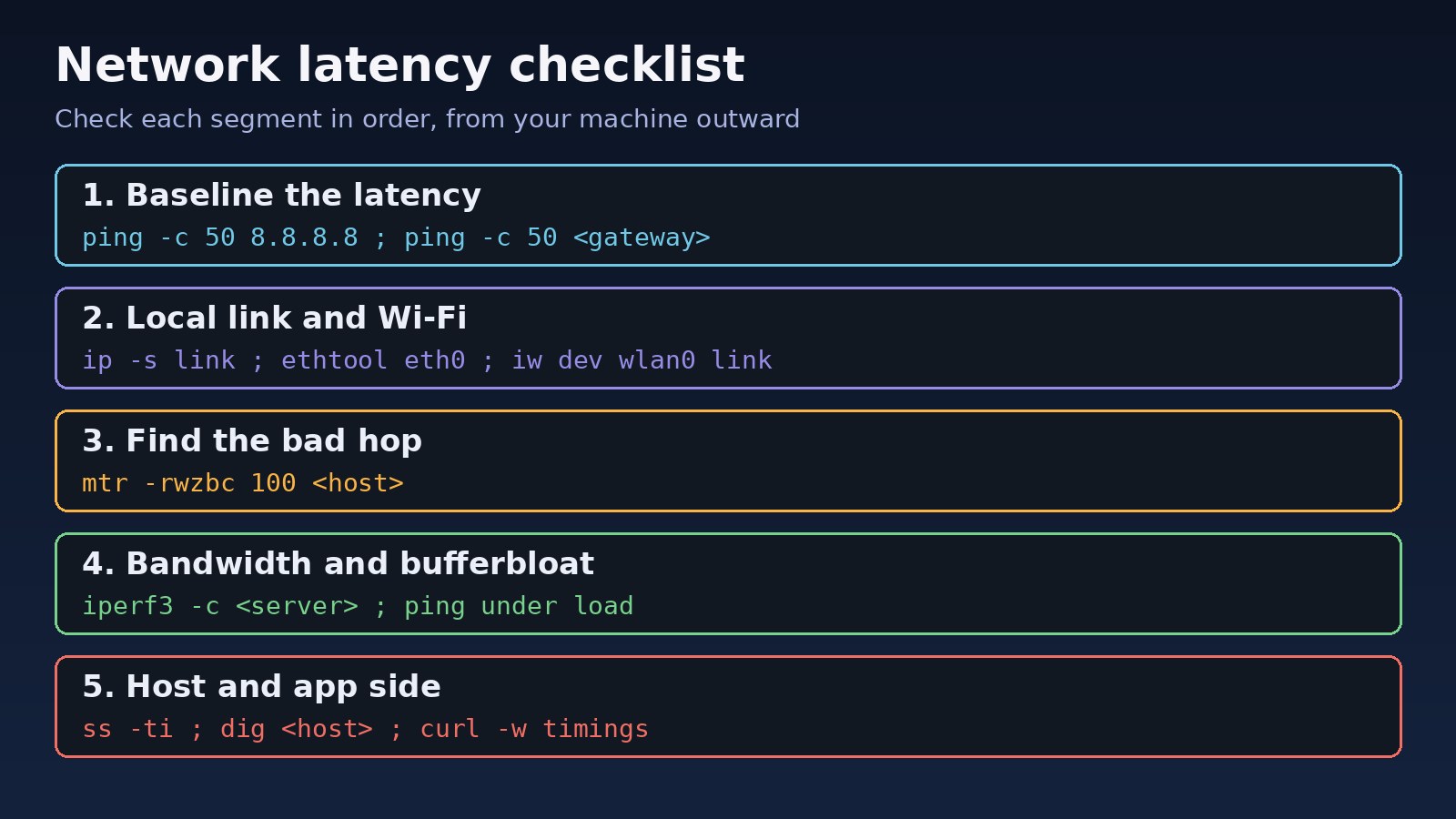
Ping three targets: your default gateway, a public resolver and the slow server. Find the gateway with ip route on Linux, netstat -rn on macOS or ipconfig on Windows.
# Linux / macOS
ip route | grep default          # e.g. default via 192.168.1.1 dev wlan0
ping -c 50 192.168.1.1
ping -c 50 8.8.8.8
ping -c 50 api.example.com

# Windows
ping -n 50 192.168.1.1
ping -n 50 8.8.8.8
Read the summary line. On Linux it looks like rtt min/avg/max/mdev = 11.2/14.8/96.4/9.1 ms. A high max and mdev means jitter. On a wired LAN, gateway ping should normally be a few milliseconds at most. If the gateway itself is slow or loses packets, the problem is local (Wi-Fi, cable, or the router), not the internet.
Step 2: Check the local link and Wi-Fi
# Interface errors and drops (look at RX/TX errors, dropped)
ip -s link show eth0

# Negotiated speed and duplex on a wired link
sudo ethtool eth0 | grep -E 'Speed|Duplex'

# Wi-Fi signal and bitrate on Linux
iw dev wlan0 link

# Windows Wi-Fi details
netsh wlan show interfaces
Rising error counters, Duplex: Half or a speed far below what the port supports point to a cable or port problem. A weak Wi-Fi signal (for example, a signal level around -75 dBm or worse) usually explains spiky ping. The quickest test is simple: plug in a cable and repeat Step 1. If the latency disappears, fix the Wi-Fi (move closer, use 5 GHz, change channel) rather than the internet line.
Step 3: Find the bad hop with mtr or traceroute
mtr combines ping and traceroute and is the best tool for locating network packet loss. Install it with sudo apt install mtr-tiny on Ubuntu or brew install mtr on macOS. On Windows, use pathping.
# 100 probes, wide report, show IPs and AS numbers
mtr -rwzbc 100 api.example.com

# Use TCP to port 443 if ICMP is filtered along the path
sudo mtr -rwzbc 100 --tcp --port 443 api.example.com

# Windows
pathping -n api.example.com
tracert api.example.com
How to read the report:
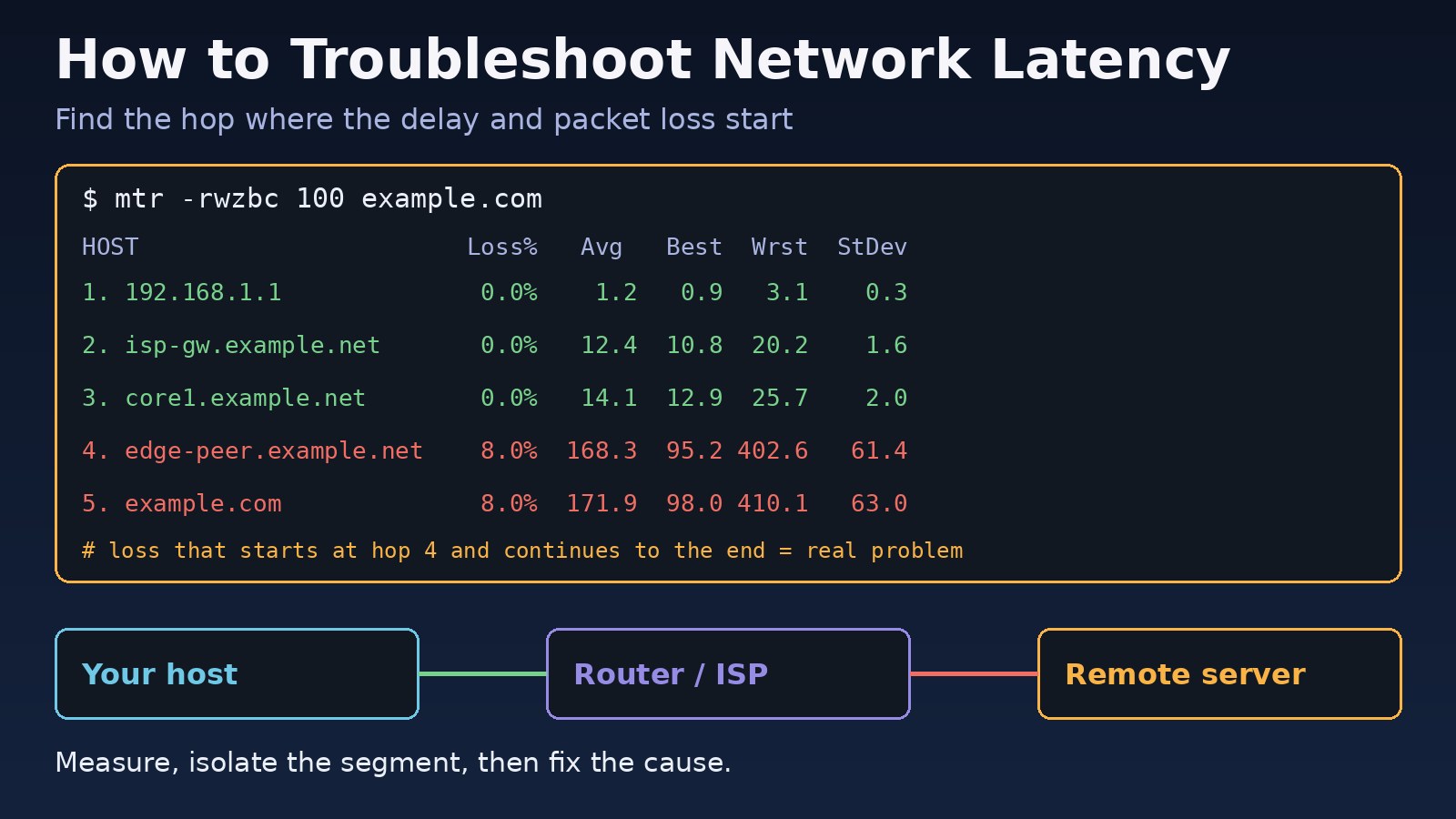
- Loss or high latency that starts at one hop and continues to every hop after it, including the destination, is a real problem at or just before that hop.
- Loss shown only on a middle hop, while later hops and the destination show 0%, is usually a router rate-limiting ICMP replies. It is not affecting your traffic.
- A big jump that stays high from a certain hop onward can simply be distance, such as an undersea cable. Compare with a known-good time of day before blaming it.
If the problem starts at your first or second hop, look at your router. On MikroTik routers, the MikroTik connectivity guide shows how to check the WAN, routes and PPPoE MTU. If it starts inside your ISP, save the mtr report: it is exactly what support will ask for.
Step 4: Test bandwidth and latency under load (bufferbloat)
Run a ping in one terminal and saturate the link in another. If ping jumps by hundreds of milliseconds while the transfer runs, you have bufferbloat.
# Terminal 1
ping 8.8.8.8

# Terminal 2: upload test against your own iperf3 server
iperf3 -s                         # on the server
iperf3 -c server.example.com -t 30        # upload from client
iperf3 -c server.example.com -t 30 -R     # download (reverse)
The fix is a smart queue on the router: enable SQM with fq_codel or cake on OpenWrt, or a queue type such as fq-codel or cake on RouterOS 7, and set the shaper slightly below your real line speed. On a Linux gateway you can apply it directly:
# Linux gateway, WAN interface eth1, 50 Mbit uplink
sudo tc qdisc replace dev eth1 root cake bandwidth 45mbit
tc -s qdisc show dev eth1
Step 5: Rule out DNS and server-side delay
Break a slow request into phases with curl. This shows whether time is spent in DNS, the TCP connect, the TLS handshake or waiting for the server.
curl -o /dev/null -s -w 'dns:%{time_namelookup} connect:%{time_connect} tls:%{time_appconnect} ttfb:%{time_starttransfer} total:%{time_total}\n' https://api.example.com/health

# DNS on its own
dig api.example.com | grep 'Query time'
A large dns value means slow resolution. If connect is close to your ping RTT but ttfb is huge, the network is fine and the server or application is slow. Check the server with top, your app logs, and slow queries in PostgreSQL or your Laravel and Node.js services.
Step 6: Check TCP retransmissions on the server
# Per-connection RTT and retransmits
ss -ti state established '( dport = :443 or sport = :443 )'

# System-wide retransmission counters (run twice and compare)
nstat -az TcpRetransSegs TcpExtTCPLostRetransmit
netstat -s | grep -i retrans
In ss -ti output, look at rtt: (average/variance in ms) and retrans:. Retransmit counters that keep climbing confirm real packet loss on the path, not just a slow application.
Code and Commands: Quick Latency Report Script
Save this as latency-check.sh on a Linux machine and run it while the problem is happening. It collects everything you need in one file.
#!/usr/bin/env bash
# Usage: ./latency-check.sh api.example.com
TARGET=${1:-8.8.8.8}
GW=$(ip route | awk '/default/ {print $3; exit}')
OUT=latency-$(date +%Y%m%d-%H%M%S).txt
{
  echo "== gateway $GW";   ping -c 20 "$GW" | tail -2
  echo "== 8.8.8.8";      ping -c 20 8.8.8.8 | tail -2
  echo "== $TARGET";      ping -c 20 "$TARGET" | tail -2
  echo "== mtr";          mtr -rwzbc 50 "$TARGET"
  echo "== interface";    ip -s link
  echo "== dns";          dig "$TARGET" | grep 'Query time'
  echo "== curl";         curl -o /dev/null -s -w 'dns:%{time_namelookup} connect:%{time_connect} ttfb:%{time_starttransfer} total:%{time_total}\n' "https://$TARGET/"
} > "$OUT" 2>&1
echo "Saved $OUT"
Verification
- Gateway ping is stable and low, and the summary shows
0% packet loss. mtrto the slow host shows 0% loss at the final hop over 100 probes.- Ping stays close to its idle value while
iperf3saturates the link. curltimings show low DNS and connect times, and TTFB matches what the application normally delivers.- TCP retransmission counters on the server stop climbing.
Prevention
- Use wired connections for servers, office desktops and anything latency sensitive, and replace damaged cables.
- Enable SQM or a fair queue (
fq_codelorcake) on the edge router so backups and updates do not ruin latency for everyone. - Schedule large backups and syncs outside working hours, or rate-limit them.
- Monitor latency continuously with tools such as Smokeping, Prometheus Blackbox Exporter or Uptime Kuma so you have a baseline to compare against.
- Host servers close to your users, and put static assets behind a CDN.
- Keep router firmware and NIC drivers updated, and watch interface error counters.
FAQs
What is a good ping for most applications?
It depends on distance, but as a rough guide, a few milliseconds to your own gateway on a wired LAN and a few tens of milliseconds to servers in the same region is normal. What matters more is that it is stable and that there is no packet loss.
What is the quickest high ping fix at home or in the office?
Switch from Wi-Fi to a cable and stop large uploads or downloads. If ping drops right away, the cause was Wi-Fi or bufferbloat, and you can fix those permanently with better Wi-Fi placement and SQM on the router.
How do I check for network packet loss?
Run ping -c 100 to the target and read the loss percentage, then run mtr -rwzbc 100 to see where the loss begins. Loss is only real if it continues to the final hop.
Why does traceroute show high latency on one hop but the destination is fast?
Many routers give ICMP replies to traceroute a low priority. That hop looks slow, but the traffic passing through it is not delayed. Only trust latency that continues to the final hop.
Is high latency the same as low bandwidth?
No. Bandwidth is how much data you can move per second; latency is how long each round trip takes. A fast line can still have bad latency under load, which is why you should test both.

Comments
Join the discussion. Replies load on demand, up to 5 levels.
0 threads
No comments yet
Be the first to start the conversation.