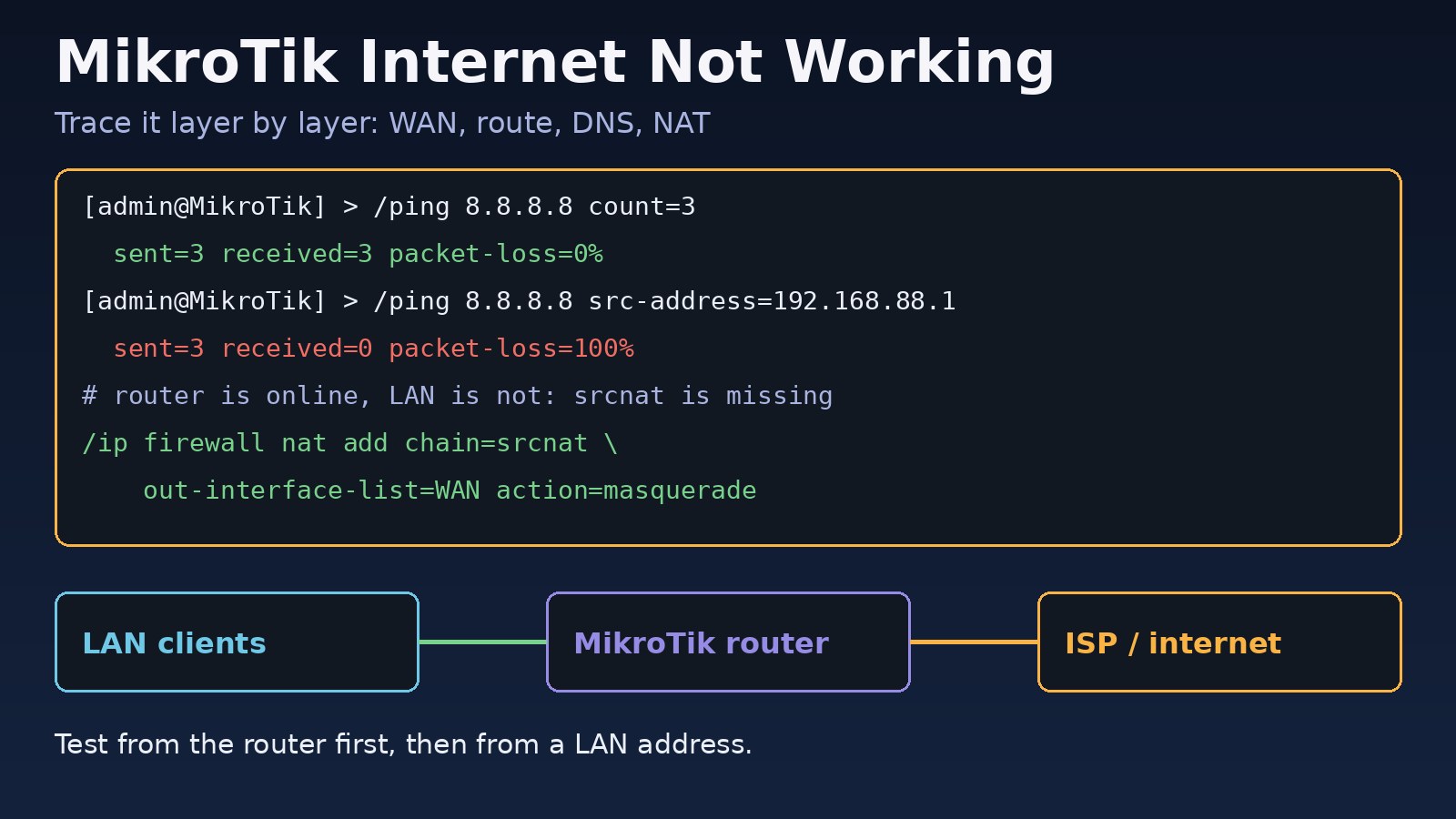
The office calls: Wi-Fi shows full bars, but nothing loads. When mikrotik internet not working is the problem, the cause is almost always one of five things: the WAN link or its address, a missing or inactive default route, DNS, a missing NAT masquerade rule, or a firewall filter rule that drops forwarded traffic. This guide shows you how to troubleshoot MikroTik internet connectivity on RouterOS layer by layer, with the exact terminal commands to prove which layer is broken and how to fix it. The commands work in Winbox's New Terminal, WebFig's terminal or over SSH.
Problem: MikroTik Internet Not Working
A MikroTik router sits between your LAN and your ISP. For a laptop on the LAN to open a website, every step has to work: the router must have a working WAN connection with an IP address, a default route to the ISP gateway, a way to resolve names, a source NAT rule that rewrites private LAN addresses to the WAN address, and firewall rules that allow the traffic through. Break any single step and users see the same thing: "no internet".
The trick is to test from the inside out. First check whether the router itself can reach the internet. If it can, the problem is between the LAN and the router (NAT, firewall, DHCP or DNS for clients). If it cannot, the problem is on the WAN side (link, address, route or ISP).
Symptoms
- Clients connect to Wi-Fi or Ethernet and get an address, but browsers show
ERR_NAME_NOT_RESOLVEDor time out. - Windows shows "No internet, secured" and Android shows "Connected, no internet".
- The router can
/ping 8.8.8.8, but LAN clients cannot. - Pinging
8.8.8.8from a client works, but pinginggoogle.comfails (DNS). - The router's own ping returns
no route to hostor 100% packet loss. /interface pppoe-client monitorstays onconnectingorauthenticating, or the log shows PPPoE authentication failures.- Some websites load and others hang forever, often on PPPoE links (an MTU problem).
Root Cause: Why MikroTik Loses Internet Connectivity
The WAN link or WAN address is down
A loose cable, a dead ISP modem, a DHCP client that never got a lease, or a PPPoE session that fails authentication means the router has no usable upstream address. Everything else depends on this.
MikroTik routing problems: no active default route
Without a route for 0.0.0.0/0 the router does not know where to send internet traffic. Common causes are a DHCP client or PPPoE client with add-default-route=no, a static route pointing at an old gateway after the ISP changed it, or two default routes with the wrong distance after someone added a second ISP.
MikroTik NAT issues: missing or wrong masquerade rule
LAN clients use private addresses such as 192.168.88.0/24, which cannot be routed on the internet. A srcnat rule with action=masquerade on the WAN interface rewrites them. If the rule is missing, disabled, or points at the wrong out-interface (for example ether1 when the real WAN is now pppoe-out1), the router is online and the LAN is not. This is the classic case behind "the router can ping but clients can't".
DNS is not configured for the router or the clients
If /ip dns has no servers, or the DHCP server hands clients a DNS server that is not reachable, IP addresses work and names fail. With allow-remote-requests=no, clients that were told to use the router as DNS get no answers.
Firewall filter rules drop forwarded traffic
A drop rule in the forward chain placed above the accept rules, an interface list (LAN or WAN) missing an interface, or a hand-written rule set copied from the internet can silently block clients.
MTU or MSS problems on PPPoE
PPPoE adds 8 bytes of overhead, so the usable MTU drops to 1492 or less. If TCP MSS is not clamped, large packets get dropped and some HTTPS sites hang after the connection starts.
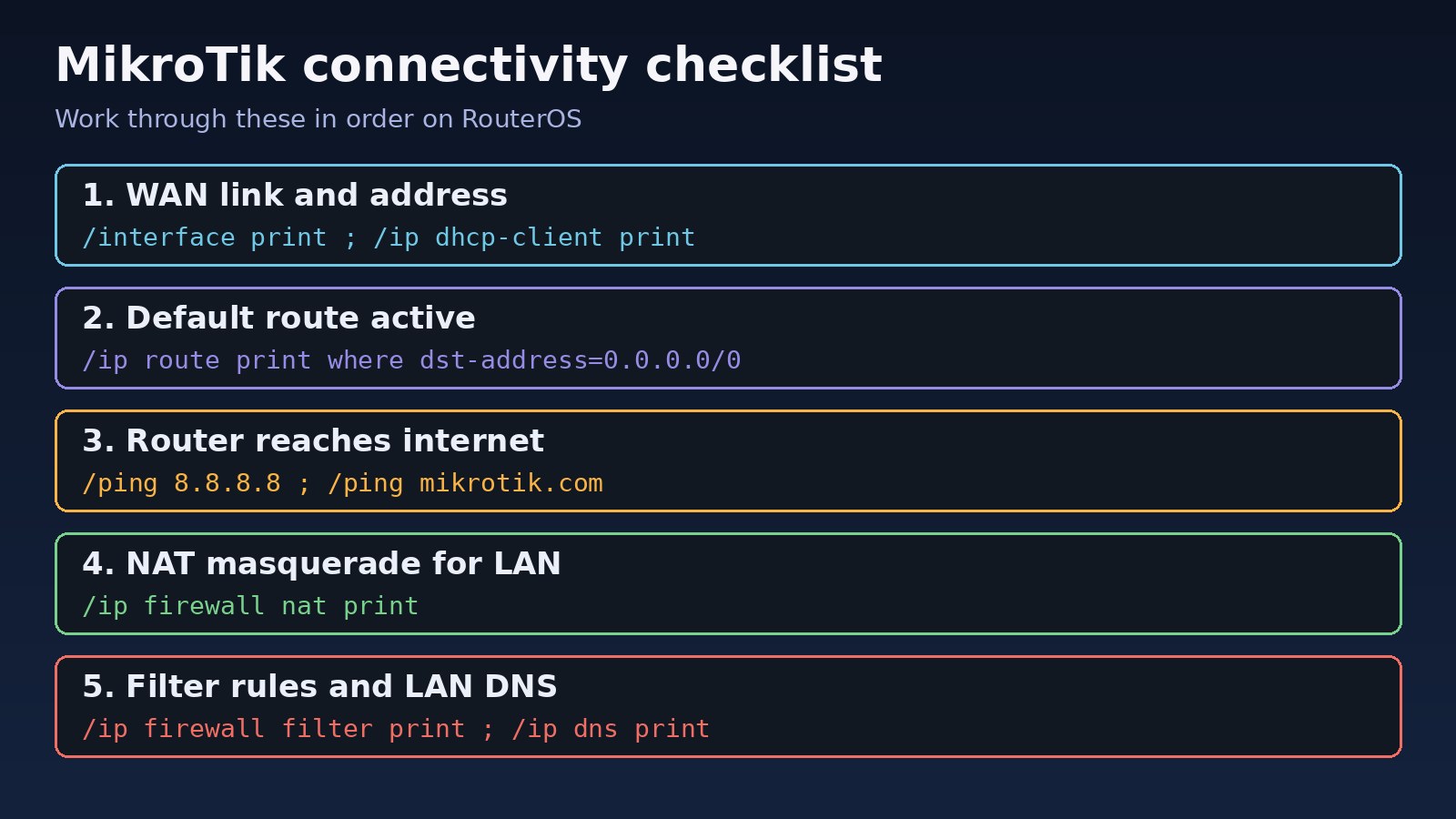
Step-by-Step Solution
Before changing anything, save a backup so you can roll back:
/system backup save name=before-fix
/export file=before-fix
Step 1: Check the WAN interface and its address
Find your WAN interface and confirm it is running. An R flag means the link is up.
/interface print
/ip address print
/ip dhcp-client print detail
For a DHCP WAN, the client should show status: bound with an address and gateway. If it is stuck on searching..., check the cable and the ISP modem, then renew the lease:
/ip dhcp-client release [find interface=ether1]
/ip dhcp-client renew [find interface=ether1]
For a PPPoE WAN, watch the session and read the log:
/interface pppoe-client print
/interface pppoe-client monitor pppoe-out1
/log print where topics~"pppoe"
Authentication failures in the log mean the username or password is wrong, or the ISP locked the account to a different MAC address. If the session never reaches authentication, the problem is the physical link or the VLAN your ISP expects.
Step 2: Check the default route
/ip route print where dst-address=0.0.0.0/0You need at least one active default route (flag A) whose gateway is reachable. If there is none, enable it on the WAN client or add a static one:
# DHCP or PPPoE client: let it install the default route
/ip dhcp-client set [find interface=ether1] add-default-route=yes
/interface pppoe-client set pppoe-out1 add-default-route=yes use-peer-dns=yes

# Static WAN: replace the gateway with your ISP's gateway
/ip route add dst-address=0.0.0.0/0 gateway=203.0.113.1
If there are several default routes, the one with the lowest distance wins. Remove stale static routes that point at an old gateway, and give a backup ISP a higher distance.
Step 3: Test connectivity from the router itself
/ping 8.8.8.8 count=5
/ping mikrotik.com count=5
/tool traceroute 8.8.8.8
If the IP ping fails, the problem is upstream: the route, the ISP or the modem. If the IP ping works but the name fails, fix DNS (Step 6). If both work, the router is online and the issue is between the LAN and the router.
Step 4: Fix MikroTik NAT issues
Now test with a LAN source address. Replace 192.168.88.1 with your router's LAN IP:
/ping 8.8.8.8 src-address=192.168.88.1 count=5
/ip firewall nat print
If the plain ping works and this one fails, source NAT is the likely culprit. Make sure a masquerade rule exists, is not disabled (no X flag) and matches the real WAN interface. Using an interface list keeps it correct if you later switch from ether1 to PPPoE:
/interface list member print
/interface list member add list=WAN interface=pppoe-out1

/ip firewall nat add chain=srcnat out-interface-list=WAN action=masquerade comment="LAN to internet"
If you have a static public IP, action=src-nat to-addresses=YOUR_PUBLIC_IP is an alternative, but masquerade is simpler and follows address changes.
Step 5: Review firewall filter rules
/ip firewall filter print stats
/ip firewall filter print where chain=forward
Rules are processed top to bottom. Look for drop rules in the forward chain whose packet counters climb when a client tries to browse. A healthy forward chain usually accepts established and related connections first, drops invalid ones, and drops new connections from the WAN that are not destination-NATed. To test, temporarily disable a suspect rule with /ip firewall filter disable numbers=5 (use the number shown in your print), retest, and enable it again before you finish.
Step 6: Fix DNS for the router and the clients
/ip dns print
/ip dns set servers=1.1.1.1,8.8.8.8 allow-remote-requests=yes
/ip dhcp-server network print
The DHCP network entry should hand clients the router's LAN IP (or a public resolver) as dns-server and the router as gateway. If you enable allow-remote-requests, make sure the input chain drops DNS (UDP and TCP 53) from the WAN so your router does not become an open resolver. For name failures on Linux servers behind the router, see Linux DNS troubleshooting.
Step 7: Clamp MSS on PPPoE links
If some sites load and others stall, clamp the TCP MSS to the path MTU:
/ip firewall mangle add chain=forward protocol=tcp tcp-flags=syn \
    action=change-mss new-mss=clamp-to-pmtu passthrough=yes comment="MSS clamp"
Browser errors such as ERR_CONNECTION_TIMED_OUT in Chrome on only some sites are a typical sign of this.
Code and Commands: Quick Diagnostic Script
Paste this into a terminal to collect everything you need in one go, then read the output from top to bottom:
/interface print
/ip address print
/ip dhcp-client print
/interface pppoe-client print
/ip route print where dst-address=0.0.0.0/0
/ip dns print
/ip firewall nat print
/ip firewall filter print stats
/ping 8.8.8.8 count=3
/ping 8.8.8.8 src-address=192.168.88.1 count=3
/ping mikrotik.com count=3
From a client, confirm what it received and where it fails. On Windows use ipconfig /all, ping 192.168.88.1, ping 8.8.8.8 and nslookup google.com. On Linux or macOS use ip route, ping and dig google.com.
Verification
- The router pings
8.8.8.8andmikrotik.comwith 0% loss. - The ping with
src-addressset to the LAN IP succeeds, which proves NAT and routing work for LAN traffic. - A client gets the right gateway and DNS from DHCP, resolves
google.comand opens HTTPS sites. /ip firewall nat print statsshows the masquerade rule's packet counter increasing while clients browse.- After a reboot (
/system reboot) the WAN session, default route and internet come back without manual steps.
Prevention
- Use interface lists (
WANandLAN) in NAT and firewall rules instead of hard-coded interface names. - Add comments to every NAT and filter rule and export the configuration after each change.
- Monitor the uplink with Netwatch, for example
/tool netwatch add host=8.8.8.8 interval=30s, and log or alert on down events. - For two ISPs, use different route distances and
check-gateway=pingon static default routes so failover is automatic. - Keep RouterOS and RouterBOOT firmware updated from the stable channel, and read the changelog before upgrading production routers.
- Restrict management access (Winbox, SSH, WebFig) to the LAN and use strong passwords. If you reach the router over SSH, our guide to fixing SSH connection refused covers common access problems.
FAQs
Why can my MikroTik router ping 8.8.8.8 but clients have no internet?
This almost always means MikroTik NAT issues: the masquerade rule is missing, disabled or tied to the wrong out-interface. A forward-chain drop rule is the second most common cause.
How do I fix MikroTik routing problems with two ISPs?
Give each default route a different distance, enable check-gateway=ping on static gateways, and make sure each WAN interface is in the WAN interface list so NAT covers both.
Why does MikroTik internet stop working after a PPPoE reconnect?
If NAT or firewall rules reference a specific dynamic interface, or the PPPoE client has add-default-route=no, a reconnect can leave you without a route or NAT. Use interface lists and let the client add the default route.
How do I check MikroTik DNS settings?
Run /ip dns print for the router and /ip dhcp-server network print for what clients receive. Test with /ping mikrotik.com on the router and nslookup on a client.
Should I reset the router to defaults to fix no internet?
Only as a last resort. A reset removes your configuration. Work through the steps above first; most outages come down to one wrong rule or route that takes a minute to fix.


Comments
Join the discussion. Replies load on demand, up to 5 levels.
0 threads
No comments yet
Be the first to start the conversation.