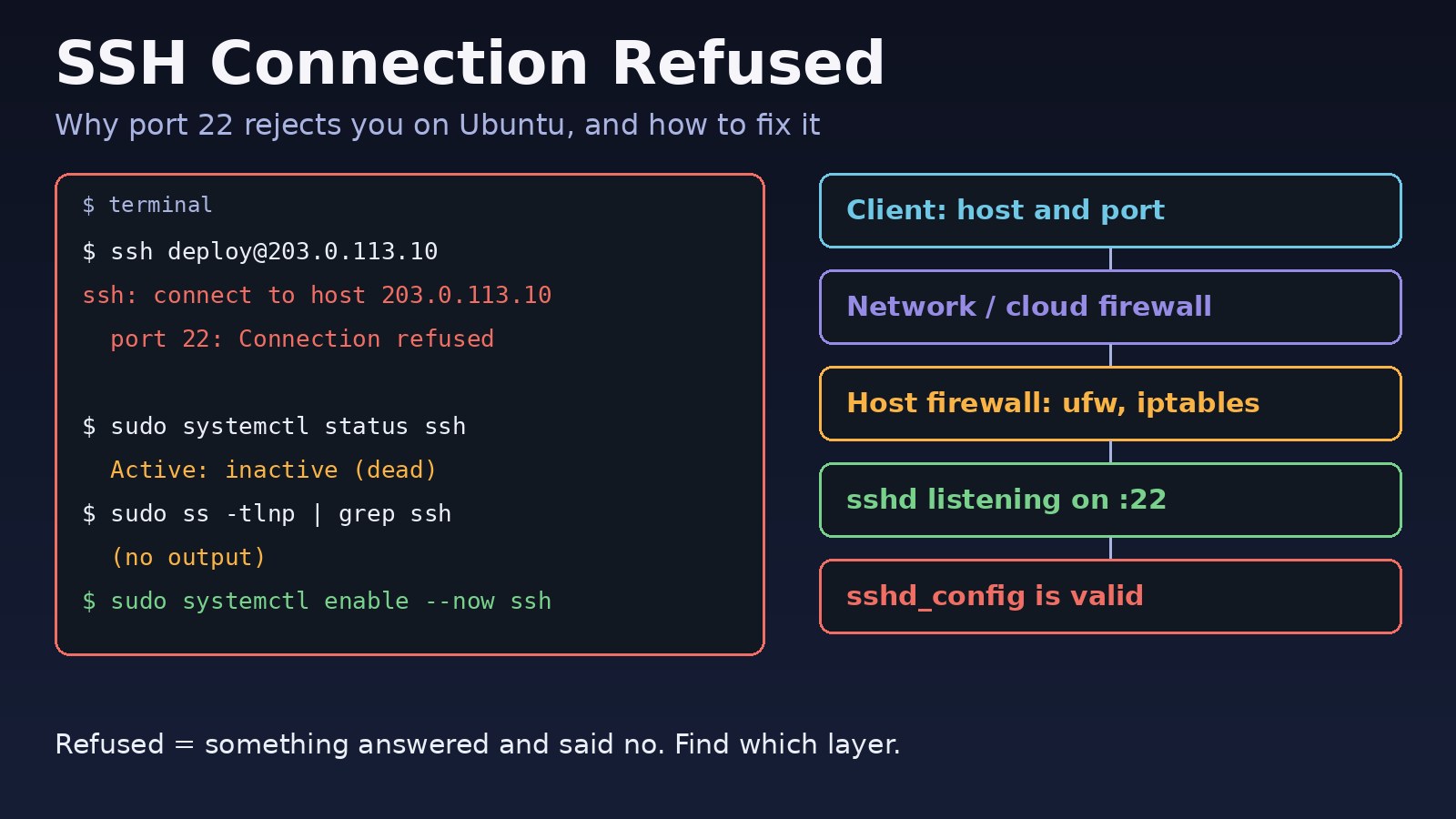
You run ssh [email protected] and get Connection refused straight away. An ssh connection refused error means your packets reached a machine, and that machine (or a firewall in front of it) actively rejected the connection on port 22. That is good news: it narrows the problem to a short list of causes. This guide walks through each one on Ubuntu and Debian servers, the kind that host Laravel, Next.js, PostgreSQL, Redis and Docker workloads, with the exact commands and error messages you will see.
Problem: SSH Connection Refused on Ubuntu
When an SSH client connects, it opens a TCP connection to the server's port, which is 22 by default. If nothing is listening on that port, the server's kernel answers with a TCP reset (RST) and the client prints "Connection refused". A firewall rule that uses REJECT instead of DROP produces the same message. So the question is always: is the SSH daemon (sshd) running and listening on the address and port you are using, and is anything between you and it rejecting the traffic?
It helps to separate this from two look-alike errors. Connection timed out means nothing answered at all, which usually points to a firewall that drops packets, a wrong IP, or a routing problem. Permission denied (publickey) means the connection worked and authentication failed. If you see that one instead, read SSH Permission Denied (Publickey): How to Fix It.
Symptoms
ssh: connect to host 203.0.113.10 port 22: Connection refusedssh: connect to host localhost port 2222: Connection refusedwhen connecting to a container or VM port mapping.- Git over SSH fails with the same message followed by
fatal: Could not read from remote repository. - Deploy tools and CI jobs (rsync, scp, Ansible, GitHub Actions) fail with
Connection refusedafter a server reboot or an upgrade. nc -vz 203.0.113.10 22printsnc: connect to 203.0.113.10 port 22 (tcp) failed: Connection refused.- The web app on ports 80 and 443 still works, so the server is clearly up.
Root Cause: Why SSH Port 22 Is Refused
The SSH server is not installed
Ubuntu Desktop and many minimal cloud or container images ship only the SSH client. Without the openssh-server package there is nothing listening on port 22.
sshd is stopped or failed to start
The service may be disabled, or it may crash at startup. Common reasons are a syntax error in /etc/ssh/sshd_config, missing host keys (sshd: no hostkeys available -- exiting.), or a missing runtime directory (Missing privilege separation directory: /run/sshd).
sshd listens on a different port or address
Someone changed Port 22 to Port 2222, or set ListenAddress to a private IP or 127.0.0.1. On Ubuntu 22.10 and later, SSH uses systemd socket activation (ssh.socket) by default. On those versions the listening port comes from the socket unit, so editing sshd_config without reloading systemd can leave the port unchanged.
A firewall rejects the connection
UFW, iptables, nftables or fail2ban may reject port 22 for your IP. ufw reject rules and fail2ban's default iptables actions send back a rejection, which the client shows as "Connection refused". A DROP rule or a cloud security group usually shows up as a timeout instead.
Wrong host, port or port mapping
An old IP in ~/.ssh/config, a DNS record pointing to a different machine, or a Docker or VM port mapping that is not published all lead to a host that has nothing listening on that port.
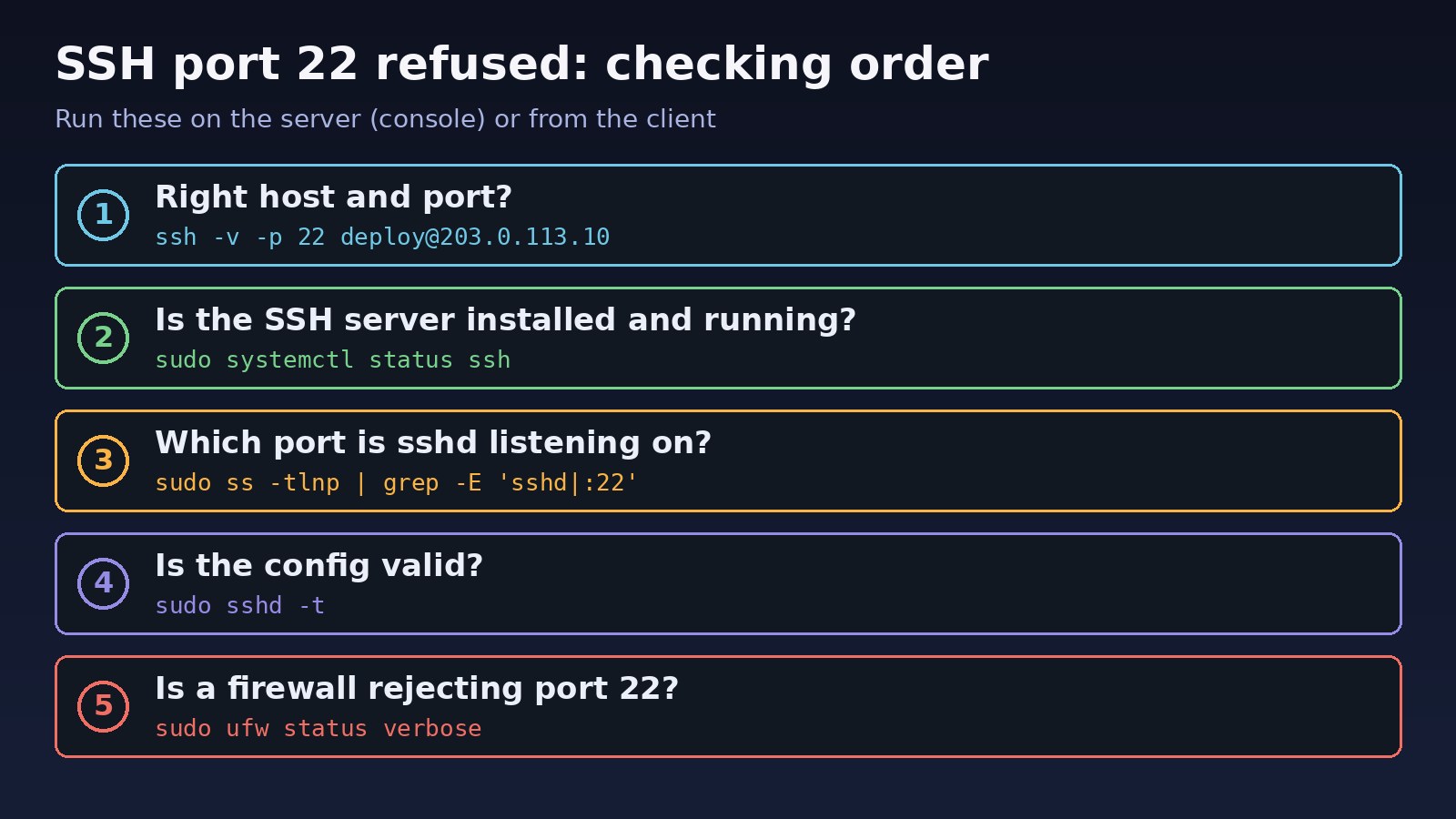
Step-by-Step Solution: Ubuntu SSH Troubleshooting
If SSH is your only way into the server, use your hosting provider's web console, serial console or recovery mode for the server-side steps.
Step 1: Confirm the host and port from the client
Run ssh -v to see exactly which address and port the client is using, including anything set in ~/.ssh/config. If the hostname resolves to the wrong IP, fix DNS first; see Linux DNS Troubleshooting.
Step 2: Check that openssh-server is installed and running
Look at the service status. On Ubuntu and Debian the unit is called ssh; on RHEL, Rocky and Alma it is sshd.
Step 3: Check which port and address sshd is listening on
ss -tlnp shows listening TCP sockets. You want to see 0.0.0.0:22 or [::]:22 (or your custom port), not just 127.0.0.1:22.
Step 4: Test the configuration and read the logs
sshd -t checks the config and prints the exact line that is wrong. The journal shows why the service failed to start.
Step 5: Check host firewall rules and fail2ban
Make sure UFW or iptables allows your SSH port, and that fail2ban has not banned your IP after repeated failed logins.
Step 6: Restart SSH and test again
Restart the service (or the socket on newer Ubuntu), keep your current session open, and test from a second terminal.
Code/Commands Examples
Client-side checks
ssh -v [email protected]
# debug1: Connecting to 203.0.113.10 [203.0.113.10] port 22.
# debug1: connect to address 203.0.113.10 port 22: Connection refused

ssh -G myserver | grep -E '^(hostname|port|user) '   # what ~/.ssh/config resolves to
nc -vz 203.0.113.10 22                                # raw TCP test
getent hosts myserver.example.com                     # does the name point to the right IP?
Install and start the SSH server
sudo systemctl status ssh
# Unit ssh.service could not be found.   -> not installed
# Active: inactive (dead)                -> installed but stopped
# Active: failed (Result: exit-code)     -> crashed, check the logs

sudo apt update
sudo apt install openssh-server
sudo systemctl enable --now ssh

# RHEL / Rocky / Alma
sudo dnf install openssh-server
sudo systemctl enable --now sshd
Check the listening port
sudo ss -tlnp | grep -E 'sshd|:22'
# LISTEN 0 128 0.0.0.0:22  0.0.0.0:*  users:(("sshd",pid=812,fd=3))
# LISTEN 0 128    [::]:22     [::]:*  users:(("sshd",pid=812,fd=4))

grep -Ei '^(port|listenaddress)' /etc/ssh/sshd_config /etc/ssh/sshd_config.d/*.conf
systemctl status ssh.socket   # Ubuntu 22.10+ socket activation
Validate sshd_config and read the logs
sudo sshd -t
# /etc/ssh/sshd_config line 42: Bad configuration option: PermitRootLogn
# /etc/ssh/sshd_config: terminating, 1 bad configuration options

sudo journalctl -u ssh -n 50 --no-pager
sudo tail -n 50 /var/log/auth.log

# missing host keys or runtime directory
sudo ssh-keygen -A
sudo mkdir -p /run/sshd && sudo chmod 0755 /run/sshd
Change the SSH port correctly
On Ubuntu 22.10 and later with socket activation, set the new Port in sshd_config, then reload systemd so the socket picks it up. On older releases or when ssh.socket is disabled, restarting ssh is enough. Open the new port in the firewall before you restart.
sudo ufw allow 2222/tcp
sudo sed -i 's/^#\?Port .*/Port 2222/' /etc/ssh/sshd_config
sudo sshd -t

# Ubuntu 22.10+ (ssh.socket active)
sudo systemctl daemon-reload
sudo systemctl restart ssh.socket

# older Ubuntu or socket activation disabled
sudo systemctl restart ssh

ssh -p 2222 [email protected]   # test from a second terminal
Firewall and fail2ban checks
sudo ufw status verbose
sudo ufw allow OpenSSH            # or: sudo ufw allow 22/tcp
sudo iptables -L INPUT -n -v --line-numbers | grep -E 'dpt:22|REJECT|DROP'
sudo nft list ruleset | grep -n 22

sudo fail2ban-client status sshd
sudo fail2ban-client set sshd unbanip 198.51.100.25
SSH into Docker containers and VMs
Most containers do not need SSH; use docker exec instead. If you do run sshd in a container or VM, the port must be published and sshd must be running inside it.
docker exec -it app bash             # usually better than SSH into a container
docker port app                      # is 22/tcp published? e.g. 22/tcp -> 0.0.0.0:2222
docker run -d -p 2222:22 my-ssh-image
ssh -p 2222 user@localhost
The same "listening service plus open port" logic applies to other services. For a Redis example, see How to Fix Redis Connection Refused Errors. If your connection hangs instead of being refused, the packet is probably being dropped; How to Fix ERR_CONNECTION_TIMED_OUT in Chrome covers that path for web traffic.
Verification
systemctl is-active sshprintsactive(orssh.socketis active on newer Ubuntu).sudo ss -tlnpshows sshd on0.0.0.0or[::]with the expected port.sudo sshd -tprints nothing and exits with status 0.nc -vz 203.0.113.10 22from your laptop reportssucceeded.ssh -vshowsConnection established.followed by the server's SSH banner.- After a reboot, the server still accepts SSH connections.
Prevention
- Run
sudo sshd -tafter every change tosshd_configand before restarting the service. - Keep one SSH session open while you change ports, firewall rules or SSH settings, and test from a second session.
- Add the SSH rule (
ufw allow OpenSSHor your custom port) before runningufw enable. - Manage SSH settings in a drop-in file under
/etc/ssh/sshd_config.d/so package upgrades do not overwrite them. - Whitelist your office or VPN IPs in fail2ban with
ignoreip, and use SSH keys so fewer failed logins trigger bans. - Make sure your provider's web or serial console works before you need it.
FAQs
What does "ssh connect to host port 22 connection refused" mean?
Your client reached the server, but nothing accepted the TCP connection on port 22. Either sshd is not running, it listens on a different port or address, or a firewall rule rejected the connection.
What is the difference between connection refused and connection timed out in SSH?
Refused means the host or a firewall actively rejected the connection, so the issue is usually on the server. Timed out means no reply came back at all, which usually points to a firewall that drops packets, a cloud security group, or the wrong IP.
How do I fix SSH port 22 refused after changing the port?
Connect with ssh -p NEWPORT, open the new port in UFW, and on Ubuntu 22.10 and later run systemctl daemon-reload and restart ssh.socket so the socket listens on the new port.
Why is SSH refused on a fresh Ubuntu install?
Ubuntu Desktop does not include the SSH server. Install it with sudo apt install openssh-server and enable it with sudo systemctl enable --now ssh.
Can UFW cause SSH connection refused?
Yes. A ufw reject rule returns a refusal. The default UFW deny policy drops packets, which usually shows as a timeout. Check with sudo ufw status verbose and allow OpenSSH.
Is the service called ssh or sshd on Ubuntu?
On Ubuntu and Debian the systemd unit is ssh (with sshd available as an alias on many releases). On RHEL-based systems it is sshd. The daemon binary is sshd on both.

Comments
Join the discussion. Replies load on demand, up to 5 levels.
0 threads
No comments yet
Be the first to start the conversation.