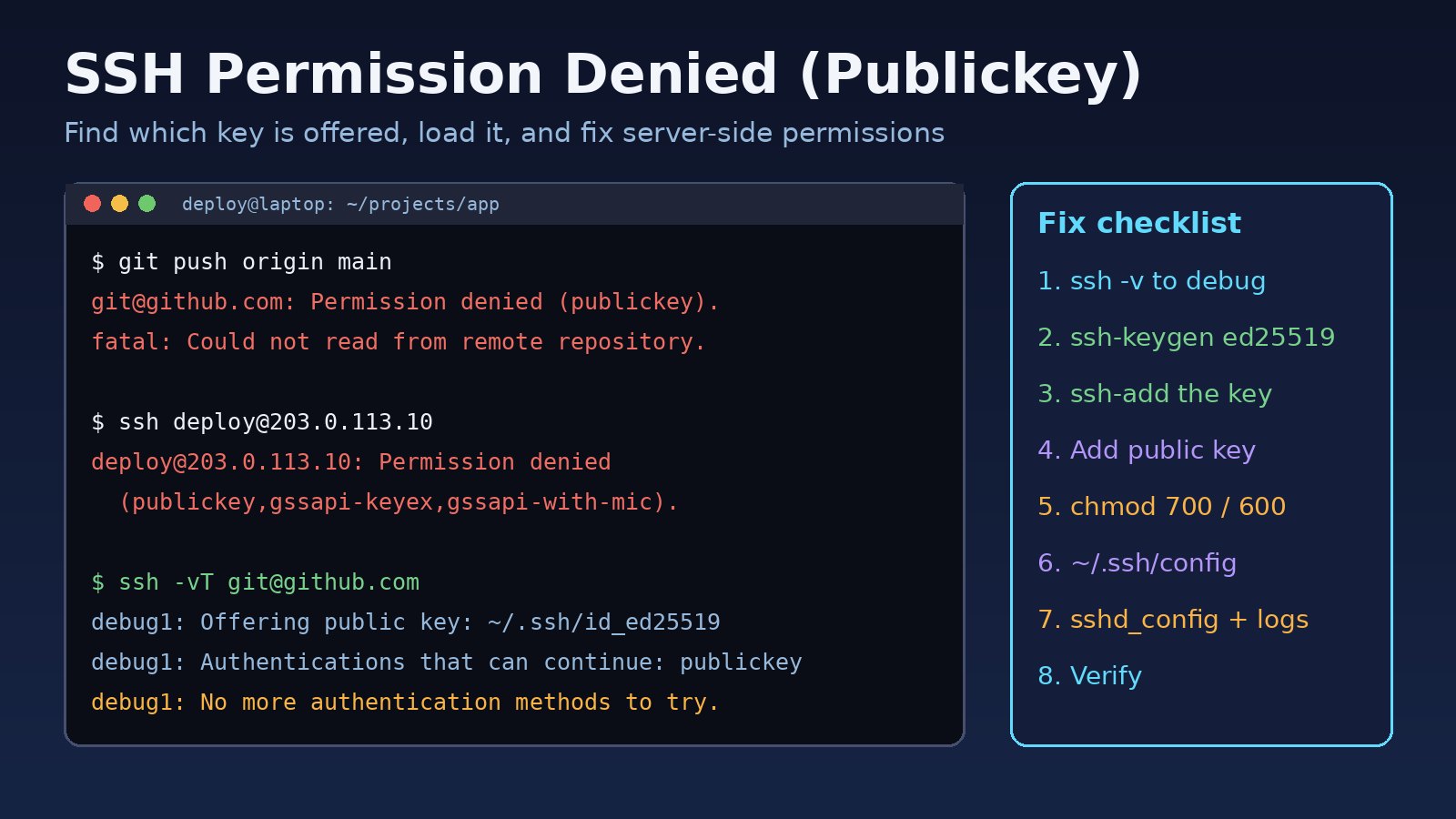
SSH permission denied publickey errors mean the server refused every key your SSH client offered, and no other login method was allowed. You see it when pushing to GitHub or GitLab, when a CI/CD job tries to deploy to a VPS, or when you log in to a fresh Ubuntu server running Laravel, Docker or Nginx. The message is short, but the cause is almost always one of five things: the wrong key is offered, the public key is not on the server, file permissions are too open, the server config blocks key login, or you are connecting as the wrong user.
Problem: What "Permission denied (publickey)" Means
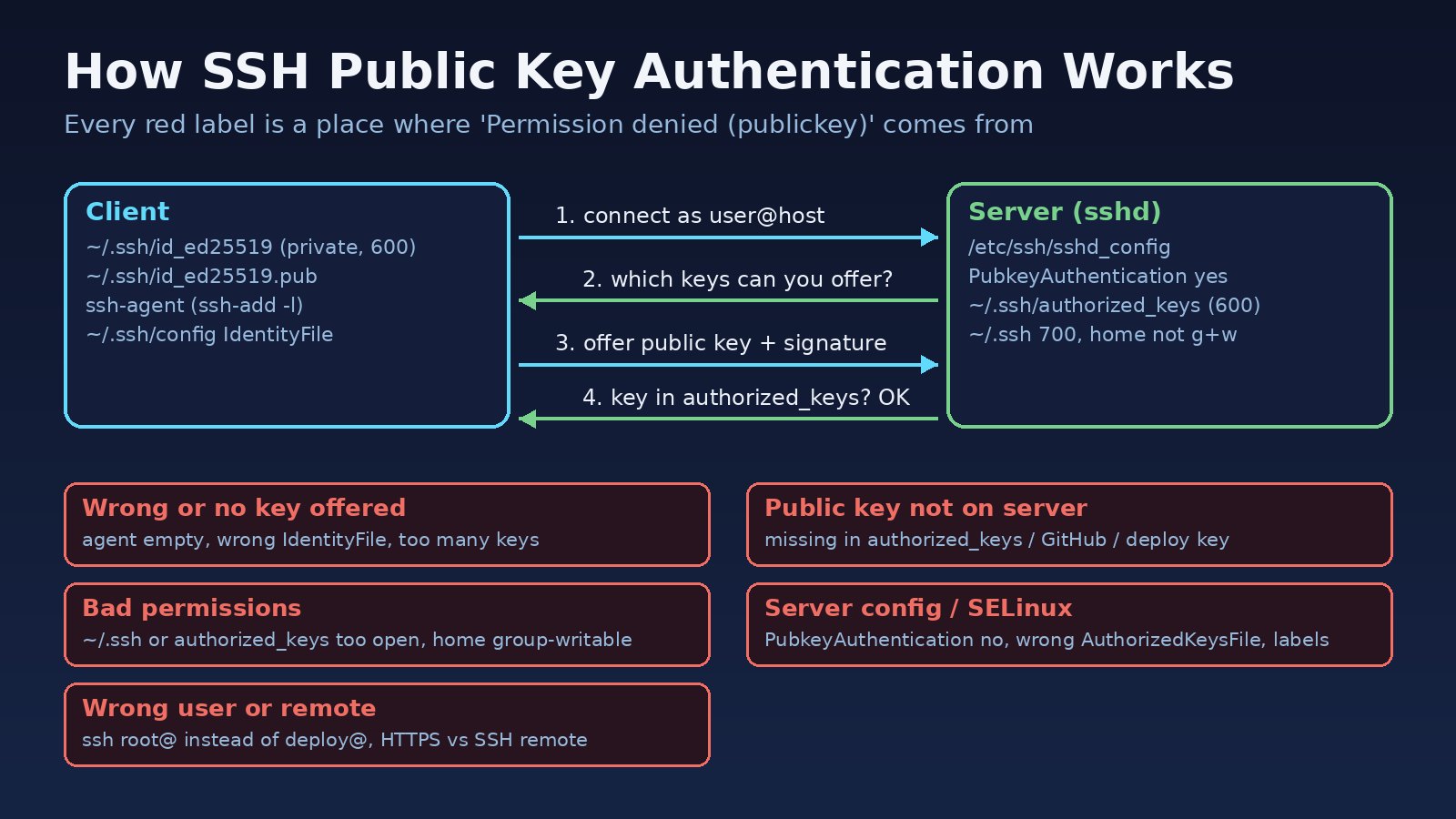
SSH public key authentication works like this: your client connects, the server says which methods it accepts, your client offers one or more public keys and proves it holds the matching private key, and the server checks the key against the user's authorized_keys file (or, for GitHub, the keys on your account or the repository's deploy keys). If none of the offered keys is accepted and password login is disabled, the connection ends with SSH key authentication failed.
The text in brackets lists the methods the server still allows. (publickey) means only keys are accepted. (publickey,gssapi-keyex,gssapi-with-mic) is common on RHEL, CentOS, Rocky Linux and Amazon Linux servers. (publickey,password) means passwords are allowed too, but your client did not or could not use one.
Symptoms of an SSH Key Authentication Failed Error
git push,git pullorgit clonefails with[email protected]: Permission denied (publickey).followed byfatal: Could not read from remote repository.- Logging in to a server prints
[email protected]: Permission denied (publickey).orPermission denied (publickey,gssapi-keyex,gssapi-with-mic). - A deploy step in GitHub Actions, GitLab CI or Jenkins fails while the same command works from your laptop.
- On a new laptop you get
WARNING: UNPROTECTED PRIVATE KEY FILE!andbad permissions, and the key is ignored.
Root Cause: Why SSH Rejects Your Key
- No key or the wrong key is offered. The key is not in the default location (
~/.ssh/id_ed25519,~/.ssh/id_rsa), it is not loaded inssh-agent, or~/.ssh/configpoints to another file. With many keys loaded, the server may also close the connection withToo many authentication failuresbefore the right key is tried. - The public key is not on the server. The
.pubfile was never added to~/.ssh/authorized_keysfor that user, was pasted with line breaks, or was added to a different GitHub account than the one that owns or can access the repository. - Permissions are too open. With the default
StrictModes yes, sshd ignoresauthorized_keysif the home directory,~/.sshor the file itself is writable by group or others, or owned by another user. - Server configuration.
PubkeyAuthentication no, a customAuthorizedKeysFile,AllowUsers/AllowGroupsrules, or an old RSA key using the SHA-1ssh-rsasignature that newer OpenSSH versions reject by default. - Wrong user, host or remote. You connect as
rootwhen the key is fordeploy, or a Git remote uses SSH when your credentials are set up for HTTPS. On RHEL-family servers, wrong SELinux labels on~/.sshcan block access even with correct permissions.
Step-by-Step Solution to Fix SSH Permission Denied (Publickey)
Step 1: Run SSH in verbose mode
Always start here. The debug output shows which files SSH reads, which keys it offers and how the server answers.
ssh -vT [email protected]
# for a server
ssh -v [email protected]
# more detail
ssh -vvv [email protected]
Look for these lines:
debug1: Reading configuration data /home/you/.ssh/config
debug1: Offering public key: /home/you/.ssh/id_ed25519 ED25519 SHA256:...
debug1: Authentications that can continue: publickey
debug1: No more authentication methods to try.
If you never see Offering public key, the client has no key to send (go to Steps 2 and 3). If a key is offered but rejected, the server does not accept that key for that user (Steps 4 to 6). If you see Server accepts key but login still fails, check passphrase prompts and the agent.
Step 2: Check for an existing key or create one
List your keys, and create an Ed25519 key if you have none:
ls -al ~/.ssh
ssh-keygen -t ed25519 -C "[email protected]"
# only if a very old server does not support ed25519
ssh-keygen -t rsa -b 4096 -C "[email protected]"
Accept the default path or name it, for example ~/.ssh/id_ed25519_work, and set a passphrase.
Step 3: Load the key into ssh-agent
eval "$(ssh-agent -s)"
ssh-add ~/.ssh/id_ed25519
ssh-add -l        # list loaded keys
# macOS: store the passphrase in the Keychain
ssh-add --apple-use-keychain ~/.ssh/id_ed25519
On Windows, the OpenSSH agent service is often disabled. Start it in an elevated PowerShell, then add the key:
Get-Service ssh-agent | Set-Service -StartupType Automatic
Start-Service ssh-agent
ssh-add $env:USERPROFILE\.ssh\id_ed25519
If Git on Windows still fails, it may be using a different SSH binary than the one whose agent you loaded. Point Git at the Windows OpenSSH client with git config --global core.sshCommand "C:/Windows/System32/OpenSSH/ssh.exe".
Step 4: Add the public key to GitHub, GitLab or the server
For GitHub or GitLab, copy the public key and add it under your account's SSH keys settings. For a single repository on a server, add it as a deploy key instead (read-only unless you allow write access). A deploy key can only be attached to one repository on GitHub, so use a separate key per repository.
cat ~/.ssh/id_ed25519.pub
# to a Linux server (needs password login or another working key)
ssh-copy-id -i ~/.ssh/id_ed25519.pub [email protected]
If ssh-copy-id is not available, log in through your hosting provider's console and append the key manually as the target user:
mkdir -p ~/.ssh
echo "ssh-ed25519 AAAAC3Nza... [email protected]" >> ~/.ssh/authorized_keys
The key must be on one line. A key pasted with line breaks from a web page or chat is a frequent cause of this error.
Step 5: Fix ~/.ssh and authorized_keys permissions
On the server, as the user you log in as (or with sudo for that user's home):
chmod go-w ~                     # home must not be group/world writable
chmod 700 ~/.ssh
chmod 600 ~/.ssh/authorized_keys
chown -R deploy:deploy ~/.ssh    # owned by the login user, not root
On your own machine, the private key must be readable only by you, or SSH refuses to use it:
chmod 700 ~/.ssh
chmod 600 ~/.ssh/id_ed25519 ~/.ssh/config
chmod 644 ~/.ssh/id_ed25519.pub
On RHEL, CentOS, Rocky or Fedora with SELinux enforcing, restore the correct labels, especially if you copied the folder from elsewhere or use a non-standard home path:
restorecon -Rv ~/.sshStep 6: Check sshd_config and the server logs
Confirm key login is enabled and the server reads the file you edited:
sudo sshd -T | grep -Ei 'pubkeyauthentication|authorizedkeysfile|allowusers|allowgroups|strictmodes'
# expected
pubkeyauthentication yes
authorizedkeysfile .ssh/authorized_keys .ssh/authorized_keys2
If you change /etc/ssh/sshd_config (or a file in /etc/ssh/sshd_config.d/), test and reload. Keep your current session open until you confirm a new login works.
sudo sshd -t && sudo systemctl reload ssh     # Debian/Ubuntu
sudo sshd -t && sudo systemctl reload sshd    # RHEL family
Then watch the log while you retry from another terminal. The server tells you exactly what it disliked:
sudo journalctl -u ssh -f        # Ubuntu (unit is sshd on RHEL)
sudo tail -f /var/log/auth.log    # Debian/Ubuntu
sudo tail -f /var/log/secure      # RHEL family
Messages such as Authentication refused: bad ownership or modes for directory /home/deploy point to Step 5. User deploy from 198.51.100.7 not allowed because not listed in AllowUsers points to the config. userauth_pubkey: signature algorithm ssh-rsa not in PubkeyAcceptedAlgorithms means an old RSA key or client; create an Ed25519 key instead of re-enabling SHA-1 signatures.
Step 7: Use ~/.ssh/config for multiple keys
When you have separate keys for work and personal GitHub accounts, or one key per server, tell SSH exactly which key to use and stop it from trying every key in the agent:
Host github.com
  HostName github.com
  User git
  IdentityFile ~/.ssh/id_ed25519
  IdentitiesOnly yes

Host github-work
  HostName github.com
  User git
  IdentityFile ~/.ssh/id_ed25519_work
  IdentitiesOnly yes

Host prod
  HostName 203.0.113.10
  User deploy
  IdentityFile ~/.ssh/id_ed25519_deploy
  IdentitiesOnly yes
Now ssh prod uses the right user and key, and a work repository can use the remote git@github-work:company/app.git.
Step 8: Fix the Git SSH error by checking the remote URL
A Git SSH error often comes from a remote you did not expect. Check it, and switch between SSH and HTTPS as needed:
git remote -v
# switch to SSH
git remote set-url origin [email protected]:owner/repo.git
# or switch to HTTPS (uses a personal access token or credential manager)
git remote set-url origin https://github.com/owner/repo.git
Also note that sudo git pull runs as root and uses root's keys, not yours. Run Git as the user who owns the key, or as the deploy user that owns the project directory.
Code/Commands Examples for CI/CD Deploys
In GitHub Actions or GitLab CI there is no agent and no known_hosts by default. Store the private key as a secret, load it, and pin the host key. A minimal GitHub Actions step for deploying a Laravel or Docker app to a server:
- name: Deploy over SSH
  env:
    SSH_KEY: ${{ secrets.DEPLOY_SSH_KEY }}
  run: |
    mkdir -p ~/.ssh && chmod 700 ~/.ssh
    printf '%s\n' "$SSH_KEY" > ~/.ssh/id_ed25519
    chmod 600 ~/.ssh/id_ed25519
    ssh-keyscan -H 203.0.113.10 >> ~/.ssh/known_hosts
    ssh -i ~/.ssh/id_ed25519 -o IdentitiesOnly=yes [email protected] \
      'cd /var/www/app && git pull && docker compose up -d --build'
Common CI mistakes: the secret lost its trailing newline (the printf above adds it back), the key has a passphrase the job cannot enter, or the server's git pull needs its own deploy key to reach GitHub. For flaky deploy jobs in general, see how to debug flaky CI pipelines. If the deploy succeeds but the app then fails, check why Docker containers keep restarting or the 502 Bad Gateway Nginx fix.
Verification
For GitHub, a working key prints a greeting and exits with status 1 because GitHub does not provide shell access:
ssh -T [email protected]
Hi your-username! You've successfully authenticated, but GitHub does not provide shell access.
For GitLab you should see Welcome to GitLab, @your-username! from ssh -T [email protected]. For a server, ssh -v [email protected] should show Server accepts key and then Authenticated to 203.0.113.10. Finally, run the real operation, such as git fetch or your deploy job, and confirm it completes without a password prompt.
Prevention
- Use Ed25519 keys with a passphrase and keep the passphrase in ssh-agent or the OS keychain.
- Give every server and repository an entry in
~/.ssh/configwithIdentityFileandIdentitiesOnly yes. - Create a dedicated
deployuser on servers and add keys to itsauthorized_keyswith the correct 700/600 permissions from the start, for example in your provisioning script. - Use deploy keys or a machine user for servers pulling from GitHub, not your personal key.
- Before disabling password login or editing
sshd_config, keep one session open and test a second login.
FAQs
Why does SSH key authentication fail even though the key is in authorized_keys?
Usually permissions or ownership. sshd ignores the file if the home directory, ~/.ssh or authorized_keys is writable by others or owned by another user. Check /var/log/auth.log or journalctl -u ssh for "bad ownership or modes".
How do I fix the Git SSH error "[email protected]: Permission denied (publickey)"?
Run ssh -vT [email protected], make sure your key is loaded with ssh-add -l, add the .pub key to the GitHub account that has access to the repository, and check git remote -v points to the right host alias.
What does "Permission denied (publickey,gssapi-keyex,gssapi-with-mic)" mean?
The server only accepts public key and Kerberos (GSSAPI) logins, and none of your keys matched. It is common on RHEL-family and Amazon Linux servers. Use the correct key and user, for example ec2-user on Amazon Linux or ubuntu on Ubuntu cloud images.
Can I use the same SSH key on multiple servers?
Yes. The public key can go into many authorized_keys files. On GitHub, though, a deploy key can be attached to only one repository, and a key can be on only one account.
Conclusion
To fix SSH permission denied publickey errors, let the tools tell you the cause: ssh -v on the client and the auth log on the server. Then make sure the right key is loaded, its public half is on the server or Git host, permissions are 700 and 600, sshd allows key login, and you connect as the right user with the right remote.
Comments
Join the discussion. Replies load on demand, up to 5 levels.
0 threads
No comments yet
Be the first to start the conversation.