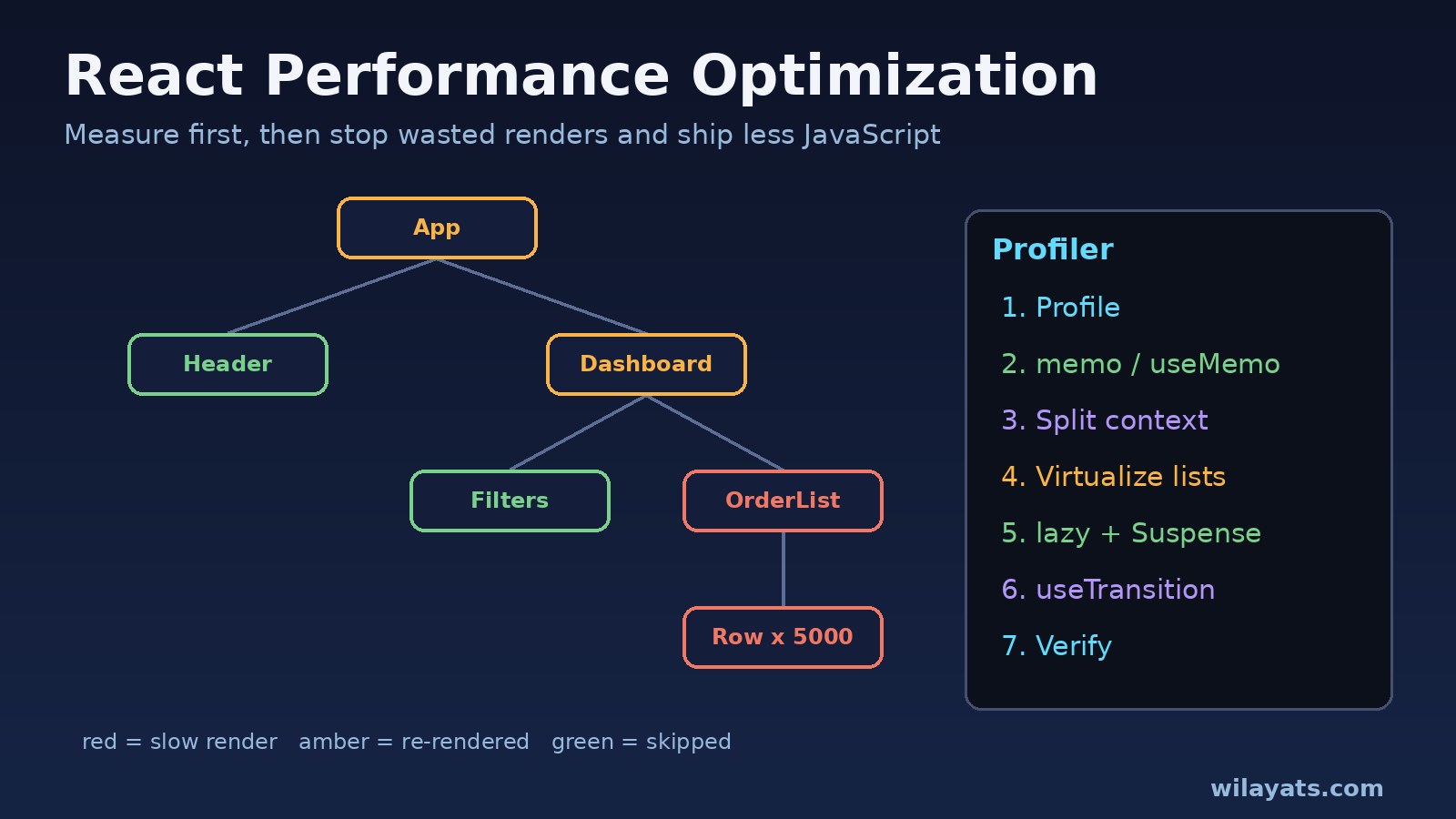
React performance optimization starts with one rule: measure before you change anything. Most slow React apps are not slow because React is slow. They re-render far more components than needed, render thousands of DOM nodes at once, or make the browser download and parse a huge JavaScript bundle before the first click works.
This guide walks through the symptoms, the real root causes, and a step-by-step way to speed up a React app with the React DevTools Profiler, React.memo, useMemo, useCallback, context splitting, list virtualization, code splitting and concurrent features like useTransition. The examples work for plain React (Vite) and Next.js projects.
Problem: Why React Performance Optimization Matters
A typical case: an admin dashboard or ERP-style screen loads orders, filters and charts. It felt fine with 50 rows in development. In production, with 5,000 rows and real users, typing in the search box lags, clicking a filter freezes the tab for a moment, and the first load shows a blank screen for several seconds on mid-range phones.
React updates the screen in two phases: it renders (calls your components to work out what the UI should look like) and then commits (applies the changes to the DOM). When a parent's state changes, React re-renders that parent and, by default, all of its children, even if their props did not change. That is usually cheap. It becomes a problem when the subtree is large, a component does heavy work during render, or the update happens on every keystroke.
Symptoms of a Slow React App
- Typing in an input lags behind the keyboard, especially in forms with many fields or a live-filtered list.
- Clicking a tab, filter or checkbox freezes the page briefly.
- Scrolling a long table or feed stutters.
- The first load shows a spinner or white screen for a long time, and Lighthouse reports a large amount of unused JavaScript.
- Chrome DevTools shows long tasks (red-cornered blocks over 50 ms) in the Performance panel.
- In the console you may see warnings such as
[Violation] 'input' handler took 312msor[Violation] 'click' handler took 480ms. - Core Web Vitals report a poor Interaction to Next Paint (INP) or Largest Contentful Paint (LCP).
Root Cause: What Actually Makes React Slow
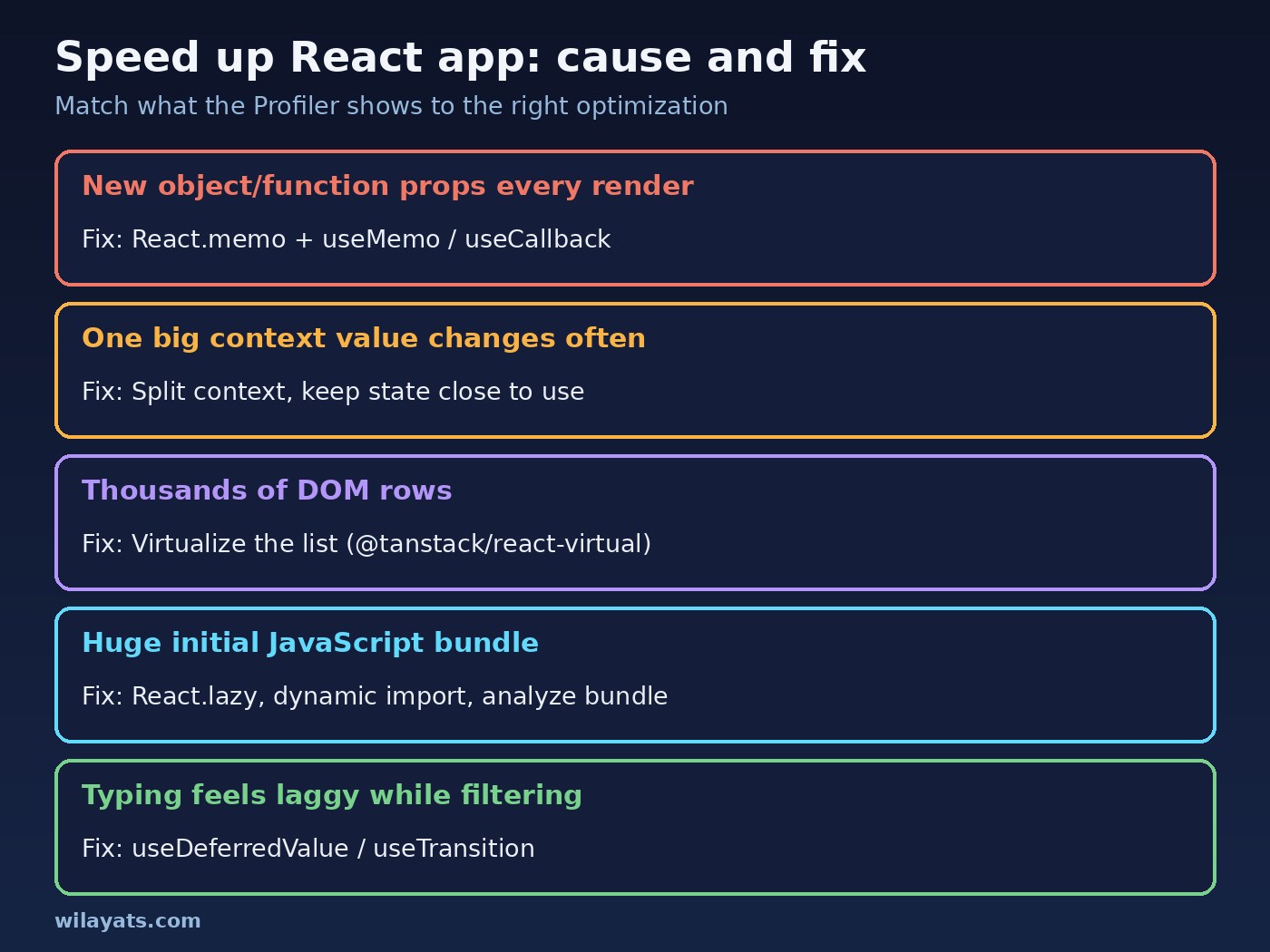
- State lives too high. A search term stored in the top-level page component re-renders the whole page on every keystroke.
- New references every render. Inline objects (
style={{...}}), arrays and arrow functions passed as props are new on every render, soReact.memochildren re-render anyway. - One large context. A single context holding user, theme, cart and filters re-renders every consumer when any one value changes.
- Expensive work during render. Sorting, filtering or formatting thousands of items inside the component body, on every render.
- Too many DOM nodes. Rendering every row of a 5,000-row table instead of only the visible ones.
- Unstable keys. Using
key={Math.random()}or array index keys on reordered lists forces React to remount items. - Big bundles. Charting libraries, editors and date libraries loaded on the first page even when the user never opens that screen.
- Testing the development build. Development mode (and Strict Mode's double rendering) is slower than production; always confirm problems on a production build.
Step-by-Step Solution: Speed Up Your React App
1. Profile a production build first
Build and serve the production version, then use the React DevTools Profiler tab: press record, perform the slow interaction, stop. The flame graph shows which components rendered, how long each took, and (with "Record why each component rendered while profiling" enabled in the Profiler settings) why they rendered. Turn on "Highlight updates when components render" to see wasted re-renders live.
# Vite
npm run build && npx vite preview

# Next.js
npm run build && npm run start
2. Move state down, or lift content up
Before reaching for memoization, keep fast-changing state in the smallest component that needs it. If only the search box and the results use query, do not store it in the page component.
// Before: every keystroke re-renders Header, Sidebar and Charts
function OrdersPage() {
  const [query, setQuery] = useState('');
  return (
    <>
      <Header />
      <Sidebar />
      <input value={query} onChange={e => setQuery(e.target.value)} />
      <OrderResults query={query} />
      <Charts />
    </>
  );
}

// After: only OrderSearch re-renders while typing
function OrdersPage() {
  return (
    <>
      <Header />
      <Sidebar />
      <OrderSearch />
      <Charts />
    </>
  );
}

function OrderSearch() {
  const [query, setQuery] = useState('');
  return (
    <>
      <input value={query} onChange={e => setQuery(e.target.value)} />
      <OrderResults query={query} />
    </>
  );
}
3. Use React.memo, useMemo and useCallback where the Profiler points
React.memo skips re-rendering a component when its props are shallowly equal. It only helps if the props are stable, which is where useMemo and useCallback come in.
import { memo, useMemo, useCallback, useState } from 'react';

const OrderRow = memo(function OrderRow({ order, onSelect }) {
  return (
    <li onClick={() => onSelect(order.id)}>
      {order.number} - {order.customer} - {order.total}
    </li>
  );
});

function OrderList({ orders, status }) {
  const [selectedId, setSelectedId] = useState(null);

  // Expensive filter + sort only runs when inputs change
  const visible = useMemo(
    () => orders
      .filter(o => status === 'all' || o.status === status)
      .sort((a, b) => b.createdAt.localeCompare(a.createdAt)),
    [orders, status]
  );

  // Same function reference between renders, so memo(OrderRow) can skip
  const handleSelect = useCallback(id => setSelectedId(id), []);

  return (
    <ul>
      {visible.map(o => (
        <OrderRow key={o.id} order={o} onSelect={handleSelect} />
      ))}
    </ul>
  );
}
Do not wrap everything. Memoization has its own cost and makes code harder to read. If your project uses the React Compiler (the babel-plugin-react-compiler plugin, also available as an option in Next.js), it adds much of this memoization automatically, so check the Profiler before adding manual useMemo calls.
4. Split context and avoid new context values
// Before: value is a new object every render, so every consumer re-renders
<AppContext.Provider value={{ user, theme, cart, setCart }}>

// After: separate contexts, memoized values
const cartValue = useMemo(() => ({ cart, setCart }), [cart]);

<UserContext.Provider value={user}>
  <ThemeContext.Provider value={theme}>
    <CartContext.Provider value={cartValue}>
      {children}
    </CartContext.Provider>
  </ThemeContext.Provider>
</UserContext.Provider>
For state that changes very often and is read in many places, a store with selectors (Zustand, Redux Toolkit with useSelector) lets each component subscribe only to the slice it uses.
5. Virtualize long lists and tables
Rendering only the rows that are on screen keeps the DOM small no matter how much data you have:
npm install @tanstack/react-virtualimport { useRef } from 'react';
import { useVirtualizer } from '@tanstack/react-virtual';
function VirtualOrders({ orders }) {
const parentRef = useRef(null);
const rowVirtualizer = useVirtualizer({
count: orders.length,
getScrollElement: () => parentRef.current,
estimateSize: () => 44,
overscan: 8,
});
return (
<div ref={parentRef} style={{ height: 600, overflow: 'auto' }}>
<div style={{ height: rowVirtualizer.getTotalSize(), position: 'relative' }}>
{rowVirtualizer.getVirtualItems().map(item => (
<div
key={orders[item.index].id}
style={{
position: 'absolute', top: 0, left: 0, width: '100%',
height: item.size, transform: `translateY(${item.start}px)`,
}}
>
{orders[item.index].number} - {orders[item.index].customer}
</div>
))}
</div>
</div>
);
}Server-side pagination is often an even better fix for ERP-style screens: send 50 rows from your Laravel or Node API instead of 5,000. If that API is slow itself, check for N+1 query problems before blaming the frontend.
6. Keep typing responsive with useDeferredValue and useTransition
import { useDeferredValue, useState, useTransition } from 'react';

function ProductSearch({ products }) {
  const [query, setQuery] = useState('');
  const deferredQuery = useDeferredValue(query);   // results lag slightly, input stays instant
  return (
    <>
      <input value={query} onChange={e => setQuery(e.target.value)} />
      <ResultsList products={products} query={deferredQuery} />
    </>
  );
}

function Tabs() {
  const [tab, setTab] = useState('orders');
  const [isPending, startTransition] = useTransition();
  return (
    <>
      <button onClick={() => startTransition(() => setTab('reports'))}>
        Reports {isPending && '...'}
      </button>
      {tab === 'orders' ? <Orders /> : <Reports />}
    </>
  );
}
Wrap ResultsList in memo so it can skip re-rendering while the deferred value catches up.
7. Split the bundle with React.lazy and dynamic import
import { lazy, Suspense } from 'react';

const ReportsPage = lazy(() => import('./pages/ReportsPage'));

function App() {
  return (
    <Suspense fallback={<p>Loading reports...</p>}>
      <ReportsPage />
    </Suspense>
  );
}// Next.js: load a heavy chart only on the client, only when rendered
import dynamic from 'next/dynamic';
const SalesChart = dynamic(() => import('../components/SalesChart'), {
ssr: false,
loading: () => <p>Loading chart...</p>,
});Note that in the Next.js App Router, ssr: false is only allowed inside a Client Component (a file with 'use client'). Turning a component off for server rendering is also a common way to fix Next.js hydration errors caused by browser-only code.
Code and Commands: Find What to Optimize
Analyze the bundle
# Vite
npm install -D rollup-plugin-visualizer
# vite.config.js: plugins: [react(), visualizer({ open: true })]
npm run build

# Next.js
npm install -D @next/bundle-analyzer
ANALYZE=true npm run build// next.config.js
const withBundleAnalyzer = require('@next/bundle-analyzer')({
enabled: process.env.ANALYZE === 'true',
});
module.exports = withBundleAnalyzer({});Look for large libraries you only use in one place, duplicate copies of the same package, and whole-library imports such as import _ from 'lodash' where import debounce from 'lodash/debounce' would do.
Measure render time in code
import { Profiler } from 'react';

function onRender(id, phase, actualDuration) {
  if (actualDuration > 16) {
    console.warn(`${id} ${phase} took ${actualDuration.toFixed(1)}ms`);
  }
}

<Profiler id="OrderList" onRender={onRender}>
  <OrderList orders={orders} status={status} />
</Profiler>
Track real-user Web Vitals
npm install web-vitalsimport { onINP, onLCP, onCLS } from 'web-vitals';
onINP(console.log);
onLCP(console.log);
onCLS(console.log);Fix effect-driven extra renders
Copying props into state with an effect causes a second render on every change. Derive the value during render instead:
// Before: two renders per change
const [fullName, setFullName] = useState('');
useEffect(() => { setFullName(first + ' ' + last); }, [first, last]);

// After: one render
const fullName = first + ' ' + last;
If your components are full of effects like this, read why too many useEffect hooks are a code smell.
Verification: Confirm the React Optimization Worked
- Record the same interaction in the React DevTools Profiler before and after; the number of components that rendered and the commit duration should both drop.
- With "Highlight updates" on, typing in the search box should only flash the input and the results, not the whole page.
- In the Chrome Performance panel, the long tasks for that interaction should be shorter or gone.
- Run Lighthouse on the production build and compare LCP, Total Blocking Time and the "Reduce unused JavaScript" audit.
- Check the bundle analyzer again to confirm heavy libraries moved out of the main chunk.
- Watch real-user INP from
web-vitalsor your analytics for a few days after release.
Prevention: Keep Your React App Fast
- Keep state local and lift it only when two components really share it.
- Use stable, unique keys from your data, such as database ids.
- Paginate or virtualize any list that can grow past a few hundred rows.
- Lazy-load routes and heavy widgets such as charts, rich text editors and maps.
- Set a bundle budget and check the analyzer in code review when adding dependencies.
- Profile new screens with realistic data volumes, not 10 test rows.
- Keep a clear folder and component structure so state ownership stays obvious; see how to structure a large React project.
FAQs
What is the best way to start React performance optimization?
Build for production, record the slow interaction in the React DevTools Profiler, and fix the components that take the most time or re-render without reason. Guessing usually leads to memoizing code that was never slow.
How do I speed up a React app that re-renders too much?
Move fast-changing state closer to where it is used, split large contexts, pass stable props with useMemo and useCallback, and wrap expensive children in React.memo.
Should I use useMemo and useCallback everywhere?
No. They add overhead and complexity. Use them for expensive calculations and for props passed to memoized children. The React Compiler can handle much of this automatically.
Does React optimization help initial load time?
Render optimizations mostly help interactions. For initial load, reduce JavaScript with code splitting, lazy loading and smaller dependencies, and in Next.js render more on the server.
Why is my React app slow only in development?
The development build includes extra checks and warnings, and Strict Mode renders components twice to find bugs. Measure performance on a production build.
How many rows can React render before it gets slow?
It depends on how heavy each row is and the user's device. If scrolling or updates feel slow with a long list, virtualize it or paginate on the server instead of tuning each row.
Conclusion
Good React performance optimization is a loop: profile, find the slowest or most wasted renders, apply the smallest fix that works, then verify. Keep state local, stabilize props for memoized children, split contexts, virtualize big lists, defer non-urgent updates, and ship less JavaScript with code splitting. Do that on every new screen and your React or Next.js app stays fast as your data grows.

Comments
Join the discussion. Replies load on demand, up to 5 levels.
0 threads
No comments yet
Be the first to start the conversation.