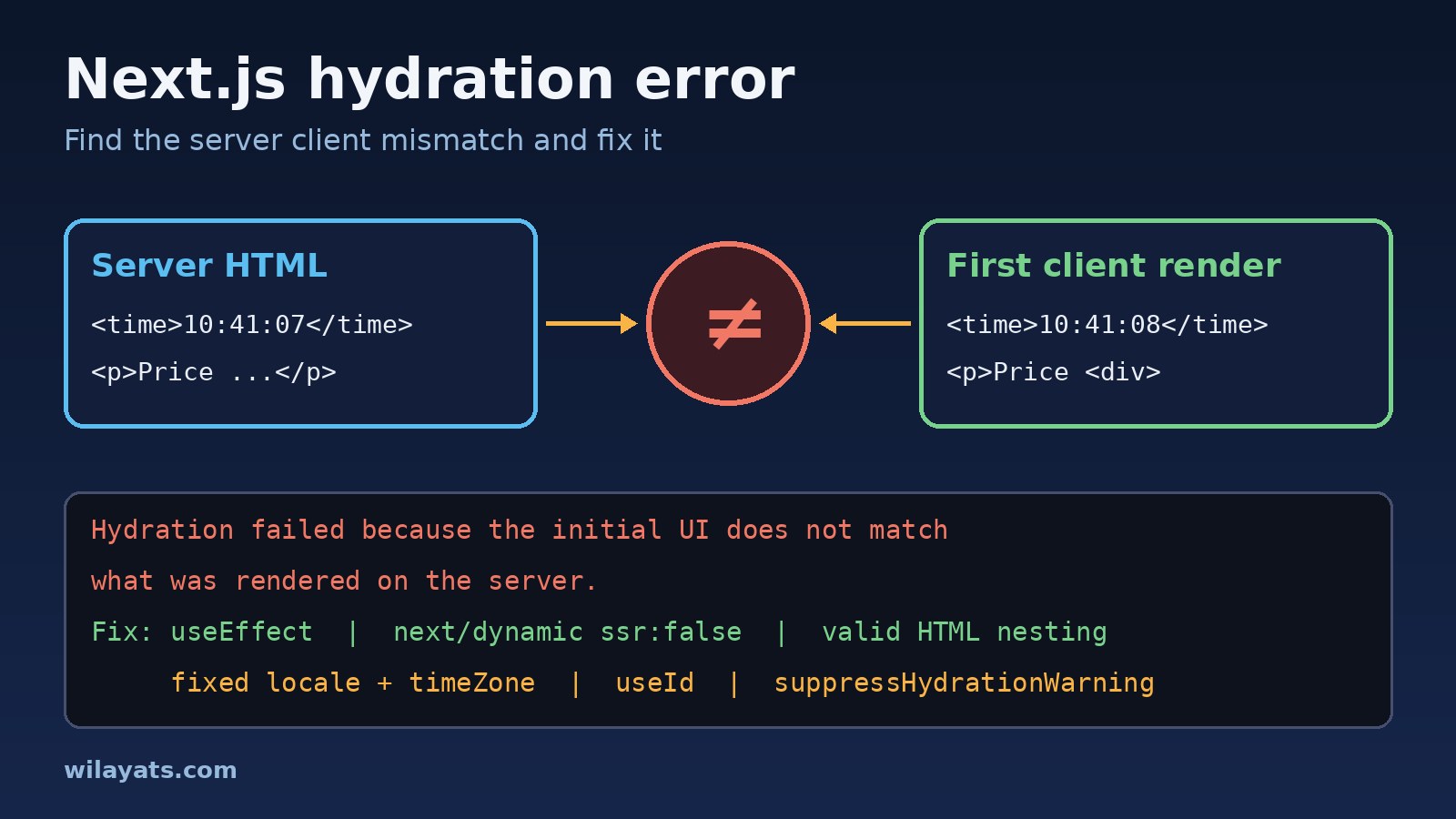
Your page renders fine, then the console fills with red: Hydration failed because the initial UI does not match what was rendered on the server. A Next.js hydration error means the HTML the server sent and the first render React produced in the browser are different. React cannot attach to markup it did not expect, so it throws the mismatch away and re-renders that part of the tree on the client.
The good news is that the causes are a short, predictable list. This guide shows the exact messages you will see in the Pages Router and the App Router, explains why each one happens, and gives a fix for each, from the useEffect mounted pattern to next/dynamic with ssr: false.
The Problem: What a Next.js Hydration Error Means
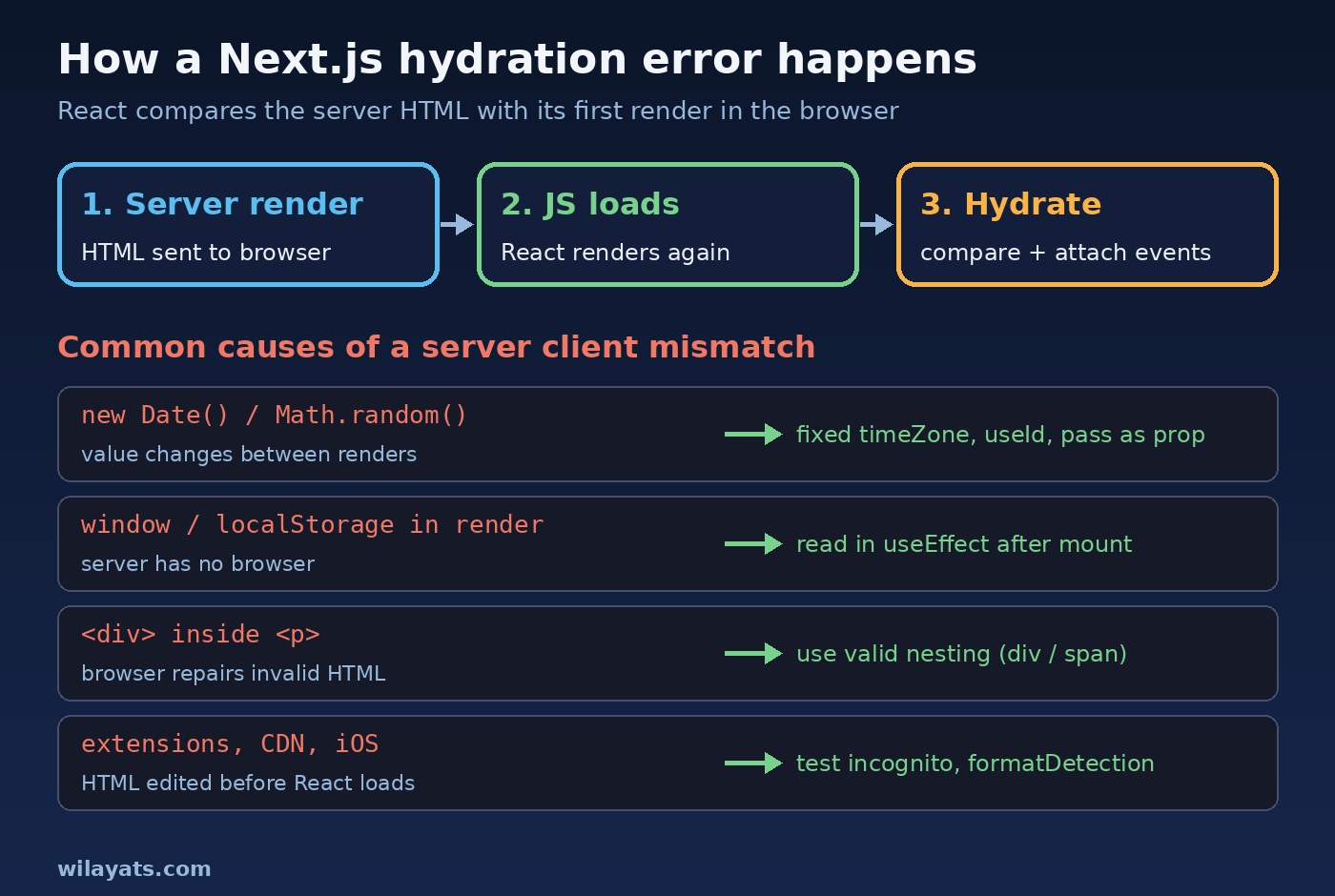
Next.js renders your components to HTML on the server (or at build time) so the user sees content before any JavaScript runs. When the JavaScript bundle loads, React runs the same components again in the browser and "hydrates" the existing HTML: it walks the DOM, attaches event handlers and expects every element and text node to be exactly where its own render says it should be.
If the server output and the client output differ, you get a server client mismatch. React cannot safely patch someone else's markup, so it discards the server HTML for the affected subtree (or the whole root) and renders it again on the client. The page usually still works, which makes these errors easy to ignore, but content can flash and you lose server rendering for that part.
Symptoms of Hydration Failed in Next.js
The wording depends on your React version. With React 18 (Next.js 13 and 14) you will typically see one or more of these in the browser console or the dev overlay:
Error: Hydration failed because the initial UI does not match what was rendered on the server.
Error: Text content does not match server-rendered HTML.
Warning: Text content did not match. Server: "10:41:07 AM" Client: "10:41:08 AM"
Warning: Expected server HTML to contain a matching <div> in <p>.
Error: There was an error while hydrating. Because the error happened outside of a Suspense boundary, the entire root will switch to client rendering.
With React 19 (Next.js 15 and newer) the message is longer and the dev overlay shows a diff of the server and client values:
Error: Hydration failed because the server rendered HTML didn't match the client.
As a result this tree will be regenerated on the client.

A tree hydrated but some attributes of the server rendered HTML didn't match the client properties.

In HTML, <div> cannot be a descendant of <p>. This will cause a hydration error.
In a production build React 18 prints minified errors instead, most often Minified React error #418, #423 or #425. Visible signs include a timestamp that flickers on load or a theme toggle that briefly shows the wrong icon.
Root Cause: Why the Server and Client Render Differently
Every hydration error comes from the same rule being broken: the first client render must produce exactly the same HTML as the server render. These are the usual ways code breaks it:
- Time and randomness.
new Date(),Date.now()andMath.random()return a different value on the server than a few hundred milliseconds later in the browser. - Locale and time zone.
toLocaleString()orIntl.DateTimeFormatwithout an explicit locale andtimeZoneuses the server's settings on the server and the visitor's settings in the browser. - Browser-only APIs in render. Reading
window,localStorage,navigatorormatchMediaduring render, or branching ontypeof window !== 'undefined', gives the server one answer and the browser another. - Invalid HTML nesting. A
<div>inside a<p>, a<p>inside a<p>, an<a>inside an<a>, or a<tr>directly inside a<table>without<tbody>. The browser's HTML parser silently "repairs" this markup, so the DOM no longer matches what React rendered. - Something else edits the HTML. Browser extensions (password managers, grammar checkers, translators) inject attributes or elements before React hydrates. CDN features that rewrite HTML, such as minification or email obfuscation, and iOS Safari turning phone numbers into links can do the same.
- Data that changes between renders. The server fetched data, but the client component fetches again or reads a different cache on first render instead of reusing what the server sent.
Step-by-Step Fix for a Next.js Hydration Error
1. Find the exact element that mismatched
Run the app in development (next dev) and open the error in the Next.js overlay. Newer versions show the component stack and a server/client diff; older versions print the server and client text in the console warning. Note the component name and the value that differs. That usually points straight at one of the causes above.
Next, open the page in a private window with extensions disabled. If the error disappears, an extension is the cause and your code may be fine.
2. Fix invalid HTML nesting
This is the most common cause that is not about time or window, and it is easy to miss when the nesting happens across components. A typical example is a UI library's Typography component that renders a <p> and a child component that renders a <div>:
// Wrong: the browser closes the <p> before the <div>, so the DOM changes
<p className="price">
  Price: <PriceBadge amount={price} />   {/* PriceBadge returns a <div> */}
</p>

// Right: use a block container, or make the child render a <span>
<div className="price">
  Price: <PriceBadge amount={price} />
</div>
Also check for links inside links (a card wrapped in <Link> that also contains a <Link>), interactive elements inside <button>, and tables without <tbody>.
3. Move browser-only values into useEffect
Anything that depends on the browser should not affect the first render. Render a stable placeholder on both sides, then update after hydration. This is the classic mounted pattern:
'use client';
import { useEffect, useState } from 'react';

export default function LocalTime({ iso }: { iso: string }) {
  const [text, setText] = useState<string | null>(null);

  useEffect(() => {
    // Runs only in the browser, after hydration
    setText(new Date(iso).toLocaleTimeString());
  }, [iso]);

  return <time dateTime={iso}>{text ?? '--:--'}</time>;
}
The same idea works for localStorage, screen size or a saved theme. Do not "fix" the problem by checking typeof window during render, because that is exactly what creates the mismatch. If you use this pattern often, keep it to small leaf components; if a component is full of effects like this, read why too many useEffect hooks are a code smell.
4. Make dates, numbers and random IDs deterministic
If the value can be the same on both sides, make it the same rather than delaying it. Format dates with an explicit locale and time zone, generate IDs with React's useId instead of Math.random(), and compute "now" once on the server and pass it down as a prop:
const fmt = new Intl.DateTimeFormat('en-GB', {
  dateStyle: 'medium',
  timeStyle: 'short',
  timeZone: 'Asia/Karachi',   // fixed zone: same output on server and client
});

export function PostDate({ iso }: { iso: string }) {
  return <time dateTime={iso}>{fmt.format(new Date(iso))}</time>;
}

// Stable IDs for labels and inputs
import { useId } from 'react';
const id = useId();   // same on server and client, unlike Math.random()
5. Skip server rendering for client-only components
Some components only make sense in the browser: charts that measure the DOM, maps, editors, or widgets that read window at import time. Load them with next/dynamic and turn off SSR. In the App Router, ssr: false is not allowed in Server Components, so put the dynamic import inside a file marked 'use client':
'use client';
import dynamic from 'next/dynamic';

const SalesChart = dynamic(() => import('./SalesChart'), {
  ssr: false,
  loading: () => <div style={{ height: 320 }} />,  // reserve space to avoid layout shift
});

export default function ChartSlot() {
  return <SalesChart />;
}
6. Use suppressHydrationWarning only for unavoidable differences
suppressHydrationWarning silences the warning for one element's own text and attributes. It does not apply to children deeper down, and it does not make the content match. Use it only where a difference is expected and harmless, such as a timestamp, or on <html> when a theme library sets a class before React loads:
// app/layout.tsx
export default function RootLayout({ children }: { children: React.ReactNode }) {
  return (
    <html lang="en" suppressHydrationWarning>
      <body>{children}</body>
    </html>
  );
}
7. Stop iOS and CDNs from rewriting your HTML
If the error only appears on iPhones, Safari may be turning phone numbers or dates into links. In the App Router you can turn that off with the formatDetection metadata; in the Pages Router add the meta tag in _document. Also disable any CDN option that minifies or rewrites HTML for pages served by Next.js.
// app/layout.tsx
export const metadata = {
  formatDetection: { telephone: false, email: false, address: false },
};

// pages/_document.tsx (Pages Router)
<meta name="format-detection" content="telephone=no, email=no, address=no" />
Verification: Confirm the Server Client Mismatch Is Gone
- Restart
next dev, hard-reload the page and check that the console and the overlay are clean. - Test a production build, because some mismatches only show up there:
npm run build && npm run start
# or
npx next build && npx next start- Compare View Page Source (the server HTML) with the Elements panel (the live DOM) for the component you fixed. The text and structure should match.
- Test with a different browser time zone and language (Chrome DevTools > Sensors lets you override location and time zone) and in a private window with extensions off.
- Add an automated guard. An end-to-end test can fail the build when the console logs a hydration message:
// tests/hydration.spec.ts (Playwright)
import { test, expect } from '@playwright/test';

test('home page hydrates without mismatch', async ({ page }) => {
  const errors: string[] = [];
  page.on('console', (msg) => {
    if (msg.type() === 'error' && /hydrat/i.test(msg.text())) errors.push(msg.text());
  });
  page.on('pageerror', (err) => {
    if (/hydrat|#418|#423|#425/.test(err.message)) errors.push(err.message);
  });
  await page.goto('/');
  await page.waitForLoadState('networkidle');
  expect(errors).toEqual([]);
});
If the test is flaky on slow CI machines, the Playwright timeout error guide covers how to wait for the right state.
Prevention: Keep Hydration Errors Out of Your Codebase
- Keep render pure. No
Date.now(),Math.random(),windoworlocalStoragein the render path of anything that is server rendered. - Centralise formatting. One date and currency formatter with a fixed locale and time zone, used everywhere.
- Isolate client-only code. Put browser-dependent widgets in small
'use client'components and load heavy ones withnext/dynamic. A clear folder structure helps; see how to structure a large React project. - Check component output, not just props. When wrapping library components, know which HTML tag they render so you do not nest block elements inside
<p>. - Pass server data down. Fetch on the server and pass the result to client components as props instead of fetching again on first render.
- Fail CI on hydration warnings with a console listener like the test above.
FAQs
Is a hydration error in Next.js serious if the page still works?
Yes, it is worth fixing. React recovers by re-rendering on the client, so the page often looks fine, but that part of the page loses server rendering, may flicker, and does extra work on every load.
Why does hydration failed in Next.js only happen in production or only for some users?
Usually because the difference depends on the environment: the server's time zone versus the visitor's, a cached page with an old timestamp, a CDN rewriting HTML, iOS format detection, or a browser extension that only some users have installed.
What is the difference between Pages Router and App Router hydration errors?
The cause is the same in both: the first client render differs from the server HTML. In the App Router only Client Components hydrate, so look in files marked 'use client' and the components they render. In the Pages Router every page component hydrates, so check data passed from getServerSideProps or getStaticProps.
Can I just disable SSR for the whole page?
You can wrap a page component with next/dynamic and ssr: false, but you give up fast first paint and much of the SEO benefit of Next.js. Disable SSR only for the specific widget that needs the browser.
Does suppressHydrationWarning fix the server client mismatch?
No. It only hides the warning for that single element. The client value still replaces the server value. Use it for small, expected differences like timestamps, not to hide bugs.
How do I fix a hydration error caused by a browser extension?
Confirm it by testing in a private window without extensions. You cannot control users' extensions, so if the mismatch is on <html> or <body> attributes, suppressHydrationWarning on those elements is a reasonable choice.
Conclusion
A Next.js hydration error is React telling you that the server and the browser disagreed about the first render. Find the element in the error diff, then apply the matching fix: correct the HTML nesting, move browser-only values into useEffect, make dates and IDs deterministic, load client-only widgets with next/dynamic, and keep suppressHydrationWarning for the rare differences you truly cannot avoid. Add a hydration check to your tests so it stays fixed.