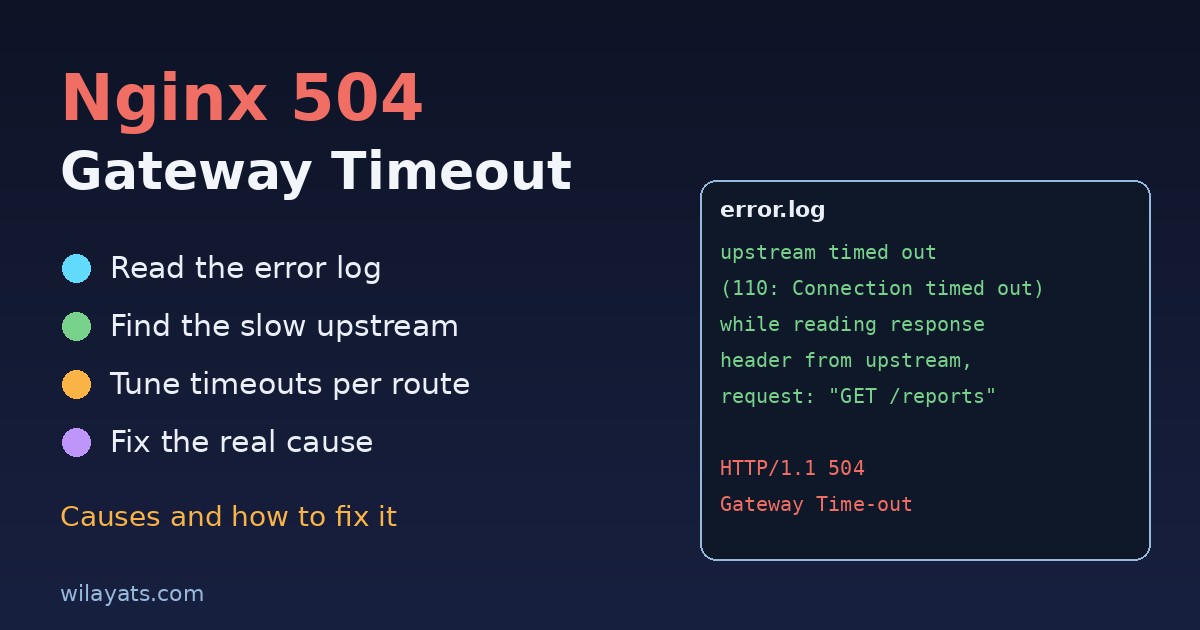
You deploy a feature, everything looks fine locally, and then a user hits a report page in production and gets a plain white screen that says 504 Gateway Timeout. Refresh, and sometimes it works. Refresh again, and it fails. A 504 from Nginx is frustrating because Nginx itself is usually healthy; it is telling you that something behind it took too long to answer. This guide explains what an Nginx 504 gateway timeout really means, how to find the slow part, and how to fix it properly instead of just raising every timeout to ten minutes.
What a 504 Gateway Timeout actually means
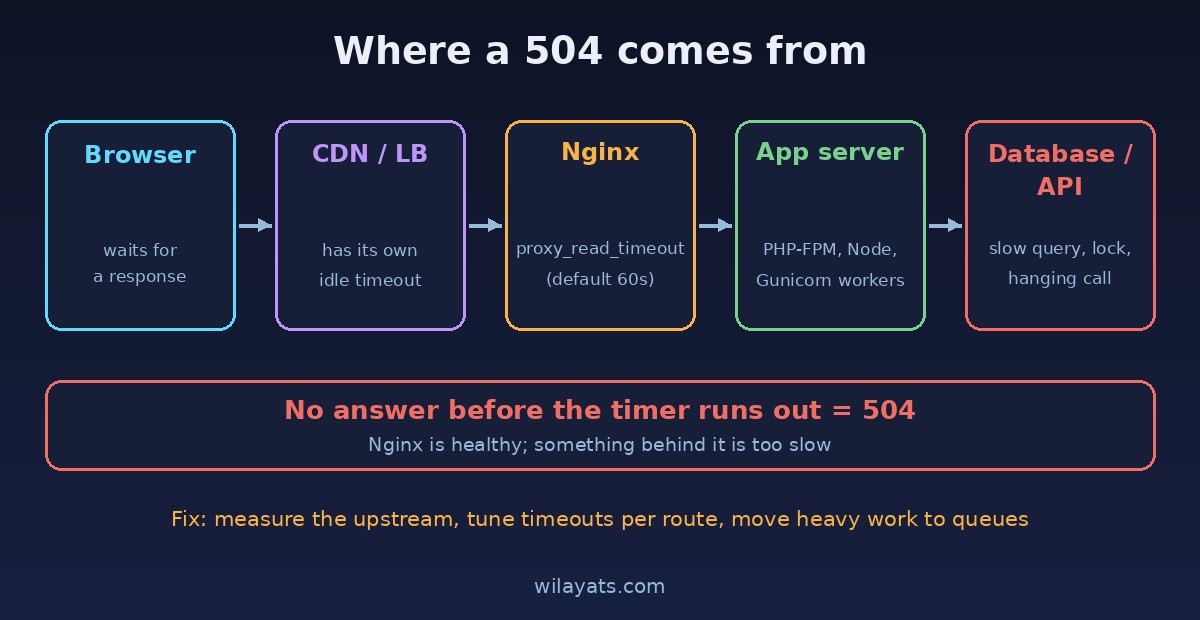
When Nginx works as a reverse proxy, it sits between the browser and your application: PHP-FPM, a Node.js server, a Python app on Gunicorn or Uvicorn, or another load balancer. Nginx opens a connection to that upstream, sends the request and waits. If the upstream does not send a response within the configured time, Nginx gives up and returns 504 to the client.
That is different from a 502 Bad Gateway. A 502 means Nginx got an invalid response or could not connect at all (the app crashed, the socket is missing, the port is wrong). A 504 means the connection worked but the answer never arrived in time. If you are seeing 502s instead, start with our guide to 502 Bad Gateway in Nginx.
Step 1: Confirm it in the Nginx error log
Before changing anything, check the log. On most Linux servers it lives at /var/log/nginx/error.log:
sudo tail -f /var/log/nginx/error.logA typical 504 looks like this:
upstream timed out (110: Connection timed out) while reading response header from upstream,
client: 203.0.113.10, server: example.com, request: "GET /reports/annual HTTP/1.1",
upstream: "http://127.0.0.1:3000/reports/annual"
Three details matter here. The phrase while reading response header tells you the upstream accepted the request but was too slow to reply. while connecting to upstream means it could not even open the connection in time, which points to an overloaded or unreachable backend. And the request path tells you exactly which endpoint is slow, which is often more useful than any setting.
Step 2: Find out which layer is slow
Nginx is the messenger. The real question is why the upstream needs more than 60 seconds (the default for proxy_read_timeout). Test the app directly, bypassing Nginx:
curl -o /dev/null -s -w "%{time_total}\n" http://127.0.0.1:3000/reports/annualIf this takes 70 seconds, the problem is in your application, not in Nginx. The common culprits are:
Slow database queries: a missing index, an N+1 query loop, or a report that scans millions of rows. Check your slow query log or run
EXPLAIN ANALYZEon the query behind that endpoint.Calls to external APIs: a payment gateway, an SMS provider or an AI API that hangs without its own timeout. Your request waits as long as they do.
Exhausted workers: all PHP-FPM children or Gunicorn workers are busy, so new requests queue until Nginx gives up. The app is not slow per request; it is simply full.
Locks: a long transaction holds a row or table lock, and every request touching that data waits behind it.
Heavy work inside the request: generating a PDF, resizing images, exporting a big Excel file or sending hundreds of emails synchronously.
Step 3: Check the upstream's own limits
For PHP, look at the PHP-FPM log (for example /var/log/php8.2-fpm.log). A line like server reached pm.max_children setting means requests are queueing because there are not enough workers. Also check max_execution_time in php.ini and request_terminate_timeout in the pool config; if PHP kills the script first, you will see errors on the PHP side as well.
For Node.js, watch CPU usage while reproducing the problem. A single synchronous loop or a large JSON.parse blocks the event loop, and every other request on that process stalls with it. For Gunicorn, the --timeout flag and the number of workers both matter.
Step 4: Adjust Nginx timeouts (carefully)
If the endpoint is legitimately slow, for example an admin export that takes 90 seconds, raise the timeout only where it is needed. For a proxied app:
location /reports/ {
    proxy_pass http://127.0.0.1:3000;
    proxy_connect_timeout 10s;
    proxy_send_timeout    120s;
    proxy_read_timeout    120s;
}
For PHP-FPM, the equivalent setting is fastcgi_read_timeout:
location ~ \.php$ {
    include fastcgi_params;
    fastcgi_pass unix:/run/php/php8.2-fpm.sock;
    fastcgi_read_timeout 120s;
}
Then test and reload:
sudo nginx -t && sudo systemctl reload nginxRemember that every layer in front of the app has its own clock. If you run behind Cloudflare, an AWS load balancer or another proxy, its idle timeout must also be longer than your request, otherwise the outer layer returns the 504 instead. Cloudflare, for instance, cuts proxied requests at about 100 seconds on standard plans.
Step 5: Fix the real cause
Raising timeouts treats the symptom. A request that takes two minutes ties up a worker for two minutes, and ten users doing the same thing can take the whole site down. Better long-term fixes:
Move heavy work to a background queue. Accept the request, push a job to Redis or your queue system, return immediately, and let the user download the file or see the result when it is ready.
Optimize the query. Add the right index, paginate, select only needed columns, or precompute report data on a schedule.
Put timeouts on outbound calls. Every HTTP client call to a third-party API should have a timeout shorter than your Nginx timeout, plus a sensible fallback.
Right-size workers. Increase
pm.max_childrenor Gunicorn workers only if the server has the memory for them; otherwise scale horizontally.Cache expensive responses. Dashboards and reports that change hourly do not need to be rebuilt on every page load.
A quick troubleshooting checklist
Read
/var/log/nginx/error.logand note the slow URL and the exact timeout message.Call the upstream directly with
curlto measure its real response time.Check the app logs, worker limits and the database for slow queries or locks.
Raise
proxy_read_timeoutorfastcgi_read_timeoutonly for routes that genuinely need it.Align timeouts in every layer: CDN, load balancer, Nginx, app server and app code.
Move long-running tasks to background jobs so requests finish in seconds.
Conclusion
An Nginx 504 is rarely an Nginx bug. It is a clear signal that a request is spending too long somewhere upstream. Read the error log, measure the backend directly, and you will usually find a slow query, a hanging external call or a worker pool that is full. Tune the timeout for the few routes that truly need more time, and fix the rest by making the work faster or moving it out of the request entirely. Your users get pages that load, and your server stops holding connections hostage.
Comments
Join the discussion. Replies load on demand, up to 5 levels.
0 threads
No comments yet
Be the first to start the conversation.