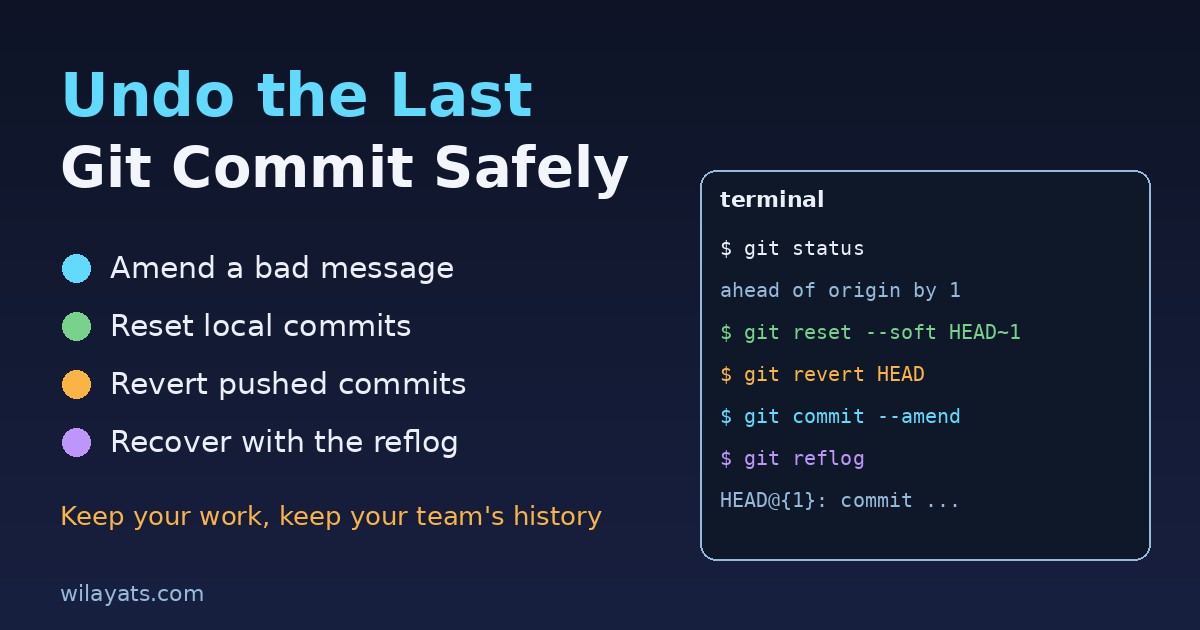
You just ran git commit and immediately spotted the problem: a typo in the message, a forgotten file, a debug line that should never ship, or worse, a commit on the wrong branch. The good news is that Git almost never loses your work, and undoing the last commit takes one command. The catch is that there are several commands, and the right one depends on two questions: do you want to keep the changes, and have you already pushed? This guide walks through each case so you can undo the last Git commit safely without breaking anything for your team.
First, answer two questions
Before you type anything, check where you stand:
Has the commit been pushed? Run
git status. If it says "Your branch is ahead of 'origin/main' by 1 commit", the commit only exists on your machine. If it says "up to date", it is already on the remote and other people may have pulled it.Do you want to keep the changes? Most of the time you do. You just want to fix the commit, not throw away the code.
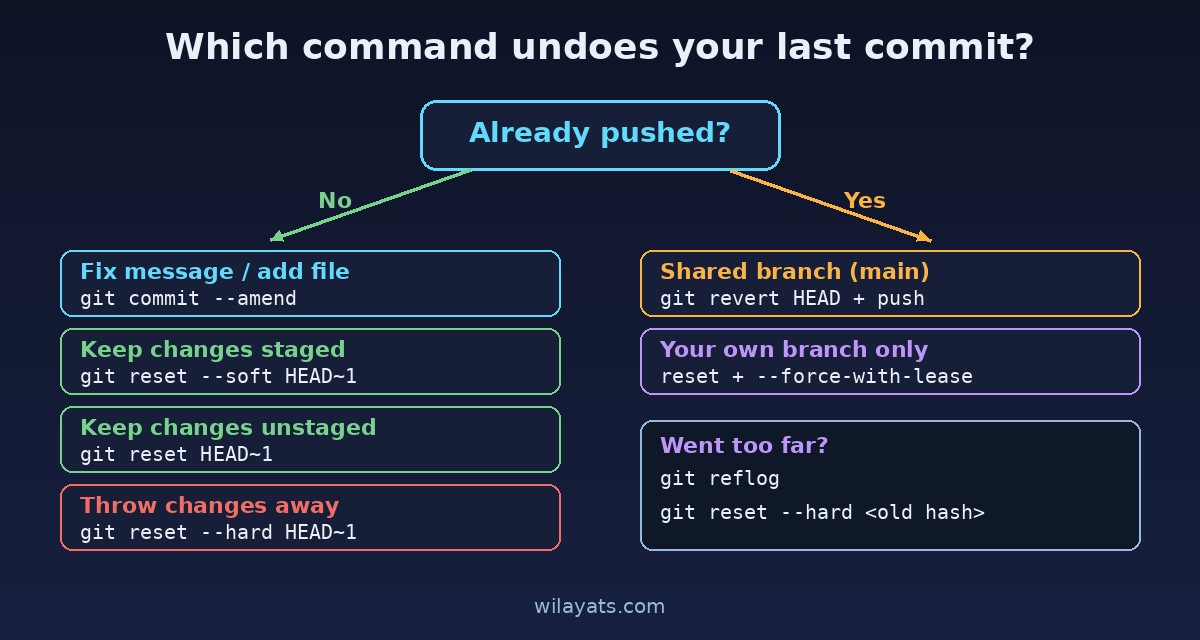
The rule of thumb: for local commits, rewriting history with git reset or git commit --amend is fine. For pushed commits on a shared branch, use git revert, which adds a new commit instead of rewriting old ones.
Case 1: Fix the commit message or add a forgotten file
If the commit is fine but the message is wrong, or you forgot to stage a file, you do not need to undo anything. Amend it:
git add forgotten-file.js
git commit --amend -m "Add listing filters and price validation"
--amend replaces the last commit with a new one containing the staged changes and the new message. Leave out -m to edit the message in your editor, or use --no-edit to keep the old message. Only amend commits you have not pushed, because the amended commit has a new hash.
Case 2: Undo the commit but keep changes staged
This is the most common "undo" and the safest form of reset:
git reset --soft HEAD~1HEAD~1 means "one commit before the current one". The soft reset moves your branch pointer back by one commit, and every change from that commit stays staged, exactly as it was right before you committed. You can unstage a file, edit something, and commit again.
Case 3: Undo the commit and unstage the changes
git reset HEAD~1This is a mixed reset, Git's default. The commit disappears and the changes go back to your working directory as unstaged edits. It is useful when you want to split one big commit into smaller ones: reset, then git add and commit the pieces separately.
Case 4: Undo the commit and throw the changes away
git reset --hard HEAD~1This removes the commit and deletes its changes from your working directory. It also wipes any other uncommitted edits you had, so run git status first and stash anything you care about with git stash. Use --hard only when you are sure the code is worthless, such as an experiment that went nowhere.
Case 5: The commit is already pushed
Once a commit is on a shared branch like main or develop, do not reset it. Teammates may have pulled it, and rewriting history will give them diverging branches and confusing merge errors (we covered that mess in how to fix Git divergent branches). Revert it instead:
git revert HEAD
git push
git revert creates a new commit that applies the exact opposite of the last one. The bad change is undone, history stays intact, and everyone can pull normally. To revert an older commit, pass its hash from git log --oneline, for example git revert a1b2c3d.
If the commit is on your own feature branch that nobody else uses, you can reset and then force-push. Use the safer flag, which refuses to overwrite the remote if someone else pushed in the meantime:
git reset --soft HEAD~1
git commit -m "Correct commit"
git push --force-with-lease
Case 6: You committed to the wrong branch
A classic: you made a commit on main that belonged on a feature branch. As long as it is not pushed, move it in three steps:
git branch feature/price-filters   # new branch keeps the commit
git reset --hard HEAD~1            # remove it from main
git switch feature/price-filters   # continue working there
If the target branch already exists, switch to it and run git cherry-pick main@{1} after the reset, or note the commit hash before resetting and cherry-pick that hash.
Oops, I reset too far: use the reflog
Even after a hard reset, the commit is not gone right away. Git keeps a log of every position HEAD has pointed to:
git reflog
# a1b2c3d HEAD@{0}: reset: moving to HEAD~1
# 9f8e7d6 HEAD@{1}: commit: Add listing filters
git reset --hard 9f8e7d6
Find the line just before your reset and reset back to it. Reflog entries usually stay for about 90 days, so this works long after the mistake. It only covers committed work, though; uncommitted edits wiped by --hard cannot be recovered this way, which is why a quick git stash is worth the habit.
Quick reference
Wrong message or missing file, not pushed:
git commit --amendUndo, keep changes staged:
git reset --soft HEAD~1Undo, keep changes unstaged:
git reset HEAD~1Undo and discard changes:
git reset --hard HEAD~1Already pushed to a shared branch:
git revert HEAD, then pushPushed to your own branch only: reset, then
git push --force-with-leaseWent too far:
git reflog, then reset to the old hash
Habits that make undoing rarely necessary
Run
git diff --stagedbefore every commit so you see exactly what is going in.Commit small, focused changes. A small commit is easy to amend, revert or move.
Protect
mainon GitHub or GitLab so nobody can force-push to it by accident.Prefer
--force-with-leaseover--force, every time.
Undoing a commit feels risky the first few times, but once you know the difference between amend, reset and revert, it becomes routine. Keep local mistakes local with reset, fix shared history forward with revert, and remember that the reflog is your safety net when something goes further than you planned.

Comments
Join the discussion. Replies load on demand, up to 5 levels.
0 threads
No comments yet
Be the first to start the conversation.