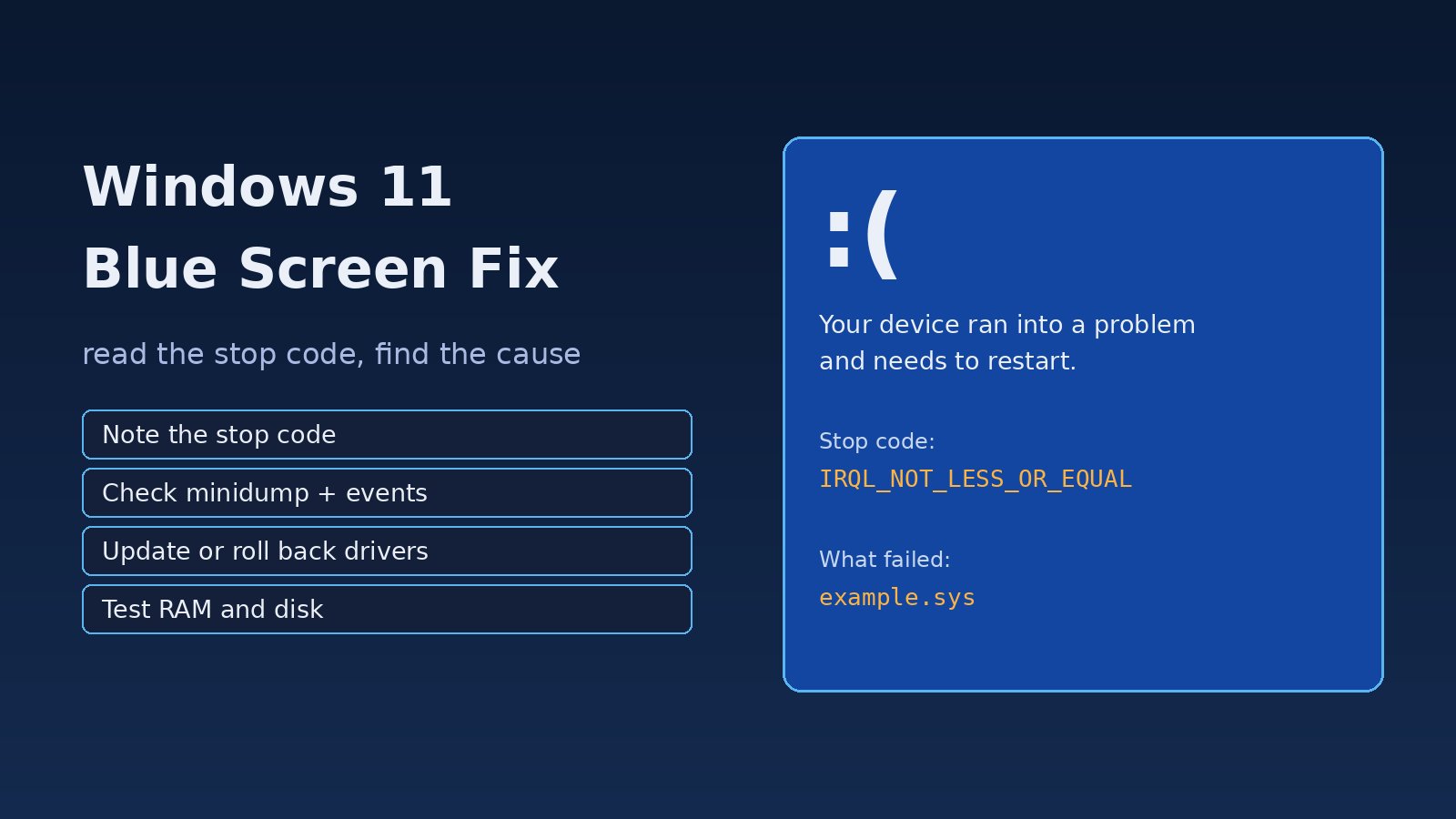
You are in the middle of a build, a video call or a database migration, and the screen suddenly turns blue with a sad face and "Your device ran into a problem and needs to restart." A Blue Screen of Death (BSOD) is Windows stopping itself on purpose because something running in kernel mode, usually a driver, failing hardware or damaged system files, did something it could not safely recover from. The good news is that a windows 11 blue screen fix is rarely guesswork: Windows records a stop code, the module that failed and a memory dump, and those clues point you to the cause. This guide covers the problem, the symptoms, the root causes and a step-by-step fix using built-in tools like Event Viewer, Reliability Monitor, sfc, DISM, Windows Memory Diagnostic and WinDbg.
Problem: Windows 11 Crashes With a Blue Screen
A BSOD is officially called a bug check. When the Windows kernel detects a condition that could corrupt data, such as a driver accessing memory it should not touch, it halts the system, writes a crash dump and restarts. On newer Windows 11 builds the screen may look simpler and even appear black instead of blue, but it is the same mechanism and shows the same stop code.
One crash after installing a new driver or update is often a one-off. Repeated crashes, crashes under load, or crashes during boot mean there is a real fault you need to track down before it costs you work or data.
Symptoms of a BSOD in Windows 11
- A blue (or black) screen with "Your device ran into a problem and needs to restart" and a percentage counter.
- A Windows stop code such as
IRQL_NOT_LESS_OR_EQUAL,CRITICAL_PROCESS_DIEDorPAGE_FAULT_IN_NONPAGED_AREA, sometimes with a "What failed" line naming a file likenvlddmkm.sys. - Random restarts where you never see the screen, because automatic restart is enabled.
- After restart, a message that Windows recovered from an unexpected shutdown.
- Crashes that repeat during gaming, heavy compiles, Docker or virtual machine workloads, sleep and wake, or plugging in a device.
- In the worst case, a boot loop that ends in Automatic Repair.
Root Cause: Why Windows 11 Shows the Blue Screen of Death
- Faulty or incompatible drivers. This is the most common cause. Graphics, network, storage, audio, VPN, antivirus and virtualization drivers run in kernel mode, so one bug can crash the whole system.
- Bad Windows updates or driver updates. A crash that started right after an update points to that change.
- Failing or unstable RAM. Defective memory modules, mismatched sticks or aggressive XMP/EXPO overclock profiles cause random stop codes like
MEMORY_MANAGEMENT. - Disk and file system problems. A failing SSD, loose cable or file system corruption can produce
NTFS_FILE_SYSTEM,KERNEL_DATA_INPAGE_ERRORorINACCESSIBLE_BOOT_DEVICE. - Corrupted system files. Damaged Windows components can trigger
CRITICAL_PROCESS_DIEDorSYSTEM_SERVICE_EXCEPTION. - Hardware, power and heat. Overheating CPUs or GPUs, weak power supplies and outdated BIOS or firmware often show up as
WHEA_UNCORRECTABLE_ERROR.
Common Windows Stop Codes and What They Usually Mean
IRQL_NOT_LESS_OR_EQUALandDRIVER_IRQL_NOT_LESS_OR_EQUAL: a driver accessed memory at the wrong time. Check the driver named in the dump.PAGE_FAULT_IN_NONPAGED_AREA: invalid memory reference, often a driver, antivirus or bad RAM.SYSTEM_SERVICE_EXCEPTIONandKMODE_EXCEPTION_NOT_HANDLED: kernel code threw an exception, usually a driver.CRITICAL_PROCESS_DIED: an essential Windows process stopped, often because of corrupted system files or disk problems.MEMORY_MANAGEMENT: memory errors, test RAM first.DPC_WATCHDOG_VIOLATION: a driver took too long, commonly storage controller or SSD firmware.VIDEO_TDR_FAILURE: the graphics driver stopped responding and could not recover.WHEA_UNCORRECTABLE_ERROR: the hardware reported a fatal error. Look at overclocking, temperatures, power and BIOS.INACCESSIBLE_BOOT_DEVICE: Windows cannot read the boot drive, often after storage driver or BIOS changes.
Step-by-Step Windows 11 Blue Screen Fix
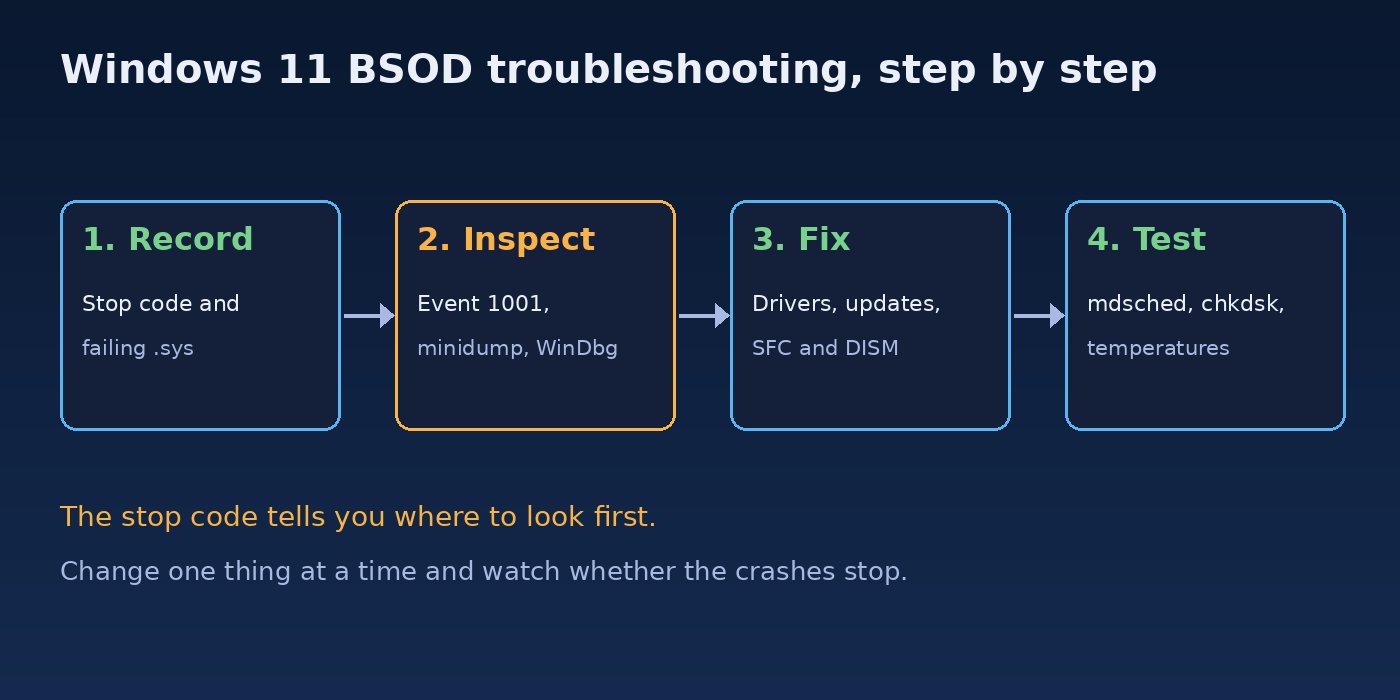
Step 1: Record the Stop Code and Stop Automatic Restarts
Take a photo of the screen, or scan the QR code it shows, so you have the stop code and the "What failed" file. If the PC restarts too fast, turn off automatic restart: press Win + R, run sysdm.cpl, open Advanced, then Startup and Recovery, Settings, and clear "Automatically restart". While you are there, set "Write debugging information" to "Small memory dump" or "Automatic memory dump" so Windows keeps a dump file.
Step 2: Check Event Viewer and Reliability Monitor
Run perfmon /rel to open Reliability Monitor. Red crosses marked "Windows was not properly shut down" or "Hardware error" show when each crash happened and what changed just before it, such as a driver install or update. You can also pull bug check events from PowerShell:
# Bug check records written after each BSOD (event ID 1001)
Get-WinEvent -FilterHashtable @{LogName='System'; ProviderName='Microsoft-Windows-WER-SystemErrorReporting'} -MaxEvents 10 |
  Format-List TimeCreated, Message

# Unexpected shutdowns (Kernel-Power event ID 41)
Get-WinEvent -FilterHashtable @{LogName='System'; Id=41} -MaxEvents 10 | Select-Object TimeCreated, Id
The 1001 message includes the bug check code in hex, for example 0x0000000a, which is IRQL_NOT_LESS_OR_EQUAL. A Kernel-Power 41 event without a matching bug check usually means a power or hardware problem rather than a driver crash.
Step 3: Analyze the Minidump With WinDbg
Small dumps are saved in C:\Windows\Minidump and a full dump in C:\Windows\MEMORY.DMP. Install WinDbg from the Microsoft Store or with winget, open the dump as administrator, and run the automatic analysis:
winget install Microsoft.WinDbg

# In WinDbg: File > Open dump file > C:\Windows\Minidump\<latest>.dmp, then run:
!analyze -v
Look at the MODULE_NAME, IMAGE_NAME and PROCESS_NAME lines. If they name a third-party driver such as a graphics, VPN or antivirus .sys file, that driver is your prime suspect. If they only name Windows files like ntoskrnl.exe across many different stop codes, suspect RAM, disk or other hardware instead.
Step 4: Update, Roll Back or Remove the Problem Driver
- Install the latest driver from your PC, motherboard or GPU manufacturer rather than a generic one.
- If crashes started after a driver update, open Device Manager (
devmgmt.msc), right-click the device, choose Properties, Driver, then Roll Back Driver. - Uninstall software you no longer need that installs kernel drivers, such as old VPN clients, RGB utilities, overclocking tools or a second antivirus.
To see third-party drivers installed on the system:
pnputil /enum-drivers
driverquery /v /fo list | more
Step 5: Uninstall a Bad Update or Install Pending Ones
Check Settings, Windows Update, Update history. If crashes started after a specific KB, use Uninstall updates on that page, or from the recovery environment if you cannot boot. If you are behind on updates, install them, since many fixes for known crashes arrive through Windows Update. If updates themselves will not install, follow this guide on fixing a Windows 11 update stuck at 0%, 99% or 100% first.
Step 6: Repair System Files With SFC and DISM
Open Terminal as administrator and run:
DISM /Online /Cleanup-Image /RestoreHealth
sfc /scannow
Run DISM first so sfc has a healthy component store to repair from. Restart when both complete, even if they say nothing was found.
Step 7: Test Memory and Disk
Run mdsched.exe and choose "Restart now and check for problems". Any error reported by Windows Memory Diagnostic means a RAM problem: disable XMP/EXPO in the BIOS, reseat the modules, and test one stick at a time. For more thorough testing, MemTest86 from a USB drive can run several passes.
Then check the disk and file system:
chkdsk C: /scan
Get-PhysicalDisk | Select-Object FriendlyName, MediaType, HealthStatus, OperationalStatus
If chkdsk finds errors it cannot fix online, schedule chkdsk C: /f for the next restart. A disk that reports anything other than Healthy should be backed up and replaced. Also update SSD firmware with the vendor's tool, especially for DPC_WATCHDOG_VIOLATION.
Step 8: Check Temperatures, Power and BIOS
Remove any CPU or GPU overclock and undervolt, clean dust from fans, and watch temperatures under load with your vendor's monitoring tool. Update the BIOS or UEFI firmware from the manufacturer's support page, following their instructions exactly. On desktops, a failing or undersized power supply can cause WHEA_UNCORRECTABLE_ERROR under heavy load.
Step 9: Use Safe Mode, System Restore or Driver Verifier
- Safe Mode. If Windows crashes at startup, interrupt boot three times to reach the recovery environment, then choose Troubleshoot, Advanced options, Startup Settings, and press
4for Safe Mode. Remove the suspect driver or software there. - System Restore. Run
rstrui(or use it from recovery) to return to a restore point before the crashes started. - Driver Verifier. For hard-to-find driver crashes,
verifierstresses non-Microsoft drivers so the guilty one crashes and shows up in the dump. It can cause boot loops, so create a restore point first and turn it off withverifier /reset, from Safe Mode if needed.
Before risky steps, back up your work and have your BitLocker recovery key ready, because recovery tools may ask for it.
Verification: Confirm the BSOD Is Fixed
- Reliability Monitor shows no new critical events for several days of normal use.
- The PowerShell bug check query above returns no new 1001 events after your fix.
- The workload that used to trigger the crash, such as a game, a long build or a VM, now runs without restarting.
C:\Windows\Minidumphas no new dump files.
Prevention: Keep Windows 11 Stable
- Get drivers from the hardware manufacturer, and avoid third-party "driver updater" tools.
- Create a restore point before installing new drivers, kernel-level software or BIOS updates.
- Keep only one antivirus or endpoint security product active.
- Run stable memory settings on work machines; overclocking is a common source of random crashes.
- Keep enough free disk space and watch disk health so dumps and updates can be written.
- Troubleshoot methodically, the way experienced developers debug problems faster: change one thing at a time and record the result.
FAQs
What is the fastest windows 11 blue screen fix?
Note the stop code and failing file, then update or roll back that driver. If no driver is named, run DISM and sfc /scannow, then test RAM with mdsched.exe. These cover most BSOD causes.
How do I find out what caused a BSOD in Windows 11?
Check Reliability Monitor (perfmon /rel) and the System log for event ID 1001, then open the dump in C:\Windows\Minidump with WinDbg and run !analyze -v to see the faulting module.
Where do I find the Windows stop code after a restart?
Event ID 1001 in the System log records the bug check code in hex. Reliability Monitor also shows the crash and its parameters, and WinDbg shows the stop code name from the dump.
Can bad RAM cause a blue screen?
Yes. Faulty or unstable memory often causes random, changing stop codes such as MEMORY_MANAGEMENT or PAGE_FAULT_IN_NONPAGED_AREA. Test with Windows Memory Diagnostic or MemTest86 and disable memory overclocking.
Is BSOD troubleshooting possible if Windows will not boot?
Yes. Use the Windows Recovery Environment to open Safe Mode, uninstall the latest update, run System Restore or open Command Prompt to run chkdsk and sfc against the offline system.
Should I reinstall Windows to fix a blue screen?
Only as a last resort. A reinstall will not fix bad hardware, and most crashes are solved by fixing drivers, updates or system files. If you do reset, use Settings, System, Recovery, "Fix problems using Windows Update" or "Reset this PC" with "Keep my files", after a backup.
Comments
Join the discussion. Replies load on demand, up to 5 levels.
0 threads
No comments yet
Be the first to start the conversation.