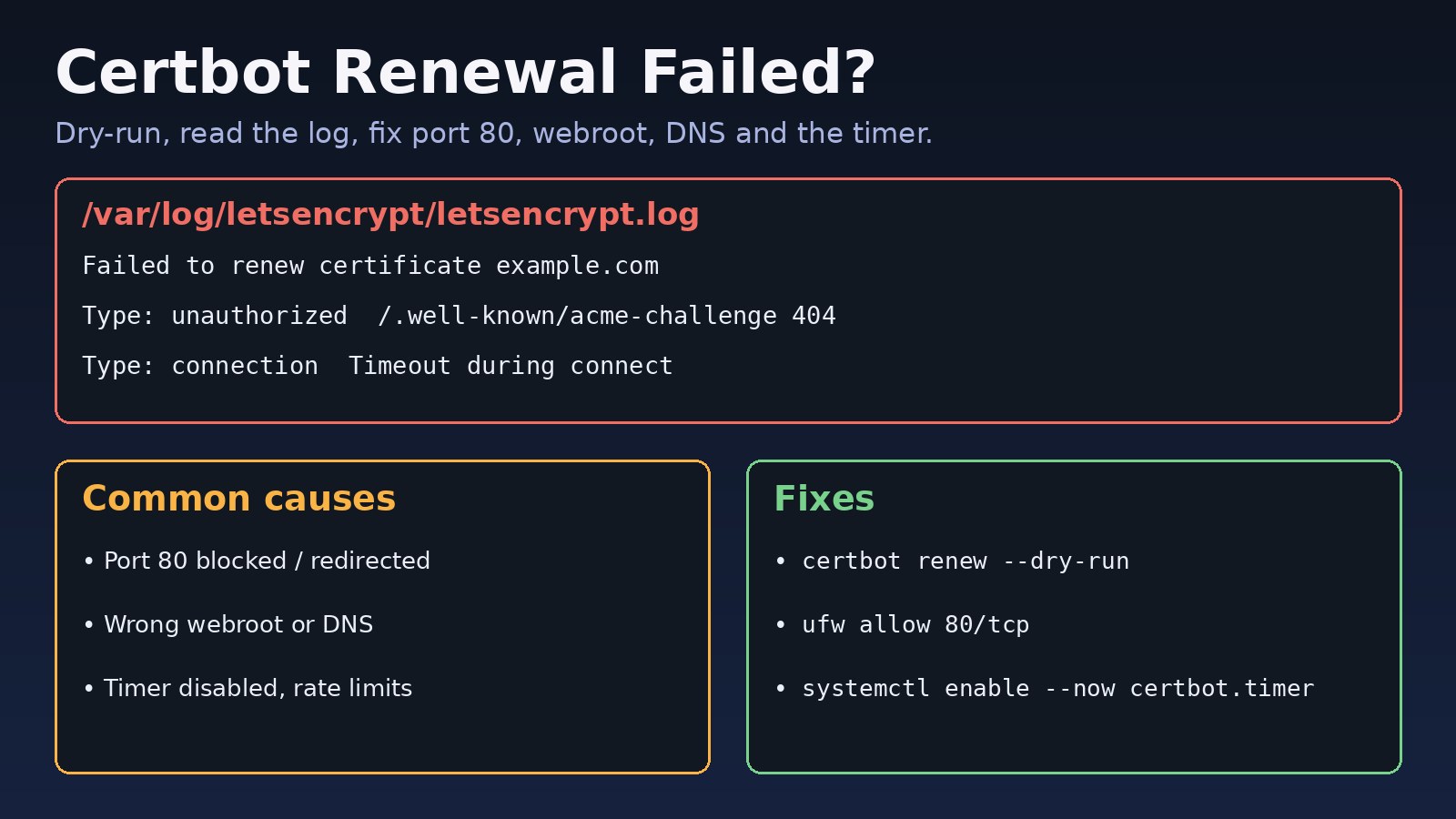
Your browser suddenly warns Your connection is not private, or a monitoring email says the certificate expires in a few days. When certbot renewal failed, Let's Encrypt could not verify that you still control the domain, or the renewal job never ran at all. Certificates are valid for only 90 days, so a broken renewal turns into an outage quickly. This guide shows how to read the Certbot error, fix the HTTP-01 challenge, firewall, DNS and timer problems, and confirm that automatic renewal works again.
The Problem: Certbot Renewal Failed
Certbot stores a renewal configuration for every certificate in /etc/letsencrypt/renewal/<domain>.conf. A systemd timer or cron job runs certbot renew twice a day, and certificates within 30 days of expiry are renewed using the same authenticator (webroot, nginx, apache, standalone or DNS plugin) that was used originally. If anything changed since the first issue, such as a new Nginx config, a CDN, a firewall rule or a moved web root, the renewal fails silently until the certificate expires.
Symptoms of Let's Encrypt Renewal Failures
Run a manual renewal to see the real error:
sudo certbot renew

Processing /etc/letsencrypt/renewal/example.com.conf
Certbot failed to authenticate some domains (authenticator: webroot).
  Domain: example.com
  Type:   unauthorized
  Detail: 203.0.113.10: Invalid response from http://example.com/.well-known/acme-challenge/Xy...: 404

Failed to renew certificate example.com with error: Some challenges have failed.
All renewals failed. The following certificates could not be renewed:
  /etc/letsencrypt/live/example.com/fullchain.pem (failure)
Other common messages you may see:
Type:   connection
Detail: 203.0.113.10: Fetching http://example.com/.well-known/acme-challenge/...: Timeout during connect (likely firewall problem)

Type:   dns
Detail: DNS problem: NXDOMAIN looking up A for www.example.com

Could not bind TCP port 80 because it is already in use by another process on this system (such as a web server).

Error creating new order :: too many failed authorizations recently

The requested nginx plugin does not appear to be installed- Browsers show
NET::ERR_CERT_DATE_INVALIDand the site has an SSL certificate expired warning. sudo certbot certificateslistsINVALID: EXPIREDor only a few days left./var/log/letsencrypt/letsencrypt.logcontains repeated renewal errors every 12 hours.
Root Cause: Why Certbot Renewal Fails
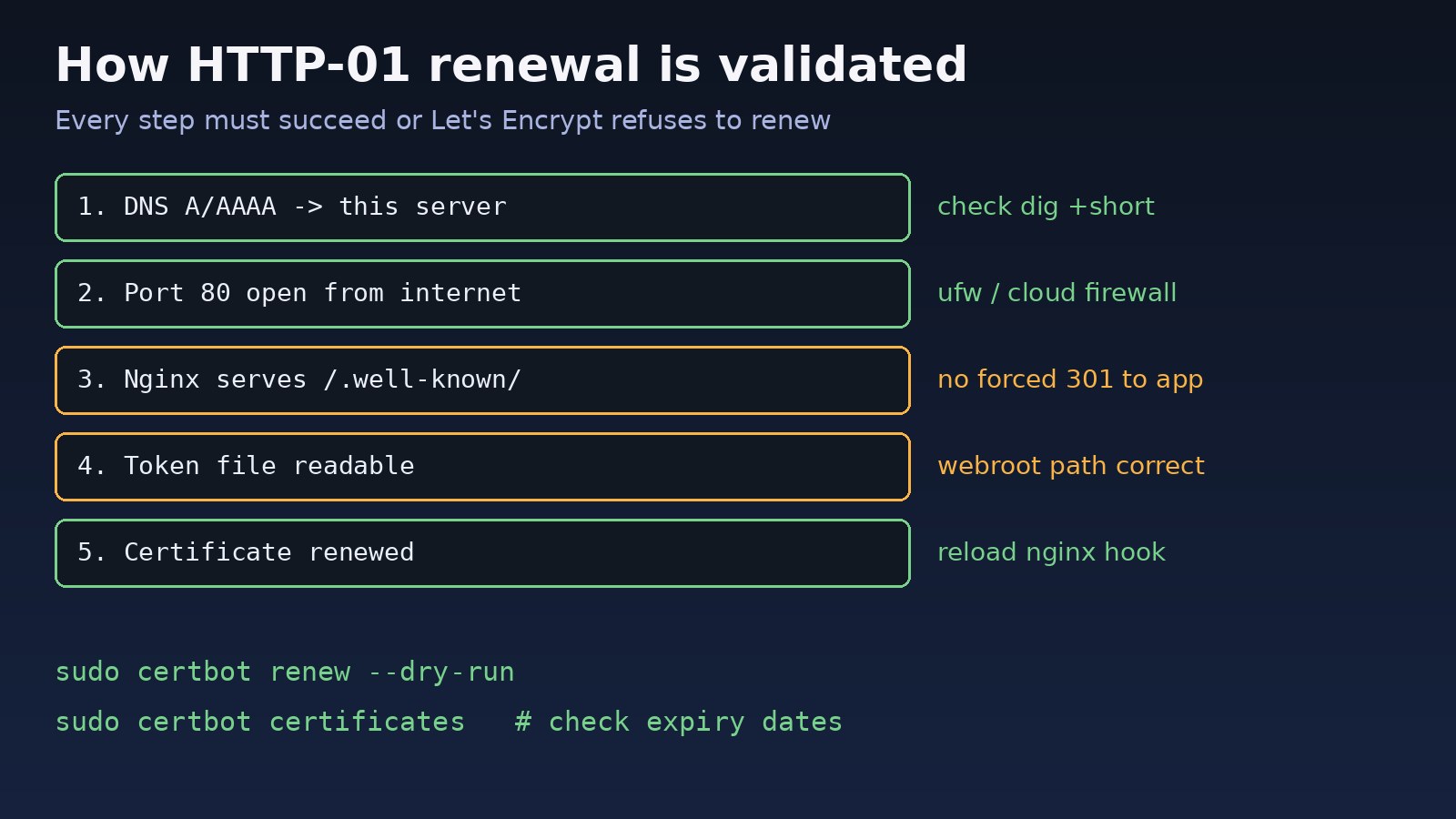
1. Port 80 is blocked
The HTTP-01 challenge always starts on port 80, even if your site only serves HTTPS. A UFW rule, cloud security group or hosting firewall that allows only 443 causes Timeout during connect.
2. Nginx does not serve the challenge path
A catch-all location, an app front controller or a redirect to another domain can return 404 for /.well-known/acme-challenge/. A plain redirect from HTTP to HTTPS on the same domain is fine; a redirect to a different host or a broken HTTPS block is not.
3. The webroot path changed
If the site moved from /var/www/html to /var/www/app/public, the old webroot_path in the renewal file points to the wrong folder and the token file is written where Nginx never looks.
4. DNS no longer points to this server
A domain or www record pointing to an old IP, a missing AAAA record or a proxied CDN record makes Let's Encrypt validate a different machine.
5. The renewal timer is not running
On a manual install or after a migration, certbot.timer or the cron entry may simply not exist, so renewal never runs.
6. Standalone mode and port conflicts
Certificates issued with --standalone try to start their own web server on port 80, which fails while Nginx is running.
Step-by-Step Solution
Step 1: Check certificate status and the renewal config
sudo certbot certificates
sudo cat /etc/letsencrypt/renewal/example.com.conf
Note the authenticator (webroot, nginx, standalone) and webroot_path. These decide which fix applies.
Step 2: Reproduce safely with a dry run
sudo certbot renew --dry-run
sudo tail -n 80 /var/log/letsencrypt/letsencrypt.log
The dry run uses the staging server, so it does not count against production rate limits. Use it after every change below.
Step 3: Open port 80 and check DNS
sudo ufw status
sudo ufw allow 80/tcp
sudo ss -tlnp | grep ':80'

dig +short example.com A
dig +short www.example.com A
dig +short example.com AAAA
curl -4 ifconfig.me
Every name on the certificate must resolve to this server's public IP. Remove or fix a stale AAAA record, because Let's Encrypt prefers IPv6 when it exists. If you use a cloud provider, also allow port 80 in its security group. For deeper resolver problems, see the Linux DNS troubleshooting guide.
Step 4: Make Nginx serve the ACME challenge
Add an explicit location in the port 80 server block, before any redirect:
server {
    listen 80;
    server_name example.com www.example.com;

    location ^~ /.well-known/acme-challenge/ {
        root /var/www/letsencrypt;
        default_type "text/plain";
        try_files $uri =404;
    }

    location / {
        return 301 https://$host$request_uri;
    }
}sudo mkdir -p /var/www/letsencrypt/.well-known/acme-challenge
echo ok | sudo tee /var/www/letsencrypt/.well-known/acme-challenge/test
sudo nginx -t && sudo systemctl reload nginx
curl -i http://example.com/.well-known/acme-challenge/testYou must get 200 and the text ok. A 403 here means the Nginx user cannot read the folder; the Nginx permission denied guide explains how to fix that. Remove the test file afterwards.
Step 5: Point the renewal at the correct webroot
sudo certbot certonly --webroot -w /var/www/letsencrypt \
  -d example.com -d www.example.com --force-renewal
This rewrites /etc/letsencrypt/renewal/example.com.conf with the new authenticator and path, so future renewals use it. If you prefer the Nginx plugin, install it with sudo apt install python3-certbot-nginx and run sudo certbot --nginx -d example.com -d www.example.com.
Step 6: Fix standalone certificates
Either switch to webroot as above, or stop Nginx around the renewal with hooks:
sudo certbot renew --cert-name example.com \
  --pre-hook "systemctl stop nginx" \
  --post-hook "systemctl start nginx"
If port 80 is held by something else, find it first with the steps in how to find the process using a port.
Step 7: Handle rate limits
If you see too many failed authorizations recently or too many certificates already issued, stop retrying against production. Keep testing with --dry-run until it passes, then wait for the limit window shown in the error before a real renewal.
Code/Commands: Enable Automatic Renewal and Reload Nginx
# systemd timer (apt and snap installs)
systemctl list-timers | grep -i certbot
sudo systemctl enable --now certbot.timer     # apt package
# snap installs use: snap.certbot.renew.timer

# reload Nginx after every successful renewal
sudo tee /etc/letsencrypt/renewal-hooks/deploy/reload-nginx.sh >/dev/null <<'EOF'
#!/bin/sh
systemctl reload nginx
EOF
sudo chmod +x /etc/letsencrypt/renewal-hooks/deploy/reload-nginx.sh

# cron alternative if no systemd timer exists
# 17 3,15 * * * root certbot renew --quiet
Without the deploy hook, Certbot can renew the files on disk while Nginx keeps serving the old certificate from memory until the next reload.
Verification
sudo certbot renew --dry-runends withCongratulations, all simulated renewals succeeded.sudo certbot certificatesshows a new expiry date about 90 days ahead.- The live site serves the new certificate:
echo | openssl s_client -connect example.com:443 -servername example.com 2>/dev/null \
  | openssl x509 -noout -dates -issuer
systemctl list-timerslists the Certbot timer with a next run time.
Prevention
- Keep an explicit
/.well-known/acme-challenge/location in every port 80 server block, including new sites. - Never close port 80 completely; redirect it to HTTPS instead.
- Run
certbot renew --dry-runafter any Nginx, DNS, firewall or server migration change. - Use a deploy hook to reload Nginx, and confirm the timer is enabled on new servers.
- Monitor expiry dates externally so you get a warning well before the 30-day renewal window closes.
- For wildcard certificates, use a DNS plugin with API credentials so renewal does not need manual TXT records.
FAQs
How do I fix Let's Encrypt renewal "unauthorized 404" errors?
The token file was not reachable at /.well-known/acme-challenge/. Add an explicit Nginx location for that path, make sure the webroot in the renewal file matches it, reload Nginx and run a dry run.
Why does certbot renewal fail with "Timeout during connect"?
Let's Encrypt cannot reach port 80 on your server. Open port 80 in UFW and any cloud firewall, and check that DNS points to the right IP, including AAAA records.
What should I do when the SSL certificate expired already?
Fix the cause using a dry run, then run sudo certbot renew --force-renewal or reissue with certbot certonly, and reload Nginx. Expired certificates can be renewed normally; there is no extra penalty.
Does certbot renew automatically?
Yes, apt and snap installs add a systemd timer that runs twice a day and renews certificates with fewer than 30 days left. Check it with systemctl list-timers.
How can I test certbot renewal without hitting rate limits?
Use sudo certbot renew --dry-run. It runs the full challenge against the staging environment and does not change your live certificate.
Comments
Join the discussion. Replies load on demand, up to 5 levels.
0 threads
No comments yet
Be the first to start the conversation.