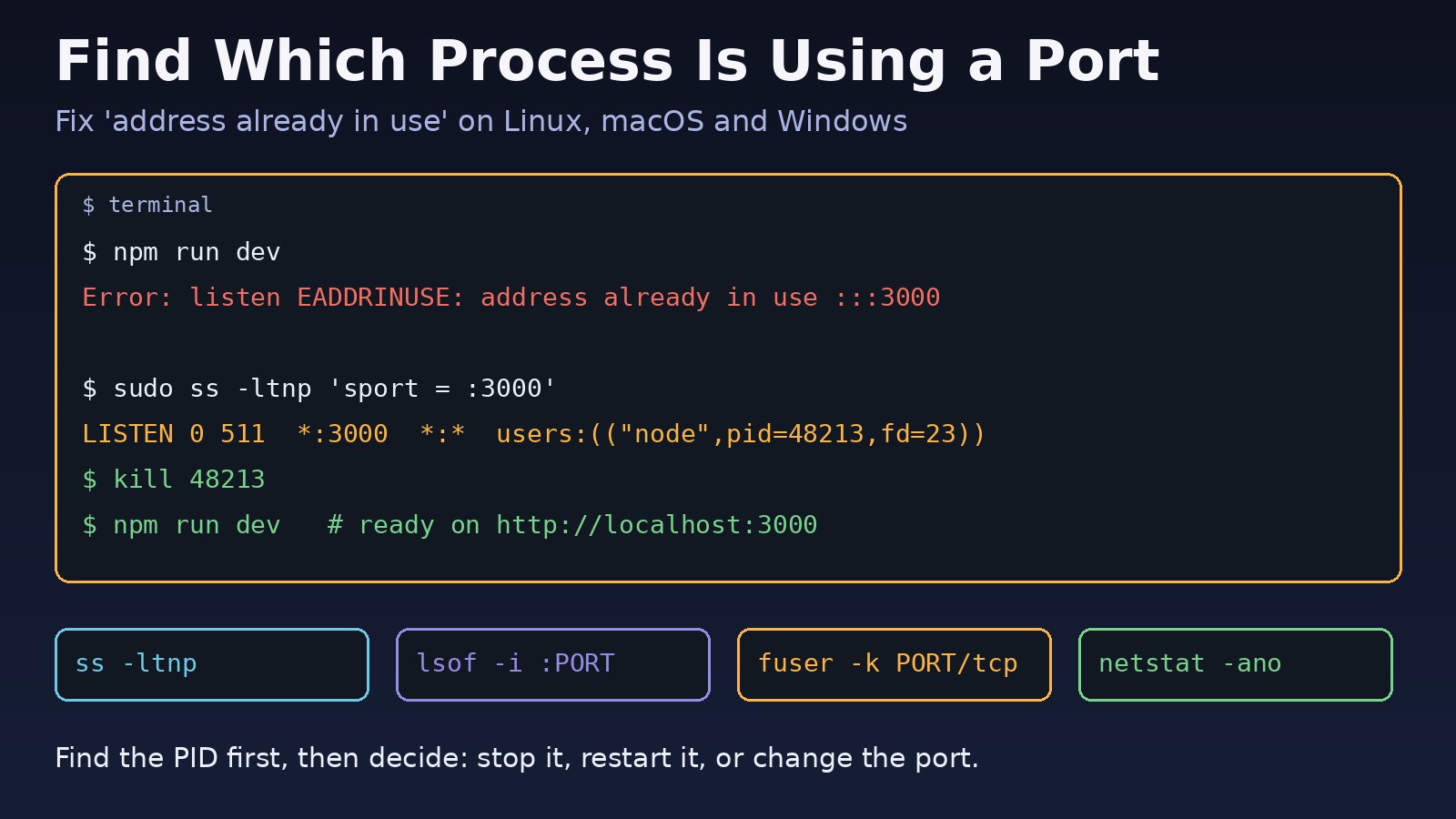
You start your app and it dies with EADDRINUSE: address already in use or bind() to 0.0.0.0:80 failed (98: Address already in use). Before you can fix it, you need to find process using port numbers like 3000, 8000, 80 or 5432, then decide whether to stop that process, restart it properly, or move your app to another port. This guide shows the exact commands for Linux, macOS, Windows and Docker, with the output you should expect, so you can clear a busy port in under a minute without killing the wrong thing.
Problem: Port Already in Use
Only one process can listen on a given IP address and TCP port at a time. When a second process tries to bind to the same address and port, the kernel refuses with EADDRINUSE (error 98 on Linux, 48 on macOS, 10048 on Windows). Your framework turns that into its own message, but the cause is always the same: something else got there first.
That "something" is usually one of a few suspects: an old copy of your own dev server that never exited, a service started by systemd at boot, a Docker container publishing the same port, or a different web server (Apache versus Nginx is a classic). The fix depends on which one it is, so finding the PID and its full command line comes first.
Symptoms
- Node.js or Next.js:
Error: listen EADDRINUSE: address already in use :::3000 - Laravel:
php artisan servereportsFailed to listen on 127.0.0.1:8000 (reason: Address already in use)or silently picks the next port. - Nginx:
nginx: [emerg] bind() to 0.0.0.0:80 failed (98: Address already in use)andsystemctl status nginxshowsfailed. - Docker:
Bind for 0.0.0.0:5432 failed: port is already allocatedwhen runningdocker run -pordocker compose up. - Python:
OSError: [Errno 98] Address already in use. - Redis:
Could not create server TCP listening socket *:6379: bind: Address already in use.
Root Cause: Why a Linux Port Is in Use
An orphaned dev server
Closing a terminal tab, a crashed IDE, or a Ctrl+Z (which suspends instead of stopping) can leave node, php or python running in the background, still holding the port.
A system service already owns the port
Apache (apache2 or httpd) and Nginx both want port 80. A locally installed PostgreSQL holds 5432 and Redis holds 6379, so a Docker container trying to publish the same ports fails.
A container or another Compose project
A container from another project, or one left over from an earlier docker compose up, may still publish the port. On Linux, Docker publishes ports through docker-proxy, so ss may show docker-proxy as the owner instead of the real app.
Sockets in TIME_WAIT
Right after a server stops, connections can sit in TIME_WAIT for up to about a minute. Most servers set SO_REUSEADDR so this does not block a restart, but some custom scripts do not, and they fail until the old connections expire.
Step-by-Step Solution: Find Process Using Port and Kill It
Step 1: Identify the PID listening on the port
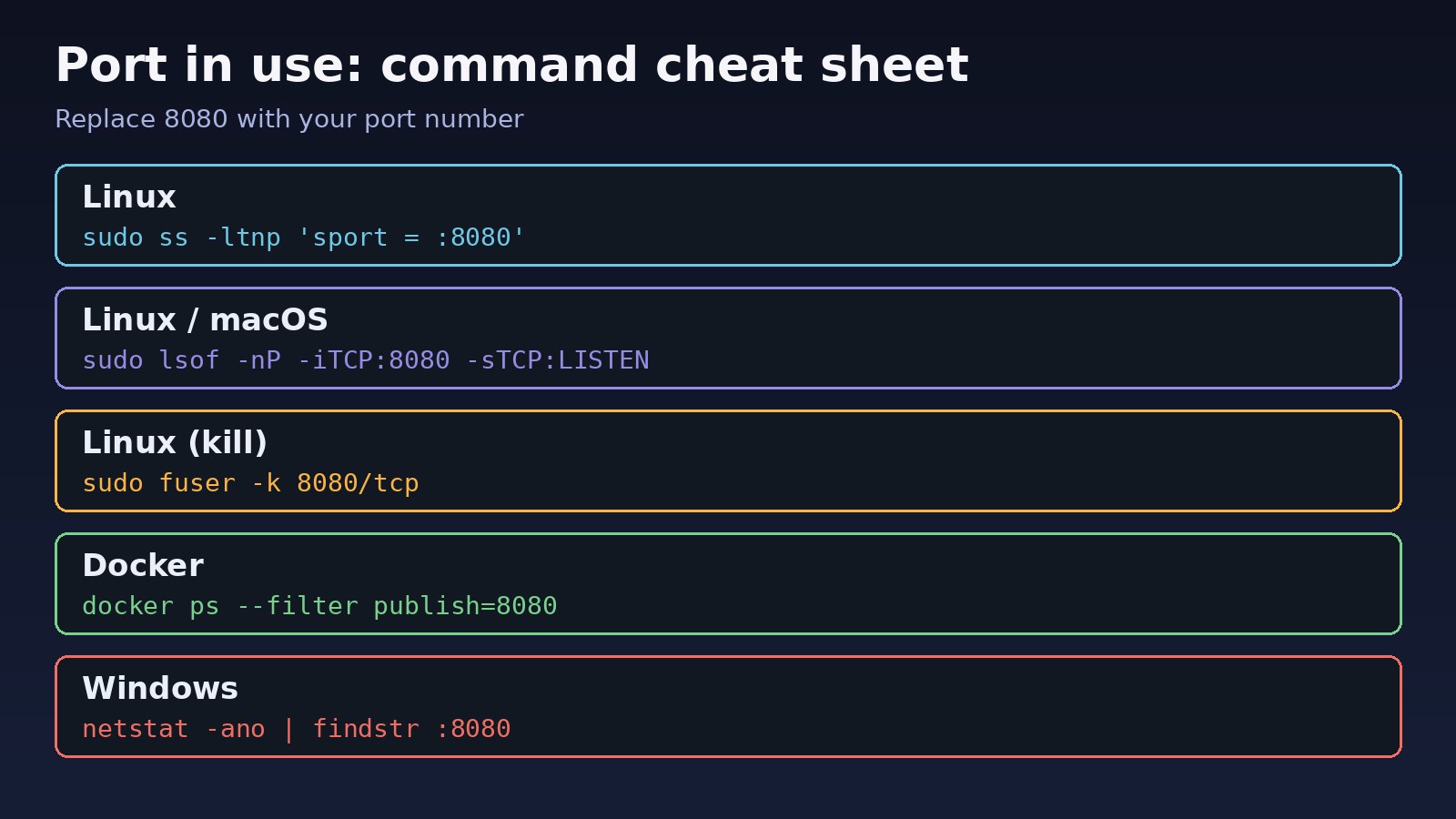
On modern Linux, use ss from the iproute2 package. Run it with sudo, otherwise it cannot show processes owned by other users and the users: column comes back empty. lsof works on both Linux and macOS.
Step 2: See what that process really is
A PID alone tells you very little. Check its full command line, its parent and whether systemd or Docker manages it. Killing a process that systemd restarts automatically just makes it come back.
Step 3: Stop it the right way
If it is a stray dev server, send it a normal kill (SIGTERM) and give it a moment to shut down cleanly. Use kill -9 only if it ignores SIGTERM. If it is a service, stop or disable it with systemctl. If it is a container, stop the container.
Step 4: Or move your app to a different port
Sometimes the other process is supposed to be there, for example the system PostgreSQL. In that case, map your container or dev server to a free port instead of fighting over it.
Step 5: Start your app again and confirm
Start the app and check that your process is now the one listening. If a reverse proxy sits in front, make sure it points to the port you ended up using; a mismatch shows up as a 502 Bad Gateway in Nginx.
Code/Commands Examples
Linux: find process using port with ss
sudo ss -ltnp 'sport = :3000'
# State  Recv-Q Send-Q Local Address:Port Peer Address:Port Process
# LISTEN 0      511                *:3000            *:*     users:(("node",pid=48213,fd=23))

# All listening TCP and UDP ports with their processes
sudo ss -tulpn
Linux and macOS: lsof
sudo lsof -nP -iTCP:8000 -sTCP:LISTEN
# COMMAND   PID   USER   FD  TYPE DEVICE SIZE/OFF NODE NAME
# php     91234 deploy   7u  IPv4 812345      0t0  TCP 127.0.0.1:8000 (LISTEN)

# Just the PID, handy for scripts
lsof -t -iTCP:8000 -sTCP:LISTEN
Linux: fuser and the older netstat
sudo fuser 80/tcp          # prints: 80/tcp:  1123  1124
sudo fuser -v 80/tcp       # shows user, PID and command
sudo netstat -tlnp | grep ':80 '   # needs the net-tools package
Inspect the process before you kill it
ps -o pid,ppid,user,etime,cmd -p 48213
systemctl status 48213        # shows the owning unit, if systemd started it
cat /proc/48213/cgroup        # docker or a .service name gives it away
Kill process on port
kill 48213                     # graceful SIGTERM
kill -9 48213                  # only if it refuses to exit

# One-liners
kill $(lsof -t -iTCP:3000 -sTCP:LISTEN)
sudo fuser -k 3000/tcp         # sends SIGKILL to every process using the port
When a service owns the port
# Apache is holding port 80, but you want Nginx
sudo systemctl stop apache2
sudo systemctl disable apache2
sudo nginx -t && sudo systemctl restart nginx
Docker: port is already allocated
docker ps --filter publish=5432 --format '{{.ID}}  {{.Names}}  {{.Ports}}'
docker stop <container-name>

# Or keep the host service and publish the container on another port
docker run -d -p 5433:5432 postgres:16
# docker-compose.yml: ports: ["5433:5432"]
Windows (PowerShell or CMD)
netstat -ano | findstr :3000
#  TCP    0.0.0.0:3000    0.0.0.0:0    LISTENING    15232
tasklist /FI "PID eq 15232"
taskkill /PID 15232 /F

# PowerShell
Get-NetTCPConnection -LocalPort 3000 -State Listen | Select-Object OwningProcess
Verification
Run the same lookup again after starting your app. The process name and PID should now be yours.
sudo ss -ltnp 'sport = :3000'
# LISTEN 0 511 *:3000 *:* users:(("node",pid=50117,fd=21))

curl -I http://127.0.0.1:3000
# HTTP/1.1 200 OK
For a service, also confirm that systemctl status shows active (running) and that the old service stays stopped after a reboot. If the container restarts in a loop instead, see why a Docker container keeps restarting.
Prevention
- Stop dev servers with
Ctrl+C, notCtrl+Z. If you suspended one, runfgand then stop it. - Give each project its own ports in
.env(for examplePORT=3001,APP_PORT=8001,FORWARD_DB_PORT=5433) so local projects do not collide. - Run long-lived apps under systemd, PM2 or Docker with a clear owner, instead of starting them by hand with
nohup. - Uninstall or disable services you do not use, such as a default Apache on a server that runs Nginx.
- Run
docker compose downwhen you switch projects, and checkdocker psfor leftovers. - Bind internal services like Redis and PostgreSQL to
127.0.0.1unless they really need to be reachable from outside.
FAQs
How do I find which process is using a port on Linux?
Run sudo ss -ltnp 'sport = :PORT' or sudo lsof -nP -iTCP:PORT -sTCP:LISTEN. Both show the process name and PID. Use sudo, otherwise processes owned by other users are hidden.
How do I kill a process on a port in one command?
kill $(lsof -t -iTCP:PORT -sTCP:LISTEN) sends a graceful SIGTERM. sudo fuser -k PORT/tcp is shorter but sends SIGKILL, so the process gets no chance to clean up.
Why does the port come back after I kill the process?
Something restarts it, usually systemd, PM2, Supervisor or a Docker restart policy. Find the owner with systemctl status PID or docker ps and stop it there.
Why does ss show docker-proxy instead of my app?
Docker uses docker-proxy to forward a published host port to the container. Find the container with docker ps --filter publish=PORT and stop or remap it.
Is it safe to use kill -9?
Use it as a last resort. SIGKILL stops the process immediately without flushing files, closing database connections or finishing queue jobs. Try plain kill first.
What does "Linux port in use" mean if nothing shows up?
Run the command again with sudo. If it is still empty, check whether the app binds to IPv6 only, or whether the port belongs to another network namespace such as a container. If SSH is the service that will not connect, see SSH connection refused.
Comments
Join the discussion. Replies load on demand, up to 5 levels.
0 threads
No comments yet
Be the first to start the conversation.