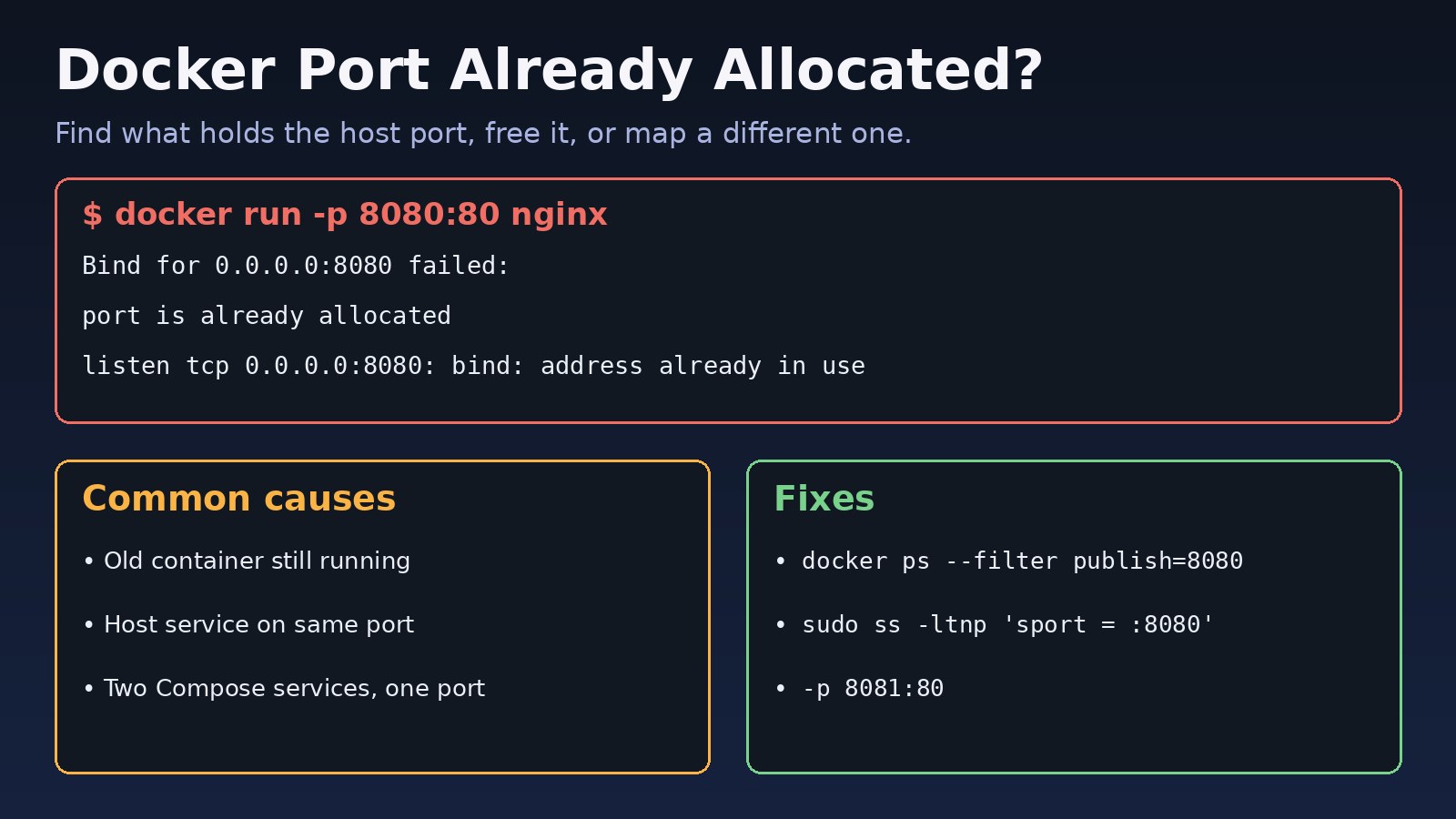
You start a container with docker run -p 8080:80 or docker compose up and Docker refuses with Bind for 0.0.0.0:8080 failed: port is already allocated. The docker port already allocated error means another listener already owns that host port: usually an old container, sometimes a service on the host itself, and occasionally a stale Docker proxy. This guide shows how to find exactly what holds the port, free it safely, or map your container to a different port so it starts cleanly.
The Problem: Docker Port Already Allocated
When you publish a port with -p HOST_PORT:CONTAINER_PORT, Docker asks the host to listen on HOST_PORT and forward traffic into the container. The operating system allows only one listener per address and port. If something is already listening on that host port, Docker cannot bind it, the container is created but not started, and Compose stops bringing up the stack. Note that the conflict is always on the host side of the mapping. Two containers can both listen on port 80 internally; they just cannot both publish to host port 8080.
Symptoms of a Docker Port Conflict
$ docker run -d -p 8080:80 --name web nginx
docker: Error response from daemon: driver failed programming external connectivity
on endpoint web (4c1e...): Bind for 0.0.0.0:8080 failed: port is already allocated.

$ docker compose up -d
Error response from daemon: Ports are not available: exposing port TCP 0.0.0.0:5432
-> 0.0.0.0:0: listen tcp 0.0.0.0:5432: bind: address already in use
Other signs you may notice:
docker ps -ashows the new container inCreatedstate rather thanUp.- Docker Desktop on macOS or Windows reports
Ports are not available. - The error appears only after a reboot, because a host service such as Apache, Nginx, MySQL or PostgreSQL started first.
- Compose works on one developer's laptop but fails on another with the same file.
Root Cause: Why Bind Address Already in Use Happens
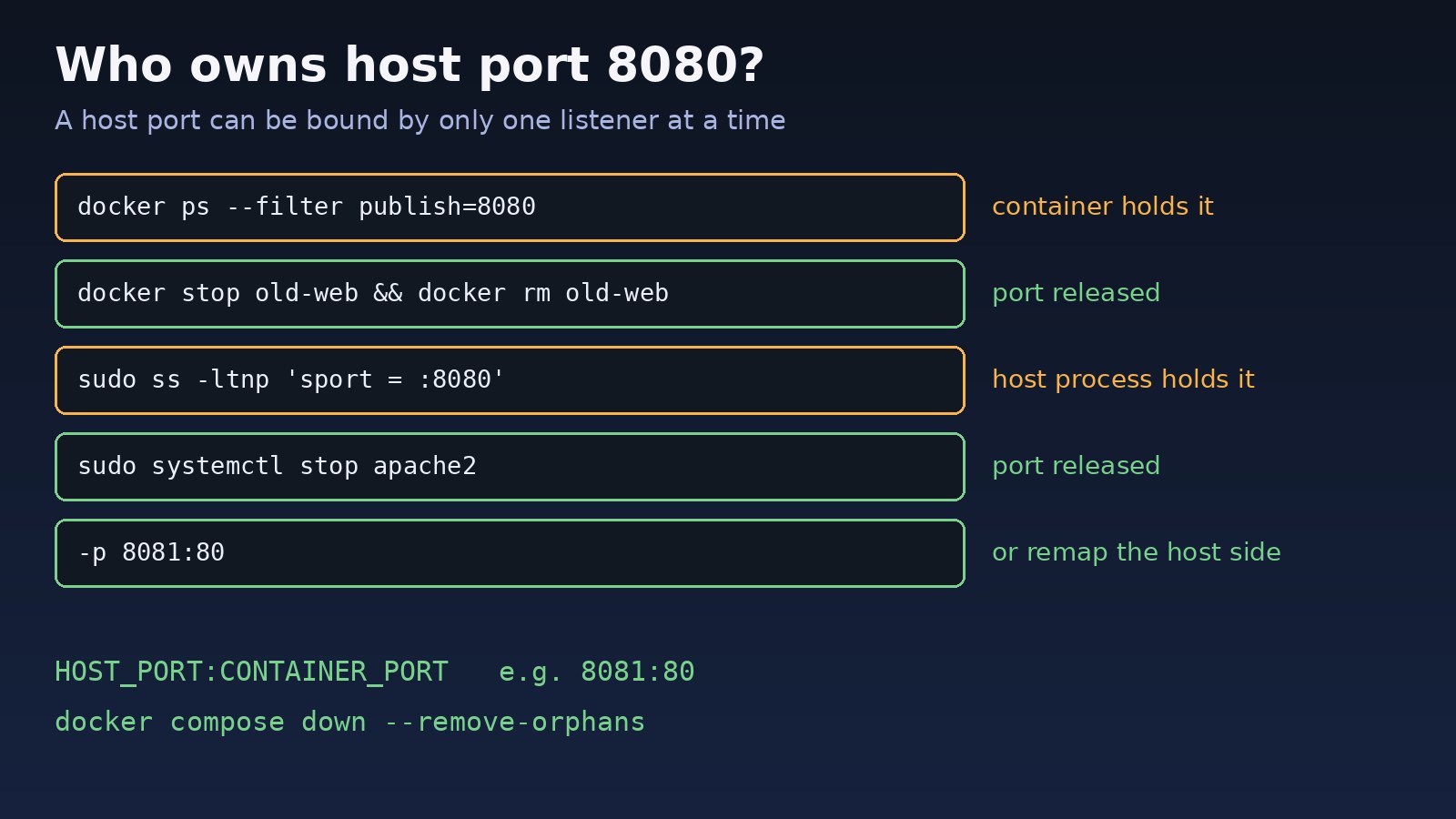
1. An old container still publishes the port
The most common cause. A previous docker run with the same -p mapping is still running, or a container from another Compose project uses the same host port.
2. A host service listens on the same port
Local installs of Nginx or Apache (80/443), MySQL (3306), PostgreSQL (5432), Redis (6379) or a Node.js dev server (3000) hold the port before Docker tries.
3. Two services in one Compose file map the same host port
Copy-pasting a service block and forgetting to change "8080:80" makes the second service fail.
4. Orphaned containers or a stale docker-proxy
Renaming a service in Compose leaves the old container running as an orphan. Rarely, after a daemon crash, a docker-proxy process keeps the port open with no container attached.
Step-by-Step Solution
Step 1: Check whether a container owns the port
docker ps --filter "publish=8080"
docker ps -a --format "table {{.Names}}\t{{.Status}}\t{{.Ports}}" | grep 8080
If a container appears, decide whether you still need it. If not, stop and remove it:
docker stop old-web
docker rm old-web
# or both at once
docker rm -f old-web
Step 2: Clean up Compose projects and orphans
docker compose down --remove-orphans
docker compose ls          # list other running Compose projects
docker compose -p other-project down
Step 3: Find a host process using the port
If no container holds it, look at the host. On Linux:
sudo ss -ltnp 'sport = :8080'
# State  Recv-Q Send-Q Local Address:Port  Peer Address:Port Process
# LISTEN 0      511    0.0.0.0:8080        0.0.0.0:*     users:(("nginx",pid=1123,fd=6))

sudo lsof -i :8080 -sTCP:LISTEN
On macOS use lsof -nP -iTCP:8080 -sTCP:LISTEN, and on Windows run netstat -ano | findstr :8080, then tasklist /FI "PID eq 1234". Our guide on how to find the process using a port covers these tools in more depth.
Step 4: Stop the host service, or leave it and remap
sudo systemctl stop apache2
sudo systemctl disable apache2   # only if Docker should own this port permanently

# a one-off dev process
kill 1123
Do not kill a process you do not recognise on a production server. If the host service is needed, change the container's host port instead.
Step 5: Map the container to a different host port
docker run -d -p 8081:80 --name web nginx

# docker-compose.yml
services:
  web:
    image: nginx
    ports:
      - "8081:80"
  db:
    image: postgres:16
    ports:
      - "127.0.0.1:5433:5432"   # bind only to localhost on a free port
Containers on the same Compose network talk to each other on the internal port (db:5432), so changing the host port does not break service-to-service connections.
Step 6: Fix a stale docker-proxy
If ss shows docker-proxy holding the port but no container publishes it, restart the daemon:
sudo ss -ltnp | grep docker-proxy
sudo systemctl restart docker
Restarting Docker stops running containers unless they use a restart policy, so plan it for a quiet moment. If containers then start and stop repeatedly, see why a Docker container keeps restarting.
Code/Commands: Make Ports Configurable
Use environment variables so each developer or server can choose a free port without editing the Compose file:
# docker-compose.yml
services:
  web:
    image: nginx
    ports:
      - "${WEB_PORT:-8080}:80"

# .env
WEB_PORT=8085

# one-off override
WEB_PORT=9090 docker compose up -d

# let Docker pick a random free host port
docker run -d -P nginx
docker port $(docker ps -lq)
Verification
docker ps --format "table {{.Names}}\t{{.Status}}\t{{.Ports}}"
# web   Up 10 seconds   0.0.0.0:8081->80/tcp

curl -I http://localhost:8081
# HTTP/1.1 200 OK- The container status is
Up, notCreatedorExited. docker port webshows the expected mapping.- The app responds on the host port. If it refuses connections instead, follow the Docker connection refused guide.
Prevention
- Give containers fixed names (
--name) so duplicates fail fast and are easy to find. - Run
docker compose downrather than only stopping the terminal, and add--remove-orphansafter renaming services. - Keep host ports configurable with
${VAR:-default}in Compose. - Bind databases to
127.0.0.1only, or do not publish them at all if only other containers need them. - Disable host services you replaced with containers so they do not grab the port at boot.
- Keep a short port map for your team (for example 8080 web, 5433 Postgres) to avoid clashes between projects.
FAQs
What does docker port already allocated mean?
Docker could not bind the host port in your -p mapping because another container or process is already listening on it. The container port itself is not the problem.
How do I fix bind address already in use in Docker Compose?
Find the owner with docker ps --filter publish=PORT or sudo ss -ltnp 'sport = :PORT', stop it, or change the left side of the ports entry to a free host port.
Can two containers use the same port?
Yes, inside their own network namespaces both can listen on port 80. Only the published host ports must be unique, for example 8080:80 and 8081:80.
Why does the Docker port conflict appear after a reboot?
A host service enabled in systemd, such as Apache or PostgreSQL, starts before your containers and takes the port. Disable it or remap the container.
Docker says the port is allocated but nothing is using it. What now?
Check for a leftover docker-proxy process with sudo ss -ltnp, remove stopped containers with docker container prune, and restart the Docker daemon.
Comments
Join the discussion. Replies load on demand, up to 5 levels.
0 threads
No comments yet
Be the first to start the conversation.