Your PC was online yesterday and today the taskbar shows a globe with a line through it, Ethernet says Network cable unplugged, or the adapter has vanished from Device Manager altogether. When the network adapter is not working, nothing else on the machine matters much: no updates, no Git pushes, no remote desktop, no access to the ERP or API you are supposed to be debugging. This guide shows how to fix a Windows network adapter not working in Windows 10 and Windows 11 in a repeatable order: confirm whether the problem is the link, the driver, the IP configuration or the network stack, then apply the matching fix with PowerShell, netsh, ipconfig and pnputil.
Problem: Network Adapter Not Working in Windows
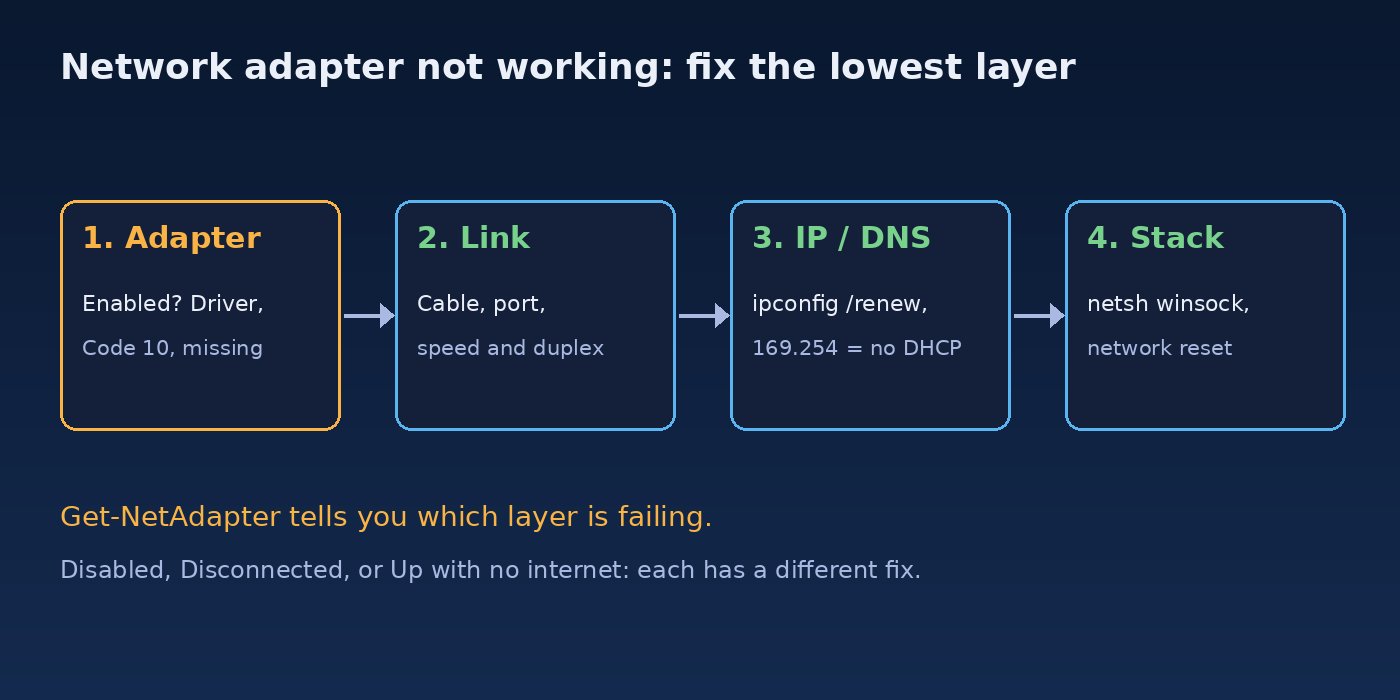
A working connection needs several layers to succeed in order. The adapter must be detected and have a loaded driver, it must have a physical link (cable or Wi-Fi association), it must get a valid IP address, gateway and DNS server, and the Windows network stack (Winsock and TCP/IP) must be healthy. A failure at any layer looks the same to the user, "no internet", which is why random fixes so often fail. Working from the bottom layer up saves time.
Symptoms of a Windows Network Driver or Ethernet Connection Problem
- The network icon shows a globe or a red X and the status says Not connected or Network cable unplugged although a cable is plugged in.
- The troubleshooter reports "Ethernet doesn't have a valid IP configuration" or "The default gateway is not available".
ipconfigshows an address starting with169.254., meaning DHCP did not answer.- Device Manager shows a yellow warning on the adapter with "This device cannot start. (Code 10)" or Code 31, or the adapter is missing from Network adapters.
- The connection works after a restart and drops after sleep, or keeps disconnecting every few minutes.
- Wi-Fi networks no longer appear, or the Wi-Fi toggle is missing from Quick Settings.
Root Cause: Why a Network Adapter Stops Working
- Driver problems. A Windows Update or a manufacturer utility replaced the driver with one that does not suit the hardware, or the driver is corrupt. This is the most common cause of Code 10 and of adapters disappearing.
- Adapter disabled. The adapter was disabled in Network Connections or Device Manager, Airplane mode is on, or a hardware Wi-Fi switch or BIOS setting turned it off.
- Power management. "Allow the computer to turn off this device to save power" lets Windows power the adapter down, and some adapters do not wake properly after sleep.
- Physical link. A damaged cable, a bad switch or router port, or a speed and duplex mismatch causes "cable unplugged" or constant reconnects.
- IP configuration. A static IP left over from another network, a DHCP server that is down, or wrong DNS settings leave the adapter connected but useless.
- Corrupt network stack. VPN clients, firewalls and some security tools install filter drivers and Winsock providers. When they are removed badly, TCP/IP can break even though the adapter looks fine.
- Hardware failure. If the adapter fails in every OS, including a Linux live USB, the network card itself or the motherboard port is faulty.
Step-by-Step Solution to Fix a Network Adapter Not Working
Step 1: Check the basics first
- Turn off Airplane mode and check any physical Wi-Fi switch or Fn key on laptops.
- Restart the router or switch, and try a different cable and a different port.
- Check whether other devices on the same network work. If none do, the problem is the network, not the PC.
- Choose Restart rather than Shut down, so Fast Startup does not restore a bad driver state.
Step 2: Check the adapter status in PowerShell
Open PowerShell as administrator. Get-NetAdapter shows every adapter, whether it is up, and its link speed:
# Physical and virtual adapters, with status and driver info
Get-NetAdapter -IncludeHidden |
    Format-Table Name, InterfaceDescription, Status, LinkSpeed, MediaConnectionState -AutoSize

# Driver version and date for the physical adapters
Get-NetAdapter -Physical |
    Format-Table Name, DriverProvider, DriverVersion, DriverDate -AutoSize
How to read the result:
- Disabled: the adapter is turned off. Enable it in Step 3.
- Disconnected: driver is fine but there is no link. Check the cable, port, Wi-Fi association and speed settings.
- Up but no internet: the problem is IP, DNS or the network stack. Go to Step 6.
- Adapter missing: Windows does not see it or the driver failed. Go to Step 4.
Step 3: Enable or restart the adapter
Enable-NetAdapter  -Name "Ethernet" -Confirm:$false
Restart-NetAdapter -Name "Ethernet"

# Wi-Fi adapters are usually named "Wi-Fi"
Restart-NetAdapter -Name "Wi-Fi"
Use the exact names from Get-NetAdapter. The same can be done in Control Panel > Network and Sharing Center > Change adapter settings by right-clicking the adapter and choosing Disable then Enable.
Step 4: Fix the Windows network driver
Open Device Manager (Win + X, Device Manager), expand Network adapters and open the adapter's properties. The Device status box shows the error code. If the adapter is not listed, choose View > Show hidden devices and check Other devices for an Ethernet Controller or Network Controller with no driver. From an elevated Command Prompt you can list network devices and problem devices directly:
pnputil /enum-devices /class Net
pnputil /enum-devices /problem
Then work through these options in order:
- Roll back the driver. If the problem started after an update, open the Driver tab and click Roll Back Driver if it is available.
- Reinstall the driver. Right-click the adapter, choose Uninstall device (leave "Attempt to remove the driver" unticked), then Action > Scan for hardware changes or restart. Windows reinstalls the driver from the driver store.
- Install the manufacturer's driver. Download the LAN or Wi-Fi driver for your exact motherboard or laptop model on another device, copy it over with a USB drive, and install it. If you have an
.infpackage, install it from an elevated prompt:
:: Install a driver package and rescan devices
pnputil /add-driver C:\Drivers\LAN\*.inf /subdirs /install
pnputil /scan-devices

:: Find old network driver packages in the driver store
pnputil /enum-drivers /class Net
Keep a copy of the network driver on a USB stick for every PC you manage. Without a working network driver, you cannot download one.
Step 5: Turn off power saving on the adapter
If the connection disappears after sleep or after the PC has been idle, stop Windows from powering the adapter down. In Device Manager open the adapter, go to Power Management and clear Allow the computer to turn off this device to save power. In PowerShell:
Get-NetAdapterPowerManagement -Name "Ethernet"
Disable-NetAdapterPowerManagement -Name "Ethernet" -NoRestart
On laptops, also check the Wi-Fi adapter's Advanced tab for power-saving options such as "Energy Efficient Ethernet" or "MIMO Power Save Mode" and test with them disabled. Option names depend on the driver.
Step 6: Check the IP configuration
ipconfig /all

:: Ask DHCP for a new address and clear the DNS cache
ipconfig /release
ipconfig /renew
ipconfig /flushdns
Look for DHCP Enabled: Yes, an IPv4 address in your network's range, a default gateway and DNS servers. A 169.254.x.x address means DHCP failed: check the cable, the router and whether the adapter has a static IP left over from another office. To switch an adapter back to DHCP:
Set-NetIPInterface -InterfaceAlias "Ethernet" -Dhcp Enabled
Set-DnsClientServerAddress -InterfaceAlias "Ethernet" -ResetServerAddresses
Restart-NetAdapter -Name "Ethernet"
Step 7: Test the connection layer by layer
Test the gateway, then a public IP, then a name, so you know whether routing or DNS is broken:
# Replace 192.168.1.1 with the gateway from ipconfig
Test-NetConnection 192.168.1.1
Test-NetConnection 1.1.1.1
Resolve-DnsName wilayats.com
Test-NetConnection wilayats.com -Port 443
If the gateway answers but the public IP does not, the router or ISP is the problem. If IPs work but names do not resolve, fix DNS. If the connection works but is slow or drops packets, our guide to troubleshoot network latency and high ping covers tracert, pathping and packet loss.
Step 8: Reset Winsock and TCP/IP
If the adapter is up with a valid IP but nothing loads, reset the network stack from an elevated Command Prompt and restart:
netsh winsock reset
netsh int ip reset
netsh int ipv6 reset
ipconfig /flushdns
shutdown /r /t 0
Also check what is bound to the adapter. VPN and security software add filter drivers that can block traffic after a bad uninstall:
Get-NetAdapterBinding -Name "Ethernet" | Format-Table DisplayName, ComponentID, EnabledUninstall leftover VPN clients from Settings > Apps using the vendor's uninstaller rather than just disabling bindings.
Step 9: Use Network reset
Windows 10 and 11 have a built-in Network reset that removes and reinstalls every network adapter and sets networking components back to defaults. In Windows 11 go to Settings > Network & internet > Advanced network settings > Network reset, click Reset now and restart. You will need to re-enter Wi-Fi passwords and reinstall VPN clients afterwards.
Step 10: Fix speed and duplex mismatches
If Ethernet keeps connecting and disconnecting, or links at 10 or 100 Mbps on a gigabit network, check the advanced properties. Display names and values differ between drivers, so list them first:
Get-NetAdapterAdvancedProperty -Name "Ethernet" | Format-Table DisplayName, DisplayValue
# Example only: use a DisplayValue your driver actually lists
Set-NetAdapterAdvancedProperty -Name "Ethernet" -DisplayName "Speed & Duplex" -DisplayValue "Auto Negotiation"
Auto negotiation should normally be on at both ends. A link that only negotiates 100 Mbps is often a cable with a damaged pair.
Step 11: Read the event log
Get-WinEvent -FilterHashtable @{ LogName='System'; Level=2,3; StartTime=(Get-Date).AddDays(-1) } |
    Where-Object { $_.ProviderName -match 'Dhcp|Tcpip|NDIS|WLAN' } |
    Format-List TimeCreated, ProviderName, Id, Message
Errors from the DHCP client point to address problems; repeated driver resets point to the driver or hardware. If the problems began after an update that never finished, see our guide on a Windows 11 update stuck and repair system files with DISM /Online /Cleanup-Image /RestoreHealth and sfc /scannow.
Step 12: Rule out hardware
Boot a Linux live USB and run ip link and ip addr. If the adapter does not appear or gets no link there either, the hardware is faulty. A cheap USB Ethernet or Wi-Fi adapter is a good way to get back online, as long as Windows recognizes it; if it does not, see how to fix USB device not recognized.
Verification: Confirm the Network Adapter Works
Get-NetAdaptershows the adapter as Up with the expected link speed.ipconfig /allshows a valid address, gateway and DNS servers, not169.254.x.x.Test-NetConnection wilayats.com -Port 443returnsTcpTestSucceeded : True.- The connection survives sleep, a restart and a full shutdown.
- Device Manager shows no warning icon on the adapter.
Prevention: Keep Your Ethernet and Wi-Fi Working
- Keep an offline copy of the LAN and Wi-Fi drivers for each machine.
- Note the current driver version before updates, so you can roll back to a known good one.
- Disable adapter power saving on desktops and servers that must stay online.
- Uninstall VPN and security tools with their own uninstallers, never by deleting folders.
- Label cables and replace any cable that only links at 100 Mbps on a gigabit network.
FAQs
Why is my network adapter not working after a Windows update?
The update most likely replaced the network driver. Open the adapter in Device Manager and use Roll Back Driver, or install the manufacturer's driver for your model, then restart.
How do I reinstall a Windows network driver without internet?
Download the driver on another device, copy it with a USB drive and run its installer, or install the .inf with pnputil /add-driver <path>\*.inf /install. Uninstalling the device and restarting also reinstalls the driver Windows already has.
Why does Ethernet say network cable unplugged when it is connected?
The adapter sees no physical link. Try another cable and switch port, check that the adapter is enabled, set speed and duplex to auto negotiation, and update or roll back the driver.
What does "Ethernet doesn't have a valid IP configuration" mean?
The adapter did not get an address from DHCP. Run ipconfig /release and ipconfig /renew, make sure the adapter is set to obtain an IP automatically, restart the router, and reset TCP/IP with netsh int ip reset if needed.
Will Network reset delete my files?
No. It only reinstalls network adapters and resets network settings. Saved Wi-Fi networks, VPN adapters and custom DNS or proxy settings are removed and must be set up again.
Comments
Join the discussion. Replies load on demand, up to 5 levels.
0 threads
No comments yet
Be the first to start the conversation.