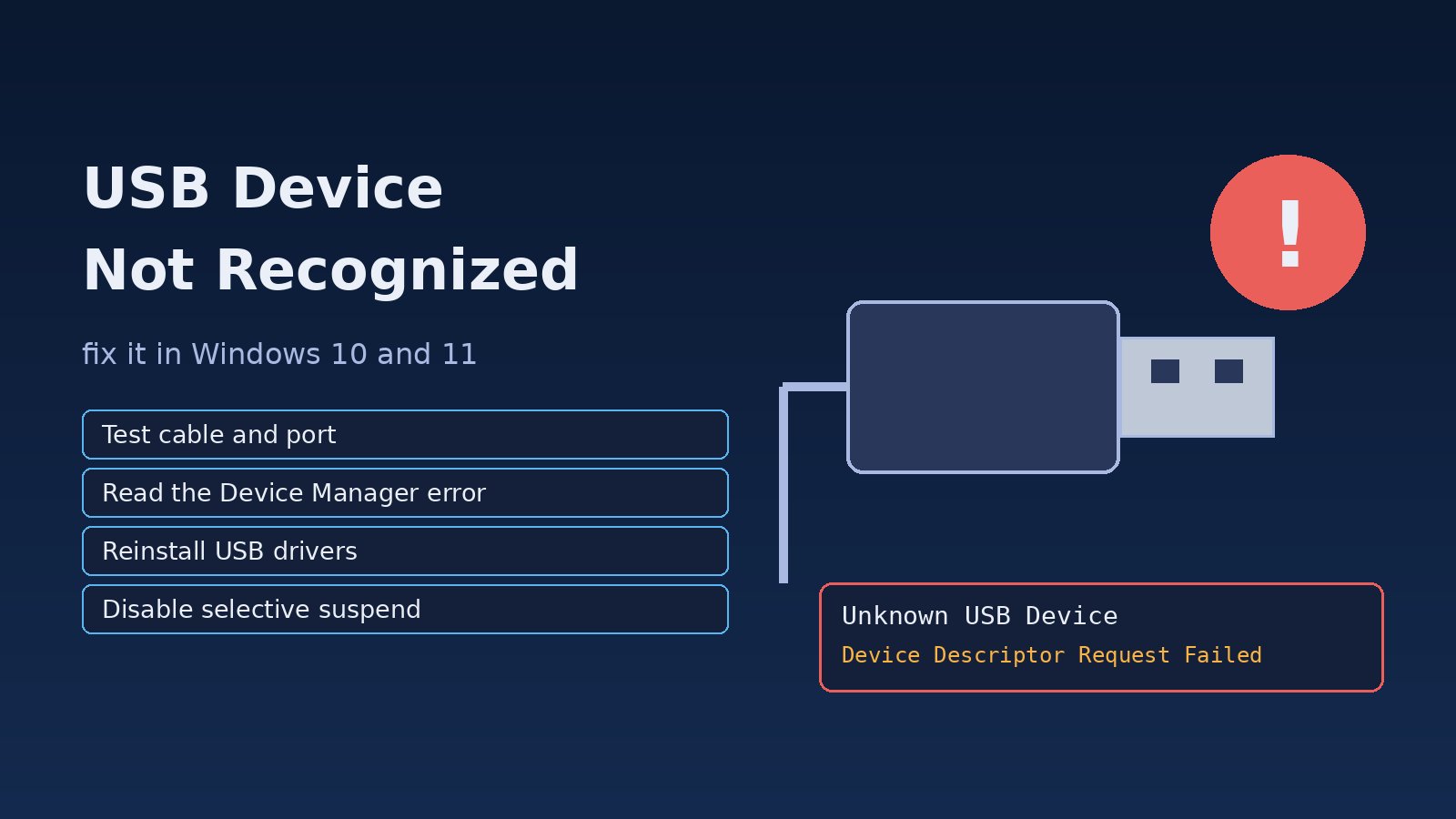
You plug in a flash drive, keyboard, phone or USB-to-serial adapter and instead of the familiar connect sound you get a balloon that says USB device not recognized. Sometimes the device works on another port or another PC, sometimes it worked yesterday and stopped today. Because the message is generic, people often reinstall Windows or throw away hardware that was fine. This guide walks through a repeatable way to fix USB device not recognized errors in Windows 10 and Windows 11: separating hardware faults from driver and power problems, reading the exact error in Device Manager, and using PowerShell, pnputil and powercfg to fix the cause.
Problem: USB Device Not Recognized in Windows
When a USB device is connected, the host controller resets the port and asks the device for its device descriptor, a small block of data that says what it is. Windows then loads a matching driver. If any of those steps fail, Windows cannot identify the device and shows it as an unknown or malfunctioning USB device. The cause can be anywhere in that chain: cable, port, power, hub, controller driver, the device's own driver, or a power-saving setting that suspended the port.
Symptoms: USB Malfunctioned Windows Errors
- A notification: "USB Device Not Recognized. The last USB device you connected to this computer malfunctioned, and Windows does not recognize it."
- Device Manager shows Unknown USB Device (Device Descriptor Request Failed), Unknown USB Device (Port Reset Failed) or Unknown USB Device (Set Address Failed).
- Device properties show "Windows has stopped this device because it has reported problems. (Code 43)".
- The device connects and disconnects repeatedly, with the connect and disconnect sounds looping.
- The device worked before sleep or a restart and stops afterwards, or only works after a full shutdown.
- A USB drive is detected (the light blinks) but no drive letter appears in File Explorer.
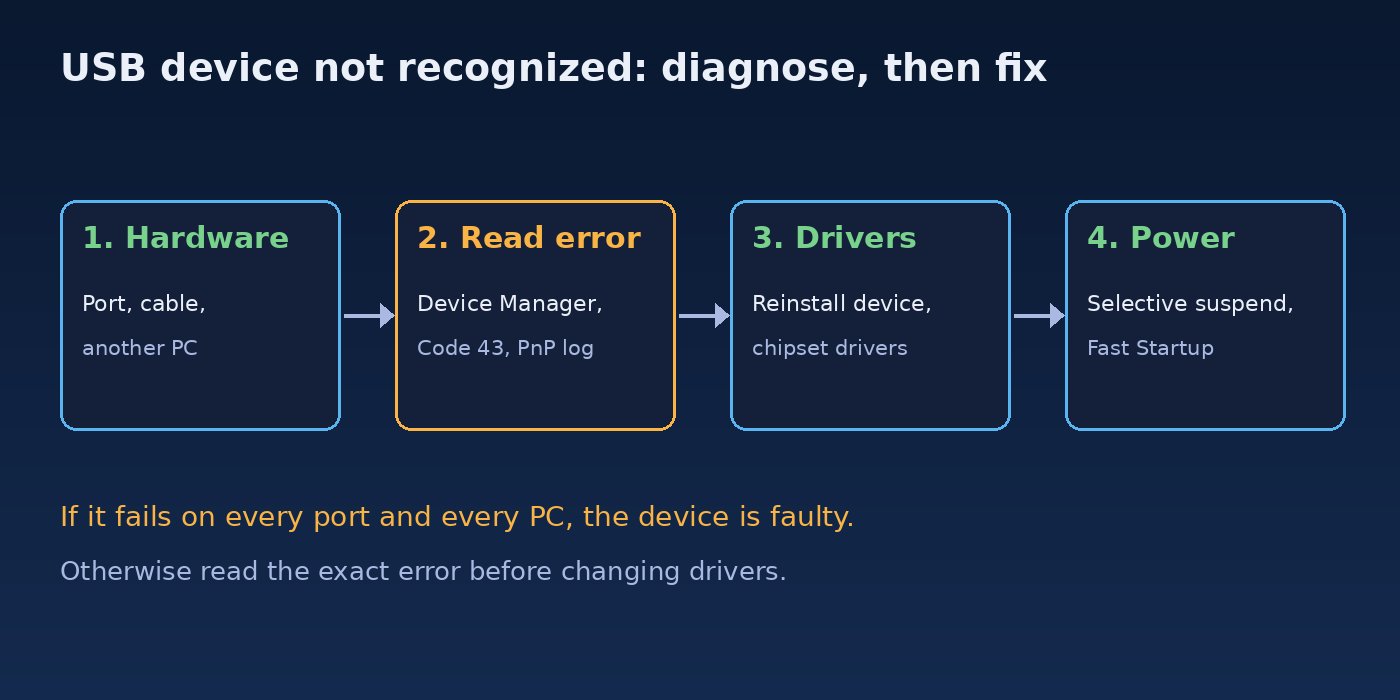
Root Cause: Why Windows Says USB Device Not Recognized
- Bad cable or port. Worn connectors, loose front-panel ports and charge-only cables (no data wires) are very common. A charge-only cable powers the device but Windows never sees any data from it.
- Not enough power. External hard drives and some adapters draw more current than an unpowered hub or a front port can supply, so the device browns out during enumeration.
- Corrupt or wrong driver. A broken driver for the device, the USB Root Hub, the Generic USB Hub or the host controller causes a USB driver error and Code 43.
- Power management. USB selective suspend and "Allow the computer to turn off this device to save power" can leave a port asleep after sleep or hibernation.
- Fast Startup. Fast Startup restores a saved kernel state, so a controller in a bad state survives a normal shutdown. A restart or a full shutdown clears it.
- Stale device entries. Old hidden entries for the same device, chipset drivers missing after a Windows reinstall, or firmware (BIOS/UEFI) bugs in the USB controller.
- The device itself is faulty. If it fails on every port and on several computers, no Windows setting will fix it.
Step-by-Step Solution to Fix USB Device Not Recognized
Step 1: Rule out the cable, port and device
- Unplug the device, wait ten seconds and plug it into a different port, preferably a rear port directly on the motherboard on a desktop.
- Remove any hub or extension cable and connect directly.
- Swap the cable for one you know carries data, for example one that transfers files from a phone.
- Try the device on another computer. If it fails everywhere, the device or its cable is the problem.
Step 2: Restart instead of shutting down
Choose Restart, not Shut down, because Restart does a full reboot even when Fast Startup is on. On laptops, shut down, unplug the charger, wait a minute and power on again so the USB controller fully loses power.
Step 3: Read the exact error in Device Manager
Press Win + X and open Device Manager. Expand Universal Serial Bus controllers and look for a yellow warning icon. Open the device's properties and read the Device status box. You can get the same information from PowerShell, which is faster when you have many devices:
# List every present device that is not working properly
Get-PnpDevice -PresentOnly | Where-Object { $_.Status -ne 'OK' } |
    Format-Table Status, Class, FriendlyName, InstanceId -AutoSize

# Show the problem code for one device (43 = device reported problems)
$id = (Get-PnpDevice -PresentOnly | Where-Object FriendlyName -like '*Unknown USB*').InstanceId
Get-PnpDeviceProperty -InstanceId $id -KeyName DEVPKEY_Device_ProblemCode
On recent Windows builds pnputil can list problem devices directly from an elevated Command Prompt:
pnputil /enum-devices /problem
pnputil /enum-devices /class USB
"Device Descriptor Request Failed" and "Port Reset Failed" usually point to cable, power or controller problems. Code 43 on a named device usually points to its driver or firmware.
Step 4: Fix the USB driver error by reinstalling the driver
In Device Manager, right-click the failing device and choose Uninstall device. If it is offered, tick Attempt to remove the driver for this device only when you plan to install a fresh driver from the manufacturer. Unplug the device, then choose Action > Scan for hardware changes and plug it back in. The same can be done from an elevated prompt:
:: Remove the broken device entry, then rescan
pnputil /remove-device "USB\VID_0000&PID_0002\5&1A2B3C4D&0&3"
pnputil /scan-devices
Replace the instance ID with the one from Step 3. If several devices on the same controller fail, uninstall each USB Root Hub and Generic USB Hub entry as well and restart. Windows reinstalls them automatically. Keyboards and mice on that controller stop working until the restart, so do this with a plan.
Step 5: Install chipset and USB controller drivers
After a clean install, Windows sometimes uses generic drivers that do not handle a particular USB controller well. Download the chipset driver for your motherboard or laptop model from the PC manufacturer's support page and install it, then restart. You can check which third-party drivers are in the driver store with:
pnputil /enum-drivers | findstr /i "usb chipset"Step 6: Turn off USB selective suspend
USB selective suspend lets Windows power down idle ports. Some devices never wake up properly. Disable it for the current power plan, on both AC and battery:
:: USB settings subgroup and USB selective suspend setting GUIDs
powercfg /setacvalueindex SCHEME_CURRENT 2a737441-1930-4402-8d77-b2bebba308a3 48e6b7a6-50f5-4782-a5d4-53bb8f07e226 0
powercfg /setdcvalueindex SCHEME_CURRENT 2a737441-1930-4402-8d77-b2bebba308a3 48e6b7a6-50f5-4782-a5d4-53bb8f07e226 0
powercfg /setactive SCHEME_CURRENT
Then in Device Manager open each USB Root Hub and Generic USB Hub, go to the Power Management tab and clear Allow the computer to turn off this device to save power.
Step 7: Disable Fast Startup if the problem appears after shutdown
Open Control Panel > Power Options > Choose what the power buttons do, click Change settings that are currently unavailable and clear Turn on fast startup. Alternatively, powercfg /h off disables hibernation and Fast Startup together, which also frees the space used by hiberfil.sys.
Step 8: Remove hidden, stale USB device entries
In Device Manager choose View > Show hidden devices. Greyed-out entries under Universal Serial Bus controllers, Disk drives and Portable Devices belong to devices that are not connected. Uninstalling old entries for the problem device forces Windows to set it up from scratch next time.
Step 9: Check the Plug and Play event log
The Kernel-PnP log records why a device failed to start, which is useful when the problem is intermittent:
Get-WinEvent -LogName 'Microsoft-Windows-Kernel-PnP/Configuration' -MaxEvents 30 |
    Where-Object { $_.LevelDisplayName -ne 'Information' } |
    Format-List TimeCreated, Id, Message
Step 10: Repair system files and update firmware
If USB problems started after a failed update, repair Windows components and finish the update. Our guide on a Windows 11 update stuck at 0% or 100% covers that in detail.
DISM /Online /Cleanup-Image /RestoreHealth
sfc /scannow
Also check the manufacturer's site for a BIOS/UEFI update that mentions USB stability. If a USB driver crash is causing stop codes such as DRIVER_POWER_STATE_FAILURE, follow our Windows 11 blue screen fix guide to read the dump file and find the driver.
Step 11: USB drive detected but no drive letter
If the device is recognized but does not show in File Explorer, open diskmgmt.msc. If the volume has no letter, right-click it and choose Change Drive Letter and Paths. If it shows as Unallocated or RAW, the partition or file system is damaged; copy any data off with a recovery tool before formatting it.
Verification: Confirm the USB Device Works
- Device Manager shows the device under its proper category with no warning icon.
Get-PnpDevice -PresentOnly | Where-Object { $_.Status -ne 'OK' }returns nothing for that device.- The device survives a sleep and wake cycle and a full shutdown.
- For storage, copy a large file to and from the drive without disconnects.
Prevention: Avoid USB Driver Errors in Future
- Use powered hubs for external hard drives and multiple devices.
- Always use Safely remove hardware or eject before unplugging storage.
- Keep chipset drivers and BIOS up to date from the PC manufacturer.
- Label data cables and throw away charge-only cables to avoid confusion.
- Keep an eye on memory and driver health generally; a leaking USB driver can also show up as Windows 11 high memory usage in the non-paged pool.
FAQs
Why does Windows keep saying USB device not recognized?
Usually because of a bad cable or port, not enough power, a corrupted USB driver, or power-saving settings that suspend the port. Test with another port and cable first, then reinstall the driver and disable USB selective suspend.
How do I fix "USB device malfunctioned" in Windows 11?
Restart the PC, reconnect the device to a rear port, uninstall the unknown device in Device Manager and scan for hardware changes. If it returns, install chipset drivers and turn off USB selective suspend.
What does Device Descriptor Request Failed mean?
Windows asked the device to identify itself and got no valid answer. It is commonly caused by the cable, power, a faulty device or a controller in a bad state, so a full power-off and a different port often fix it.
How do I fix USB Code 43?
Code 43 means the driver stopped the device because it reported problems. Uninstall the device and its driver, install the manufacturer's driver, update chipset drivers and test on another computer to rule out hardware failure.
Can I pass a USB device into WSL 2?
Yes. Once Windows recognizes the device, the usbipd-win tool can share it with WSL 2: run usbipd list, then usbipd bind --busid <busid> and usbipd attach --wsl --busid <busid> from an elevated prompt. It must be working in Windows first.

Comments
Join the discussion. Replies load on demand, up to 5 levels.
0 threads
No comments yet
Be the first to start the conversation.