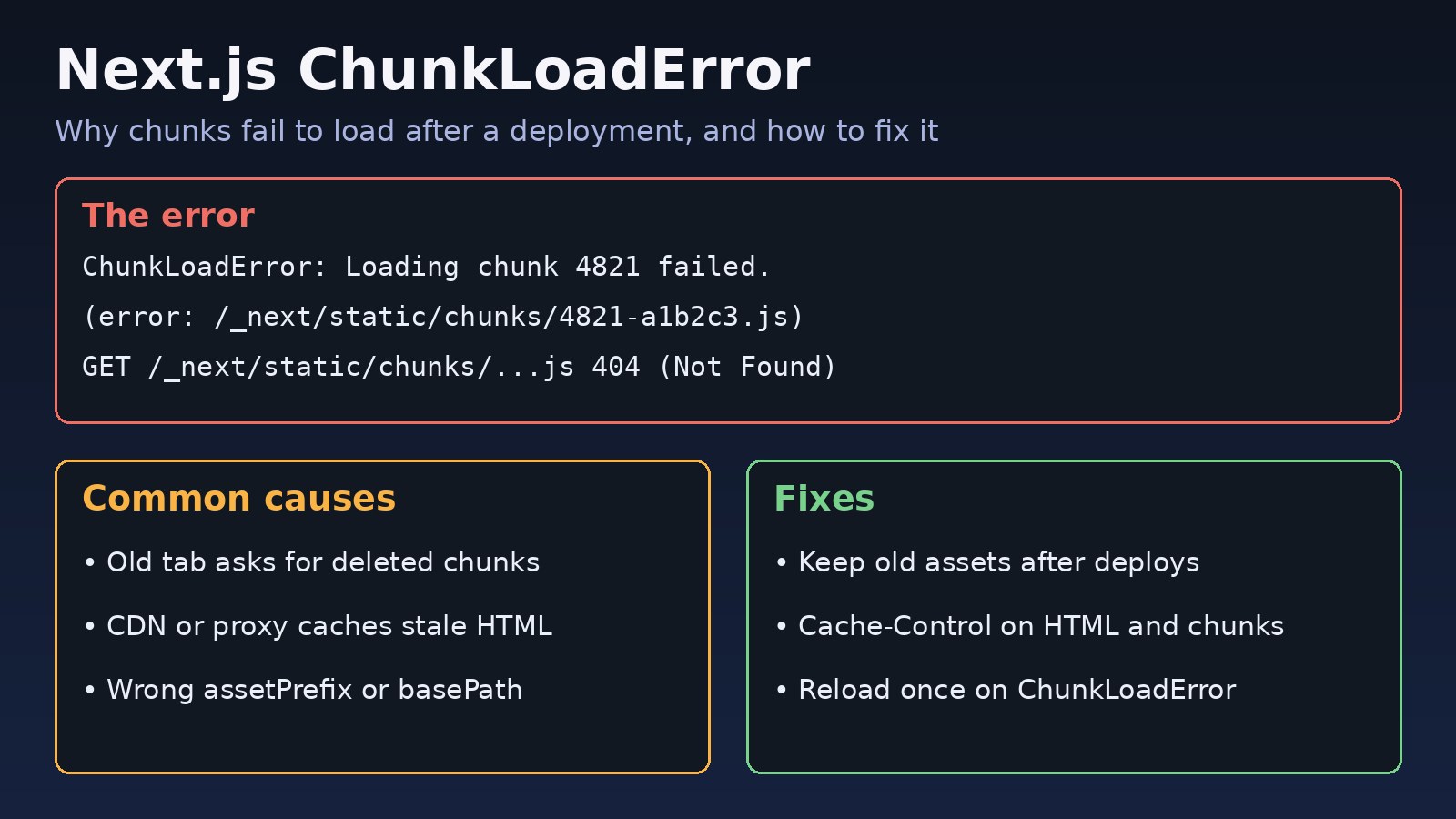
The nextjs chunkloaderror usually shows up right after a deployment. Users who had your app open click a link and get a blank screen or an error page, and the browser console says ChunkLoadError: Loading chunk 4821 failed. Nothing is wrong with your code. The browser is asking for JavaScript files from an older build that the server no longer has. This guide explains why Next.js fails to load chunks, how to find the exact cause, and how to fix it for good on Vercel, Docker, Nginx and CDN setups.
The Problem: Next.js ChunkLoadError
Next.js splits your app into many small JavaScript files called chunks. Each route, and each component loaded with next/dynamic or import(), gets its own chunk. File names include a content hash, such as /_next/static/chunks/app/dashboard/page-3f9a1c2b.js, so every new build produces new file names.
The page HTML and the runtime that the browser already loaded contain a list of chunk URLs for that build. When the browser later needs one of those chunks, for example on client-side navigation, it downloads it. If the file is missing or the request fails, webpack throws a ChunkLoadError and the page cannot render.
Symptoms and Error Messages
You will usually see one or more of these in the browser console or your error tracker:
ChunkLoadError: Loading chunk 4821 failed.
(error: https://example.com/_next/static/chunks/4821-a1b2c3d4e5f6.js)

Loading CSS chunk 912 failed.
(https://example.com/_next/static/css/912-7c1d2e3f.css)

GET https://example.com/_next/static/chunks/app/dashboard/page-3f9a1c2b.js
net::ERR_ABORTED 404 (Not Found)

Refused to execute script from '.../_next/static/chunks/...js' because its
MIME type ('text/html') is not executable- Errors spike for a few minutes or hours after each release, then fade away.
- Only users with an open tab are affected. A hard refresh fixes it for them.
- Client-side navigation fails, but loading the same URL directly works.
- In some setups every page fails after deployment, not just old tabs.
The last MIME type message is a strong hint: the server answered the chunk request with an HTML page, usually a 404 page or an SPA fallback, instead of JavaScript.
Root Cause: Why Next.js Fails to Load Chunks
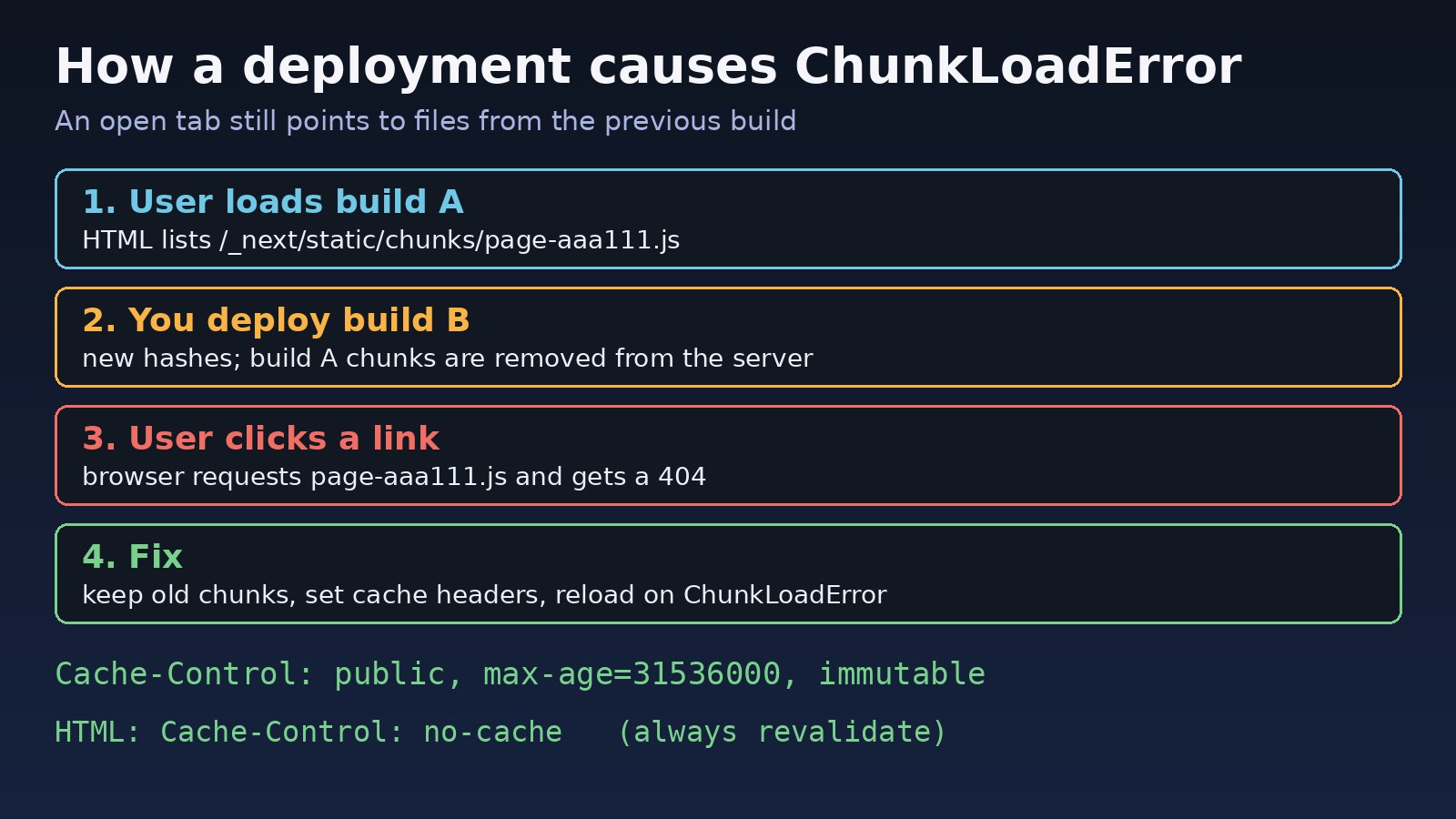
The most common causes are:
- Version skew after a deployment. A user loaded build A. You deployed build B, and the build A files were deleted. The open tab still requests build A chunk names and gets 404.
- Stale HTML in a cache. A CDN, reverse proxy or service worker keeps serving old HTML that points to chunks which no longer exist.
- Mixed builds behind a load balancer. During a rolling deploy, or with several servers that built separately, the HTML comes from one build and the chunk request lands on a server running another build.
- Static files not deployed. With
output: 'standalone', the.next/staticandpublicfolders are not copied into the standalone folder automatically. If you forget them, every chunk returns 404. - Wrong
assetPrefixorbasePath. The app requests chunks from a CDN or path where they were never uploaded. - Network and client problems. Slow mobile networks, request timeouts, ad blockers or browser extensions can block a single chunk. These show up as scattered errors that do not follow releases.
Step-by-Step Solution
Step 1: Find the failing chunk URL and status code
Open DevTools, go to the Network tab, filter by JS and reproduce the error. Note the full chunk URL and the response status. Then request it directly:
curl -sI https://example.com/_next/static/chunks/4821-a1b2c3d4e5f6.js
# HTTP/2 404             -> file is missing on the server
# content-type: text/html -> a fallback page is answering instead of the file
# HTTP/2 200             -> file exists; look at caching, CDN or the client
Also compare the build ID in the page with the build on the server. Next.js writes it to .next/BUILD_ID:
# On the server
cat .next/BUILD_ID

# Check which chunk folder exists
ls .next/static/
# 3kq9Zx1ab2  chunks  css  media
Step 2: Fix failed to load chunk after a Next.js deployment
If the 404 starts right after each release, old chunks are being removed too early. The fix is to keep the previous build's static files available for a while after you deploy.
- On Vercel, look at the Skew Protection setting for your project, which is designed to route requests from an older client to the deployment it came from.
- On your own servers, upload
.next/staticto a CDN or object storage bucket and do not delete the older files on each deploy. Clean up builds that are a few days or weeks old instead. - With a simple rsync deploy, avoid
--deleteon the static folder so old hashed files stay in place:
# Copy new static files but keep the old ones
rsync -a .next/static/ /var/www/myapp/.next/static/

# Later, remove chunk files older than 14 days
find /var/www/myapp/.next/static -type f -mtime +14 -delete
This approach pairs well with the methods in the zero downtime deployment guide, where old and new versions run side by side for a short time.
Step 3: Set correct Cache-Control headers
Hashed chunk files never change, so they can be cached for a long time. HTML must not be cached for long, or browsers and CDNs will keep pointing at removed chunks. next start already sends Cache-Control: public, max-age=31536000, immutable for /_next/static. Make sure your proxy or CDN does not override this, and does not cache HTML pages. An Nginx example:
location /_next/static/ {
    alias /var/www/myapp/.next/static/;
    add_header Cache-Control "public, max-age=31536000, immutable";
    try_files $uri =404;          # never fall back to HTML for a missing chunk
}

location / {
    proxy_pass http://127.0.0.1:3000;
    proxy_set_header Host $host;
    # Let Next.js set Cache-Control for pages; do not add proxy_cache here
}
The try_files $uri =404 line matters. Without it, some configs return index.html or a custom error page for a missing chunk, which leads to the "MIME type text/html is not executable" message. After a deploy, purge HTML from your CDN cache. If you also see gateway errors from this proxy, the 502 Bad Gateway Nginx guide covers those.
Step 4: Fix Docker and standalone builds
If every page fails, not just old tabs, the static files were probably never deployed. The standalone output needs the static folder copied next to server.js:
FROM node:20-alpine AS builder
WORKDIR /app
COPY package.json package-lock.json ./
RUN npm ci
COPY . .
RUN npm run build

FROM node:20-alpine AS runner
WORKDIR /app
ENV NODE_ENV=production
COPY --from=builder /app/.next/standalone ./
COPY --from=builder /app/.next/static ./.next/static
COPY --from=builder /app/public ./public
EXPOSE 3000
CMD ["node", "server.js"]
When you run several containers, build the image once and run the same image everywhere. Building separately on each server can produce different build IDs and chunk names. If you must build on more than one machine, set a fixed build ID from your commit:
// next.config.js
module.exports = {
  output: 'standalone',
  generateBuildId: async () => process.env.GIT_COMMIT_SHA || 'local-build',
};
Step 5: Check assetPrefix and basePath
If you serve assets from a CDN, the value in next.config.js must match where the files are actually uploaded:
// next.config.js
module.exports = {
  assetPrefix: process.env.NODE_ENV === 'production' ? 'https://cdn.example.com' : undefined,
  basePath: '/app',   // only if the whole app lives under /app
};

# The CDN must serve: https://cdn.example.com/_next/static/chunks/...js
curl -sI https://cdn.example.com/_next/static/chunks/webpack-1a2b3c.js
Step 6: Recover gracefully with a one-time reload
Even with good deploys, a tab left open for days can still hit an old chunk. A safe fallback is to reload the page once when a chunk fails, which loads the new HTML and new chunk names. Use sessionStorage so it never loops:
// app/error.tsx (App Router error boundary)
'use client';
import { useEffect } from 'react';

export default function Error({ error, reset }: { error: Error; reset: () => void }) {
  useEffect(() => {
    const isChunkError =
      error?.name === 'ChunkLoadError' || /Loading (CSS )?chunk [\w-]+ failed/i.test(error?.message ?? '');
    if (isChunkError && !sessionStorage.getItem('chunk-reload')) {
      sessionStorage.setItem('chunk-reload', '1');
      window.location.reload();
    }
  }, [error]);

  return (
    <div>
      <h2>Something went wrong.</h2>
      <button onClick={() => reset()}>Try again</button>
    </div>
  );
}
Clear the flag after a successful load, for example in a small client component in your root layout that runs sessionStorage.removeItem('chunk-reload') in a useEffect. In the Pages Router, put the same check in a custom error boundary or a window.addEventListener('error', ...) handler in _app.tsx.
Step 7: Retry dynamic imports on flaky networks
For scattered errors that do not follow deployments, retry the import once or twice before giving up:
import dynamic from 'next/dynamic';

function retry<T>(fn: () => Promise<T>, retries = 2, delay = 500): Promise<T> {
  return fn().catch((err) => {
    if (retries <= 0) throw err;
    return new Promise<T>((resolve) => setTimeout(resolve, delay)).then(() => retry(fn, retries - 1, delay * 2));
  });
}

const Chart = dynamic(() => retry(() => import('@/components/Chart')), { ssr: false });
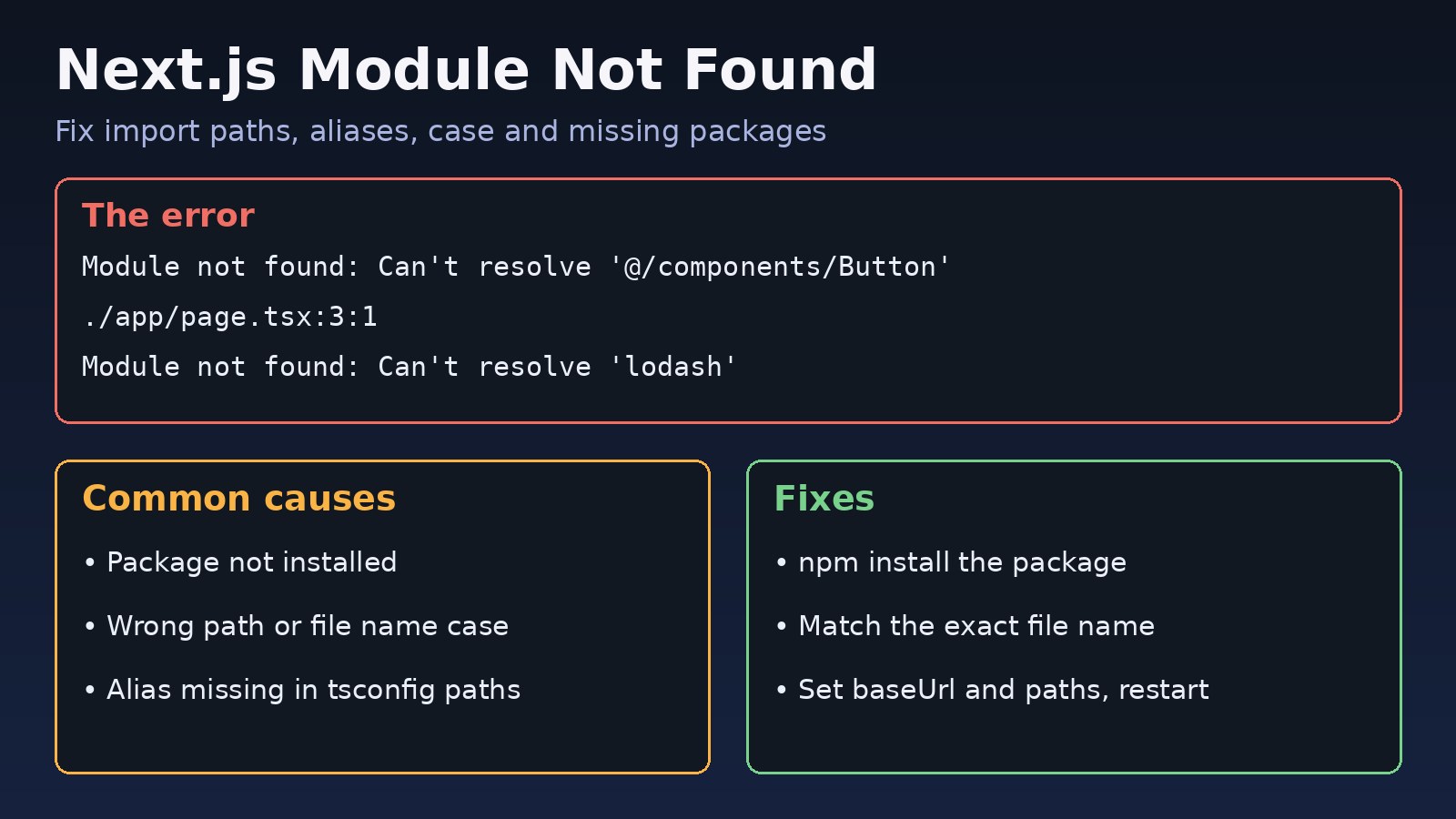
A retry helps with timeouts but will not fix a 404, so keep the deployment fixes from Steps 2 to 5 in place. If imports fail at build time rather than in the browser, that is a different problem covered in the Next.js module not found guide.
Verification
- Open the app in a tab, deploy a new build, then click a link in the old tab. It should keep working or reload once on its own.
- Run
curl -sIon a chunk from the previous build and confirm it still returns200withcontent-type: application/javascript. - Check that HTML responses do not have a long
max-ageand that/_next/staticresponses haveimmutable. - Watch your error tracker after the next release and compare ChunkLoadError counts with earlier releases.
Prevention
- Keep old static assets for at least a few days after each deploy.
- Build once, deploy everywhere so every server serves the same chunk names.
- Never cache HTML for long at the CDN or proxy, and purge it on release.
- Return a real 404 for missing files under
/_next/static, never an HTML fallback. - Add a one-time reload for ChunkLoadError in your error boundary.
- Track the error in Sentry or your logs so you notice spikes after deployments.
FAQs
What does ChunkLoadError mean in Next.js?
It means the browser tried to download a JavaScript or CSS chunk for your app and the request failed. In most cases the file no longer exists because a new build replaced it, or the request timed out.
Why does ChunkLoadError happen only after deployment?
Users who opened the app before the release still have the old page in memory. Their next navigation asks for old chunk file names, and if the deploy deleted those files the server returns 404.
How do I fix failed to load chunk in a Next.js production build?
Keep previous static files available, make sure .next/static is deployed with your server, set long caching only on hashed assets, stop caching HTML, and reload the page once when a chunk error happens.
Can a CDN cause Next.js ChunkLoadError?
Yes. If the CDN serves cached HTML from an old build, or assetPrefix points to a location where the new files were not uploaded, the browser requests chunks that do not exist there.
Is it safe to auto reload the page on ChunkLoadError?
Yes, if you reload only once per session using a flag in sessionStorage. Without the flag, a missing file could cause an endless reload loop.
Does this error also happen with React lazy loading outside Next.js?
Yes. Any webpack-based app that uses code splitting, including Create React App and custom React setups, can throw the same error, and the same fixes apply.
Comments
Join the discussion. Replies load on demand, up to 5 levels.
0 threads
No comments yet
Be the first to start the conversation.