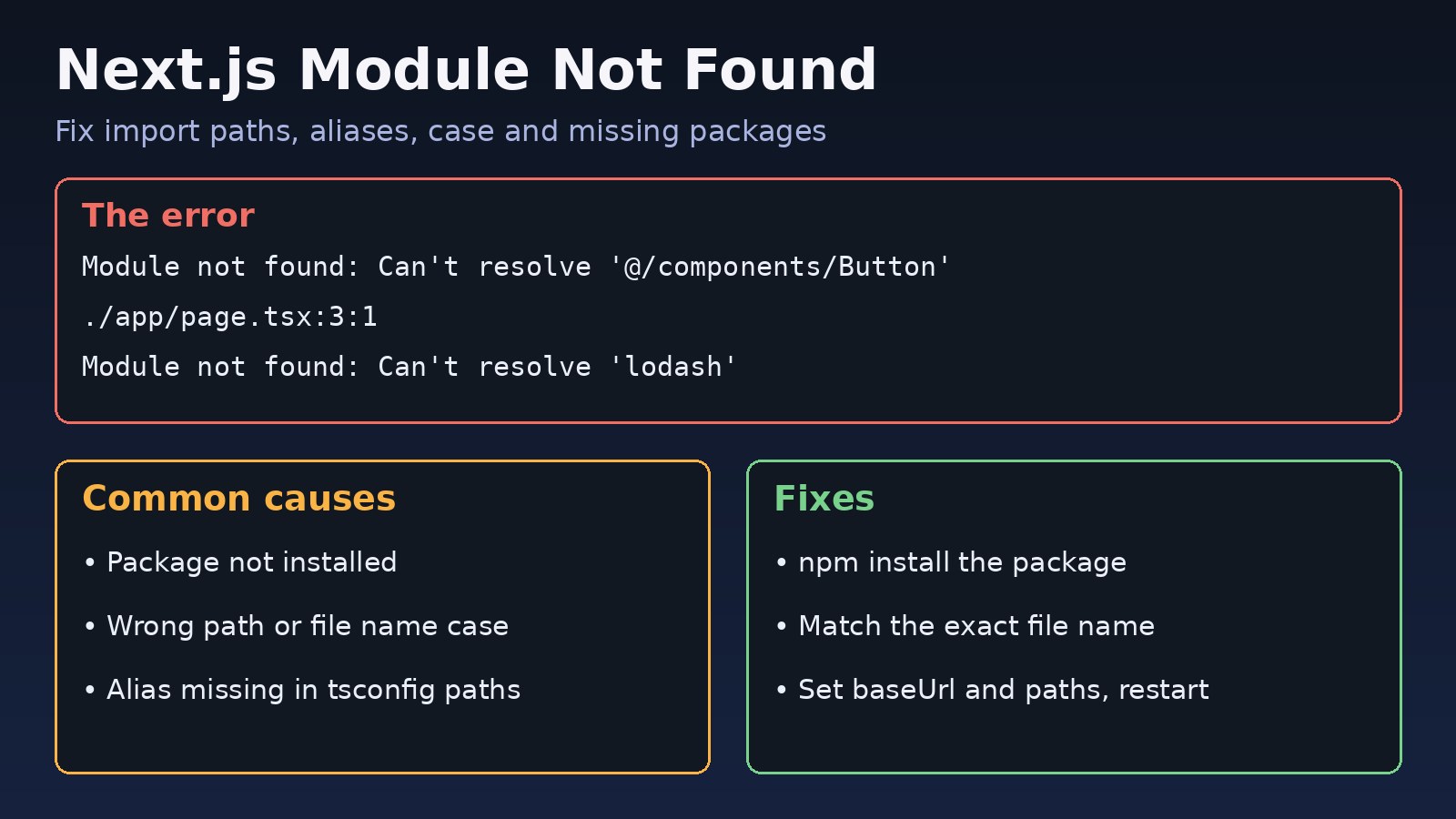
The nextjs module not found error stops a build or dev server cold. You run npm run dev or next build and get Module not found: Can't resolve '...', even though the file or package seems to be right there. This error always means the same thing: the bundler followed an import and could not find a file or package at that location. This guide explains how Next.js module resolution works, the common causes of this import error in Next.js, and step-by-step fixes for local development, Docker and production deployments.
The Problem: Next.js Module Not Found
Every import in a Next.js app is resolved at build time by webpack or Turbopack. The resolver turns a string such as 'lodash', '@/lib/db' or './Button' into a real file on disk. If any step of that lookup fails, compilation stops and Next.js reports the file and line of the import it could not resolve.
The error can appear only on one machine, only in CI, or only after deployment, because resolution depends on the installed packages, the operating system's file system and your config files.
Symptoms and Error Messages
You will usually see one of these messages in the terminal or the browser overlay:
Module not found: Can't resolve 'lodash'
> 1 | import debounce from 'lodash/debounce';

Module not found: Can't resolve '@/components/Button'
  ./app/page.tsx:3:1

Module not found: Can't resolve './Navbar'
  ./components/Layout.tsx

Module not found: Can't resolve 'fs'
  Import trace for requested module:
  ./lib/readConfig.ts
./app/settings/page.tsx- The dev server shows a red "Failed to compile" overlay and the page does not load.
next buildfails with "Build failed because of webpack errors".- The app works on macOS or Windows but fails on Linux, in Docker or on Vercel.
- Your editor shows no red underline, yet the build still fails, or the reverse.
Root Cause: How Next.js Module Resolution Works
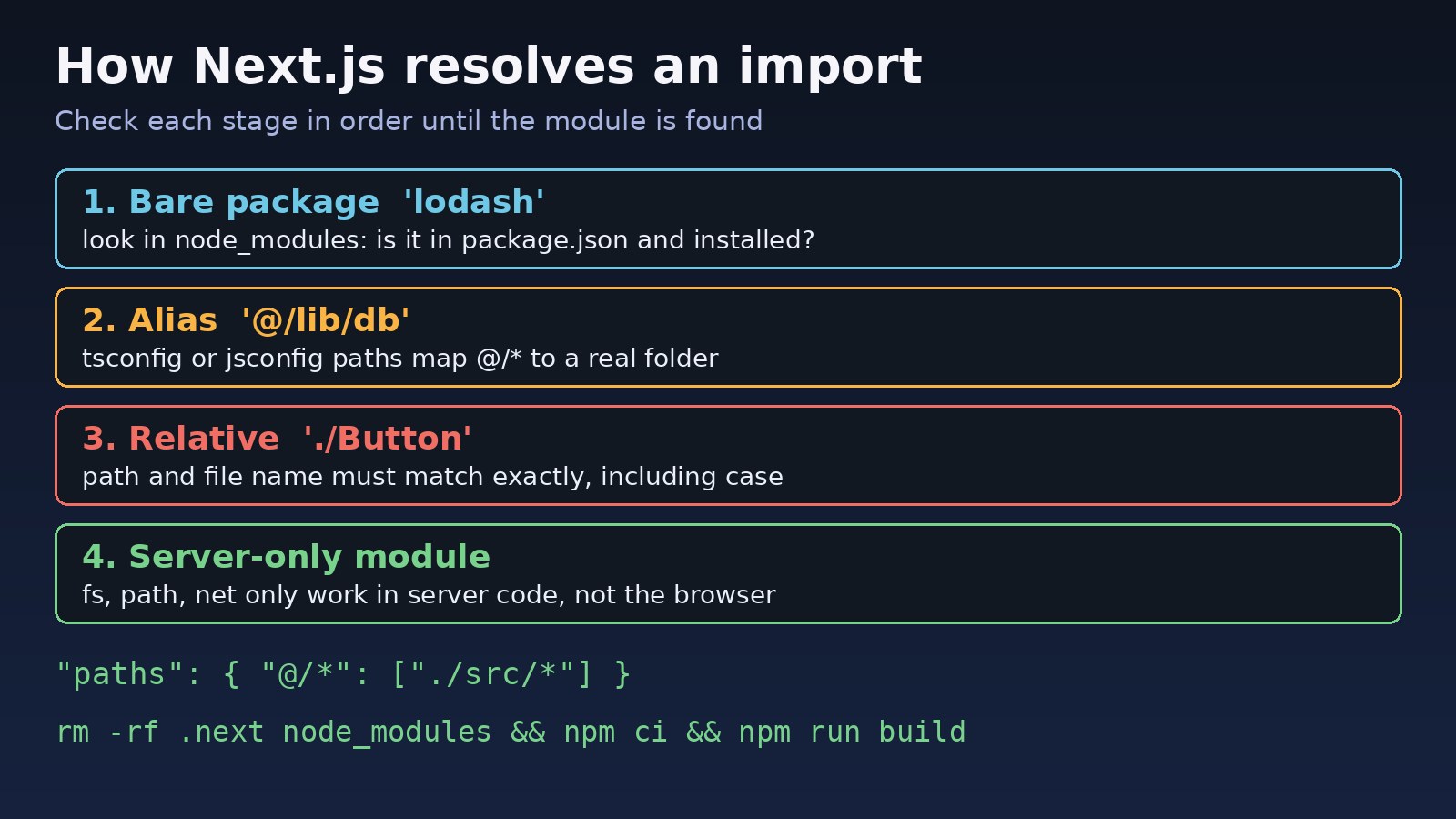
Next.js handles three kinds of import strings differently:
- Bare package names like
'axios'or'date-fns/format'are looked up innode_modules. If the package is not installed, or the subpath does not exist in that package version, resolution fails. - Path aliases like
'@/lib/db'are mapped throughcompilerOptions.pathsintsconfig.jsonorjsconfig.json. If the alias is missing or points to the wrong folder, the import fails. - Relative paths like
'../utils/format'are resolved from the importing file. The path must be correct and the file name must match exactly.
The most common reasons for the error are:
- The package is used in code but not listed in
package.json, ornode_modulesis out of date. - The file name case differs from the import, for example
navbar.tsximported as./Navbar. macOS and Windows usually ignore case; Linux does not. - The
@/alias is not configured, orbaseUrlpoints to the wrong place after moving to asrc/folder. - A Node.js built-in like
fs,pathornetis imported into code that runs in the browser. - A file was moved or renamed and an old import was not updated.
- A stale
.nextcache or a broken lockfile after switching branches.
Step-by-Step Solution
Step 1: Read the exact module and the importing file
The message tells you two things: the string that could not be resolved and the file that imported it. Open that file and look at the import line. Decide whether it is a package, an alias or a relative path, then follow the matching step below.
Step 2: Install missing packages
For a bare package name, check whether it is installed:
npm ls lodash
# or
grep '"lodash"' package.json

# Install it if missing (use the package manager your project uses)
npm install lodash
yarn add lodash
pnpm add lodash
If the package is listed but still missing, reinstall from the lockfile. If you hit peer dependency conflicts while doing this, see the npm ERESOLVE fix guide.
rm -rf node_modules .next
npm ci          # clean install exactly from package-lock.json
npm run dev
Also check subpath imports. import x from 'some-lib/dist/thing' breaks if a new major version moved or removed that file, or if the package's exports field does not expose it. Use the import path shown in the package's documentation.
Step 3: Fix import path and file name case
List the folder and compare the real file name with the import, character by character:
ls components/
# navbar.tsx   Layout.tsx

// Wrong on Linux, works on macOS and Windows
import Navbar from './Navbar';

// Correct
import Navbar from './navbar';
If you renamed a file only by changing its case, Git on macOS and Windows may not record the rename. Force it so the repository and the server agree:
git mv components/Navbar.tsx components/navbar-tmp.tsx
git mv components/navbar-tmp.tsx components/navbar.tsx
git commit -m "Fix navbar file name case"

# Make Git warn about case-only changes in this repo
git config core.ignorecase false
Check relative depth too. A file in app/dashboard/settings/page.tsx needs ../../../lib/db to reach lib/db at the project root, which is easy to get wrong. Aliases avoid this.
Step 4: Configure tsconfig paths and the @ alias
For TypeScript projects, set the alias in tsconfig.json. JavaScript projects use the same keys in jsconfig.json:
{
  "compilerOptions": {
    "baseUrl": ".",
    "paths": {
      "@/*": ["./src/*"]
    }
  }
}
If your code is in the project root rather than src/, use "@/*": ["./*"]. Next.js reads these paths automatically, so you do not need extra webpack config. Restart the dev server after changing tsconfig.json, because the resolver does not always pick up the change on hot reload.
In a monorepo, make sure the app's own tsconfig.json has the alias. If it extends a shared base config, relative paths in paths are resolved from the config file that defines them, which often points to the wrong folder.
Step 5: Keep Node.js modules out of client code
Module not found: Can't resolve 'fs' means a server-only module ended up in the browser bundle. This often happens through an import chain: a client component imports a helper, and that helper imports fs.
// lib/readConfig.ts uses fs, so it must only run on the server
import 'server-only';
import { readFile } from 'fs/promises';

export async function readConfig() {
  return JSON.parse(await readFile('./config.json', 'utf8'));
}
Call this function from a Server Component, a Route Handler, a Server Action, or getServerSideProps in the Pages Router, and pass only the result to client components. The server-only package makes the build fail with a clear message if a client file imports it. The same split between server and browser code causes the Next.js window is not defined error, just in the opposite direction.
Step 6: Clear caches and rebuild
# Stop the dev server first
rm -rf .next
rm -rf node_modules/.cache
npm run build
Switching branches with different dependencies or renaming many files can leave stale cache entries. A clean build rules this out quickly.
Step 7: Fix module not found in Docker and CI
If the build works locally but fails in Docker or CI, the build environment is different. Common problems are a .dockerignore that excludes needed folders, copying source before installing packages, or installing with --production so build-time dependencies are missing:
FROM node:20-alpine AS builder
WORKDIR /app
COPY package.json package-lock.json ./
RUN npm ci                      # installs devDependencies too, needed for next build
COPY . .
RUN npm run build
Also remember that Linux containers and CI runners are case-sensitive, so a case mismatch from Step 3 often shows up only here.
Verification
- Run
npm run buildlocally and confirm it finishes with no "Module not found" lines. - Run
npx tsc --noEmitin TypeScript projects to catch broken imports and alias problems. - Build inside Docker or a Linux CI job to catch case-sensitivity issues before deploying.
- Open the affected pages in the browser and check the console for missing chunk or import errors.
Prevention
- Use one naming convention for files, such as kebab-case, so case mismatches are less likely.
- Use path aliases like
@/instead of deep relative paths. - Commit the lockfile and install with
npm ciin CI and Docker. - Run builds in Linux CI on every pull request, not just on your laptop.
- Mark server code with
import 'server-only'and keep it in clear folders likelib/server/. - Use editor refactoring tools to move or rename files so imports update automatically.
FAQs
Why does Next.js say module not found when the file exists?
Usually the file name case differs from the import, the relative path depth is wrong, or the file extension is not one Next.js resolves by default. Compare the exact path from the importing file and restart the dev server.
How do I fix the @ import error in Next.js?
Add "baseUrl": "." and "paths": { "@/*": ["./src/*"] } (or ["./*"] without a src folder) to tsconfig.json or jsconfig.json, then restart the dev server.
Why does it work locally but fail on Vercel or Docker?
Those builds run on Linux, which has a case-sensitive file system, and they install packages only from your lockfile. Case mismatches, packages installed locally but missing from package.json, and ignored files all show up there first.
How do I fix Can't resolve 'fs' in Next.js?
Move the code that uses fs into server-only code such as a Server Component, Route Handler or Server Action, and pass the data to client components. Do not import Node.js built-ins from files marked with 'use client'.
Does Turbopack change Next.js module resolution?
Turbopack follows the same rules for packages, tsconfig paths and relative imports, so the fixes above apply. Custom webpack aliases in next.config.js need an equivalent Turbopack setting if you use the Turbopack bundler.
Should I delete node_modules to fix module not found?
Only after checking the import itself. A clean reinstall with npm ci fixes broken or outdated installs, but it will not fix a wrong path, a case mismatch or a missing alias.
Comments
Join the discussion. Replies load on demand, up to 5 levels.
0 threads
No comments yet
Be the first to start the conversation.