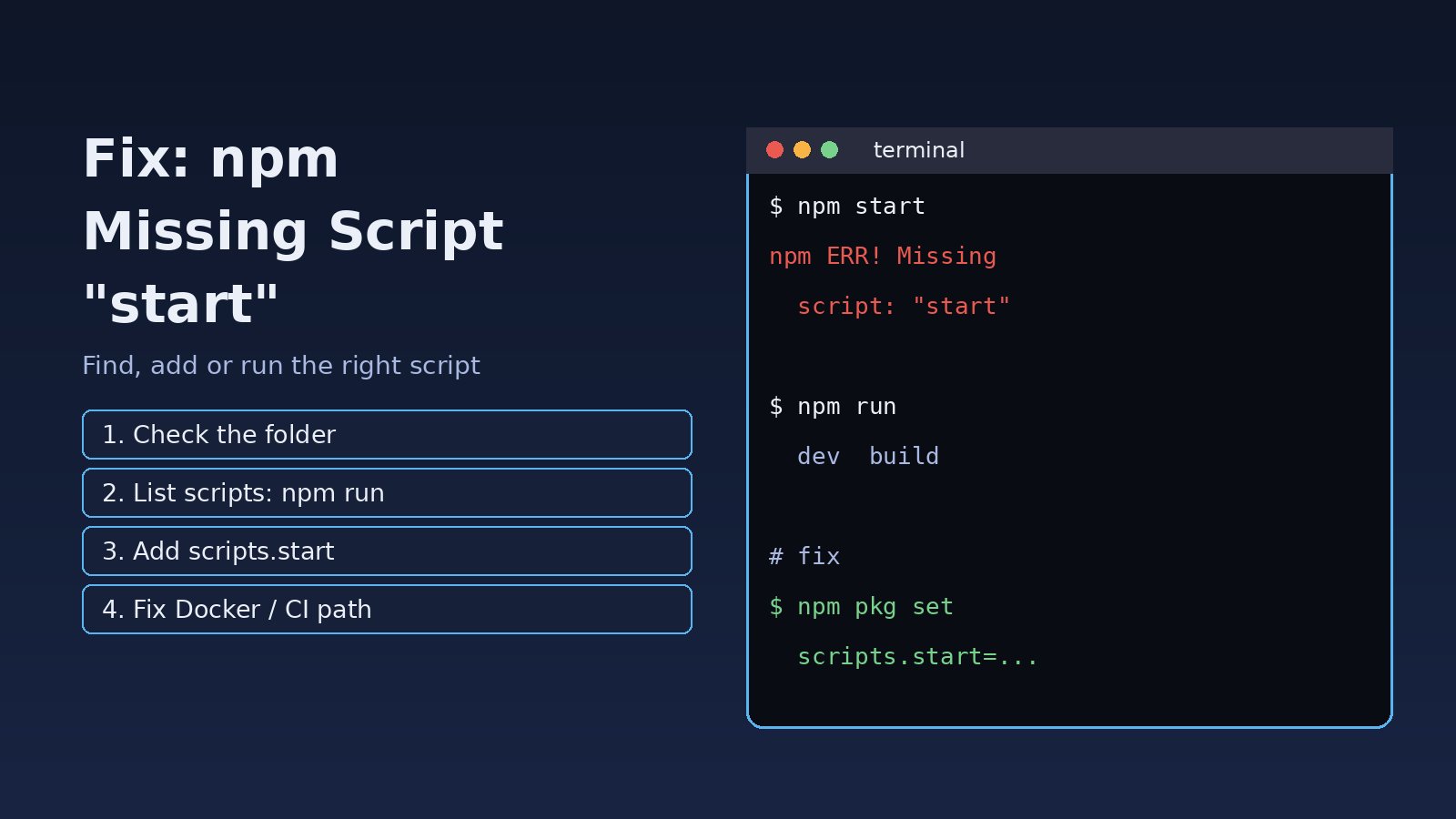
You clone a project, run npm start, and instead of a running app you get npm ERR! Missing script: "start". If you searched for npm missing script start, the good news is that this is one of the easiest Node.js errors to fix. npm is telling you that the package.json it found has no script called start. Either you are in the wrong folder, the project uses a different script name such as dev, or the script really is missing and needs to be added. This guide shows how to find which case you are in and fix it in a minute or two, for plain Node.js, React, Next.js, Vite and monorepo projects.
Problem: npm Missing Script Start
With npm 7, 8 and 9 the terminal output looks like this:
$ npm start
npm ERR! Missing script: "start"
npm ERR!
npm ERR! Did you mean one of these?
npm ERR!     npm star # Mark your favorite packages
npm ERR!     npm stars # View packages marked as favorites
npm ERR!
npm ERR! To see a list of scripts, run:
npm ERR!   npm run

npm ERR! A complete log of this run can be found in:
npm ERR!     /home/dev/.npm/_logs/2026-11-16T11_02_10_123Z-debug-0.log
npm 10 prints the same message with the prefix npm error instead of npm ERR!, and older npm 6 prints npm ERR! missing script: start. The "Did you mean" suggestions about npm star are only spelling matches against npm's own commands. They are not related to your project and you can ignore them.
Symptoms
npm startfails immediately withMissing script: "start"and nothing is installed or run.npm run devornpm run buildfails with the same message for"dev"or"build".- The error appears in a Docker container, CI pipeline or PM2 process even though the command works on your laptop.
- In a monorepo, the command works inside one package folder but fails at the repository root.
- A hosting platform reports npm start failed during deployment.
Root Cause: npm Start Failed Because the Script Is Not Defined
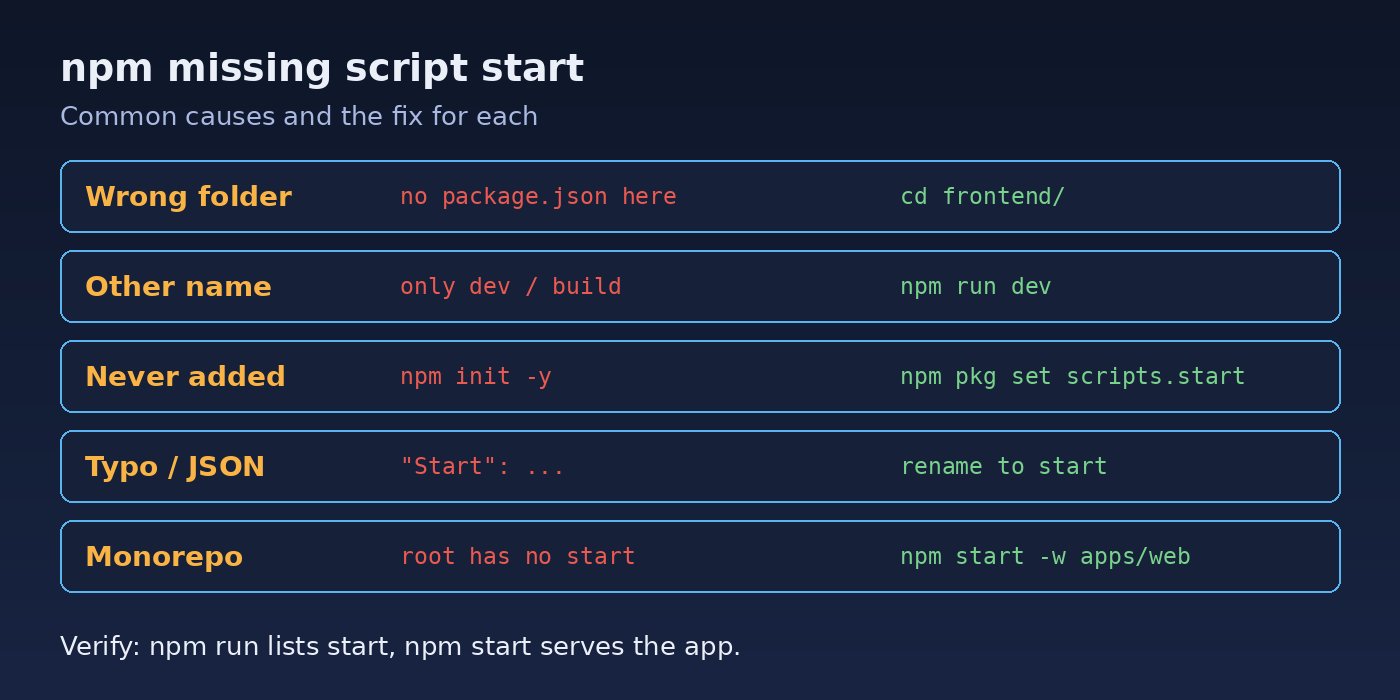
npm start is a shortcut for npm run start. npm looks for the nearest package.json (in the current folder, or a parent folder if none exists in the current one) and reads the "scripts" object. If "start" is not a key there, npm stops with this error. There is one built-in fallback: if no start script exists but a server.js file is in the package root, npm runs node server.js. Most projects do not have that file, so the error appears. The common reasons are:
- Wrong working directory. You are in a parent folder, a
srcfolder, or a different package, so npm reads the wrongpackage.json. - The project uses another script name. Vite projects use
dev; Next.js usesdevfor development andstartonly for the production server; many APIs useserveordev. - The start script was never added.
npm init -ycreates only atestscript. - Broken package.json scripts. A typo such as
"Start"(script names are case-sensitive), a script placed outside the"scripts"object, or a duplicate"scripts"key where the second one overwrites the first. - Monorepo or Docker paths. The root
package.jsonhas no start script, or the Dockerfile copies files into aWORKDIRthat is not the app folder.
Step-by-Step Solution
Step 1: Confirm you are in the right folder
Check where you are and whether a package.json exists there:
pwd
ls package.json

# If it is not here, find it (skip node_modules)
find . -name package.json -not -path "*/node_modules/*" -maxdepth 3
On Windows PowerShell use Get-Location and dir package.json. If the project lives in a subfolder such as frontend/ or client/, cd into it before running npm.
Step 2: List the scripts that actually exist
# List all scripts in the current package.json
npm run

# Or print only the scripts object
npm pkg get scripts
Typical output for a Vite React app shows that there is no start script, only dev, build and preview:
Scripts available in [email protected] via `npm run-script`:
  dev
    vite
  build
    vite build
  preview
    vite preview
In that case simply run npm run dev. Note that only start, test, stop and restart can be run without run; every other script needs npm run <name>.
Step 3: Add the missing start script to package.json scripts
If the project should have a start script, add one. Edit package.json by hand, or let npm do it safely (npm 7.20 and later):
# Plain Node.js / Express API
npm pkg set scripts.start="node index.js"

# Vite app: make npm start run the dev server
npm pkg set scripts.start="vite"

# Next.js production server (run npm run build first)
npm pkg set scripts.start="next start"
The resulting package.json should look like this, with start inside the "scripts" object:
{
  "name": "orders-api",
  "version": "1.0.0",
  "main": "index.js",
  "scripts": {
    "start": "node index.js",
    "dev": "nodemon index.js",
    "test": "jest"
  }
}
Make sure the file named in the script exists. If main says src/server.js, the start script should point to the same file.
Step 4: Fix typos and broken JSON
Script names are case-sensitive, so "Start" or "start " (with a trailing space) will not match. Also check that there is only one "scripts" key. Validate the file with Node:
node -e "const p=require('./package.json'); console.log(Object.keys(p.scripts || {}))"If this prints a JSON parse error, fix the syntax first (a missing comma or a trailing comma is the usual culprit). If it prints a list without start, go back to Step 3.
Step 5: Run scripts in a monorepo or workspace
With npm workspaces, the root package.json often has no start script. Target the package directly:
# Run the start script of one workspace from the repo root
npm start --workspace=apps/web
npm run dev -w apps/web

# Or run a script in a folder without cd
npm --prefix apps/web start
You can also add a root script such as "start": "npm start -w apps/web" so npm start works from the top level.
Step 6: Fix Docker, CI and PM2 setups
In containers and pipelines the error usually means the command runs in the wrong directory. Check that WORKDIR matches where package.json was copied:
FROM node:20-alpine
WORKDIR /app
COPY package*.json ./
RUN npm ci
COPY . .
RUN npm run build
CMD ["npm", "start"]
In GitHub Actions, set working-directory: ./frontend on the step if the app is in a subfolder. With PM2, use pm2 start npm --name web -- start from the project folder, or set cwd in ecosystem.config.js. If the build step itself is crashing, see How to Fix JavaScript Heap Out of Memory During Build.
Code/Commands: Quick Reference
# What scripts exist?
npm run
npm pkg get scripts

# Add or change a script
npm pkg set scripts.start="node index.js"

# Remove a wrong script
npm pkg delete scripts.Start

# Run a non-standard script
npm run dev

# Debug: show the exact command npm will run
npm start --foreground-scripts --loglevel verbose
If npm install fails before you even reach the start step, fix that first with How to Fix npm ERESOLVE Unable to Resolve Dependency Tree. For Next.js projects that start but fail during the build, see How to Fix Next.js Failed to Compile.
Verification
- Run
npm runand confirmstartappears in the list. - Run
npm startand confirm the app starts, for exampleServer listening on port 3000or the Vite local URL. - Open the app in the browser or call it with
curl -I http://localhost:3000and check for a 200 response. - Commit the updated
package.jsonso teammates, Docker builds and CI get the same script.
Prevention
- Always define
start,dev,buildandtestscripts in new projects, even ifstartjust calls another script. - Document the run commands in the README so nobody has to guess between
npm startandnpm run dev. - Use
npm pkg setinstead of hand-editing to avoid JSON typos. - In Dockerfiles and CI, set the working directory explicitly rather than relying on the default.
- In monorepos, add root scripts that forward to the right workspace.
FAQs
What does npm ERR! Missing script: "start" mean?
It means the package.json npm found has no start entry in its scripts object, and there is no server.js file for npm's default fallback. Add the script or run the script name the project actually uses.
Why does npm start failed happen with Vite projects?
Vite templates define dev, build and preview but no start. Run npm run dev, or add "start": "vite" to package.json scripts if you prefer npm start.
How do I see all package.json scripts?
Run npm run with no arguments, or npm pkg get scripts. Both read the package.json in the current folder.
Should Next.js use npm start or npm run dev?
Use npm run dev while developing. npm start runs next start, which serves a production build, so you must run npm run build first.
Why does npm start work locally but fail in Docker or CI?
The command is usually running in a different folder. Check the Dockerfile WORKDIR, the COPY paths, and the CI step's working-directory so they point at the folder containing package.json.
Comments
Join the discussion. Replies load on demand, up to 5 levels.
0 threads
No comments yet
Be the first to start the conversation.