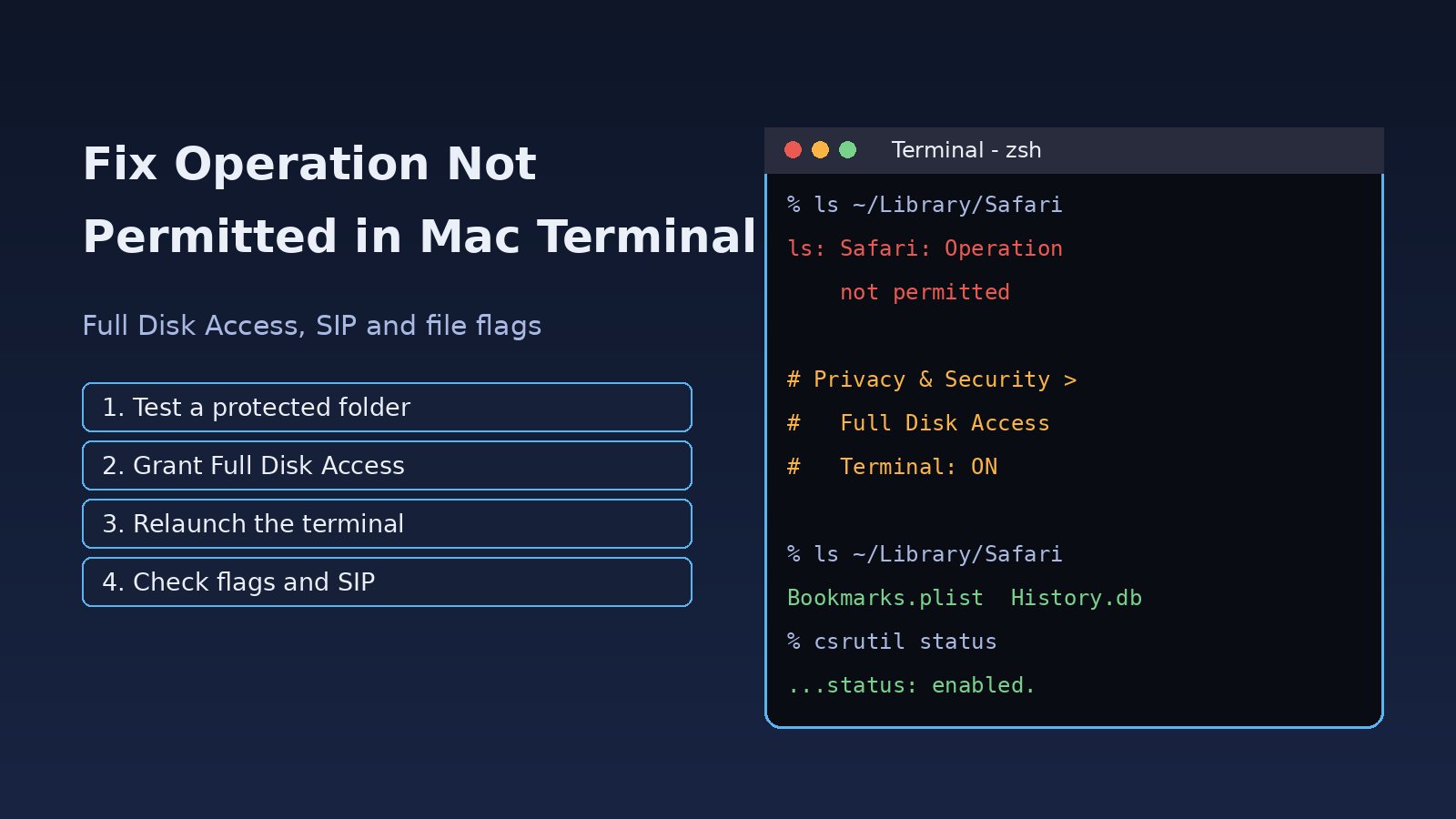
You run ls ~/Library/Safari, rm a file, or a cron job touches your Documents folder, and macOS answers with Operation not permitted, even when you use sudo. The operation not permitted mac terminal error is not a normal Unix permission problem. It comes from macOS privacy and system protections that sit above file ownership and chmod. This guide explains where the error comes from, how to fix macOS terminal permissions with Full Disk Access, and how to handle System Integrity Protection, locked files and cron jobs without weakening your Mac's security.
Problem: Operation Not Permitted in Mac Terminal
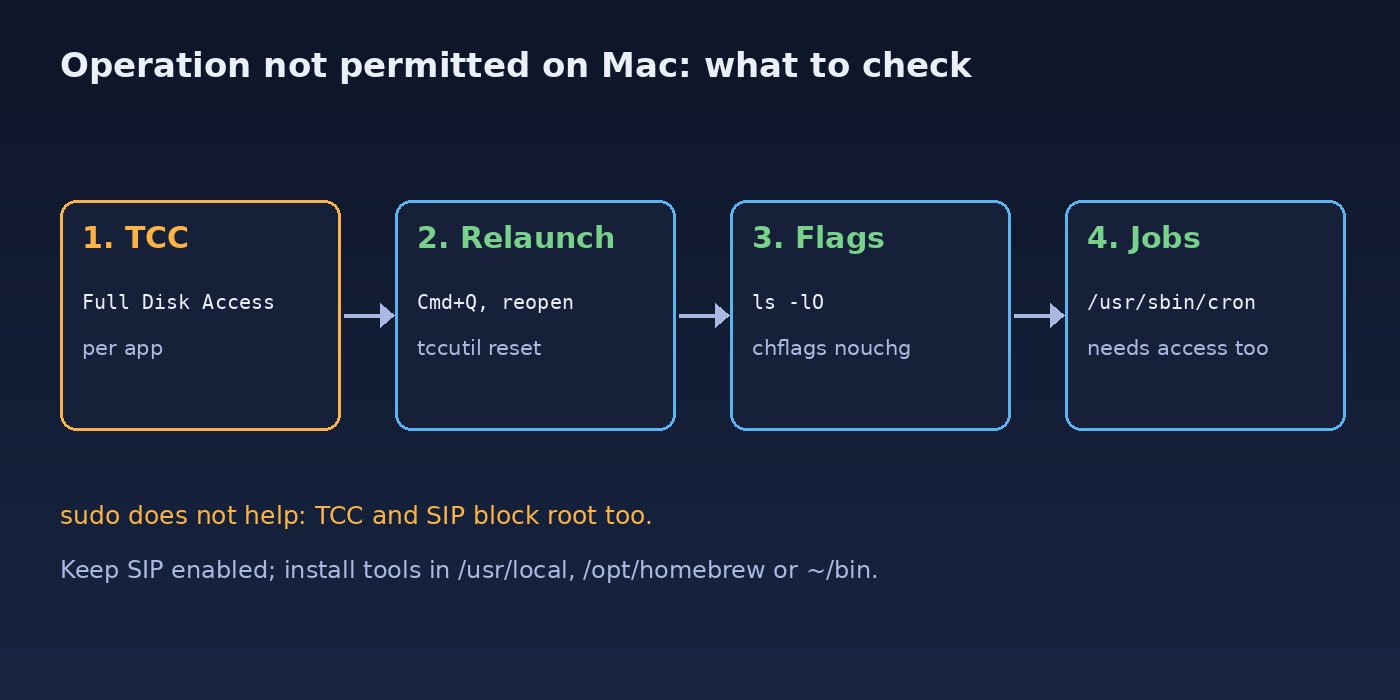
On Linux, if you are root you can usually read or delete anything. macOS is different. Since macOS Mojave, a framework called TCC (Transparency, Consent, and Control) decides which apps may read protected user data, and System Integrity Protection (SIP) blocks changes to system locations for every user, root included. When either layer says no, the shell reports the system error EPERM, which prints as "Operation not permitted". That is why sudo does not help: you are not missing a Unix permission, the app or the location is protected by policy.
If you see "Permission denied" instead, that is a different error (EACCES) about ownership and mode bits. For that case, see how to fix zsh permission denied on macOS.
Symptoms
ls: Safari: Operation not permittedor the same for~/Library/Mail,~/Library/Messagesor~/Library/Application Support/com.apple.TCC.ls: .: Operation not permittedafter youcdinto Desktop, Documents, Downloads or an external drive.rm: file.txt: Operation not permittedon a file you own.sudo rm /usr/bin/somethingor writing into/Systemfails with "Operation not permitted" or "Read-only file system".- A script works when you run it by hand but fails from
cron,launchdor an SSH session. - The same command works in Terminal but not in iTerm2 or the VS Code integrated terminal (or the other way round).
Root Cause
1. Missing Full Disk Access (TCC privacy protection)
TCC grants access per app, not per user. Commands you type run as child processes of your terminal app, so they inherit its privacy permissions. If Terminal, iTerm2 or VS Code has not been allowed Full Disk Access, any command it starts is blocked from protected folders such as Mail, Messages, Safari data, Time Machine settings and, depending on settings, Desktop, Documents, Downloads and removable volumes.
2. System Integrity Protection
SIP protects /System, /usr (except /usr/local), /bin, /sbin and preinstalled Apple apps. On macOS Big Sur and later the system lives on a sealed, read-only volume, so edits there fail no matter what you do in a normal boot.
3. Locked or immutable file flags
BSD file flags such as uchg (user immutable, the "Locked" checkbox in Finder) and schg (system immutable) block deletes and edits even for the owner.
4. Background jobs without their own permission
cron, launchd agents and remote SSH sessions are not children of Terminal, so the permission you gave Terminal does not apply to them.
Step-by-Step Solution
Step 1: Confirm which protection is blocking you
Run a quick test against a TCC-protected folder. If this fails, Full Disk Access is the problem:
ls ~/Library/Safari
# ls: /Users/you/Library/Safari: Operation not permitted   -> TCC / Full Disk Access
Check SIP and the flags on the file you cannot change:
csrutil status
# System Integrity Protection status: enabled.

ls -lO ~/Desktop/report.pdf
# -rw-r--r--  1 you  staff  uchg  48213 Nov 12 10:02 report.pdf   -> locked file
Step 2: Give your terminal Full Disk Access
This fixes most macOS terminal permissions errors.
- Open System Settings (System Preferences on older versions) and go to Privacy & Security → Full Disk Access.
- Turn on the switch for Terminal. If it is not listed, click +, open
/Applications/Utilitiesand addTerminal.app. - Do the same for any other app you run commands from: iTerm2, Warp, Visual Studio Code, Cursor or JetBrains IDEs.
- Quit the terminal completely (Cmd+Q) and open it again. The new permission only applies to newly launched processes.
Then run the test from Step 1 again. If you only need Desktop, Documents or Downloads, you can grant the narrower Files and Folders permission in the same Privacy & Security screen instead of Full Disk Access.
Step 3: Reset a stuck permission with tccutil
If the switch is on but access still fails, the TCC entry may be stale, often after an app update or migration. Reset it and grant it again:
# Reset Full Disk Access for Terminal
tccutil reset SystemPolicyAllFiles com.apple.Terminal

# iTerm2 uses this bundle ID
tccutil reset SystemPolicyAllFiles com.googlecode.iterm2

# Find any app's bundle ID
osascript -e 'id of app "Visual Studio Code"'
After the reset, add the app back in Full Disk Access and relaunch it.
Step 4: Unlock files with immutable flags
If ls -lO shows uchg, clear the flag and retry:
chflags nouchg ~/Desktop/report.pdf
rm ~/Desktop/report.pdf

# For a whole folder tree
chflags -R nouchg ~/Projects/old-build
A schg flag cannot be cleared in a normal boot while SIP is enabled. Files with it are almost always system files you should leave alone.
Step 5: Stop fighting SIP and use the right location
If the error comes from writing into /usr/bin, /System or /bin, change the plan rather than the protection. Install your own tools into /usr/local/bin, /opt/homebrew/bin or ~/bin, and put that folder on your PATH. If brew itself is missing after that, follow how to fix Homebrew command not found on Mac.
mkdir -p ~/bin
cp ./mytool ~/bin/ && chmod +x ~/bin/mytool
echo 'export PATH="$HOME/bin:$PATH"' >> ~/.zprofile
exec zsh -l
Disabling SIP (csrutil disable from macOS Recovery) is only for kernel or low-level development on a test machine. It lowers the security of the whole Mac, and on recent macOS versions you still cannot write to the sealed system volume. Turn it back on with csrutil enable when you are done.
Step 6: Fix cron, launchd and SSH jobs
For cron jobs that touch protected folders, give cron itself Full Disk Access: click + in Full Disk Access, press Cmd+Shift+G, enter /usr/sbin/cron and add it. For a launchd agent that runs a script through an interpreter, the binary that actually opens the files (for example /bin/bash or your Python) is what TCC checks, so moving data out of protected folders is often cleaner than granting that interpreter Full Disk Access.
For SSH, recent macOS versions have an Allow full disk access for remote users option under System Settings → General → Sharing → Remote Login (click the info button). Without it, remote commands hit the same "Operation not permitted" errors.
Code and Commands Examples
A small check script you can keep in your dotfiles to diagnose the error quickly:
#!/bin/zsh
# macperm-check.sh - why do I get "Operation not permitted"?
target="${1:-$HOME/Library/Safari}"

echo "== SIP =="; csrutil status
echo "== Full Disk Access test =="
if ls "$HOME/Library/Safari" >/dev/null 2>&1; then
  echo "This terminal HAS Full Disk Access"
else
  echo "This terminal does NOT have Full Disk Access"
fi
echo "== Flags and owner for $target =="
ls -ldO "$target"
echo "== Extended attributes =="
xattr -l "$target" 2>/dev/null
Docker Desktop users can hit the same wall when a bind mount points into Documents or Desktop. Grant Docker the Files and Folders permission, or keep project folders in a plain directory such as ~/code. This matters when you run Laravel or Node.js containers whose storage folders must be writable; for Linux-side ownership problems see how to fix Laravel storage permission denied errors.
Verification
ls ~/Library/Safarilists files instead of printing "Operation not permitted".ls -lOon the target no longer showsuchg, andrmor edits succeed.- Your cron job writes its log line on the next run: add
>> /tmp/cron-test.log 2>&1to the crontab entry and check the file. csrutil statusstill saysenabled, so you fixed the problem without lowering system security.
Prevention
- Grant Full Disk Access once to every terminal and editor you use for development, right after setting up a new Mac.
- Keep code and data in folders outside Desktop, Documents and iCloud Drive to avoid privacy prompts in scripts and containers.
- Install tools with Homebrew or into
~/bin, never into SIP-protected paths. - Re-check Full Disk Access after major macOS upgrades or terminal app updates, since entries can reset.
- Log cron and launchd output to a file so permission failures do not stay silent.
FAQs
Why does sudo still give operation not permitted on Mac?
Because the block is not about Unix users. TCC limits which apps can read private data and SIP protects system paths for every user, root included. Root gains nothing against either layer in a normal boot.
Is it safe to give Terminal full disk access?
It means any command you run in Terminal can read your private data, which is what you expect from a shell. The risk is running untrusted scripts, so only paste commands you understand. If you need less, use the Files and Folders permission for specific folders.
Why does it work in Terminal but not in iTerm2 or VS Code?
macOS terminal permissions are granted per app. Each terminal or editor that runs commands needs its own Full Disk Access entry, and it must be relaunched after you enable it.
How do I fix operation not permitted for a cron job on macOS?
Add /usr/sbin/cron to Full Disk Access, or move the files the job uses out of protected folders. Cron is not a child of Terminal, so Terminal's permission does not cover it.
Should I disable SIP to fix it?
Almost never. Install software into /usr/local, /opt/homebrew or your home folder instead. Disable SIP only for low-level development on a test machine, and enable it again afterwards.
Comments
Join the discussion. Replies load on demand, up to 5 levels.
0 threads
No comments yet
Be the first to start the conversation.