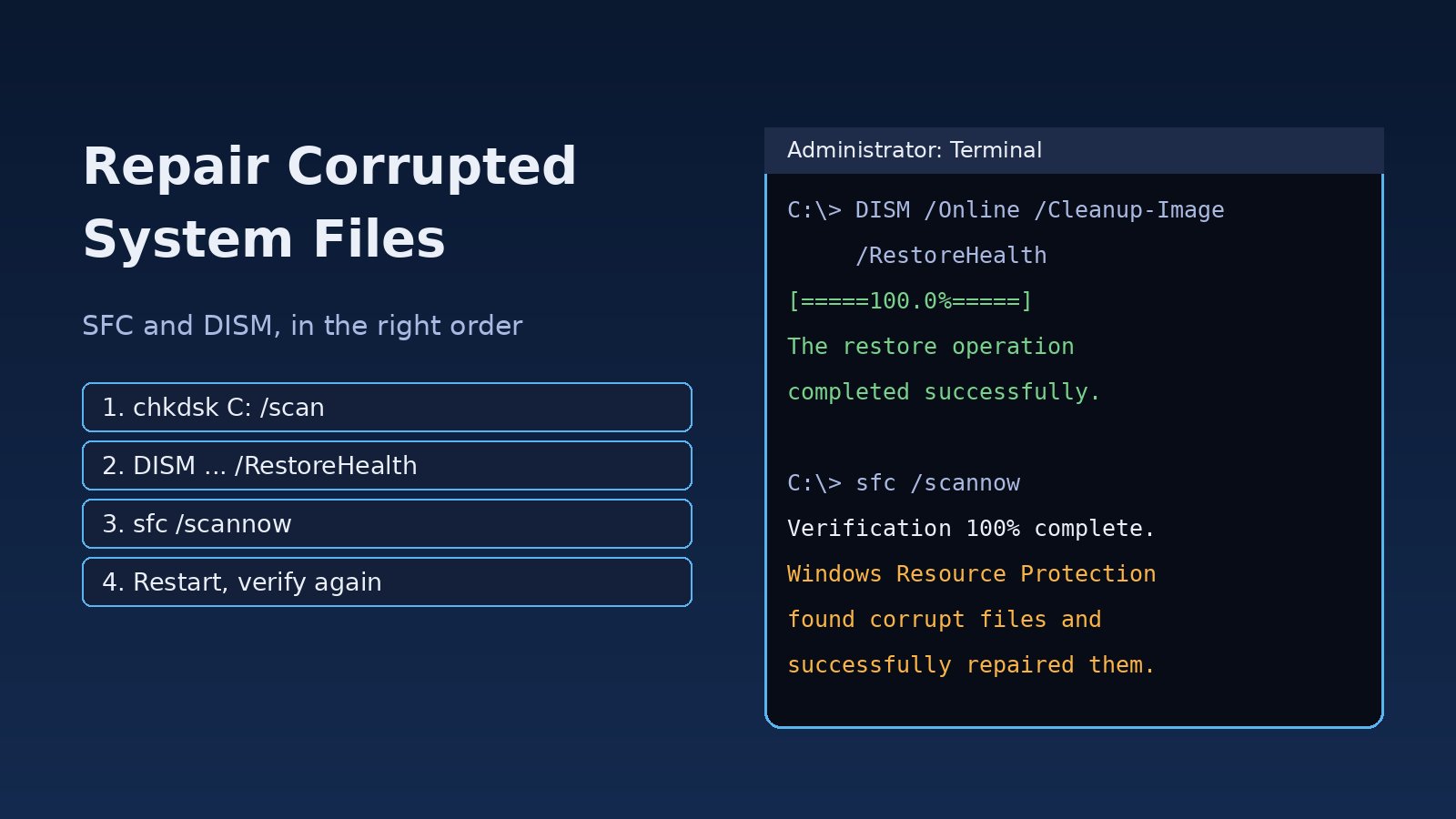
Random crashes, apps that will not open, Windows Update failing with the same error, or a Start menu that does nothing are classic signs of damaged Windows files. The built-in fix is a two-tool combo: System File Checker (SFC) and Deployment Image Servicing and Management (DISM). This guide shows how to run an sfc scannow dism repair in the right order, what each result message means, what to do when SFC says it could not fix everything, and how to repair Windows files even when DISM itself fails.
Problem: Corrupted System Files in Windows 10 and 11
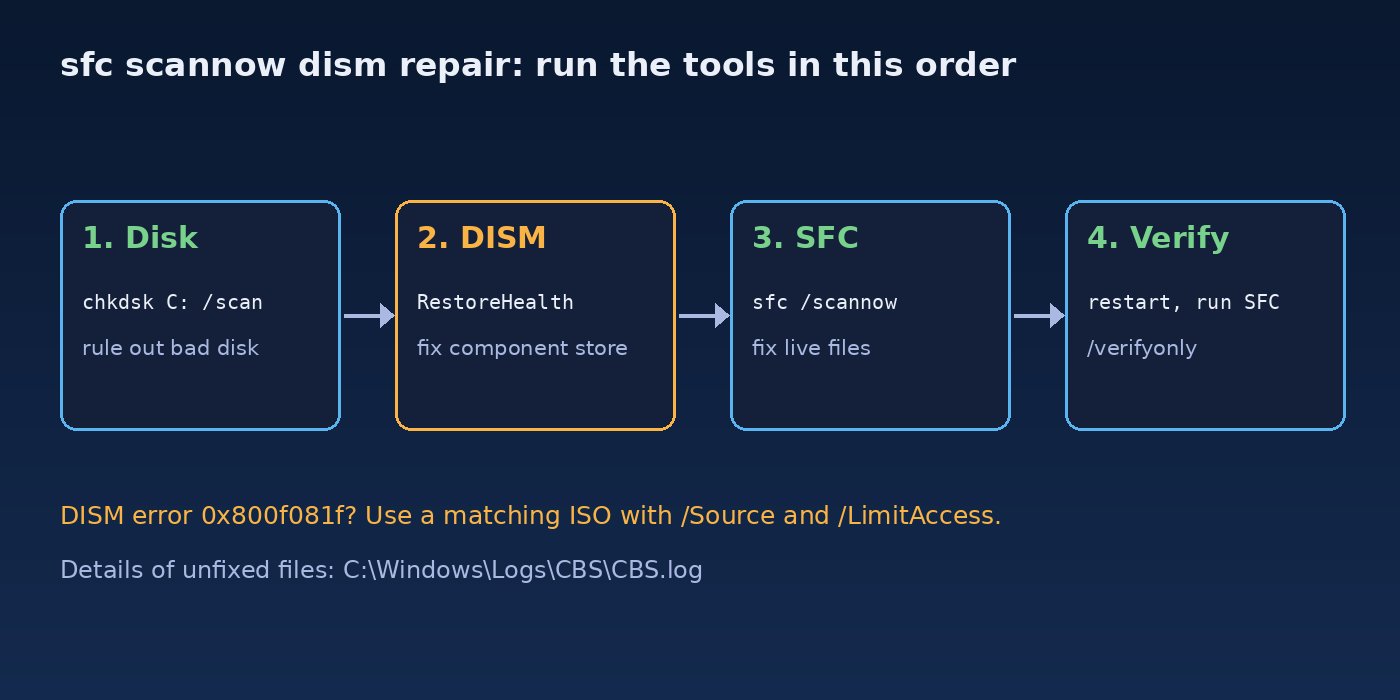
Windows keeps its protected system files (DLLs, drivers, executables) in C:\Windows\System32 and related folders, and it keeps a reference copy of every component in the component store at C:\Windows\WinSxS. SFC compares the live files against the component store and replaces anything that does not match. DISM checks and repairs the component store itself, using Windows Update or an installation image as the source. If the component store is damaged, SFC has nothing good to copy from, which is why the order of the two tools matters.
Symptoms of Corrupted Windows System Files
- Built-in apps, Settings or the Start menu fail to open or close immediately.
- Windows Update fails repeatedly with errors such as
0x800f081f,0x800f0831or0x80073712. - Blue screens or Explorer crashes after a power cut, forced shutdown or failed update.
- Errors like
The program can't start because ... .dll is missing from your computerfor Windows components. - Running SFC returns
Windows Resource Protection found corrupt files but was unable to fix some of them.
Root Cause: Why Windows System Files Get Corrupted
- Unexpected shutdowns. Power loss or holding the power button while Windows is writing files, especially during updates.
- Interrupted or failed updates. A cumulative update that stops halfway can leave mismatched component versions.
- Disk problems. Bad sectors on a hard drive or a failing SSD silently damage files. SFC and DISM cannot fix bad hardware.
- Malware or aggressive "tweak" tools. Tools that remove or replace system files, or debloat scripts that delete components.
- Faulty RAM. Memory errors can corrupt data as it is written to disk.
Step-by-Step SFC Scannow DISM Repair
Step 1: Open an elevated terminal
Both tools need administrator rights. Right-click the Start button and choose Terminal (Admin) or Windows PowerShell (Admin), or search for cmd, right-click Command Prompt and choose Run as administrator. Running without elevation gives You must be an administrator running a console session in order to use the sfc utility.
Step 2: Check the disk first
Repairing files on a failing disk wastes time. Do a quick read-only check of the system drive:
chkdsk C: /scanIf it reports problems, schedule a full repair with chkdsk C: /f (Windows asks to run it at next restart because the drive is in use), restart, and let it finish before continuing. In PowerShell you can also check drive health with Get-PhysicalDisk | Select FriendlyName, HealthStatus, OperationalStatus.
Step 3: Check and repair the component store with DISM
Run these three commands in order. The first two are quick and read-only; the third does the real repair and needs an internet connection because it downloads clean files from Windows Update:
DISM /Online /Cleanup-Image /CheckHealth
DISM /Online /Cleanup-Image /ScanHealth
DISM /Online /Cleanup-Image /RestoreHealth
/CheckHealth only reports whether corruption has already been flagged. /ScanHealth does a full scan and can take several minutes. /RestoreHealth scans and repairs. Its progress bar often sits at 20% or 62.3% for a long time; that is normal, so do not close the window. A successful run ends with:
The restore operation completed successfully.
The operation completed successfully.
Step 4: Run SFC scannow
With a healthy component store, run System File Checker:
sfc /scannowIt takes 10 to 30 minutes on most machines. The final message tells you what happened:
Windows Resource Protection did not find any integrity violations.Your system files are fine; the problem is elsewhere.Windows Resource Protection found corrupt files and successfully repaired them.Restart and test again.Windows Resource Protection found corrupt files but was unable to fix some of them.Go to Step 5 and Step 6.Windows Resource Protection could not perform the requested operation.Run SFC from Safe Mode or from Windows Recovery (Step 7).
Restart after any repair and run sfc /scannow a second time. It is common for the second pass to finish clean or fix the last few files.
Step 5: Read the CBS log to see what SFC could not fix
SFC writes details to C:\Windows\Logs\CBS\CBS.log. That file is huge, so extract just the SFC lines to a text file on your desktop:
findstr /c:"[SR]" %windir%\Logs\CBS\CBS.log > "%userprofile%\Desktop\sfcdetails.txt"In PowerShell, the same thing, filtered to failures only:
Select-String -Path "$env:windir\Logs\CBS\CBS.log" -Pattern "\[SR\].*(Cannot repair|corrupt)" |
  Select-Object -Last 30 | ForEach-Object { $_.Line }
Lines containing Cannot repair member file name the exact files. If they belong to a third-party theme or tweak tool, uninstalling that tool may be the real fix. DISM keeps its own log at C:\Windows\Logs\DISM\dism.log.
Step 6: DISM RestoreHealth with an offline source (when DISM fails)
If DISM ends with Error: 0x800f081f The source files could not be found., Windows Update could not provide the files it needed. Use a Windows ISO of the same version, edition and language as your installed system. Download it from Microsoft, right-click it and choose Mount (say it becomes drive E:), then find the image index for your edition:
DISM /Get-WimInfo /WimFile:E:\sources\install.wimNote the index number of your edition (for example Windows 11 Pro), then point RestoreHealth at it. If the ISO contains install.esd instead of install.wim, replace wim: with esd: and the file name:
DISM /Online /Cleanup-Image /RestoreHealth /Source:wim:E:\sources\install.wim:6 /LimitAccess
sfc /scannow
/LimitAccess stops DISM from trying Windows Update, so it uses only your ISO. Replace 6 with your actual index. Check your installed version with winver before downloading the ISO; a mismatched build is the most common reason this step still fails.
Step 7: Run SFC offline from Windows Recovery
If Windows will not boot or SFC cannot run normally, hold Shift while clicking Restart, then go to Troubleshoot > Advanced options > Command Prompt. In recovery, drive letters often change, so check them first with bcdedit or dir C:\ D:\, then run SFC against the offline Windows folder:
sfc /scannow /offbootdir=C:\ /offwindir=C:\Windows
DISM /Image:C:\ /Cleanup-Image /RestoreHealth /Source:wim:E:\sources\install.wim:6
This is also the route when you are dealing with a boot loop or crash after login; see how to fix Windows 11 blue screen errors and how to fix Windows 11 black screen after login for the related recovery steps.
Step 8: Clean up the component store (optional)
After a successful repair, you can remove superseded components to reclaim space. This is safe, but you will no longer be able to uninstall updates installed before the cleanup:
DISM /Online /Cleanup-Image /AnalyzeComponentStore
DISM /Online /Cleanup-Image /StartComponentCleanup
Verification: Confirm Windows Files Are Repaired
- Restart, open an elevated terminal and run
sfc /verifyonly. It scans without changing anything and should report no integrity violations. - Run
DISM /Online /Cleanup-Image /CheckHealthand confirmNo component store corruption detected. - Retry whatever was failing before: the app, the Settings page or the Windows Update install. If an update still fails, follow how to fix Windows 11 update stuck.
- Check Event Viewer under Windows Logs > System for new disk or memory errors over the next few days.
If SFC keeps finding new corruption after every repair, suspect hardware. Run Windows Memory Diagnostic (mdsched.exe) and check the drive with its manufacturer's tool.
Prevention: Keep System Files Healthy
- Never force power off during Windows Update; on laptops, keep the charger connected while updates install.
- Use a UPS on desktops in areas with frequent power cuts.
- Avoid debloat scripts and tools that replace system files, themes or DLLs.
- Keep a restore point or full system image before major updates, and keep at least 15-20 GB free on the system drive.
- Watch drive health and replace disks that report reallocated or pending sectors.
- Run
DISM /Online /Cleanup-Image /ScanHealthoccasionally if a machine is critical, such as a developer workstation or a small office server.
FAQs
Should I run DISM or SFC first?
Run DISM RestoreHealth first, then SFC. SFC repairs files using the component store, and DISM repairs the component store. If the store is damaged, SFC cannot fix files no matter how many times you run it.
How long does DISM RestoreHealth take?
Usually 10 to 30 minutes, but it can take longer on slow disks or connections. It often pauses at 20% or 62.3% for several minutes. Leave it running unless there is no disk activity for well over an hour.
How do I repair Windows files without internet?
Mount a Windows ISO matching your installed build and run DISM /Online /Cleanup-Image /RestoreHealth /Source:wim:E:\sources\install.wim:INDEX /LimitAccess, then sfc /scannow.
What does "unable to fix some of them" mean?
SFC found damaged files but had no good copy to restore. Run DISM RestoreHealth (with an ISO source if needed), restart, and run SFC again. Check CBS.log for the exact files.
Will sfc /scannow delete my files?
No. SFC only touches protected Windows system files. Your documents, apps and settings are not changed.
What if SFC and DISM both fail?
Use an in-place repair upgrade: run setup.exe from a mounted ISO of the same or newer version and choose Keep personal files and apps. On Windows 11 you can also use Settings > System > Recovery > Fix problems using Windows Update > Reinstall now, which reinstalls Windows while keeping your files and apps.

Comments
Join the discussion. Replies load on demand, up to 5 levels.
0 threads
No comments yet
Be the first to start the conversation.