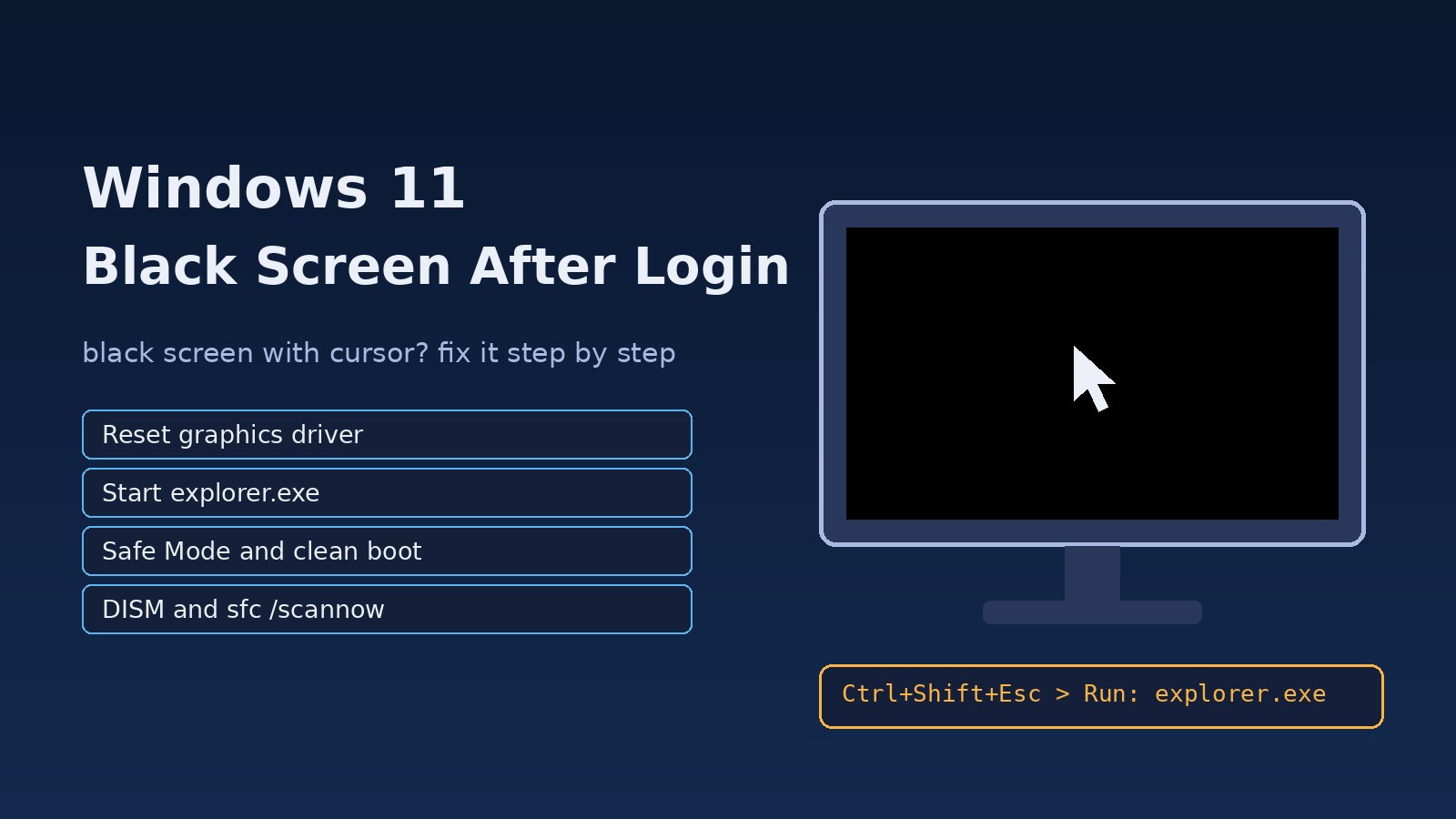
You type your PIN, the welcome animation plays, and then nothing: a black screen with only a mouse cursor, or a completely black screen that never turns into a desktop. A Windows 11 black screen after login is one of the most stressful problems because the PC is clearly running, yet there is no taskbar, no Start menu and no obvious way to fix anything. The good news is that the cause is usually software, not hardware, and you can recover without reinstalling. This guide walks through the fixes in a sensible order, from a 10-second keyboard shortcut to Safe Mode, the registry and system file repair.
Problem: Windows 11 Black Screen After Login
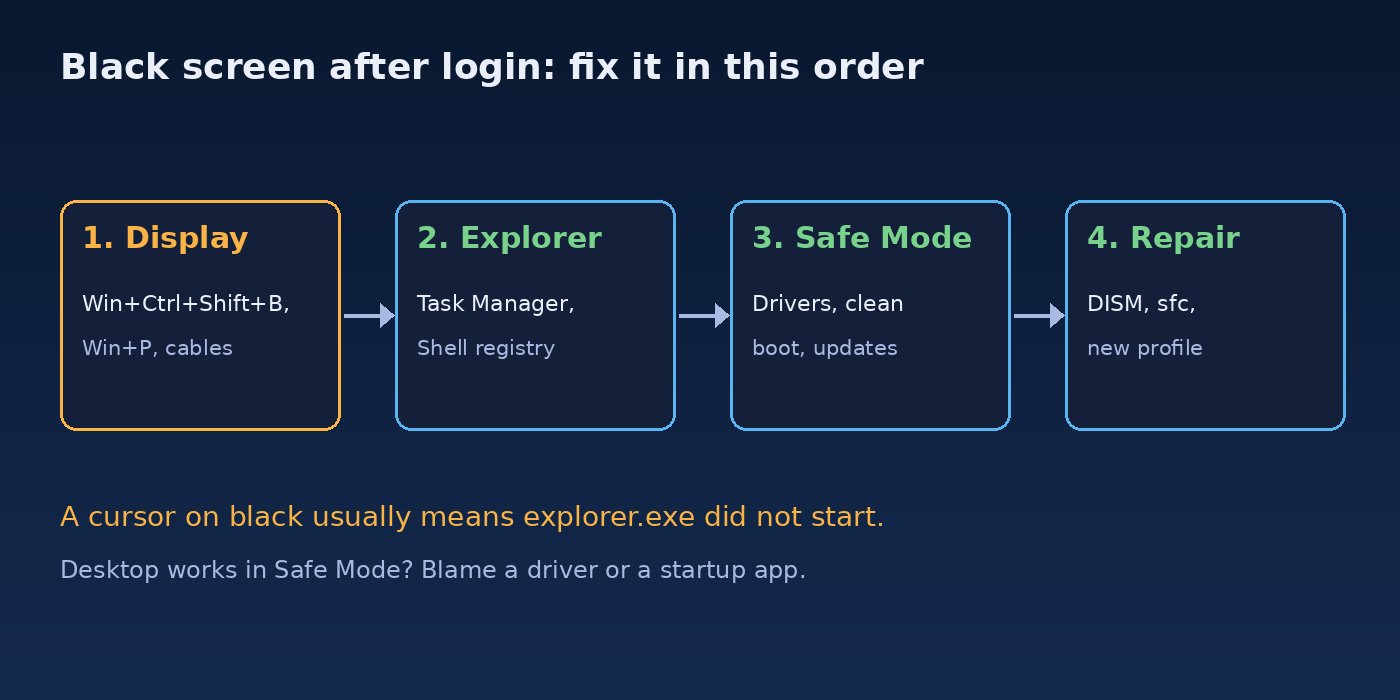
After you sign in, Windows starts your user profile and launches explorer.exe, the process that draws the desktop, taskbar and Start menu. At the same time the graphics driver hands the screen from the sign-in UI to your session. If the driver fails during that handover, if Explorer crashes or never starts, or if a startup program blocks the session, you get a black screen. Because each of these looks the same, the trick is to test them one at a time.
Symptoms: Black Screen With Cursor or Windows Desktop Not Loading
- A black screen with a movable mouse cursor after entering your password or PIN.
- A fully black screen, sometimes with the monitor still powered on, sometimes showing No signal.
- The desktop appears for a moment and then disappears, or the taskbar keeps flickering.
- Ctrl+Alt+Del works, but the desktop never loads.
- The problem started after a Windows update, a graphics driver update or a new monitor or dock.
- External monitor shows the desktop but the laptop screen stays black, or the other way round.
Root Cause of a Black Screen After Signing In
- Explorer did not start or crashed. The session is running but nothing draws the shell. This is the classic black screen with cursor.
- Graphics driver problems. A broken, mismatched or freshly updated GPU driver fails when the session starts.
- Wrong display output. Windows is sending the picture to a second monitor, a TV or a disconnected dock, or using the wrong projection mode.
- Startup apps and services. Third-party shell extensions, antivirus or "tuning" tools hang the session.
- Corrupt system files or a bad update. Damaged shell components after an interrupted update.
- Broken registry Shell value or user profile. Malware or a cleanup tool changed what Windows launches at sign-in, or the profile itself is damaged.
- Fast Startup. A hybrid shutdown restores a bad driver state instead of starting fresh.
Step-by-Step Solution to Fix Windows 11 Black Screen After Login
Step 1: Wake and reset the graphics driver
Press Win+Ctrl+Shift+B. You will hear a beep and the screen will flash as Windows restarts the graphics driver. If the desktop appears, the driver lost the display and you should update or roll it back later (Step 6). Also unplug and reconnect the monitor cable and try a different port (HDMI vs DisplayPort).
Step 2: Check the projection mode
Press Win+P. The menu may be invisible, so press the down arrow, then Enter, waiting a few seconds between tries. This cycles through PC screen only, Duplicate, Extend and Second screen only. If the desktop was being sent to a monitor that is off or disconnected, one of these will bring it back. Disconnect docks and extra monitors and test with one display.
Step 3: Start Explorer from Task Manager
If you see a cursor, press Ctrl+Shift+Esc to open Task Manager. Click Run new task, type explorer.exe and press Enter. If Windows Explorer is already listed under Processes, right-click it and choose Restart. If the desktop comes back, Explorer was the problem; continue with Steps 4 and 5 so it does not return at the next sign-in.
You can do the same from a command prompt (Task Manager, Run new task, cmd, tick Create this task with administrative privileges):
taskkill /f /im explorer.exe
start explorer.exe
Step 4: Check the Winlogon Shell registry value
Windows launches whatever program is named in the Shell value at sign-in. It must be explorer.exe. Malware or bad tweaks sometimes change it, which leaves you with a black screen every time. From an administrator command prompt, check it:
reg query "HKLM\SOFTWARE\Microsoft\Windows NT\CurrentVersion\Winlogon" /v Shell
reg query "HKCU\SOFTWARE\Microsoft\Windows NT\CurrentVersion\Winlogon" /v Shell
The HKLM value should read explorer.exe. The HKCU value normally does not exist; if it does and points to something else, that is suspicious. To restore the default:
reg add "HKLM\SOFTWARE\Microsoft\Windows NT\CurrentVersion\Winlogon" /v Shell /t REG_SZ /d explorer.exe /fAlso check that Userinit in the same key is C:\Windows\system32\userinit.exe, (with the trailing comma). If you found an unexpected value, run a full antivirus scan afterwards.
Step 5: Boot into Safe Mode
Safe Mode loads only basic drivers and no third-party startup apps, so it tells you quickly whether a driver or a program is to blame. On the sign-in screen, hold Shift and click Power > Restart. Then choose Troubleshoot > Advanced options > Startup Settings > Restart and press 4 for Safe Mode or 5 for Safe Mode with Networking. If Windows will not reach the sign-in screen, interrupt the boot three times with the power button to open the Windows Recovery Environment.
If the desktop loads in Safe Mode, the problem is a driver or startup item. Perform a clean boot to find it: run msconfig, on the Services tab tick Hide all Microsoft services and click Disable all, then disable all apps on the Startup apps page in Task Manager. Restart normally and re-enable items in small groups until the black screen returns.
Step 6: Fix graphics driver problems
In Safe Mode, open Device Manager (devmgmt.msc), expand Display adapters and open your GPU. If the problem started after a driver update, use Roll Back Driver. Otherwise choose Uninstall device, restart, and let Windows install a basic driver, then install the current driver from the GPU or laptop vendor. On laptops with Intel plus NVIDIA or AMD graphics, update the Intel driver too, because it controls the built-in screen. You can list display devices and their status from the command line:
pnputil /enum-devices /class Display
Get-PnpDevice -Class Display | Format-Table Status, FriendlyName, InstanceId
Step 7: Repair corrupt system files
Open an administrator command prompt (in Safe Mode, or via Task Manager) and run DISM first, then SFC. DISM repairs the component store that SFC uses as its source.
DISM /Online /Cleanup-Image /RestoreHealth
sfc /scannow
Restart when both finish. If SFC reports files it could not repair, run it once more after the restart. The same repair steps help with update loops; see how to fix Windows 11 update stuck.
Step 8: Uninstall the latest update
If the black screen began right after a Windows update, go to Settings > Windows Update > Update history > Uninstall updates, or from Windows Recovery Environment choose Troubleshoot > Advanced options > Uninstall Updates. You can also list installed updates from the command line:
wmic qfe list brief /format:table
Get-HotFix | Sort-Object InstalledOn -Descending | Select-Object -First 5
Step 9: Turn off Fast Startup
Fast Startup saves the kernel and driver state to disk at shutdown, which can bring a broken display state back every time. Turn it off in Control Panel > Power Options > Choose what the power buttons do, or disable hibernation entirely (this also turns Fast Startup off):
powercfg /h offStep 10: Test a new user account
If only your account gets the black screen, the user profile is probably damaged. Create a test administrator account and sign in with it:
net user testadmin StrongPassw0rd! /add
net localgroup administrators testadmin /add
If the new account works, copy your files from C:\Users\<old-name> to the new profile and move to it. Delete the test account later with net user testadmin /delete if you do not need it.
Step 11: Check Event Viewer for crashes
When Explorer or a driver keeps crashing, Event Viewer usually names the culprit module. Look for Application Error events for explorer.exe and display driver warnings:
Get-WinEvent -FilterHashtable @{LogName='Application'; ProviderName='Application Error'} -MaxEvents 20 |
  Where-Object { $_.Message -match 'explorer.exe' } |
  Format-List TimeCreated, Message

Get-WinEvent -FilterHashtable @{LogName='System'; Level=2,3} -MaxEvents 30 |
  Format-Table TimeCreated, ProviderName, Id -AutoSize
A faulting module such as a shell extension DLL from a third-party app points you to the program to remove. If you also see sudden restarts with stop codes, see Windows 11 blue screen fix.
Step 12: Use System Restore or Reset this PC
As a last resort, open Windows Recovery Environment and choose System Restore to return to a restore point from before the problem. If that is not available, Reset this PC with Keep my files reinstalls Windows but keeps your personal files. Back up important data first, and keep your BitLocker recovery key at hand.
Verification: Confirm the Desktop Loads Normally
- Sign out and sign in again: the desktop, taskbar and Start menu appear within a few seconds.
- Restart and do a full shutdown and power on: the black screen does not return.
sfc /scannowreports that it found no integrity violations.- Device Manager shows no warning icon under Display adapters.
- Task Manager shows normal CPU and memory use after sign-in; if not, see how to fix Windows 11 high memory usage.
Prevention: Keep the Windows 11 Desktop Loading
- Install graphics drivers from the GPU or laptop vendor and note the working version before updating.
- Create a restore point before driver updates, registry tweaks and big software installs.
- Keep startup apps to a minimum and avoid "registry cleaner" and shell tweak tools.
- Let Windows updates finish completely; do not power off during "Working on updates".
- Keep your BitLocker recovery key and a Windows installation USB ready.
FAQs
Why do I get a black screen with cursor after login in Windows 11?
Usually explorer.exe did not start or crashed. Press Ctrl+Shift+Esc, choose Run new task and start explorer.exe, then check the Winlogon Shell registry value and remove recently installed shell extensions.
Why is my Windows desktop not loading after an update?
The update may have replaced the graphics driver or damaged system files. Roll back the display driver, run DISM and sfc /scannow, and uninstall the latest update if the problem continues.
What does Win+Ctrl+Shift+B do?
It restarts the graphics driver without closing your apps. If the screen comes back after this shortcut, the display driver is the cause and should be updated or rolled back.
Can a second monitor cause a black screen after login?
Yes. Windows may be sending the desktop to a monitor that is off or disconnected. Press Win+P and cycle the modes, or unplug extra monitors and docks.
Will Reset this PC delete my files?
Not if you choose Keep my files. Your personal files stay, but installed apps and settings are removed. Always back up important data first.
Comments
Join the discussion. Replies load on demand, up to 5 levels.
0 threads
No comments yet
Be the first to start the conversation.