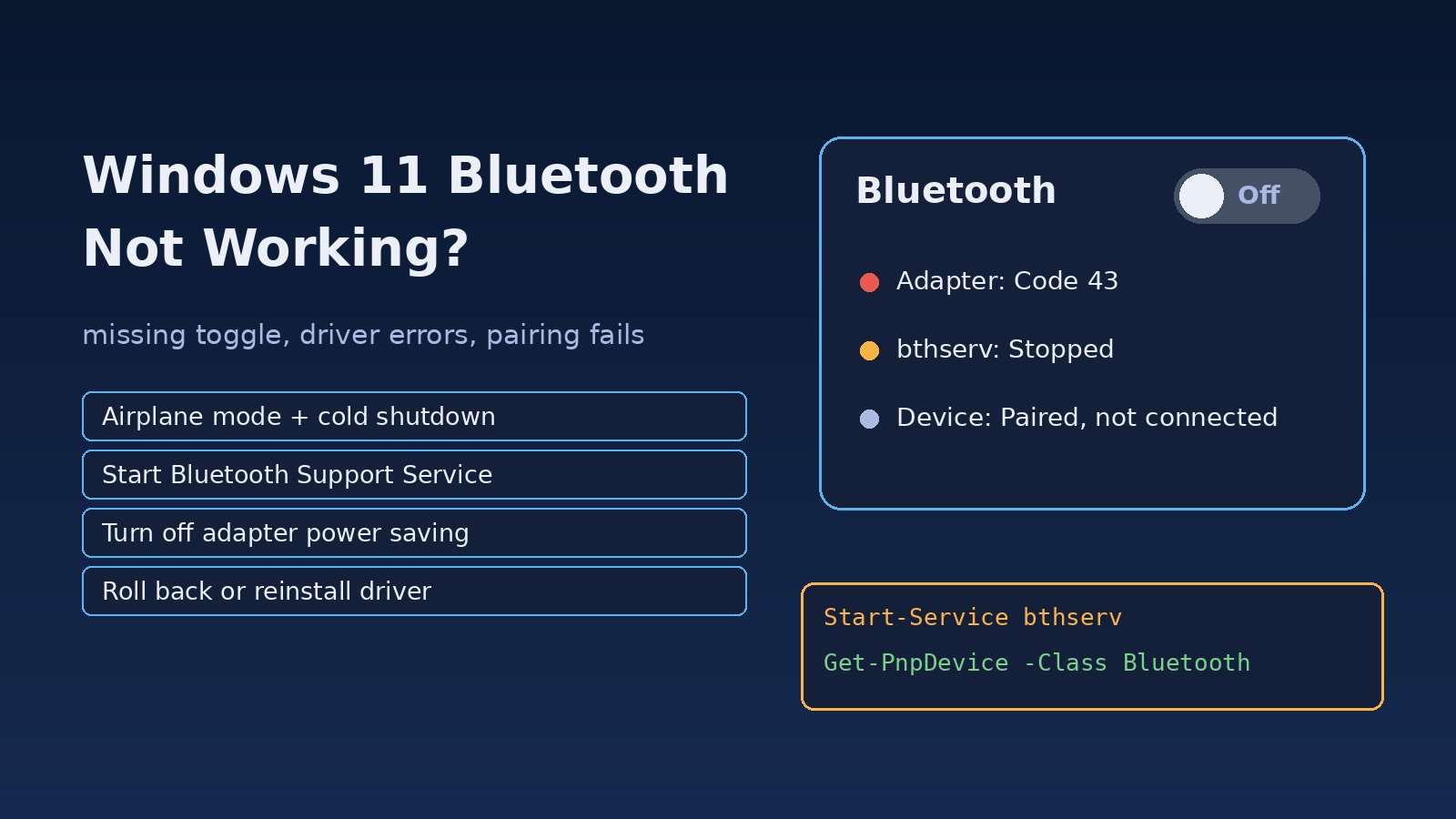
You open Quick Settings and the Bluetooth tile is gone, the toggle will not turn on, or your headphones and mouse simply refuse to connect. When windows 11 bluetooth not working problems show up, the cause is usually one of a handful of things: Airplane mode, a stopped Bluetooth Support Service, a power-saving setting that switched the adapter off, or a broken or replaced driver after a Windows update. This guide walks through each cause in order, with the Settings paths, Device Manager checks and PowerShell commands you need to find the problem and fix it.
Problem: Windows 11 Bluetooth Not Working
Bluetooth on a PC depends on three layers working together: the radio hardware (built into the Wi-Fi card or a USB dongle), the driver that Windows loads for it, and the Bluetooth services that manage pairing and connections. If any layer fails, Windows shows the same vague result: no Bluetooth, or Bluetooth that is visible but useless. The trick is to work out which layer has failed before you start reinstalling things.
Symptoms: Bluetooth Missing or Not Connecting
- The Bluetooth tile is missing from Quick Settings, and Settings > Bluetooth & devices has no Bluetooth toggle.
- The toggle is there but greys out or flips back to Off.
- Device Manager has no Bluetooth category, or the adapter shows a yellow warning icon with
Windows has stopped this device because it has reported problems. (Code 43)orThis device cannot start. (Code 10). - Devices pair but then show "Paired" instead of "Connected", or disconnect after a few minutes.
- Bluetooth worked before a Windows update, a driver update or waking from sleep, and stopped afterwards.
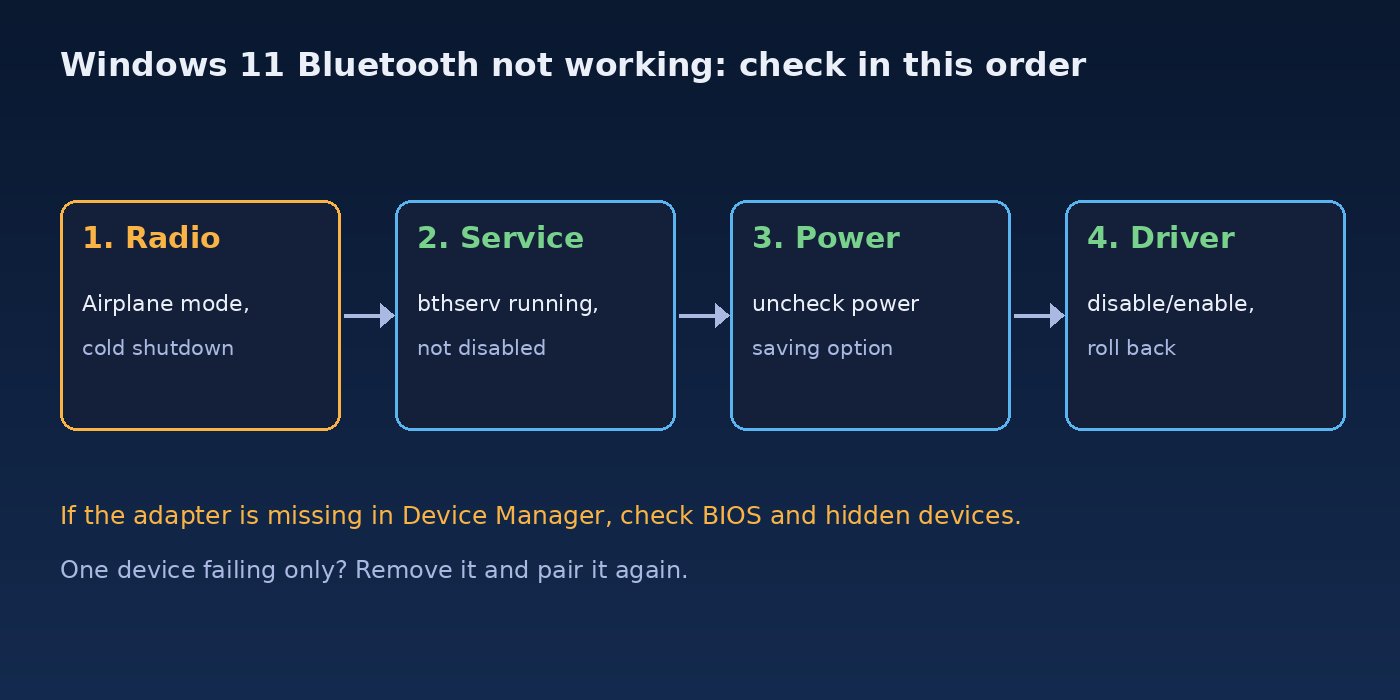
Root Cause: Why Bluetooth Stops Working in Windows 11
- Airplane mode or the radio is off. Airplane mode turns off all wireless radios. Some laptops also have a function key or a BIOS/UEFI option that disables wireless hardware.
- Bluetooth Support Service stopped. The
bthservservice handles discovery and pairing. If it is stopped or disabled, the toggle and device list stop working. - Power management. Windows can turn the adapter off to save power and fail to wake it, especially after sleep or with fast startup.
- Driver problems. A generic Microsoft driver replaced the manufacturer driver, an update installed a buggy version, or the driver failed to load.
- Adapter disappeared from the USB bus. Most internal Bluetooth radios are connected over internal USB, so USB power issues hit them too.
- Bad pairing data. A stale pairing record for one device stops only that device from connecting.
Step-by-Step Solution to Fix Windows 11 Bluetooth Not Working
Step 1: Check Airplane mode and the Bluetooth toggle
Open Settings > Network & internet and make sure Airplane mode is off. Then open Settings > Bluetooth & devices and switch Bluetooth on. On laptops, check for a wireless function key (often an antenna or plane icon). If the toggle is missing completely, skip ahead to Step 4, because Windows does not see the adapter at all.
Step 2: Do a full shutdown, not a restart from fast startup
With fast startup enabled, "Shut down" saves the kernel and drivers to disk and does not fully reset the hardware. A real cold start often brings a stuck radio back. Run this, wait 30 seconds, then power on:
shutdown /s /f /t 0If this fixes it but the problem comes back after sleep, turn off fast startup in Control Panel > Power Options > Choose what the power buttons do, and read Step 5 on power management.
Step 3: Start the Bluetooth Support Service
Open an elevated PowerShell window (right-click Start, choose Terminal (Admin)) and check the services:
Get-Service bthserv, BthAvctpSvc | Format-Table Name, Status, StartType

# Start it and make sure it is not disabled
Set-Service -Name bthserv -StartupType Manual
Start-Service -Name bthserv
The default startup type for bthserv is Manual (trigger start), which is fine. The problem is when it shows Disabled, usually because of a "debloat" script or tuning tool. BthAvctpSvc handles audio/video remote control for headphones and speakers, so it matters if only audio devices misbehave.
Step 4: Fix Bluetooth missing from Device Manager
Open Device Manager (devmgmt.msc). If there is no Bluetooth category:
- Choose View > Show hidden devices and look again under Bluetooth, Other devices and Universal Serial Bus controllers.
- Choose Action > Scan for hardware changes.
- Check for an Unknown device under Other devices. That is often the Bluetooth radio with no driver.
- Check your BIOS/UEFI setup for a Wireless or Bluetooth option that is disabled.
You can do the same checks from PowerShell, which also shows the error state of each Bluetooth device:
# All Bluetooth devices, including ones not currently present
Get-PnpDevice -Class Bluetooth | Format-Table Status, FriendlyName, InstanceId -AutoSize

# Ask Windows to rescan for hardware
pnputil /scan-devices

# List Bluetooth devices with their driver details
pnputil /enum-devices /class Bluetooth /drivers
A Status of Error means the device is present but failing, which points to the driver. Unknown usually means the device is not currently connected. If the adapter does not appear anywhere, even as an unknown device, the radio is turned off in firmware, dead, or (for a USB dongle) not getting power. The same USB power checks from how to fix USB device not recognized in Windows apply here.
Step 5: Stop Windows from turning the adapter off
In Device Manager, expand Bluetooth, right-click your adapter (for example Intel(R) Wireless Bluetooth(R) or a Realtek or MediaTek adapter) and open Properties > Power Management. Uncheck Allow the computer to turn off this device to save power. Do the same for the USB Root Hub entries under Universal Serial Bus controllers if the problem appears after sleep.
Step 6: Bluetooth driver fix: restart, roll back or reinstall
First try disabling and re-enabling the adapter. This reloads the driver without a reboot:
$bt = Get-PnpDevice -Class Bluetooth -PresentOnly |
      Where-Object FriendlyName -match 'Wireless Bluetooth|Bluetooth Adapter|Realtek|MediaTek|Intel'
$bt | Format-Table FriendlyName, Status, InstanceId

Disable-PnpDevice -InstanceId $bt.InstanceId -Confirm:$false
Start-Sleep -Seconds 5
Enable-PnpDevice  -InstanceId $bt.InstanceId -Confirm:$false
If Bluetooth broke right after an update, open the adapter's Properties > Driver tab and click Roll Back Driver if it is available. If not, choose Uninstall device, tick Attempt to remove the driver for this device, then restart. Windows reinstalls a driver at boot. For the most reliable result, download the Bluetooth driver for your exact laptop or motherboard model from the manufacturer's support page (or the chipset maker, such as Intel) and install it. Network and Bluetooth often share the same combo card, so if Wi-Fi is also unstable, see how to fix Windows network adapter not working.
Step 7: Remove and re-pair the problem device
If Bluetooth itself works but one device will not connect, remove it in Settings > Bluetooth & devices > Devices (three-dot menu > Remove device). Put the device back into pairing mode (check its manual), then choose Add device > Bluetooth. If your device does not appear in the list, set Bluetooth devices discovery to Advanced on the Devices page so Windows shows all device types.
Step 8: Check Windows Update and the event log
Install pending updates from Settings > Windows Update, including Advanced options > Optional updates > Driver updates. If an update itself is stuck, see how to fix Windows 11 update stuck. To see what failed, check recent System log events from Bluetooth components:
Get-WinEvent -FilterHashtable @{LogName='System'; StartTime=(Get-Date).AddDays(-1)} |
  Where-Object ProviderName -match 'BTH|Bluetooth' |
  Select-Object TimeCreated, ProviderName, Id, LevelDisplayName, Message -First 20 |
  Format-List
Verification: Confirm Bluetooth Works Again
- The Bluetooth tile is back in Quick Settings and the toggle stays on.
Get-Service bthservshowsRunning.Get-PnpDevice -Class Bluetooth -PresentOnlyshows your adapter withStatusOK.- Your device shows "Connected" under Bluetooth & devices, and still reconnects after a sleep and wake cycle and after a full shutdown.
Get-Service bthserv | Select-Object Name, Status
Get-PnpDevice -Class Bluetooth -PresentOnly | Where-Object Status -ne 'OK'
# No output from the second command means no Bluetooth device is in an error state
Prevention: Keep Bluetooth Stable
- Install Bluetooth and Wi-Fi drivers from your PC manufacturer and keep them current, instead of relying only on generic drivers.
- Keep the "turn off this device to save power" option unchecked on the adapter if it fails after sleep.
- Do not use tuning or debloat scripts that disable services you do not recognise, such as
bthserv. - Create a restore point before large driver or feature updates, so you can roll back quickly.
- For USB dongles, plug them directly into the PC rather than an unpowered hub, and away from USB 3.0 ports and cables that can cause 2.4 GHz interference.
FAQs
Why is Bluetooth missing in Windows 11?
Bluetooth missing from Settings and Quick Settings usually means Windows cannot see the adapter. Check Device Manager with hidden devices shown, look for an unknown device, make sure the radio is enabled in BIOS/UEFI, and install the driver from your PC manufacturer.
What is the quickest Bluetooth driver fix?
Disable and enable the adapter in Device Manager or with Disable-PnpDevice and Enable-PnpDevice. If that fails, roll back the driver, or uninstall the device with the driver removal box ticked and restart.
Why does Bluetooth stop working after sleep?
Windows may have turned the adapter off to save power and failed to wake it. Uncheck the power-saving option on the adapter and USB root hubs, and try turning off fast startup.
Why does my Bluetooth toggle disappear after a Windows update?
The update most likely replaced or broke the Bluetooth driver. Roll back the driver from the adapter's Driver tab, or install the manufacturer's latest driver for your model.
Can I fix Windows 11 Bluetooth not working without reinstalling Windows?
Yes, in almost all cases. Service, power and driver fixes cover most failures. If the adapter never appears in Device Manager even after a BIOS check and a cold shutdown, the hardware may be faulty, and a USB Bluetooth adapter is a cheap workaround.


Comments
Join the discussion. Replies load on demand, up to 5 levels.
0 threads
No comments yet
Be the first to start the conversation.