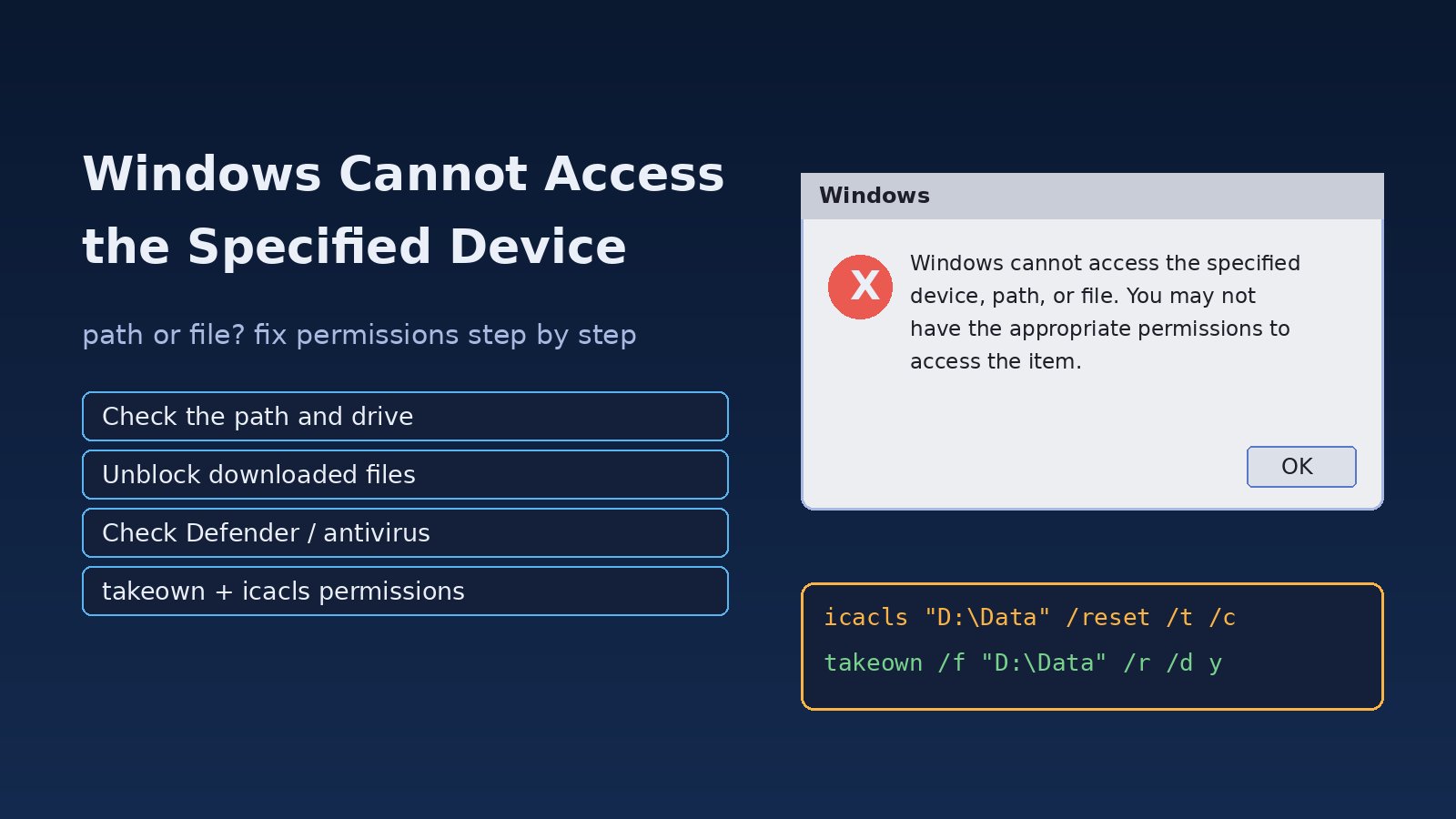
You double-click a program, a downloaded installer or a file on a USB drive and Windows stops you with a dialog: "Windows cannot access the specified device, path, or file. You may not have the appropriate permissions to access the item." When windows cannot access specified device errors appear, the file itself is usually fine. Something is standing between your account and the item: NTFS permissions, ownership, a security block, antivirus, or a drive or path that no longer exists. This guide walks through how to find which one it is and fix it with built-in tools such as icacls, takeown, Get-Acl and Unblock-File.
Problem: Windows Cannot Access Specified Device, Path or File
The message comes from the Windows shell (File Explorer) when it tries to open or run an item and the request fails. Explorer uses one generic dialog for several different failures, so the same text can mean "access denied", "file not found" or "blocked by policy". That is why random fixes work for one person and not for another. The quickest way forward is to check each cause in order, starting with the simplest.
Symptoms: Windows Access Denied and File Permission Error
- The dialog appears when you open an
.exe,.msi,.bator shortcut, but other files open normally. - Files copied from another PC, an old Windows install or an external drive cannot be opened, renamed or deleted.
- A desktop or Start menu shortcut fails because it points to a drive letter or folder that is no longer there.
- Opening the file from Command Prompt shows
Access is denied., and PowerShell showsUnauthorizedAccessExceptionorAccess to the path '...' is denied. - Microsoft Defender shows a "Unauthorized changes blocked" or "Threat quarantined" notification at the same time.
- The file's Properties dialog has an Unblock checkbox, or the Security tab says you must have Read permissions to view the properties.
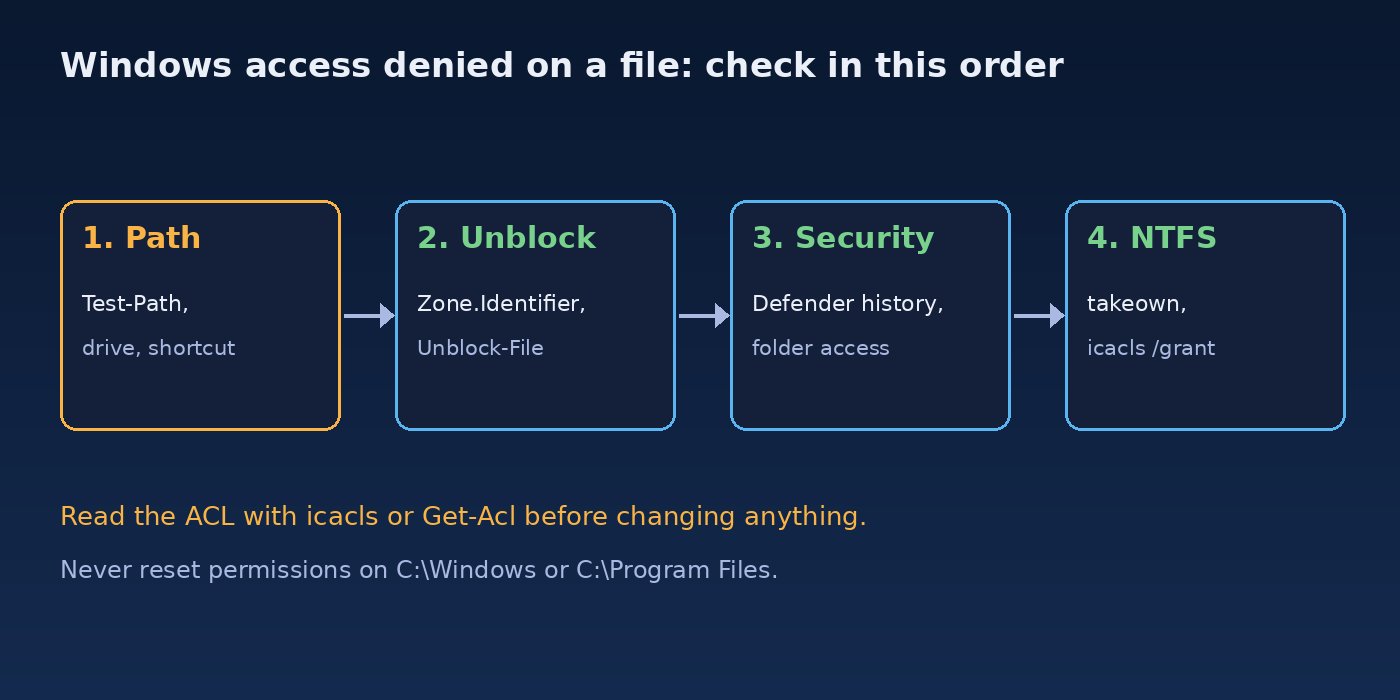
Root Cause: Why Windows Shows the Access Denied Error
- NTFS permissions. Your user or group does not have Read & execute on the file or one of its parent folders. Common after copying data from another computer, where the access control list (ACL) still refers to accounts that do not exist on this PC.
- Wrong owner. Files from an old Windows installation or another machine can be owned by an unknown SID such as
S-1-5-21-..., and even administrators cannot change permissions until they take ownership. - Mark of the Web. Files downloaded from the internet or extracted from a downloaded ZIP carry a
Zone.Identifierstream. SmartScreen or policy can block them. - Antivirus and Controlled folder access. Defender or a third-party product blocks or quarantines the file, or stops an app from writing to protected folders like Documents and Desktop.
- Missing path or device. The shortcut points to a removed USB drive, an unmapped network drive or a moved folder.
- Encrypted files (EFS). Files encrypted with another account's certificate cannot be opened by your account.
- Policies. Software Restriction Policies, AppLocker or a company policy blocks running programs from certain folders.
- File system corruption. Errors on the drive can make files unreadable and produce the same message.
Step-by-Step Solution to Fix Windows Cannot Access Specified Device
Step 1: Check that the path and device exist
Right-click the shortcut, open Properties and read the Target field. Then test it in PowerShell. If the result is False, the problem is not permissions: reconnect the drive, remap the network share or recreate the shortcut. If a USB drive does not show up at all, see how to fix USB device not recognized in Windows.
Test-Path "D:\Tools\setup.exe"
Get-PSDrive -PSProvider FileSystem
net use                      # list mapped network drives and their status
Step 2: Unblock files downloaded from the internet
Right-click the file, choose Properties, tick Unblock on the General tab and click OK. For a whole folder of extracted files, use PowerShell. Only unblock files you trust; the block exists to protect you from unknown downloads.
Get-Item "C:\Users\you\Downloads\tool.exe" -Stream Zone.Identifier
Unblock-File -Path "C:\Users\you\Downloads\tool.exe"
Get-ChildItem "C:\Users\you\Downloads\tool" -Recurse | Unblock-File
Step 3: Check Microsoft Defender and your antivirus
Open Windows Security > Virus & threat protection > Protection history. If the file was quarantined or an app was blocked by Controlled folder access, you will see it there. Restore or allow it only if you are sure it is safe. With a third-party antivirus, check its quarantine and pause it briefly to test.
Get-MpPreference | Select-Object EnableControlledFolderAccess
Get-MpThreatDetection | Select-Object -First 5 InitialDetectionTime, Resources
Step 4: Read the current permissions (file permission error)
Before changing anything, look at who owns the item and who has access. Open an elevated Command Prompt or PowerShell (Run as administrator).
icacls "D:\Data\report.xlsx"
Get-Acl "D:\Data\report.xlsx" | Format-List Owner, AccessToString
whoami /groups
Look for your user, Users or Authenticated Users with (RX), (M) or (F). A (DENY) entry for your account or group, an unknown SID as owner, or no entry for you at all explains the error.
Step 5: Take ownership of the file or folder
If the owner is an unknown SID or another account, take ownership. /r recurses into subfolders and /d y answers "yes" for folders you cannot list (the answer letter depends on the Windows display language).
takeown /f "D:\OldPC\Projects" /r /d yStep 6: Grant or reset NTFS permissions with icacls
Grant your account full control, or reset the ACL so it inherits permissions from the parent folder again. Never run these commands on C:\Windows, C:\Program Files or the root of the system drive; changing permissions there can break Windows and updates.
:: give the current user full control, including subfolders
icacls "D:\OldPC\Projects" /grant "%USERNAME%":(OI)(CI)F /t /c

:: remove a deny entry for a group
icacls "D:\OldPC\Projects" /remove:d "Users" /t /c

:: or reset to inherited permissions from the parent folder
icacls "D:\OldPC\Projects" /reset /t /c /q
Step 7: Clear read-only or system attributes and check EFS
Attributes do not usually cause this exact dialog, but files copied from old drives can be hidden, system and read-only at once. If the file name shows in green in Explorer, it is encrypted with EFS and must be decrypted by the account that holds the certificate.
attrib "D:\OldPC\Projects\app.exe"
attrib -r -s -h "D:\OldPC\Projects\*" /s /d
cipher /c "D:\OldPC\Projects\app.exe"     # shows EFS encryption details
Step 8: Check the drive and system files
If permissions look correct and files on one drive still fail, scan the file system, then repair Windows system files. A drive that is constantly busy or slow may also be failing; the checks in how to fix 100 percent disk usage in Windows 11 help confirm drive health.
chkdsk D: /scan
chkdsk D: /f            # fixes errors; needs the drive to be unlocked
DISM /Online /Cleanup-Image /RestoreHealth
sfc /scannow
Step 9: Check policies on work computers
On a company laptop, AppLocker or Software Restriction Policies may block programs from Downloads, Temp or USB drives. You can see which policies apply, but the fix must come from your IT administrator.
gpresult /h "%USERPROFILE%\Desktop\gp.html"
Get-AppLockerPolicy -Effective | Select-Object -ExpandProperty RuleCollections
Code/Commands: Quick Reference
Test-Path "D:\path\file.exe"                    # does the item exist?
Unblock-File -Path "D:\path\file.exe"           # remove Mark of the Web
icacls "D:\path"                                # view NTFS permissions
Get-Acl "D:\path" | Format-List                 # owner and ACL in PowerShell
takeown /f "D:\path" /r /d y                    # take ownership
icacls "D:\path" /grant "%USERNAME%":(OI)(CI)F /t /c
icacls "D:\path" /reset /t /c /q                # back to inherited permissions
attrib -r -s -h "D:\path\*" /s /d
chkdsk D: /scan
sfc /scannow
Verification: Confirm the Access Denied Error Is Fixed
- The file or program opens from Explorer without the dialog, both by double-click and from its shortcut.
icaclsshows your account (orUsers) with the expected rights and no(DENY)entries.Get-Item -Stream Zone.Identifierreturns an error saying the stream does not exist, meaning the file is unblocked.- Protection history in Windows Security shows no new blocks for the item.
chkdsk /scanandsfc /scannowreport no remaining problems.
Prevention: Avoid Windows File Permission Errors
- When moving data from an old PC, copy files into your own user folders instead of keeping the old ACLs; tools like
robocopy /copy:DATcopy data without the old security information. - Keep personal data out of
C:\WindowsandC:\Program Files, and avoid editing permissions on system folders. - Download software from trusted sources so you rarely need to unblock files.
- Add trusted apps to Controlled folder access instead of turning the feature off.
- Back up your EFS certificate if you use file encryption.
- Safely eject USB drives and run
chkdskwhen Windows asks to scan a drive. If Windows fails to start normally after a change, use Safe Mode as described in how to fix Windows 11 black screen after login.
FAQs
What does "Windows cannot access the specified device, path, or file" mean?
Explorer could not open or run the item. The usual reasons are missing permissions, a different owner, a security block on a downloaded file, antivirus, or a path or drive that no longer exists.
How do I fix Windows access denied on a file I own?
Check the ACL with icacls. Look for deny entries or inheritance problems, then grant your account access or reset permissions with icacls /reset. Also check whether the file is blocked or encrypted.
Is it safe to take ownership of a folder?
Yes for your own data folders and drives copied from another PC. Do not take ownership of Windows system folders, because Windows and its updates expect them to be owned by TrustedInstaller.
Why do I get a file permission error only on files from another computer?
NTFS stores permissions by account SID. Accounts from the other computer do not exist on yours, so the ACL does not include you. Taking ownership and granting your account access fixes this.
Can antivirus cause the windows cannot access specified device error?
Yes. Defender's Controlled folder access or a third-party antivirus can block or quarantine the file. Check Protection history or the antivirus quarantine before changing permissions.
Comments
Join the discussion. Replies load on demand, up to 5 levels.
0 threads
No comments yet
Be the first to start the conversation.