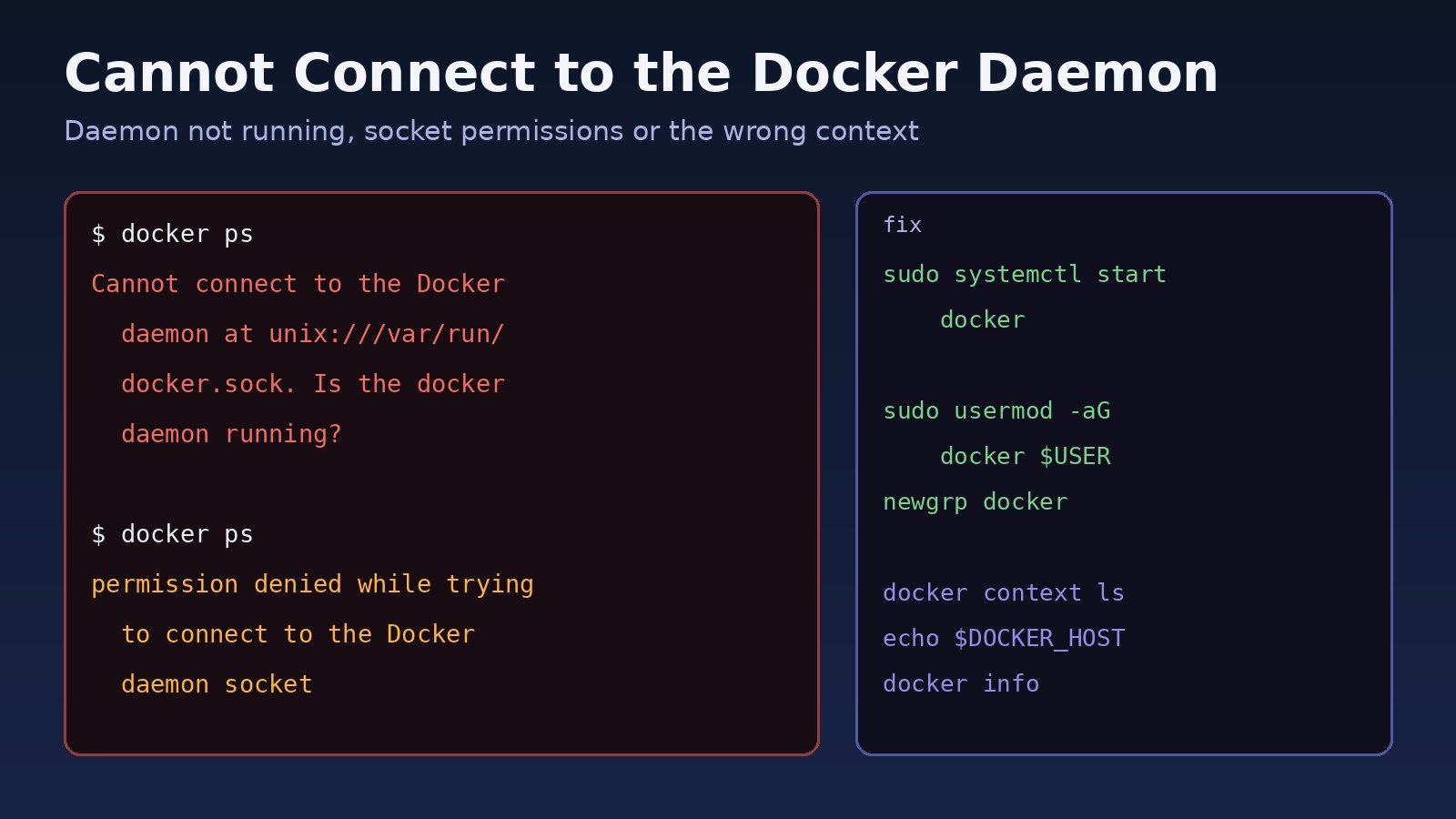
You type docker ps or docker compose up and get Cannot connect to the Docker daemon at unix:///var/run/docker.sock. Is the docker daemon running? The cannot connect to docker daemon error means the Docker CLI couldn't reach the Docker Engine. The CLI is only a client; every command is sent over a socket to the dockerd process. If that process is stopped, if your user can't open its socket, or if the CLI is pointed at the wrong address, you get this message. This guide walks through each cause in order, with the commands to confirm and fix it on Linux servers, WSL2, Docker Desktop and CI runners.
Problem: Cannot Connect to Docker Daemon
Docker has two parts: the docker CLI you run, and the Docker daemon (dockerd) that actually builds images and runs containers. On Linux they talk through a Unix socket, by default /var/run/docker.sock. On Docker Desktop for macOS the socket usually lives under your home directory, and on Windows the CLI uses a named pipe.
When the CLI can't open that connection, nothing works: no builds, no docker compose up, no deploy script. Your containers may still be fine (if the daemon is running but you lack permission), or they may all be stopped (if the daemon itself is down). Telling those two cases apart is the first step.
Symptoms: Docker Daemon Not Running or Docker Socket Error
The exact text tells you a lot about the cause:
# daemon not running, or CLI pointed at a socket that doesn't exist
Cannot connect to the Docker daemon at unix:///var/run/docker.sock. Is the docker daemon running?

# daemon running, but your user can't open the socket
permission denied while trying to connect to the Docker daemon socket at unix:///var/run/docker.sock: ... connect: permission denied

# Docker Desktop on macOS not started
Cannot connect to the Docker daemon at unix:///Users/you/.docker/run/docker.sock. Is the docker daemon running?

# Windows, Docker Desktop not running
error during connect: ... open //./pipe/docker_engine: The system cannot find the file specified.

# CI job using a remote or dind daemon that isn't reachable
Cannot connect to the Docker daemon at tcp://docker:2375. Is the docker daemon running?
Other signs you'll notice:
docker versionprints the Client section and then fails before the Server section.sudo docker psworks butdocker pswithout sudo doesn't. That's a permission problem, not a stopped daemon.- The error starts right after a reboot, an OS upgrade, a Docker upgrade or an edit to
/etc/docker/daemon.json. - Your app containers (Nginx, PostgreSQL, Redis, a Laravel or Next.js app) are unreachable at the same time, which suggests the daemon really is down.
Root Cause: Why the Docker CLI Can't Reach the Daemon
The Docker service is stopped or failed to start
The service may not be enabled at boot, may have crashed, or may refuse to start because of a bad daemon.json, a full disk under /var/lib/docker, or a storage or network driver error after an upgrade. On WSL2 distributions without systemd, nothing starts Docker automatically.
Your user can't open docker.sock
The socket is normally owned by root with group docker and mode 660. If your user isn't in the docker group, or you were added but haven't logged in again, the connection is refused with permission denied.
The CLI is pointed at the wrong endpoint
The DOCKER_HOST environment variable or the active docker context overrides the default socket. A leftover DOCKER_HOST=tcp://... from a tutorial, a rootless Docker setup, a remote context, or a context created by Docker Desktop can send the CLI somewhere nothing is listening.
The daemon isn't available inside a container or CI job
A CI step or container that runs docker commands needs either the host socket mounted into it or a Docker-in-Docker service. Without one of those, there is no daemon to talk to.
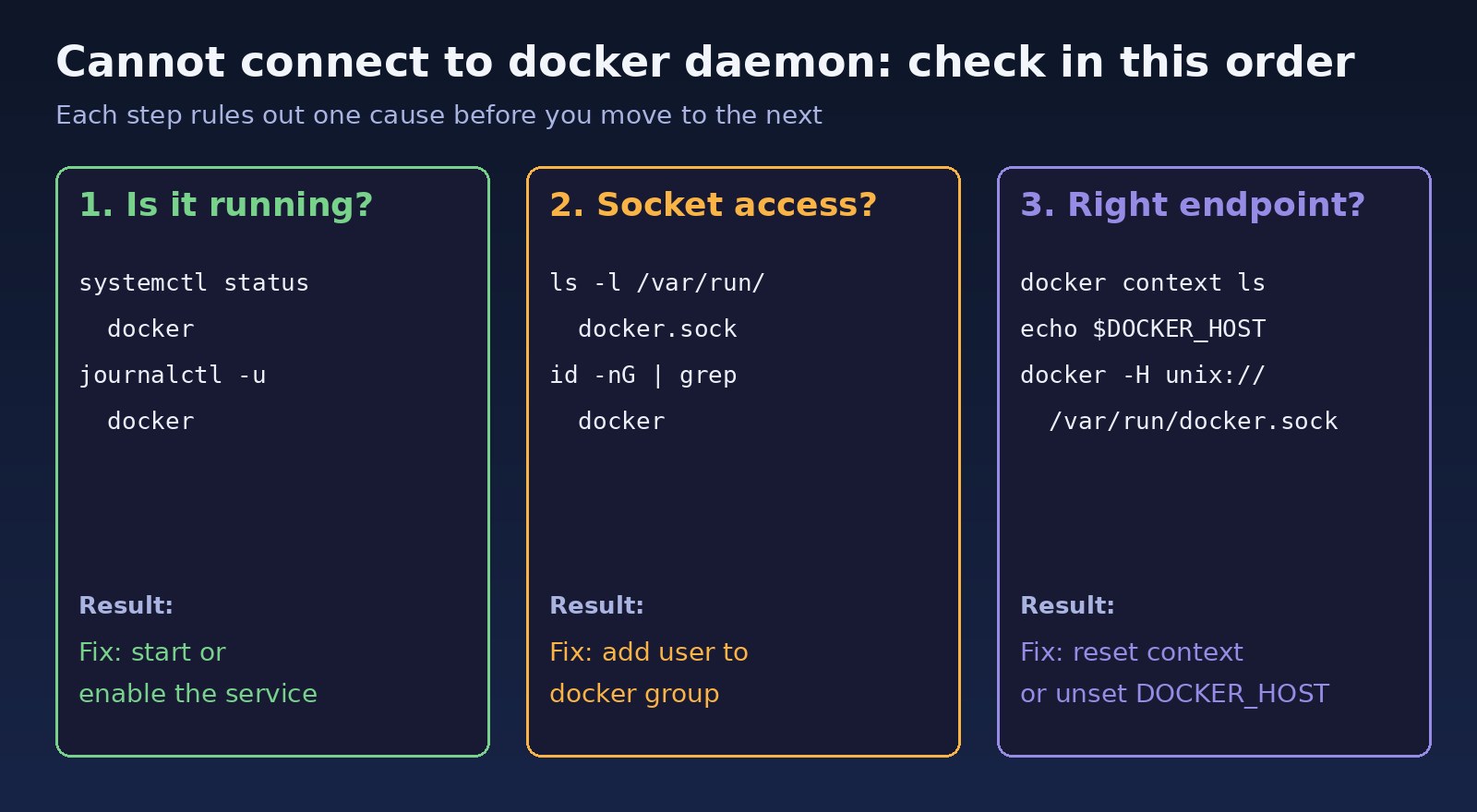
Step-by-Step Solution
Step 1: Check whether the Docker daemon is running
On any Linux server using systemd, start with the service status:
sudo systemctl status docker
# look for: Active: active (running)

docker version          # Client prints; Server section fails if daemon is unreachable
sudo docker info        # works with sudo? then the daemon is running
If it's inactive (dead), start it and enable it at boot:
sudo systemctl start docker
sudo systemctl enable docker
# Docker also ships a socket unit used for socket activation
sudo systemctl enable --now docker.socket
Step 2: If the service won't start, read the logs
If it shows failed or start request repeated too quickly, the logs tell you why:
sudo journalctl -u docker.service --no-pager -n 100
sudo journalctl -u docker.service -b      # since last boot

# validate daemon.json before restarting (Docker Engine 23.0+)
sudo dockerd --validate --config-file /etc/docker/daemon.json
cat /etc/docker/daemon.json | python3 -m json.tool

# check disk space where Docker stores data
df -h /var/lib/docker

sudo systemctl reset-failed docker
sudo systemctl restart docker
Common log lines include unable to configure the Docker daemon with file /etc/docker/daemon.json (a typo or an option that conflicts with a systemd flag) and storage driver errors. If the disk is full, clean it up first; see how to fix Docker no space left on device. To debug interactively, stop the service and run sudo dockerd --debug in the foreground to see the error directly.
Step 3: Fix docker.sock permission denied
If sudo docker ps works but plain docker ps doesn't, add your user to the docker group:
ls -l /var/run/docker.sock
# srw-rw---- 1 root docker 0 ... /var/run/docker.sock

getent group docker || sudo groupadd docker
sudo usermod -aG docker $USER

# apply the new group: log out and back in, or for the current shell:
newgrp docker
id -nG          # should now include docker
docker ps
Members of the docker group can control the daemon, which is effectively root access on that machine, so only add trusted users. Don't "fix" this with sudo chmod 666 /var/run/docker.sock: it gives every local user root-level access, and the socket is recreated with the old permissions on the next restart anyway. On shared or hardened servers, consider rootless Docker instead.
Step 4: Check DOCKER_HOST and docker context
If the daemon is running and permissions are right, the CLI may be talking to the wrong place:
echo "$DOCKER_HOST"
docker context ls           # the active context has a * next to it
docker context inspect --format '{{.Endpoints.docker.Host}}'

# go back to the local daemon
unset DOCKER_HOST
docker context use default

# test the socket directly, bypassing context
docker -H unix:///var/run/docker.sock ps
Also check ~/.bashrc, ~/.zshrc, /etc/environment and your project's .env file for a stale DOCKER_HOST line. For rootless Docker the correct endpoint is the per-user socket, for example unix:///run/user/1000/docker.sock, and the service is managed with systemctl --user start docker.
Step 5: Docker Desktop, macOS and Windows
On Docker Desktop the daemon runs inside a VM, so the fix is usually to start Docker Desktop and wait until it reports that the engine is running. Then make sure the CLI uses Desktop's context:
docker context ls
docker context use desktop-linux    # name used by current Docker Desktop versions
docker info
If it still fails after an update, quitting and restarting Docker Desktop, or a full machine restart, often clears a stuck VM. On Windows, check that WSL2 is installed and working with wsl --status.
Step 6: WSL2 without Docker Desktop
If you installed Docker Engine directly inside an Ubuntu WSL2 distribution, the daemon won't start by itself unless systemd is enabled:
# one-off start without systemd
sudo service docker start

# or enable systemd in WSL: add to /etc/wsl.conf
[boot]
systemd=true

# then from Windows PowerShell
wsl --shutdown
If you use Docker Desktop with WSL integration instead, turn on integration for your distribution in Docker Desktop's settings rather than installing a second engine inside WSL.
Step 7: Containers and CI pipelines
A container that needs to run Docker commands (a CI runner, Portainer, a deploy tool) must have the host socket mounted:
docker run -v /var/run/docker.sock:/var/run/docker.sock docker:cli docker ps

# docker-compose.yml
services:
  runner:
    image: docker:cli
    volumes:
      - /var/run/docker.sock:/var/run/docker.sock
For GitLab CI with Docker-in-Docker, the job needs the docker:dind service and a DOCKER_HOST that matches its TLS setting, for example tcp://docker:2376 with DOCKER_TLS_CERTDIR: "/certs", and a runner configured to allow privileged containers. Mounting the host socket into containers carries the same root-level risk as the docker group, so limit it to trusted jobs.
Code/Commands: Quick Diagnosis Script
Run this on a server to see the likely cause in one go:
#!/usr/bin/env bash
echo "== service =="; systemctl is-active docker docker.socket 2>/dev/null
echo "== socket ==";  ls -l /var/run/docker.sock 2>&1
echo "== user ==";    id -nG
echo "== env ==";     echo "DOCKER_HOST=${DOCKER_HOST:-<unset>}"
echo "== context =="; docker context ls 2>&1
echo "== server ==";  docker version --format '{{.Server.Version}}' 2>&1
echo "== disk ==";    df -h /var/lib/docker 2>/dev/null | tail -1
Read it top to bottom: if the service isn't active, go to Step 1 and 2; if the socket exists but your groups don't include docker, go to Step 3; if DOCKER_HOST is set or a non-default context is active, go to Step 4.
Verification
The fix is complete when all of these succeed without sudo:
docker version            # shows both Client and Server
docker info --format '{{.ServerVersion}} {{.Driver}}'
docker run --rm hello-world
docker compose ps         # your project's containers are listed

# survives a reboot
sudo reboot
systemctl is-enabled docker   # enabled
After the daemon comes back, check that your application containers restarted as expected. If one starts and then exits again, see why a Docker container keeps restarting, and if it's being killed under memory pressure, see how to fix Docker exit code 137.
Prevention
- Run
sudo systemctl enable dockeron every server so the daemon starts after a reboot, and set arestart: unless-stoppedpolicy on long-running services. - Validate
/etc/docker/daemon.jsonwithdockerd --validatebefore restarting the service, and keep a backup of the last working version. - Monitor disk usage under
/var/lib/dockerand prune unused images on a schedule. - Avoid setting
DOCKER_HOSTglobally in shell profiles; use named contexts withdocker context createfor remote hosts instead. - Manage docker group membership deliberately and avoid widening socket permissions.
- In CI, pin the dind image version and document whether jobs use the host socket or Docker-in-Docker.
FAQs
What does "Cannot connect to the Docker daemon" mean?
The Docker CLI tried to send your command to the Docker Engine through its socket and couldn't connect. Either the daemon isn't running, the socket path is wrong, or the CLI is configured to use a different endpoint.
How do I know if the Docker daemon is not running?
Run sudo systemctl status docker on Linux. If it isn't active (running), the daemon is down. docker version will also show the Client section but fail on the Server section.
How do I fix a Docker socket error with permission denied?
Add your user to the docker group with sudo usermod -aG docker $USER, then log out and back in or run newgrp docker. Don't change the socket to mode 666.
Why does docker work with sudo but not without it?
Root can always open /var/run/docker.sock. Your normal user can only open it as a member of the docker group, so it's a group membership issue, not a stopped daemon.
Why does the error appear after setting DOCKER_HOST?
DOCKER_HOST overrides the default socket and the active context. If it points to a host or port where no daemon is listening, every command fails. Run unset DOCKER_HOST and docker context use default.
How do I start the Docker daemon in WSL2?
Without systemd, run sudo service docker start each session. For automatic starts, enable systemd in /etc/wsl.conf and restart WSL with wsl --shutdown, or use Docker Desktop's WSL integration.
Comments
Join the discussion. Replies load on demand, up to 5 levels.
0 threads
No comments yet
Be the first to start the conversation.