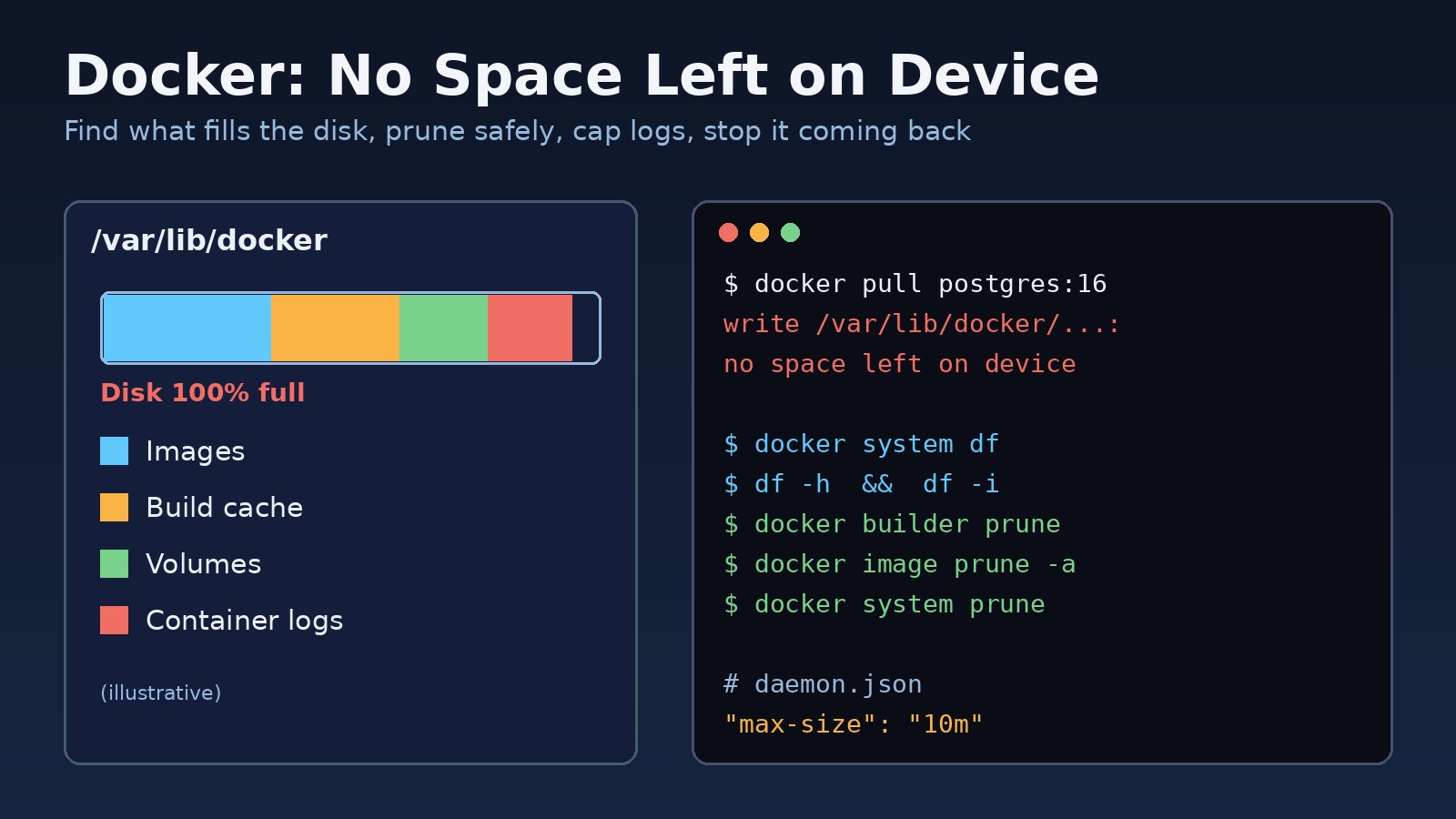
A build that worked yesterday suddenly stops with no space left on device, or a running PostgreSQL container starts refusing writes. The docker no space left on device error means the filesystem Docker writes to has run out of free blocks or free inodes, and Docker can't create the layer, log line or file it needs. This guide shows how to find exactly what is filling the disk, clean it up in a safe order, and configure Docker so it doesn't happen again on your servers, CI runners or laptop.
Problem: Docker No Space Left on Device
Docker stores images, container writable layers, volumes, build cache and container logs under its data root, which is /var/lib/docker on most Linux installs. On Docker Desktop for macOS and Windows, all of that lives inside a virtual disk with a fixed maximum size. Nothing in that directory is cleaned up automatically. Every docker pull, every docker build and every chatty container adds data, and old data stays until you remove it.
Because the same disk is often shared with the host OS, a full Docker directory can also break SSH logins, package updates, Nginx and your databases.
Symptoms
The exact wording depends on which part of Docker hit the limit, but these are the messages you will usually see:
- During a pull:
failed to register layer: ... no space left on deviceorwrite /var/lib/docker/tmp/...: no space left on device. - During a BuildKit build:
ERROR: failed to solve: ... no space left on device, often while runningnpm install,composer installor copying the build context. - When starting a container:
Error response from daemon: mkdir /var/lib/docker/overlay2/...: no space left on device. - Inside a container: application logs showing
ENOSPC: no space left on device(Node.js),file_put_contents(): Write of ... bytes failed with errno=28 No space left on device(Laravel/PHP), or PostgreSQL reportingcould not write to file ... No space left on device. - Redis failing to save its RDB or AOF file, and refusing writes if
stop-writes-on-bgsave-erroris on. - On the host:
df -hshows the root or Docker partition at 100%, or new files can't be created even thoughdf -hshows free space.
Root Cause: What Fills the Docker Disk
There is rarely a single cause. These are the usual suspects.
Old and dangling images
Every rebuild of a tag leaves the previous image behind as a dangling <none> image. Pulling new versions of node, php, postgres or nginx keeps the old ones too.
BuildKit build cache
BuildKit caches layers and cache mounts so later builds are faster. On machines that build often, especially CI runners, the build cache can grow larger than the images themselves. docker images doesn't show it, which is why it is easy to miss.
Stopped containers and their writable layers
Containers that exited are kept until removed, along with any files they wrote to their writable layer in overlay2. A container that writes uploads, temporary exports or caches into its own filesystem instead of a volume grows with every request.
Unbounded container logs
With the default json-file logging driver and no limits, everything a container prints to stdout and stderr is stored in /var/lib/docker/containers/<id>/<id>-json.log forever. A container stuck in a restart loop or logging every request at debug level can fill a disk on its own.
Volumes nobody uses any more
Volumes survive docker rm and plain docker compose down. Old database volumes from test stacks, and anonymous volumes created by images that declare VOLUME, pile up over time.
Inode exhaustion
A filesystem can run out of inodes before it runs out of bytes. Image layers containing node_modules or vendor directories hold huge numbers of small files, so many builds can use up inodes. df -h then looks fine while writes still fail.
Small limits inside the container
Sometimes the host has plenty of space and the limit is inside the container: /dev/shm defaults to 64 MB, and PostgreSQL may log could not resize shared memory segment ... No space left on device when parallel queries need more. A small tmpfs mount on /tmp can cause the same error.
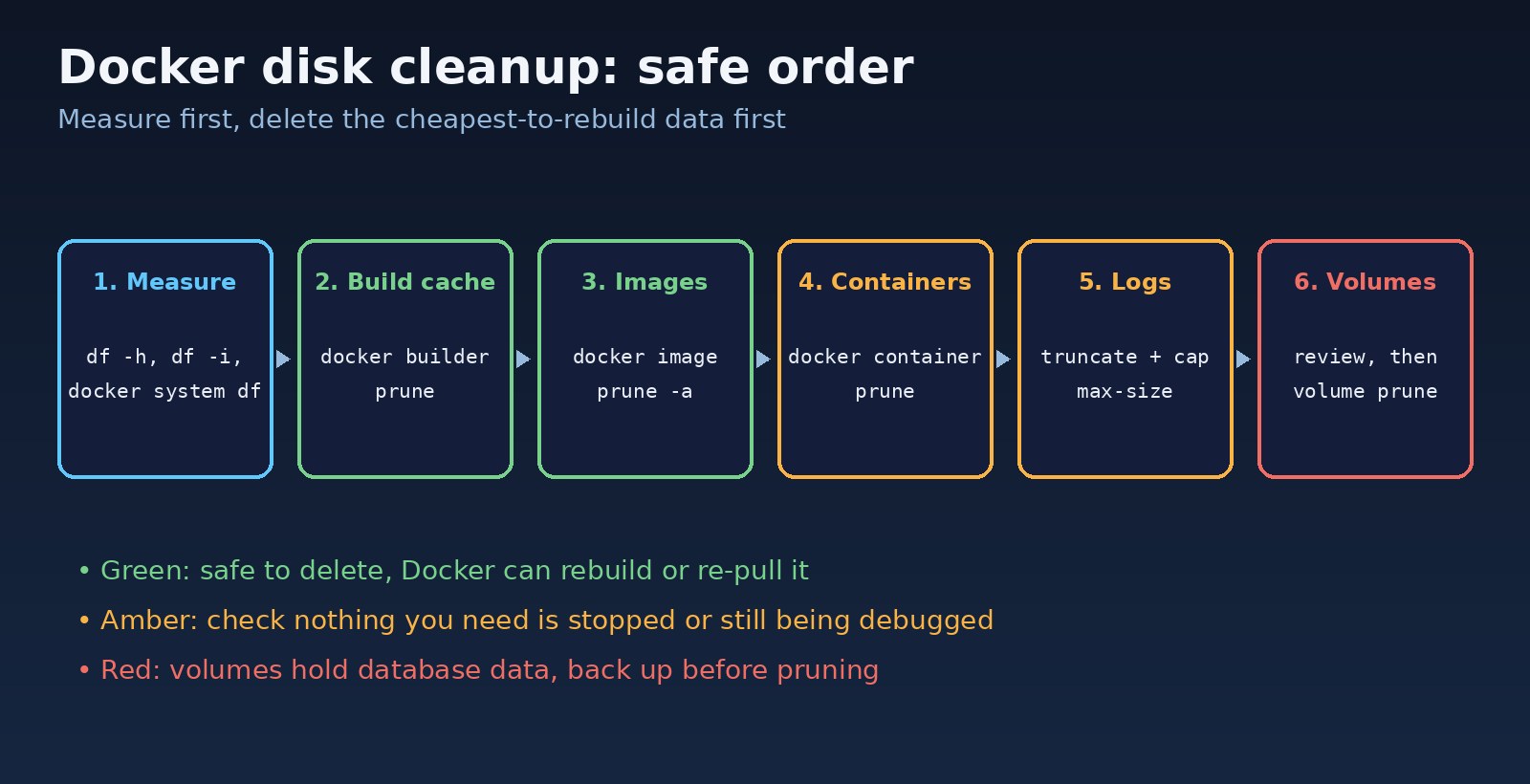
Step-by-Step Solution
Step 1: Confirm which filesystem is full
Check both bytes and inodes, and find where Docker keeps its data on this machine.
df -h
df -i
docker info --format '{{.DockerRootDir}}'
sudo du -h --max-depth=1 /var/lib/docker | sort -h
If df -i shows IUse% at 100%, you are out of inodes, and removing images and build cache (which contain the small files) is the fix. If the Docker partition is fine but the error comes from inside a container, jump to Step 7.
Step 2: See what Docker itself is using
docker system df summarises images, containers, local volumes and build cache, including how much of each is reclaimable. Add -v for a per-item breakdown.
docker system df
docker system df -v
Step 3: Prune the build cache first
Build cache is the safest thing to delete because BuildKit simply rebuilds it. You can remove all of it, or only entries older than a few days.
# remove build cache not used in the last 72 hours
docker builder prune --filter until=72h

# remove all build cache (next build will be slower)
docker builder prune -a
Step 4: Remove unused images
Dangling images are always safe to remove. Adding -a removes every image not used by an existing container, so Docker will pull or rebuild them next time they are needed.
docker image prune          # dangling <none> images only
docker image prune -a       # all images not used by a container
docker image prune -a --filter "until=168h"   # unused and older than 7 days
Step 5: Remove stopped containers and unused networks
Before deleting, list exited containers and make sure none of them is something you are still debugging. If a service keeps exiting, read its logs first; the guide on why Docker containers keep restarting covers that.
docker ps -a --filter status=exited
docker container prune
docker network prune
To prune Docker in one go, docker system prune removes stopped containers, unused networks, dangling images and unused build cache. With -a it also removes all unused images. It asks for confirmation and lists what it will delete.
docker system prune
docker system prune -a
Step 6: Find and truncate huge container logs
Find the largest log files, then truncate them in place. Truncating keeps the file handle valid, so the running container continues logging normally. Don't delete the file with rm while the container is running; the space won't be freed until the container stops.
sudo find /var/lib/docker/containers -name '*-json.log' -size +100M -exec ls -lh {} \;

# truncate one container's log
sudo truncate -s 0 "$(docker inspect --format='{{.LogPath}}' my-api)"

# check for deleted files still held open by any process
sudo lsof +L1
Step 7: Fix space limits inside a container
If the host has free space, check the container's own mounts. Increase shared memory for PostgreSQL or browsers running headless, and size any tmpfs mounts to fit the work.
docker exec -it my-db df -h /dev/shm /tmp

docker run -d --name my-db --shm-size=1g -e POSTGRES_PASSWORD=secret postgres:16
Step 8: Review volumes last
Volumes hold real data: PostgreSQL databases, Redis dumps, uploaded files. List dangling volumes, inspect anything you don't recognise, and back up before removing. Since Docker Engine 23, docker volume prune removes only unused anonymous volumes; add -a to include unused named volumes.
docker volume ls -f dangling=true
docker volume inspect old_project_pgdata

# back up a volume to a tar file before deleting it
docker run --rm -v old_project_pgdata:/data -v "$PWD":/backup alpine \
  tar czf /backup/old_project_pgdata.tgz -C /data .

docker volume prune        # anonymous volumes only
docker volume prune -a     # also unused named volumes, be careful
Also remember that docker compose down -v deletes the volumes declared in that compose file, including your database. Use it on purpose, never as a reflex.
Code/Commands Examples for Long-Term Docker Disk Cleanup
Cap log size in daemon.json
Set default log limits for all new containers in /etc/docker/daemon.json, then restart Docker. Existing containers keep their old log settings until they are recreated, for example with docker compose up -d --force-recreate.
{
  "log-driver": "json-file",
  "log-opts": {
    "max-size": "10m",
    "max-file": "3"
  }
}sudo systemctl restart docker
docker inspect --format '{{.HostConfig.LogConfig}}' my-apiPer-service limits in Docker Compose
services:
  api:
    image: my-laravel-api:latest
    logging:
      driver: json-file
      options:
        max-size: "10m"
        max-file: "3"
  db:
    image: postgres:16
    shm_size: "1gb"
    volumes:
      - pgdata:/var/lib/postgresql/data
volumes:
  pgdata:
Move the Docker data-root to a bigger disk
If the root partition is simply too small, move Docker's data to a larger mounted disk. Stop Docker first so nothing writes during the copy.
sudo systemctl stop docker docker.socket
sudo rsync -aHAX /var/lib/docker/ /mnt/docker-data/

# /etc/docker/daemon.json
{
  "data-root": "/mnt/docker-data"
}

sudo systemctl start docker
docker info --format '{{.DockerRootDir}}'
Keep the old /var/lib/docker until you have confirmed containers, images and volumes all work from the new location, then remove it to reclaim the space. On Docker Desktop, the equivalent is increasing the virtual disk limit under Settings, Resources.
Scheduled cleanup for build servers
On CI runners and build-only machines, a scheduled prune of old data keeps the disk under control. Avoid adding --volumes on any host that runs databases.
# /etc/cron.d/docker-prune  (runs daily at 03:00)
0 3 * * * root docker system prune -af --filter "until=168h" >> /var/log/docker-prune.log 2>&1
Verification
- Run
df -handdf -iagain and confirm the Docker filesystem has free space and free inodes. - Run
docker system dfand check that the reclaimable amounts dropped. - Retry the failed
docker pull,docker buildordocker compose up -d. - Check application health: database containers accepting writes, Redis saving successfully, and web requests returning normally. If Nginx was returning errors while an upstream container was down, the 502 Bad Gateway Nginx guide helps confirm the upstream is back.
- Confirm new containers have log limits:
docker inspect --format '{{.HostConfig.LogConfig}}' <container>.
If PostgreSQL ran out of disk mid-transaction, look at its logs after the restart and check for sessions left open; the article on PostgreSQL idle in transaction shows how to find them.
Prevention
- Set
max-sizeandmax-filelog options indaemon.jsonon every host, or use thelocallogging driver, which rotates by default. - Add a
.dockerignorethat excludesnode_modules,vendor,.git, build output and local logs, so the build context and layers stay small. - Use multi-stage builds so compilers, dev dependencies and caches don't end up in the final image.
- Write uploads, exports and caches to named volumes or object storage, not to the container's writable layer.
- Schedule
docker builder pruneanddocker image prunewith anuntilfilter on build machines. - Monitor disk and inode usage on Docker hosts and alert well before 100%, for example at 80%.
- Give Docker its own partition or disk on servers, so a full Docker directory can't take down the host OS.
FAQs
Is docker system prune safe to run on a production server?
Plain docker system prune doesn't touch running containers or volumes, but it does remove stopped containers and unused images, so check docker ps -a first. Don't add --volumes on a server that runs databases unless you have checked every volume it will remove.
Why does df -h show free space but Docker says no space left on device?
Usually the filesystem is out of inodes (check df -i), Docker's data-root is on a different partition from the one you checked, or the limit is inside the container, such as /dev/shm or a small tmpfs.
What is the fastest way to prune Docker build cache?
Run docker builder prune -a to remove all build cache. It is safe for your data, but the next build will download and rebuild every layer.
How do I do a Docker disk cleanup on Docker Desktop for Mac or Windows?
The same prune commands work in the Docker Desktop terminal. If the virtual disk itself is the limit, increase it in Settings under Resources, or use the troubleshoot options to clean up data.
The docker no space left on device error is almost always fixable in minutes once you measure first: check df -h, df -i and docker system df, prune build cache and images, truncate runaway logs, and only then look at volumes. Then add log limits and scheduled pruning.
Comments
Join the discussion. Replies load on demand, up to 5 levels.
0 threads
No comments yet
Be the first to start the conversation.