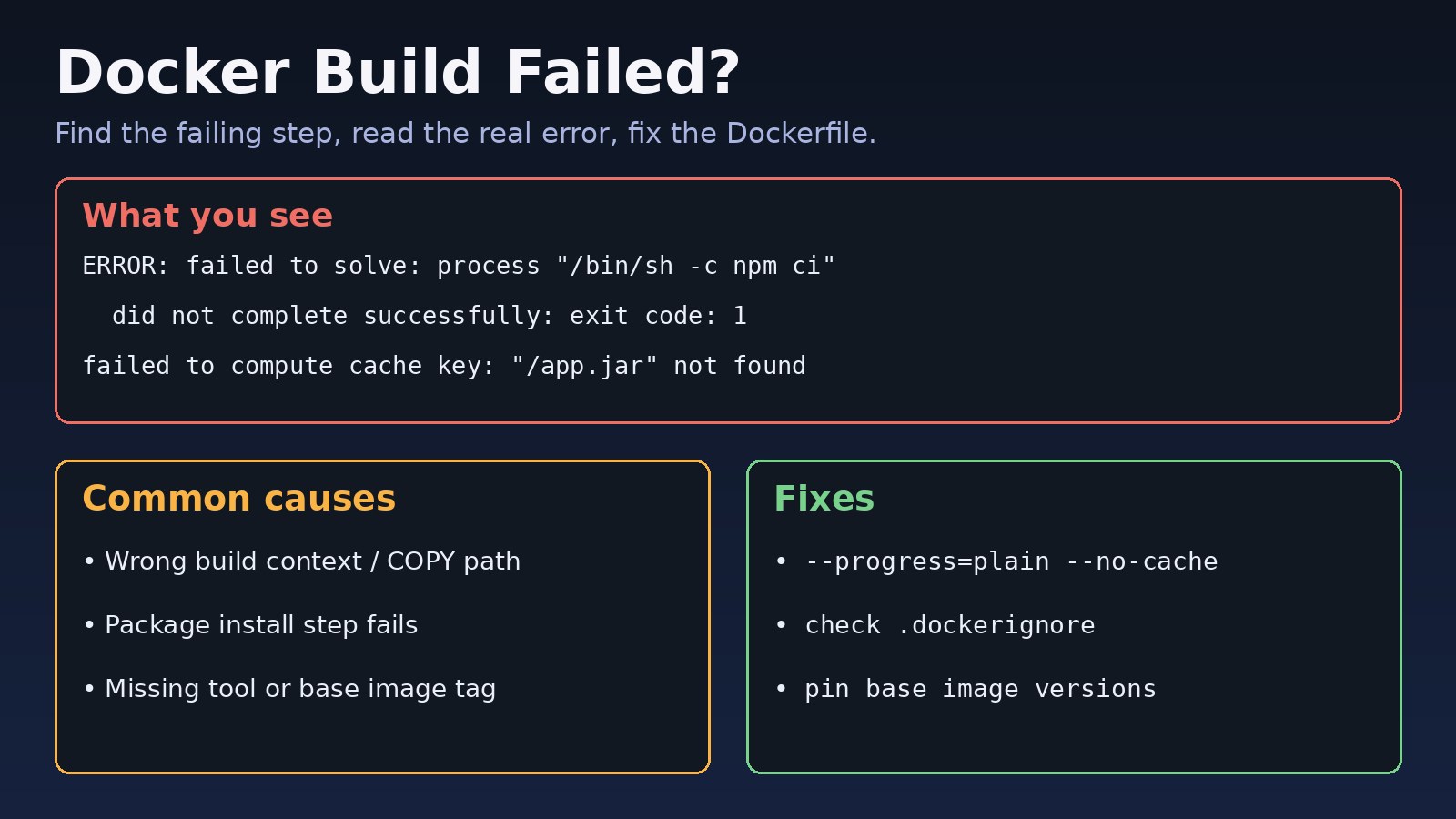
You run docker build and it stops with ERROR: failed to solve, a red step number and an exit code. A docker build failed message is only the summary. The real cause is almost always a few lines above it, in the output of the one Dockerfile step that broke. This guide shows how to find that step, read the actual error, and fix the most common Dockerfile errors for Node.js, Next.js, Laravel and other images.
The Problem: Docker Build Failed
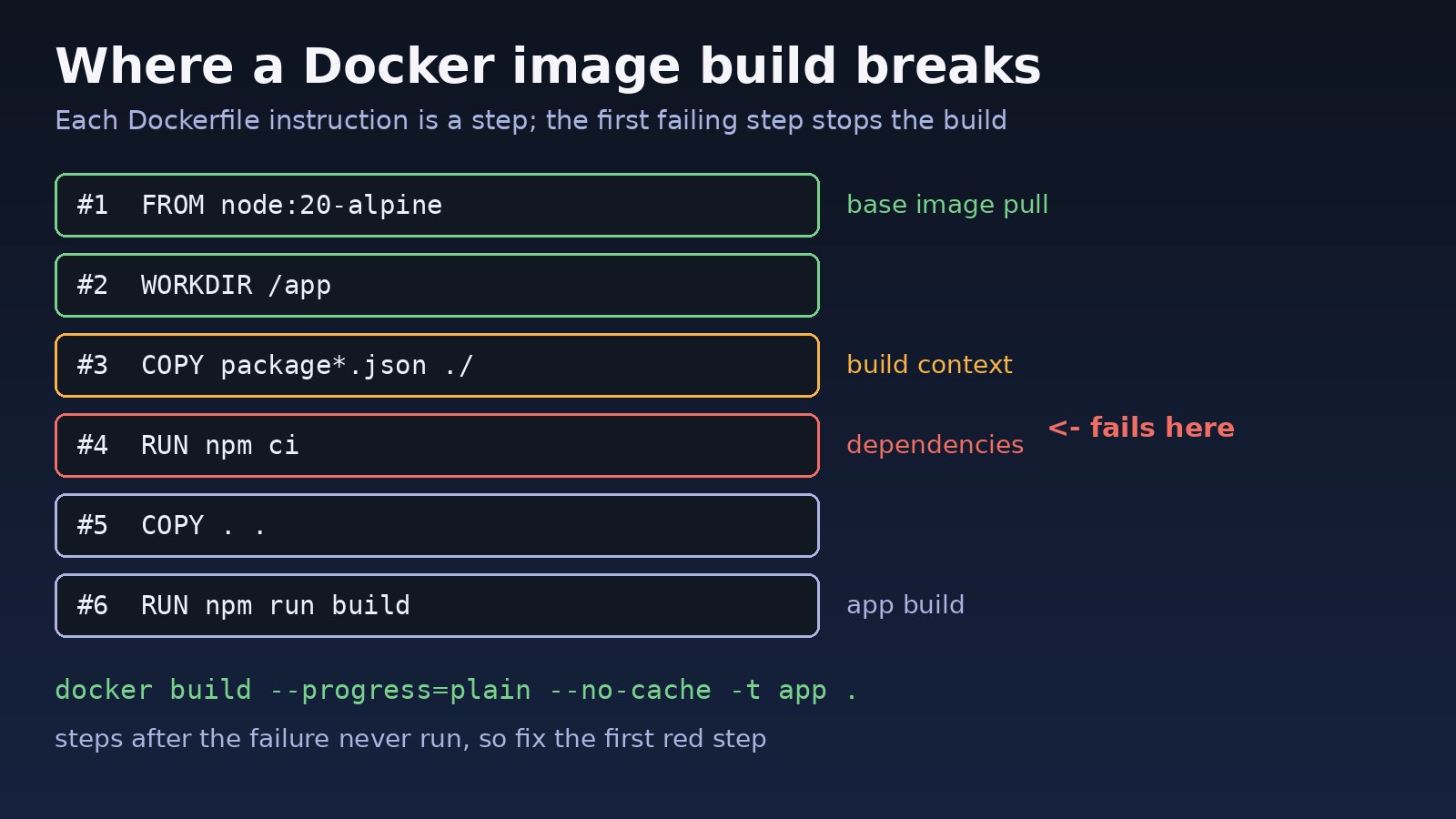
Docker builds an image by running each Dockerfile instruction (FROM, COPY, RUN and so on) as a separate step. When one step fails, BuildKit stops the whole build and prints the failing step. Steps after it never run, so the error you see is always about the first step that broke, not the last line of your Dockerfile.
Symptoms of a Failed Docker Image Build
The most common failure looks like this:
=> ERROR [deps 4/5] RUN npm ci                                   12.3s
------
 > [deps 4/5] RUN npm ci:
npm ERR! code ERESOLVE
npm ERR! ERESOLVE could not resolve
------
ERROR: failed to solve: process "/bin/sh -c npm ci" did not complete successfully: exit code: 1
Other typical Dockerfile errors include:
ERROR: failed to solve: failed to compute cache key: failed to calculate checksum of ref ...: "/target/app.jar": not found

ERROR: failed to solve: failed to read dockerfile: open Dockerfile: no such file or directory

ERROR: failed to solve: node:20-alpinee: failed to resolve source metadata for docker.io/library/node:20-alpinee: not found

/bin/sh: composer: not found
ERROR: failed to solve: process "/bin/sh -c composer install" did not complete successfully: exit code: 127

E: Unable to locate package libpq-dev- The build works on your laptop but fails in CI or on the server.
- It worked yesterday and fails today without any Dockerfile change.
- The build runs for a long time and then stops with
exit code: 137orno space left on device.
Root Cause: Why Docker Build Fails
1. The file is not in the build context
COPY and ADD can only read files inside the build context, which is the directory you pass at the end of docker build (usually .). Paths are relative to that directory, not to the Dockerfile. A file excluded by .dockerignore also counts as missing. Either case gives failed to compute cache key ... not found.
2. A RUN command exits with a non-zero code
Any command in a RUN step that exits non-zero fails the build. Exit code 1 is a normal error from the tool (npm, composer, pip, a test). Exit code 127 means the command does not exist in the image. Exit code 137 means the process was killed, usually because it ran out of memory.
3. Wrong or missing base image
A typo in the FROM tag, a tag that was removed, a private registry you are not logged in to, or Docker Hub rate limits all fail at step 1.
4. Missing system packages or extensions
Slim and Alpine images ship with very little. Native Node modules need build tools, Laravel apps often need PHP extensions like pdo_pgsql, gd or zip, and Composer stops with it is missing from your system when one is absent.
5. Stale cache, network or disk problems
Builds can fail because the package index cached in an old layer is out of date, DNS inside the build cannot reach a registry, the platform does not match (exec format error), or the disk is full.
Step-by-Step Solution
Step 1: Get the full, uncached output
BuildKit collapses output by default. Rebuild with plain progress and without cache so you see every line of the failing step:
docker build --progress=plain --no-cache -t myapp . 2>&1 | tee build.log

# find the first failing step
grep -n "ERROR" build.log
Scroll up from the ERROR: failed to solve line to the block that starts with > [stage N/M] RUN .... The lines inside that block are the real error.
Step 2: Fix COPY not found and build context errors
# Dockerfile is in a subfolder, context is the project root
docker build -f docker/Dockerfile -t myapp .

# check what .dockerignore excludes
cat .dockerignore

# list what actually reaches the build context
docker build --no-cache --progress=plain -t ctx-check -f - . <<'EOF'
FROM busybox
COPY . /ctx
RUN find /ctx -maxdepth 2 | head -50
EOF
If a build artifact such as target/app.jar or dist/ is missing, it was never built before docker build ran, or .dockerignore excludes it. Build it inside a multi-stage Dockerfile instead of relying on the host.
Step 3: Fix failing RUN steps
Reproduce the step inside the image to debug it interactively. Build up to the stage before the failure, then open a shell:
# build only up to a named stage
docker build --target deps -t myapp-debug .

# or comment out the failing RUN line, build, then:
docker run --rm -it myapp-debug sh
# now run the failing command by hand, e.g.
npm ci
composer install --no-dev
For npm, use npm ci with a committed package-lock.json, and copy the lock file in the same COPY as package.json. If the error is ERESOLVE, see the npm ERESOLVE fix guide.
Step 4: Install missing tools and packages correctly
Always run apt-get update in the same RUN as apt-get install, otherwise a cached, old package index causes Unable to locate package:
# Debian/Ubuntu based images
RUN apt-get update \
 && apt-get install -y --no-install-recommends libpq-dev libzip-dev unzip git \
 && rm -rf /var/lib/apt/lists/*

# Alpine based images
RUN apk add --no-cache python3 make g++

# Laravel / PHP extensions on the official php image
RUN docker-php-ext-install pdo_pgsql zip

# Composer binary (fixes "composer: not found", exit code 127)
COPY --from=composer:2 /usr/bin/composer /usr/bin/composer
Step 5: Fix base image errors
# confirm the tag exists
docker pull node:20-alpine

# private registry
docker login registry.example.com

# Apple Silicon or ARM server building for an amd64 server
docker build --platform linux/amd64 -t myapp .
Step 6: Fix memory, disk and daemon problems
A step that ends with exit code: 137 was killed. Frontend builds are the usual suspect; raise Docker's memory limit or set NODE_OPTIONS=--max-old-space-size=4096 in the build stage, as explained in the JavaScript heap out of memory guide. If the log says no space left on device, clean old images and build cache:
docker system df
docker builder prune
docker image prune -a
The Docker no space left on device guide covers disk cleanup in more detail. If docker build cannot start at all, the daemon is the problem, not the Dockerfile; see cannot connect to the Docker daemon.
Step 7: Fix DNS and network failures during build
Errors like Temporary failure resolving 'deb.debian.org' or getaddrinfo EAI_AGAIN registry.npmjs.org mean the build container cannot resolve names. Check the host first, then try the host network for the build:
docker run --rm busybox nslookup registry.npmjs.org
docker build --network=host -t myapp .
On corporate networks you may need to pass proxy settings as build args: --build-arg HTTPS_PROXY=http://proxy:3128.
Code/Commands Examples: A Dockerfile That Builds Reliably
This multi-stage Next.js Dockerfile avoids most of the Dockerfile errors above: pinned base image, lock-file install, cached dependency layer and no host build artifacts.
# syntax=docker/dockerfile:1
FROM node:20-alpine AS deps
WORKDIR /app
RUN apk add --no-cache libc6-compat
COPY package.json package-lock.json ./
RUN npm ci

FROM node:20-alpine AS build
WORKDIR /app
COPY --from=deps /app/node_modules ./node_modules
COPY . .
ENV NODE_OPTIONS=--max-old-space-size=4096
RUN npm run build

FROM node:20-alpine AS runner
WORKDIR /app
ENV NODE_ENV=production
COPY --from=build /app/.next ./.next
COPY --from=build /app/public ./public
COPY --from=build /app/package.json ./package.json
COPY --from=deps /app/node_modules ./node_modules
EXPOSE 3000
CMD ["npm", "start"]
And a matching .dockerignore so the build context stays small without excluding files the build needs:
node_modules
.next
.git
*.log
.env*
Verification
docker build --no-cache -t myapp .finishes withnaming to docker.io/library/myappand noERRORlines.docker image ls myappshows the new image with a fresh creation time.docker run --rm -p 3000:3000 myappstarts andcurl -I http://localhost:3000returns a response.- The same build passes in CI, which proves it does not depend on files or cache on your machine.
Prevention
- Pin base images to a specific version tag instead of
latest. - Commit lock files and install with
npm ciorcomposer install, never a plain update. - Combine
apt-get updateandinstallin oneRUN. - Build artifacts inside the Dockerfile with multi-stage builds, not on the host.
- Review
.dockerignorewhenever aCOPYpath changes. - Run a
--no-cachebuild in CI on a schedule so stale cache problems surface early.
FAQs
How do I see the full error when Docker build failed?
Run docker build --progress=plain --no-cache . and read the output of the step marked ERROR. The final failed to solve line is only a summary.
What does "failed to compute cache key: not found" mean?
A COPY or ADD source path does not exist in the build context. Check the path relative to the context directory and make sure .dockerignore does not exclude it.
Why does my failed Docker image build work locally but not in CI?
Your machine often has files, cache or credentials that CI does not, such as an existing dist folder, a logged-in registry, or more memory. A --no-cache build locally usually reproduces the CI failure.
What does exit code 127 mean in a Dockerfile?
The command in that RUN step was not found in the image. Install the tool in an earlier step or copy it in from another image, as with Composer above.
Does clearing the Docker build cache fix build errors?
Only when the cause is a stale layer, such as an old package index. Use --no-cache or docker builder prune to rule it out, but most build failures are real errors in the Dockerfile or the app that still need a fix.
Comments
Join the discussion. Replies load on demand, up to 5 levels.
0 threads
No comments yet
Be the first to start the conversation.