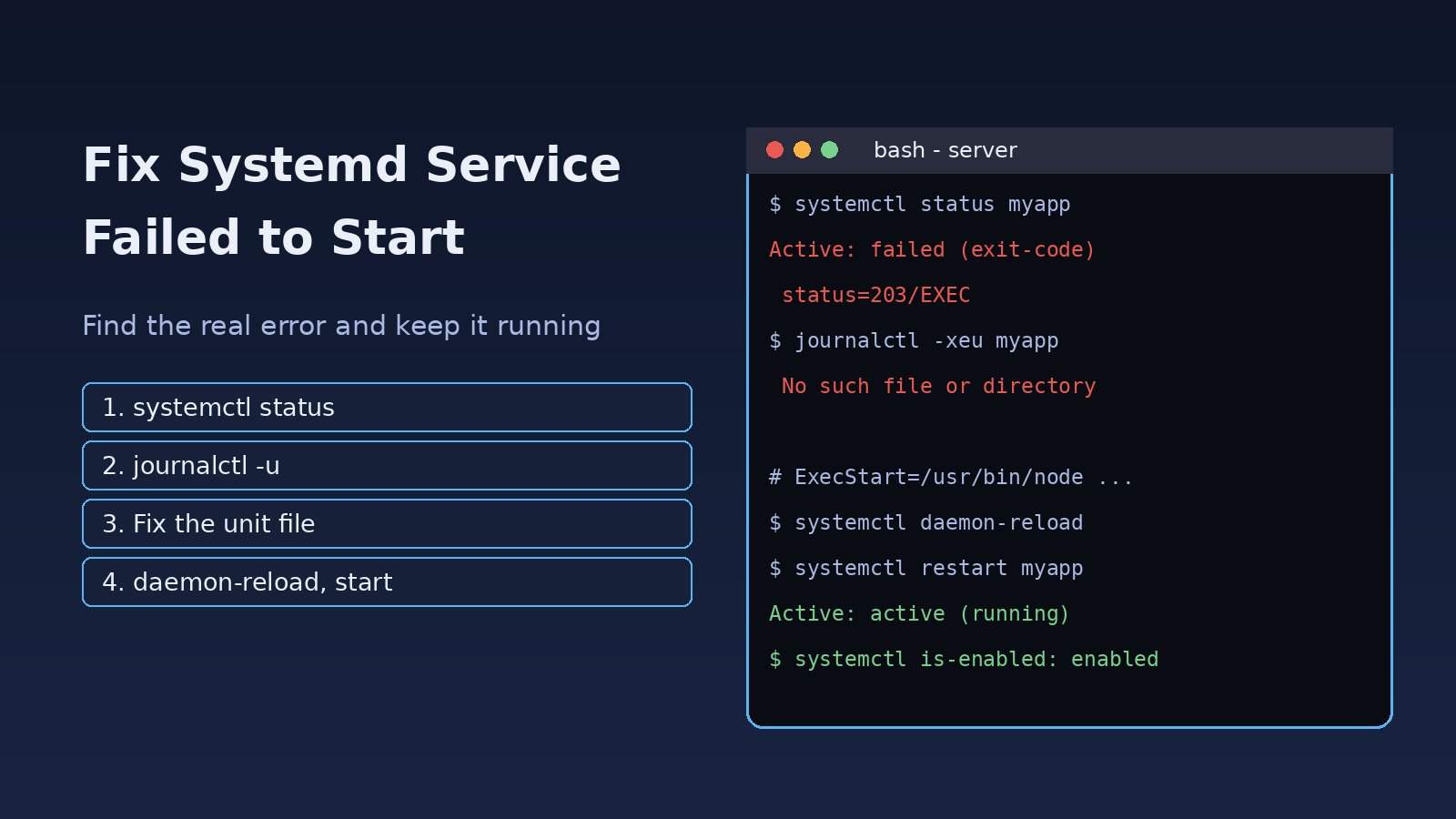
You deploy a new release, run sudo systemctl restart myapp, and get Job for myapp.service failed because the control process exited with error code. When a systemd service failed to start, the unit is usually fine and the real reason is hidden one level down: a wrong path in ExecStart, a missing environment variable, a permission problem, a port that is already taken, or a process that exits right after launch. This guide shows how to find that reason with systemctl status and journalctl, fix the unit file, and confirm the service stays up after a reboot.
Problem: Systemd Service Failed to Start
systemd starts the command in ExecStart and watches it. If that command exits with a non-zero code, is killed by a signal, never signals readiness, or dies too often, systemd marks the unit failed and stops trying. On application servers this shows up for Node.js APIs, Laravel queue workers, Gunicorn apps, Next.js servers, Nginx, PostgreSQL and Redis. Because systemd prints only a short summary, many people restart the service over and over instead of reading the actual error.
Symptoms
Job for myapp.service failed because the control process exited with error code.See "systemctl status myapp.service" and "journalctl -xeu myapp.service" for details.Active: failed (Result: exit-code)withstatus=203/EXEC,status=217/USER,status=200/CHDIRorstatus=1/FAILUREmyapp.service: Start request repeated too quickly.andFailed with result 'start-limit-hit'Failed to start myapp.service: Unit myapp.service not found.Active: failed (Result: timeout)afterstart operation timed out. Terminating.
Root Cause
1. ExecStart cannot be executed (203/EXEC)
The binary path is relative, wrong, not executable, or a script is missing its shebang line. systemd does not use your shell PATH, so ExecStart=node server.js or a path to an nvm-installed Node binary under another user's home often fails.
2. Wrong user, group or working directory (217/USER, 200/CHDIR)
The User= account does not exist, or WorkingDirectory= points to a folder that is missing or not readable by that user.
3. The application itself exits
The process starts, then crashes: missing .env values, a database that is not reachable yet, a syntax error after a deploy, or a port that is already in use. systemd only sees status=1/FAILURE; the real message is in the journal.
4. Wrong Type= or a start timeout
A program that forks into the background needs Type=forking, while a program that stays in the foreground needs Type=simple or Type=exec. With the wrong type systemd thinks the service died, or waits until TimeoutStartSec runs out.
5. Restart loop hits the start limit
With Restart=always and a service that crashes instantly, systemd retries until it reaches StartLimitBurst within StartLimitIntervalSec and then refuses further starts.
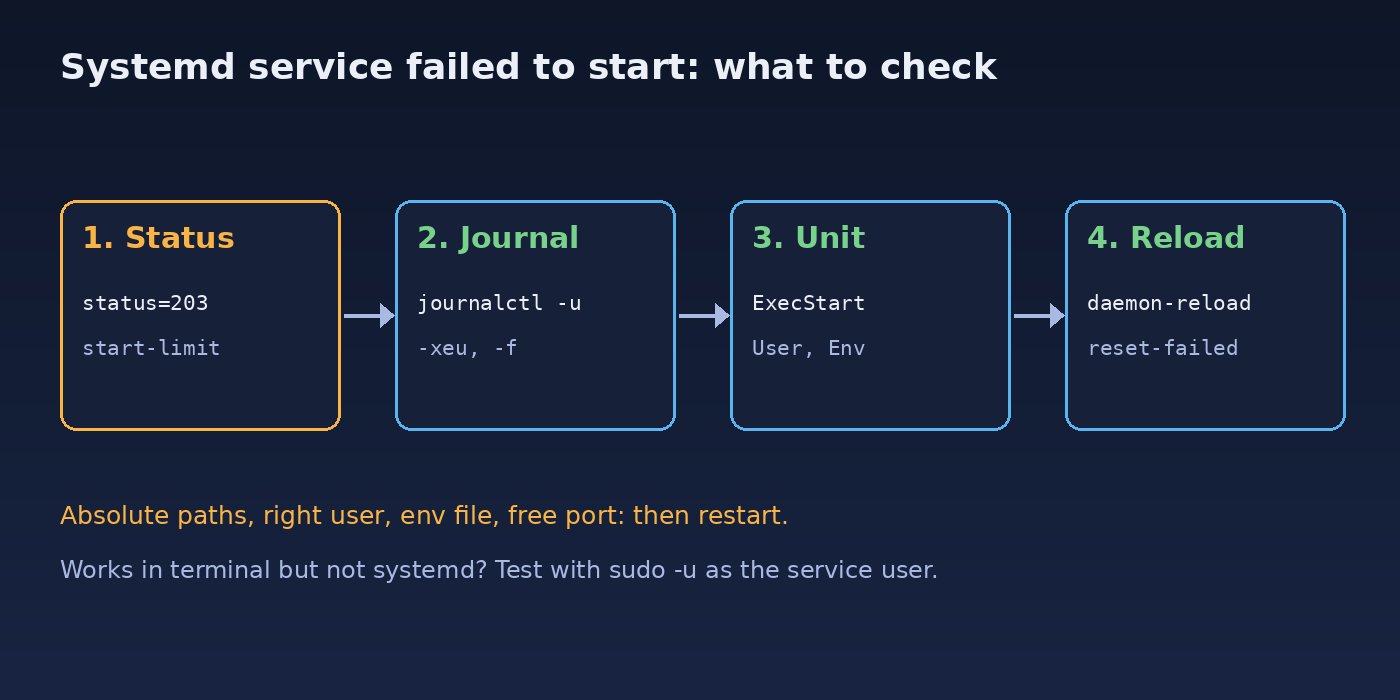
Step-by-Step Solution
Step 1: Check systemctl status for the exit code
sudo systemctl status myapp.service --no-pager -lLook at the Main PID or Process line. The text after status= tells you where to look next: 203/EXEC means the command could not run, 217/USER means the user is wrong, 200/CHDIR means the working directory is wrong, and 1/FAILURE means your application started and then exited with an error.
How to Read a Journalctl Service Error
The journal holds the full output of the service, including stack traces that systemctl status cuts off.
# logs for this unit since the last boot, newest at the end
sudo journalctl -u myapp.service -b --no-pager | tail -n 50

# explanations for the failure, jump to the end
sudo journalctl -xeu myapp.service

# follow live while you restart in another terminal
sudo journalctl -u myapp.service -f
Read the lines just before Main process exited. Typical messages are Error: listen EADDRINUSE: address already in use :::3000, SQLSTATE[HY000] [2002] Connection refused, Permission denied or No such file or directory.
Step 2: Inspect the unit file systemd is actually using
systemctl cat myapp.service
systemctl show myapp.service -p ExecStart -p User -p WorkingDirectory -p Type -p EnvironmentFiles
sudo systemd-analyze verify /etc/systemd/system/myapp.service
systemctl cat also shows drop-in overrides from myapp.service.d/, which are easy to forget. systemd-analyze verify reports typos such as unknown keys or a missing executable.
Step 3: Fix 203/EXEC with absolute paths
which node php python3
ls -l /opt/myapp/start.sh
head -n 1 /opt/myapp/start.sh   # must be a shebang such as #!/usr/bin/env bash
sudo chmod +x /opt/myapp/start.sh
Use the full path printed by which in ExecStart, for example ExecStart=/usr/bin/node /opt/myapp/server.js. On SELinux systems also check ls -Z; a binary in a home directory can be blocked even when the permissions look right.
Step 4: Run the command as the service user
Reproduce what systemd does. If it fails here, you will see the real error in your terminal:
sudo -u www-data bash -c 'cd /var/www/myapp && /usr/bin/php artisan queue:work --tries=3'Fix ownership if the user cannot read the code or write logs and cache: sudo chown -R www-data:www-data /var/www/myapp/storage. For Laravel-specific permission errors see Laravel storage permission denied.
Step 5: Load environment variables correctly
systemd does not read ~/.bashrc or /etc/profile. Put variables in the unit or in an environment file without export keywords:
[Service]
Environment=NODE_ENV=production
EnvironmentFile=/etc/myapp/myapp.env
Step 6: Free the port or wait for dependencies
If the journal shows EADDRINUSE, find what holds the port with sudo ss -ltnp | grep ':3000' and stop it; the full process is in how to fix address already in use on Linux. If the app fails because PostgreSQL or Redis is not ready, add ordering so systemd starts them first:
[Unit]
After=network-online.target postgresql.service redis-server.service
Wants=network-online.target
Step 7: Reload, reset and start again
sudo systemctl daemon-reload
sudo systemctl reset-failed myapp.service
sudo systemctl start myapp.service
sudo systemctl status myapp.service --no-pager
Forgetting daemon-reload after editing a unit is a common reason a fix seems to have no effect. reset-failed clears the start-limit-hit state so you can start the service again.
Code and Commands: A Working Unit File Example
This is a solid baseline for a long-running app such as a Node.js API or a Laravel queue worker:
# /etc/systemd/system/myapp.service
[Unit]
Description=My App API
After=network-online.target
Wants=network-online.target

[Service]
Type=simple
User=www-data
Group=www-data
WorkingDirectory=/var/www/myapp
EnvironmentFile=/etc/myapp/myapp.env
ExecStart=/usr/bin/node /var/www/myapp/server.js
Restart=on-failure
RestartSec=5
TimeoutStartSec=60

[Install]
WantedBy=multi-user.target
For a Laravel worker change ExecStart to /usr/bin/php /var/www/myapp/artisan queue:work redis --sleep=3 --tries=3. Queue setup itself is covered in Laravel queue with Redis.
To change a packaged unit such as nginx.service, never edit the file in /lib/systemd/system. Create an override instead, then reload:
sudo systemctl edit nginx.service
# add, for example:
# [Service]
# LimitNOFILE=65535
sudo systemctl daemon-reload && sudo systemctl restart nginx
For Nginx, PHP-FPM and similar daemons, test the config before restarting: sudo nginx -t or sudo php-fpm8.3 -t (use your PHP version). A config syntax error is one of the most common reasons these services fail to start.
Verification
systemctl is-active myapp.service      # active
systemctl is-enabled myapp.service     # enabled
systemctl --failed                     # myapp should not be listed
sudo journalctl -u myapp.service -n 20 --no-pager
curl -I http://127.0.0.1:3000/health
Run sudo systemctl enable myapp.service if it is not enabled, then reboot a staging server once and check that the service comes back on its own.
Prevention
- Always use absolute paths in
ExecStartand setUserandWorkingDirectoryexplicitly. - Run
systemd-analyze verifyand a manualsudo -utest after every unit change. - Use
Restart=on-failurewithRestartSecso a brief outage does not trigger the start limit. - Keep secrets in an
EnvironmentFileowned by root with mode 600. - Add a deploy step that runs
systemctl is-activeand fails the pipeline if the service did not come up. - Watch disk space; services that cannot write logs or PID files fail too, see no space left on device in Ubuntu.
FAQs
How do I see why a systemd service failed?
Run systemctl status name.service for the exit code, then journalctl -u name.service -b for the full application output. The lines before "Main process exited" usually contain the real error.
What does status=203/EXEC mean?
systemd could not execute the ExecStart command: the path is wrong or relative, the file is not executable, or a script has no shebang.
How do I fix start request repeated too quickly?
Fix the crash shown in the journal first, then run systemctl reset-failed name.service and start it again. Adding RestartSec=5 reduces rapid retries.
Why does my service work in the terminal but not under systemd?
systemd runs it with a different user, a minimal PATH, no shell profile and a different working directory. Set these in the unit file and test with sudo -u.
Do I need daemon-reload after editing a unit file?
Yes. Run sudo systemctl daemon-reload after any change to a unit or override, otherwise systemd keeps using the old version.
Comments
Join the discussion. Replies load on demand, up to 5 levels.
0 threads
No comments yet
Be the first to start the conversation.